What are seat types and permission sets in SafetyCulture?
In SafetyCulture, access to a feature is controlled by two things: seat type and permission set.
Seat Type
Seat type determines the price point and the broad level of access a user has. SafetyCulture offers three seat types:
Full seats: Full seats are the foundation of a SafetyCulture organization, tailored for managers and team members, and give users full access to all SafetyCulture features, subject to their permission sets.
Lite seats: Lite seats are what you might assign to most of your frontline workers and general staff. Users in the lite seat have full access to the Training feature.
Guest seats: Guest seats are available at no additional cost but do not include access to Training.
Permission sets
Permission sets determine which features a user can use across the platform. By default, SafetyCulture includes the following permission sets: Administrator, Manager, Standard, Basic, and Guest.
Not everyone on your team needs the same level of access, so seat types and permission sets let you match what each user can do with what they actually need, so you're not paying for more than that.
Changing the seat types for users is only available to organizations on Premium Plan or Enterprise Plan. If your organization is on the Free Plan, then all users are in full seats by default.
What seat type and permission set will I be assigned?
During your migration, we’ll automatically map your existing EdApp roles to the appropriate permissions in SafetyCulture. You’ll receive the following recommended setup, but you can always customize permission sets by managing users via CSV or Excel.
EdApp role | SafetyCulture seat | SafetyCulture permission set |
|---|---|---|
Owner | ||
Admin | ||
Facilitator | ||
Manager | ||
Content reviewer | ||
Restricted author | ||
Content author | "Training: Manage teams" permission "Training: Create courses (restricted)" permission | |
Learner |
What do Training permissions include?
You need at least a lite seat to access training records and course progress.
Features | Permission sets | |||||
|---|---|---|---|---|---|---|
SafetyCulture Administrator | “Training: Administration” | “Training: Manage teams” | “Training: Create courses (restricted)” | “Training: Manage content (all)” | “Training: Access” | |
Seat type | ||||||
Yes | No | No | No | No | No | |
Yes | No | No | No | No | No | |
Yes | Yes | Yes | Yes | Yes | Yes | |
Create, edit, share, and preview courses | Yes | Yes | No | Yes | Yes | No |
Yes | Yes | No | No | Yes | No | |
Start group training sessions and conduct practical assessments | Yes | Yes | Yes | No | No | No |
Yes | Yes | No | No | No | No | |
Yes | Yes | No | No | No | No | |
Yes | Yes | Yes | Yes | Yes | Yes | |
View performance dashboard, course completion by users, quiz performance by users, and training matrix | Yes | Yes | Yes | No | No | No |
View Spaced Repetition (formerly Brain Boost) analytics | Yes | Yes | No | No | No | No |
Yes | Yes | No | No | Yes | No |
What is Training-only mode?
Training-only mode gives lite seat users a simplified view of SafetyCulture, focused entirely on the Training feature. Instead of seeing the full SafetyCulture navigation, users only see what's relevant to their training responsibilities. This is useful for EdApp users who are migrating to Safetyculture and don't need access to other SafetyCulture features like Inspections or Assets.
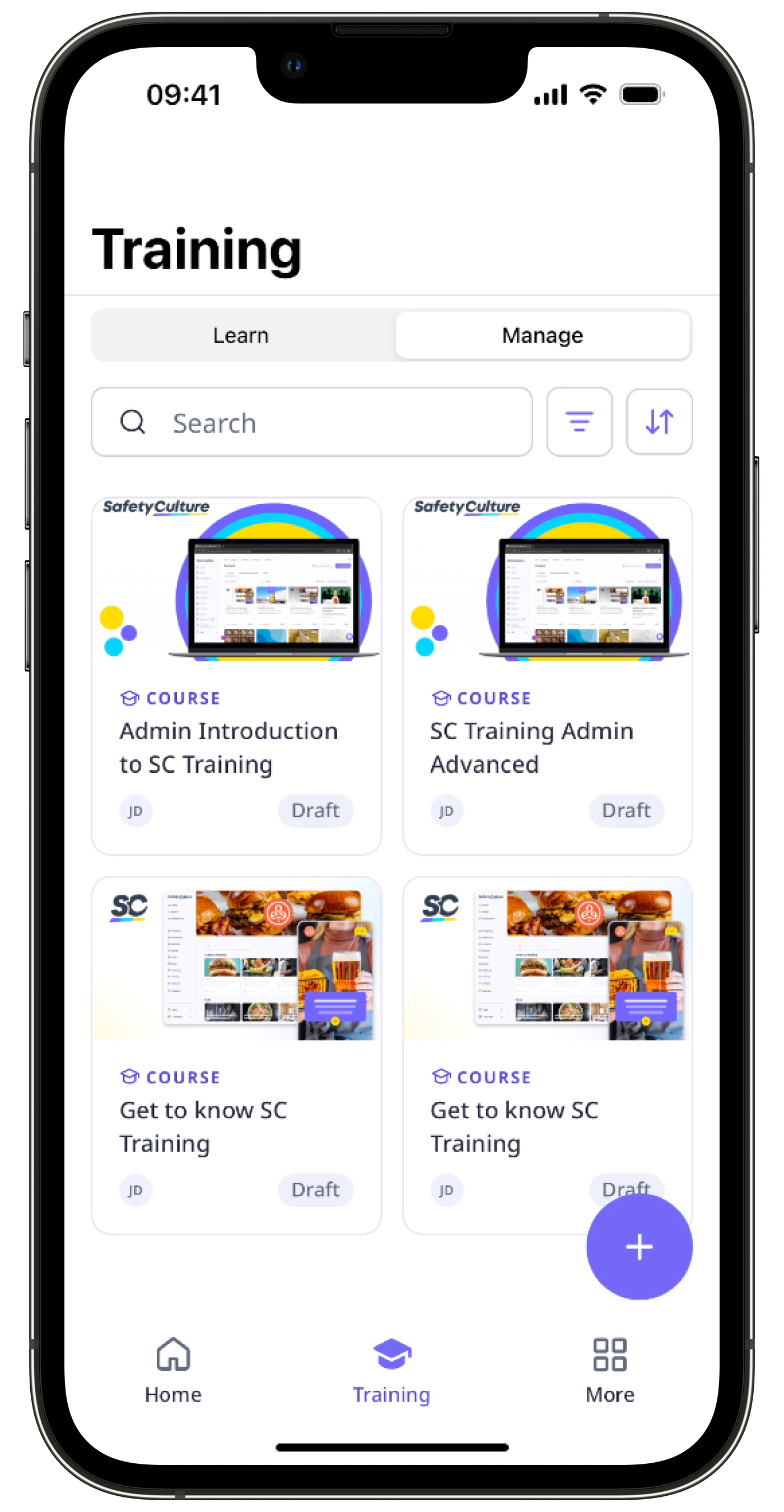
When Training-only mode is on, users in a lite seat with relevant Training permissions can:
Start and complete courses
Create, edit, assign, and publish training
Start group training sessions and conduct practical assessments
View the performance dashboard, course completion by users, quiz performance by users, training matrix, Spaced Repetition (formerly Brain Boost) analytics, and survey responses
View Heads Up messages
Upload and manage own credentials
Training-only mode is currently in Early Access and needs to be turned on by an admin. Contact your customer success manager to check if your organization is eligible.