How does Course Completion by User work?
Course Completion by User shows each user's progress for the courses they've been assigned. It helps you see who has completed their training and who still has courses in progress. You can view progress for all active users, as well as deactivated users who have logged in and started a course.
Progress is calculated based on the current published version of a course. If a new lesson has been added since a user last completed the course, their progress may appear lower than expected. By understanding each user’s progress, you can identify gaps and follow up where support is needed to help your team complete their training more effectively.
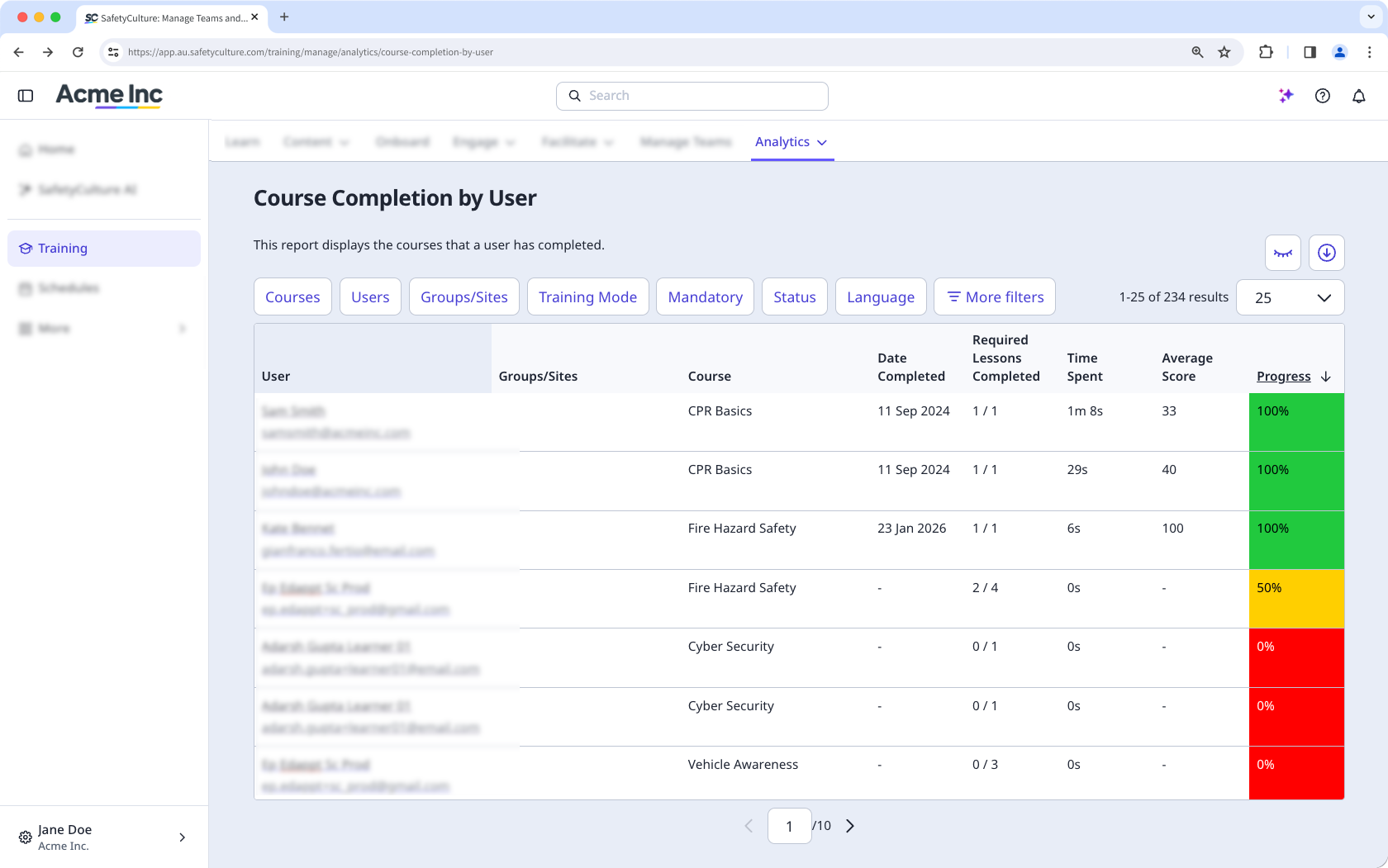
Course Completion by User provides a simple view of which courses each user is assigned to and how they're progressing. The training matrix offers an easy way to assess each user's competencies based on what training they're required to complete.
If you want to view training performance across your organization in detail, consider using the performance dashboard.
What you'll need
By default, you can only facilitate training and view data from users in groups and sites for which you're a team manager. If you have "Training: Administration" permission, you can facilitate training and view data from all users in your organization.
View Course Completion by User
Click Training from the sidebar or in More.
Click Analytics at the top of the page and select Course Completion By User.
On this page, you can review each user's progress in their assigned courses at a glance, including deactivated users. Click each user to drill down into lesson-level details for their currently assigned courses.
Customize how you want to view your training data using the following options:
Click to narrow down your results.
Click to show and hide columns in tables.
Click to export the data as CSV.
Filter data by relevance
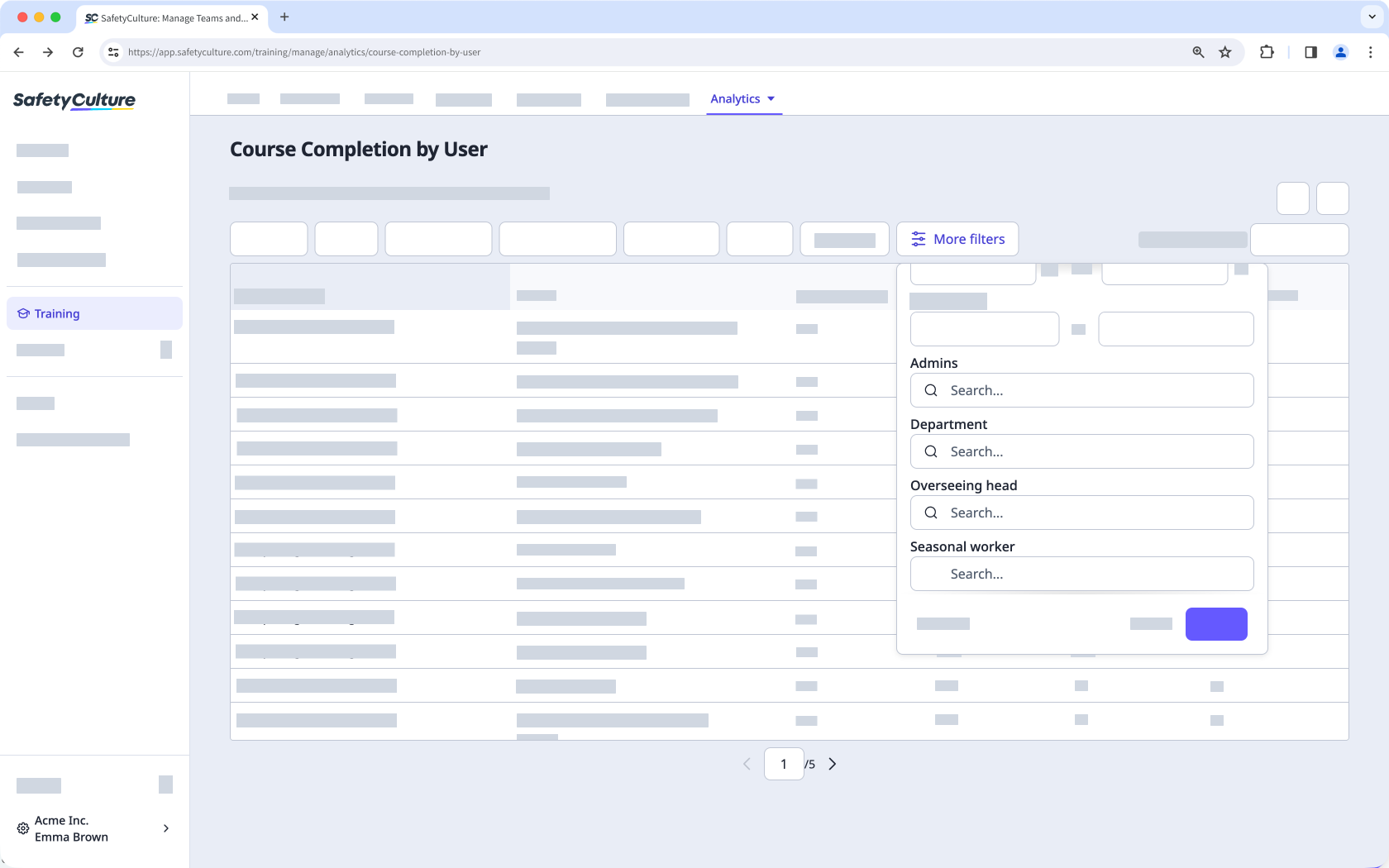
View the data that's most relevant to you by clicking and selecting the filters you want to show as columns. By clicking More filters, you can access filters that are helpful for day-to-day work.
User fields
Use this filter to view data from users based on their user fields.
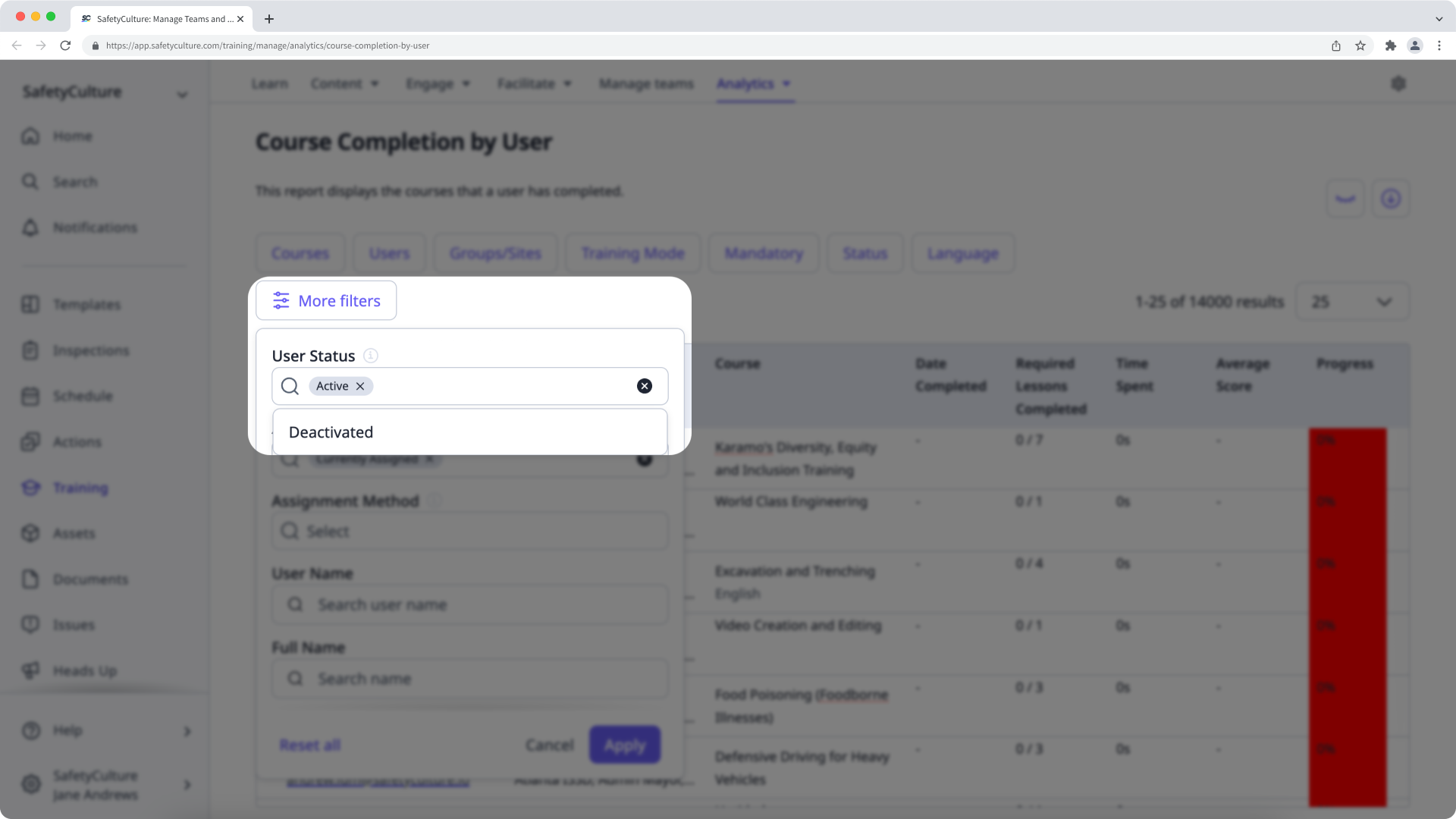
User status
Use this filter to view data from courses completed by active or deactivated users.
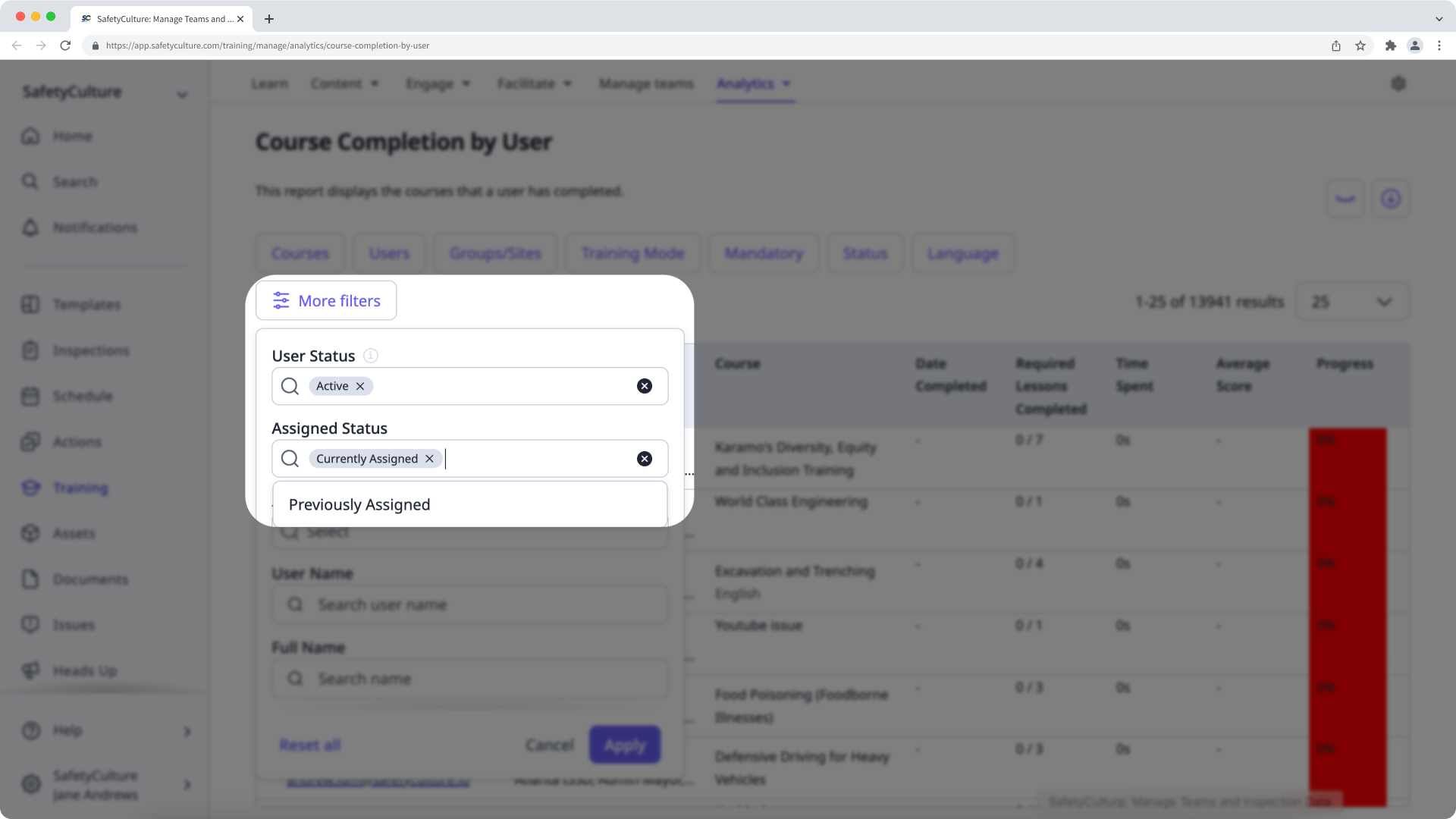
Assigned status
Use this filter to view data from courses even if the users no longer have access to them.
Limitations
When you filter by Assigned status, you'll only see a previously assigned course if at least one assigned user started it.
Lesson-level data is only available for currently assigned courses. You won't see lesson-level details for previously assigned courses, even if a user started the course.
Training course data may take some time to sync and appear. We're working to make this faster.