
For a faster, near real-time view of training progress, use the training matrix in Analytics.
What is the training matrix?
The training matrix provides a comprehensive view of mandatory training and competencies for your workforce. Using the training matrix, you can easily conduct training needs analysis, ensuring that each user, group, or site is compliant with its training requirements. By streamlining the management of employee development and compliance, the training matrix makes it easier to identify and address training gaps effectively.
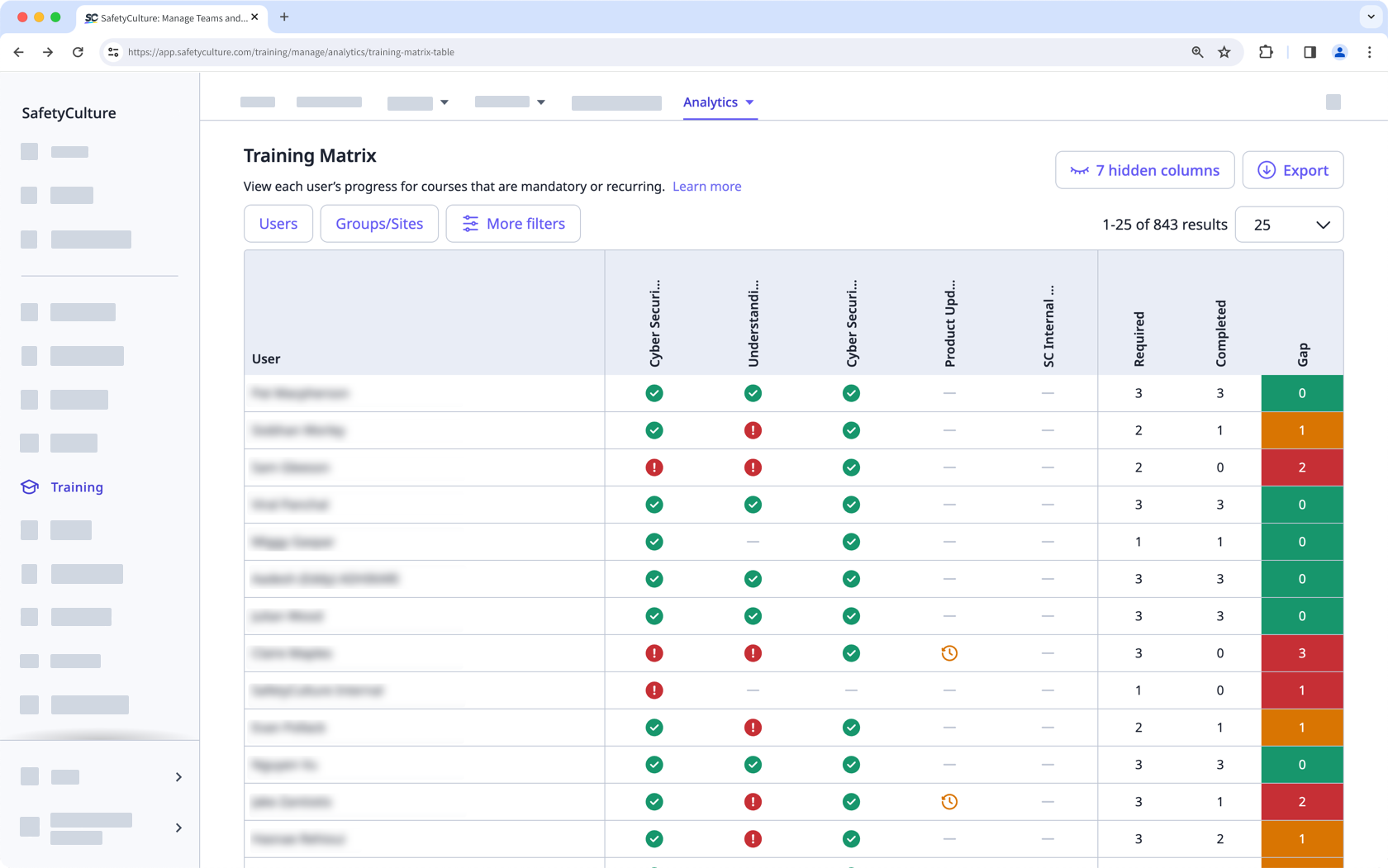
Course Completion by User provides a simple view of which courses each user is assigned to and how they're progressing. The training matrix offers an easy way to assess each user's competencies based on what training they're required to complete.
If you want to view training performance across your organization in detail, consider using the performance dashboard.
What you'll need
By default, you can only facilitate training and view data from users in groups and sites for which you're a team manager. If you have "Training: Administration" permission, you can facilitate training and view data from all users in your organization.
View the training matrix
Select Training in the sidebar or select it in More.
Click Analytics at the top of the page and select Training Matrix.
On this page, you can review each user's progression against mandatory and recurring courses in your organization, including deactivated users. You can also identify how many courses each user is required to complete, has completed, and how many are yet to be completed as the gap.
You can click on the upper-right of the page to show or hide courses and other columns in the table.
Customize how you want to view your training data using the following options:
Click to narrow down your results.
Click to show and hide columns in tables.
Click to export the data as CSV.
Training matrix statuses
: The course has been completed.
: The course hasn't been started yet.
: The course has been started but hasn't been completed yet. If the course is due in less than 14 days, the status becomes .
: The course hasn't been completed yet and it's due in less than 14 days.
: The course hasn't been completed yet and is past its due date.
: The course is not assigned to the user for completion.
Limitations
Users need to have "Training: Access" permission to be included in the training matrix.
The training matrix table and CSV export only support displaying data from up to 100 courses, sorted from courses with the most users assigned.
Training course data may take some time to sync and appear in the performance dashboard, course completion by users, and the training matrix.


