What is Group Training?
Training in SafetyCulture is a great way to deliver workplace training in bite-sized chunks that can be accessed on any device. However, we understand that training for certain training topics may be best provided in group settings, so activities and discussions can be facilitated. Group training allows you to present any course in a slideshow style and capture your team's attendance so that their learning is recorded.
What you'll need
"Training: Manage content (all)" permission is required to edit and enable group training for a course.
Enable group training for a course
Select Training in the sidebar or select it in More.
If you're on the "Learn" page, click Content at the top of the page and select Courses.
You can choose how you want to view your courses by selecting between or on the upper-right of the page.
Select the course.
If the course is published, click Edit on the upper-right of the page.
Click Set up at the top of the page.
Scroll to the "DELIVERY" section and turn Group Training on.
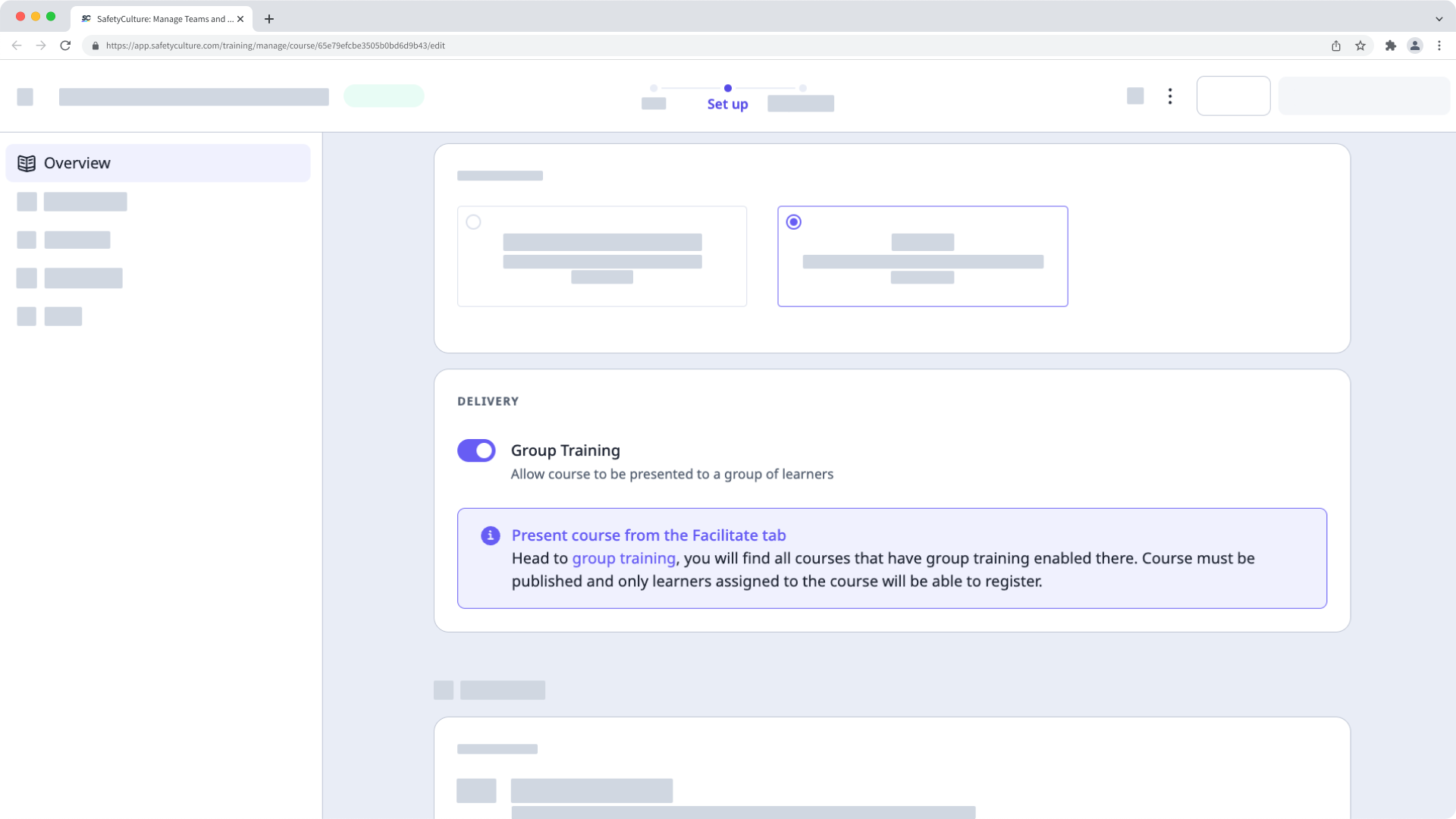
Changes are saved automatically.
If your course is currently a draft, remember to publish it to make your changes available to your team.
By default, you can only facilitate training and view data from users in groups and sites for which you're a team manager. If you have "Training: Administration" permission, you can facilitate training and view data from all users in your organization.
Start a group training session
Select Training in the sidebar or select it in More.
Click Facilitate at the top of the page and select Group Training.
Hover your cursor over the course and click Start session.
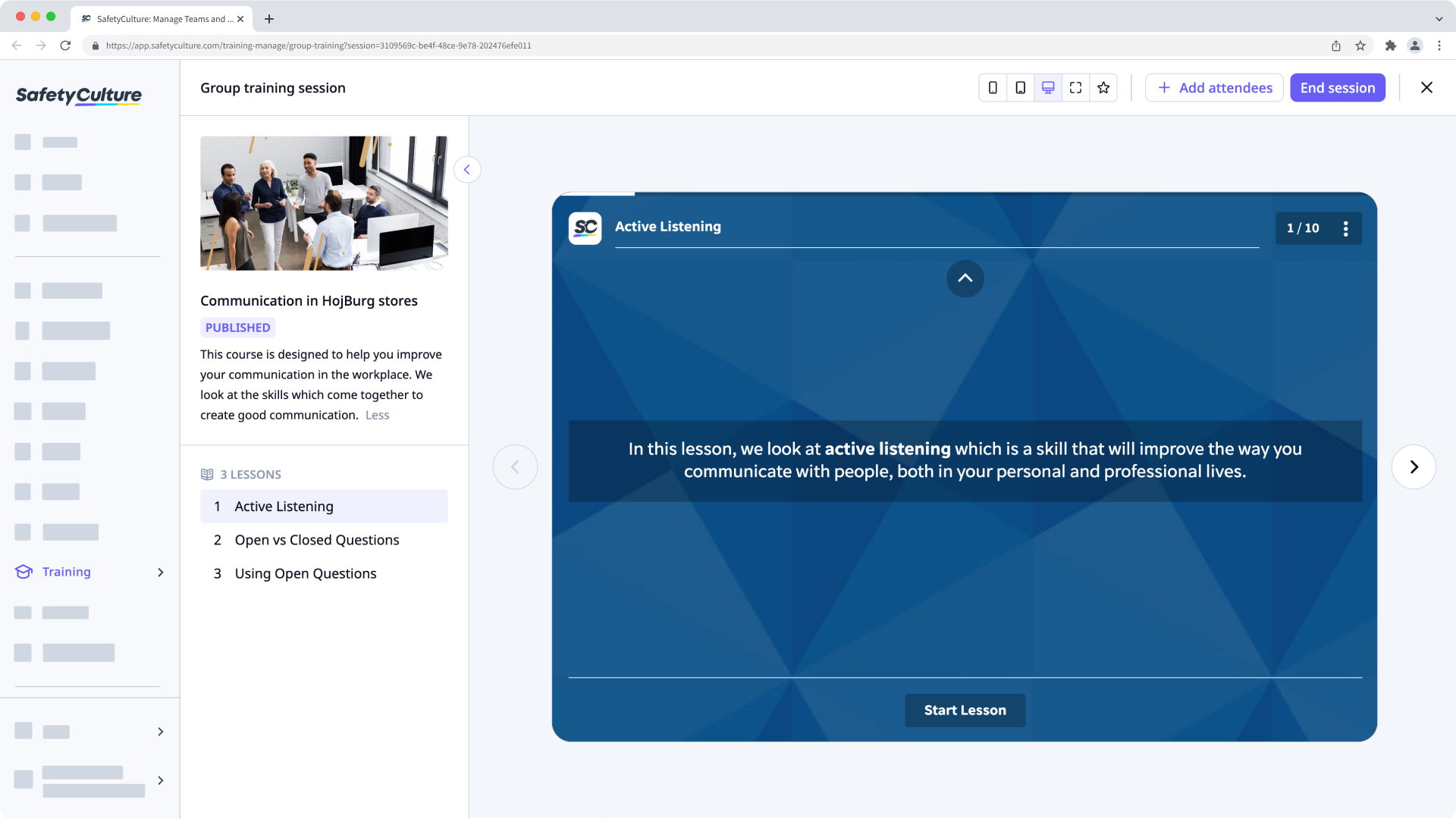
On this page, you can interact with the following settings and navigation:
Dimension: Change the dimension of your lesson slides at the top of the page.
Attendees: Click Add attendees on the upper-right of the page to add users who are part of your session.
Lessons: Navigate through each lesson and their slides on the left-hand side and at the center of the page.
Once the session is complete, click End session on the upper-right of the page.
In the pop-up window, click End session. This also marks the users who attended the group training as having completed the course.
View a session report
Select Training in the sidebar or select it in More.
Click Facilitate at the top of the page and select Group Training.
Hover your cursor over the course, click and select View session report.
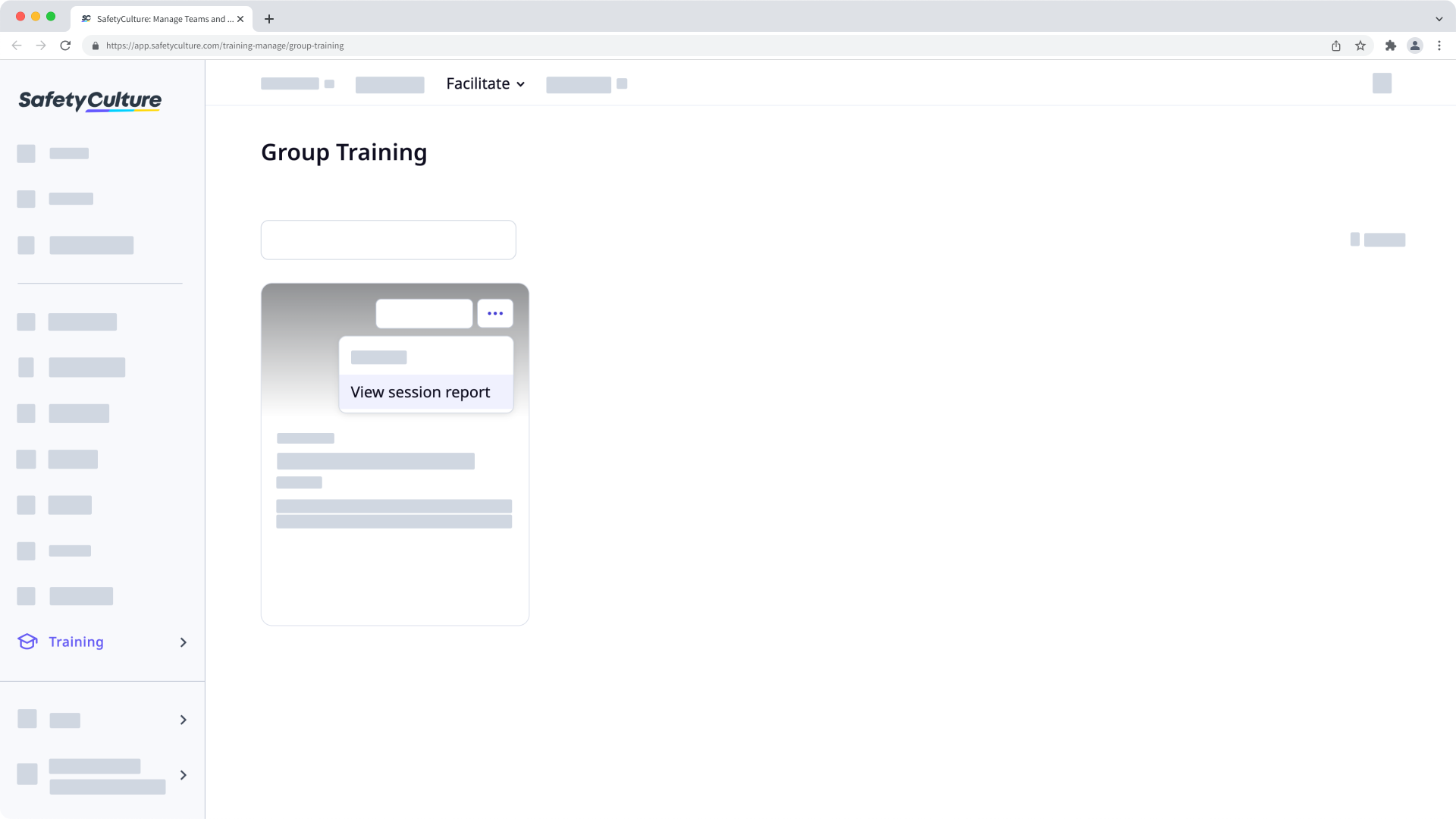
On this page, you can navigate between sessions on the left-hand side. For each session, you can view when and who attended it. If required, you can also export the record from all or individual sessions.