What are seat types?
We understand that in an organization, each team member has different responsibilities and tasks. To help organizations optimize their spending when it comes to using SafetyCulture, we offer three different seat types at varying price points:
Full seats
Lite seats
Guest seats (free)
This means that you only need to pay for the specific job requirements of each team member, ensuring that your investment in SafetyCulture is cost-effective and tailored to your needs.
Changing the seat types for users is only available to organizations on Premium Plan or Enterprise Plan. If your organization is on the Free Plan, then all users are in full seats by default.
What you'll need
If your organization has no full seat or lite seat available, you’ll need "Platform management: Billing" permission to change users to those seat types. You will be billed a pro-rated amount for each full seat or lite seat you purchase from changing users' seat type.
Change a user's seat type
Click your organization name on the lower-left corner of the page and select Users.
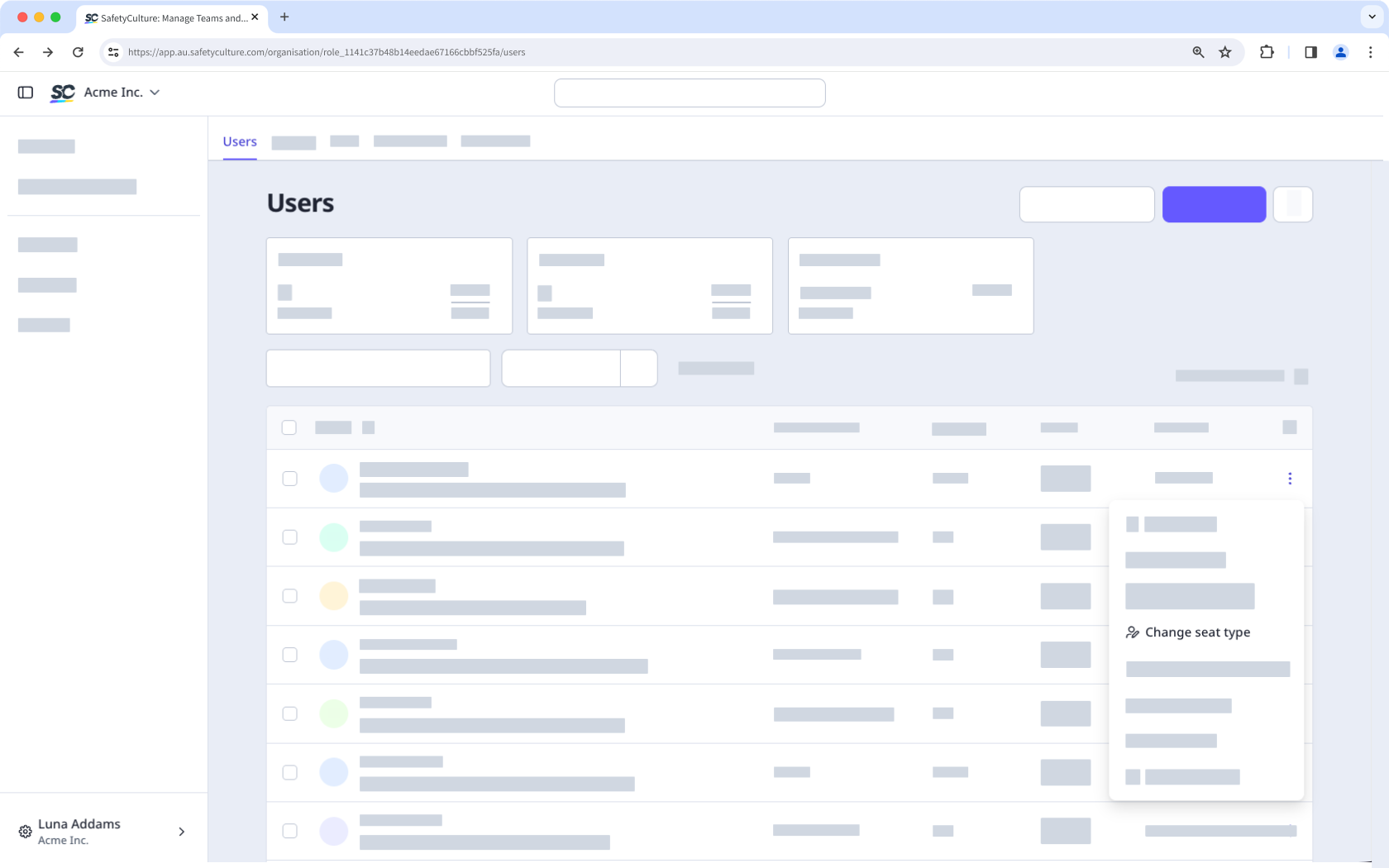
Click on the user's right-hand side and select Change seat type.
In the pop-up window, click the dropdown menu and select the seat type.
Click Confirm. Once updated, the user's permission set will also be updated to the selected seat type's default permission set.
Changing the seat type for your own account is not supported. If you want to change the seat type for yourself, please contact any user in your organization with the "Platform management: Users" permission for them to make the change.
Bulk change users' seat types
Click your organization name on the lower-left corner of the page and select Users.
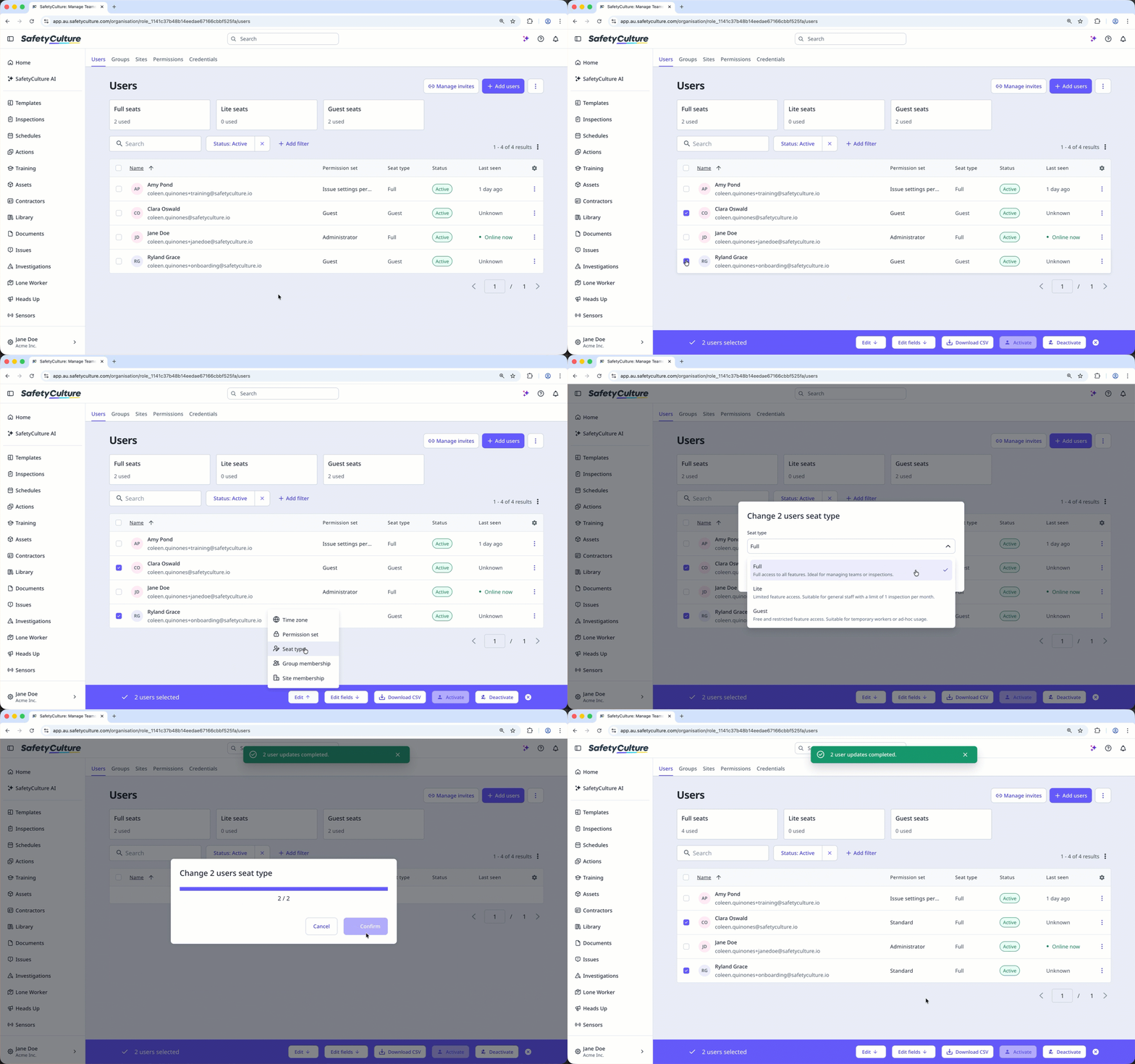
Check the boxes on the left-hand side of the users' names.
On the bottom of the page, click Edit and select Seat type.
In the pop-up window, select the seat type you want to change the users' seats to and click Confirm. Once updated, the users' permission sets will also be updated to the default permission set for the seat type.