
What are credentials?
Credentials are the workforce qualifications your team needs to track and renew. These include certifications and external licenses, such as driver's licenses, first aid certificates, and high-risk work licenses. As an admin, you can organize credentials by type, add qualifications across your workforce, approve or reject submissions, and configure credential settings in your organization. Users can also submit and update their own credentials directly.
Each credential captures an issue date, expiration date, approval status, and version history. Use this to monitor renewals and confirm users meet role requirements before starting work. You can upload credentials in bulk via CSV or download credentials for reporting (opens in new tab). This gives you full visibility of qualifications across the workforce and connects to onboarding workflows (opens in new tab) to support compliance.
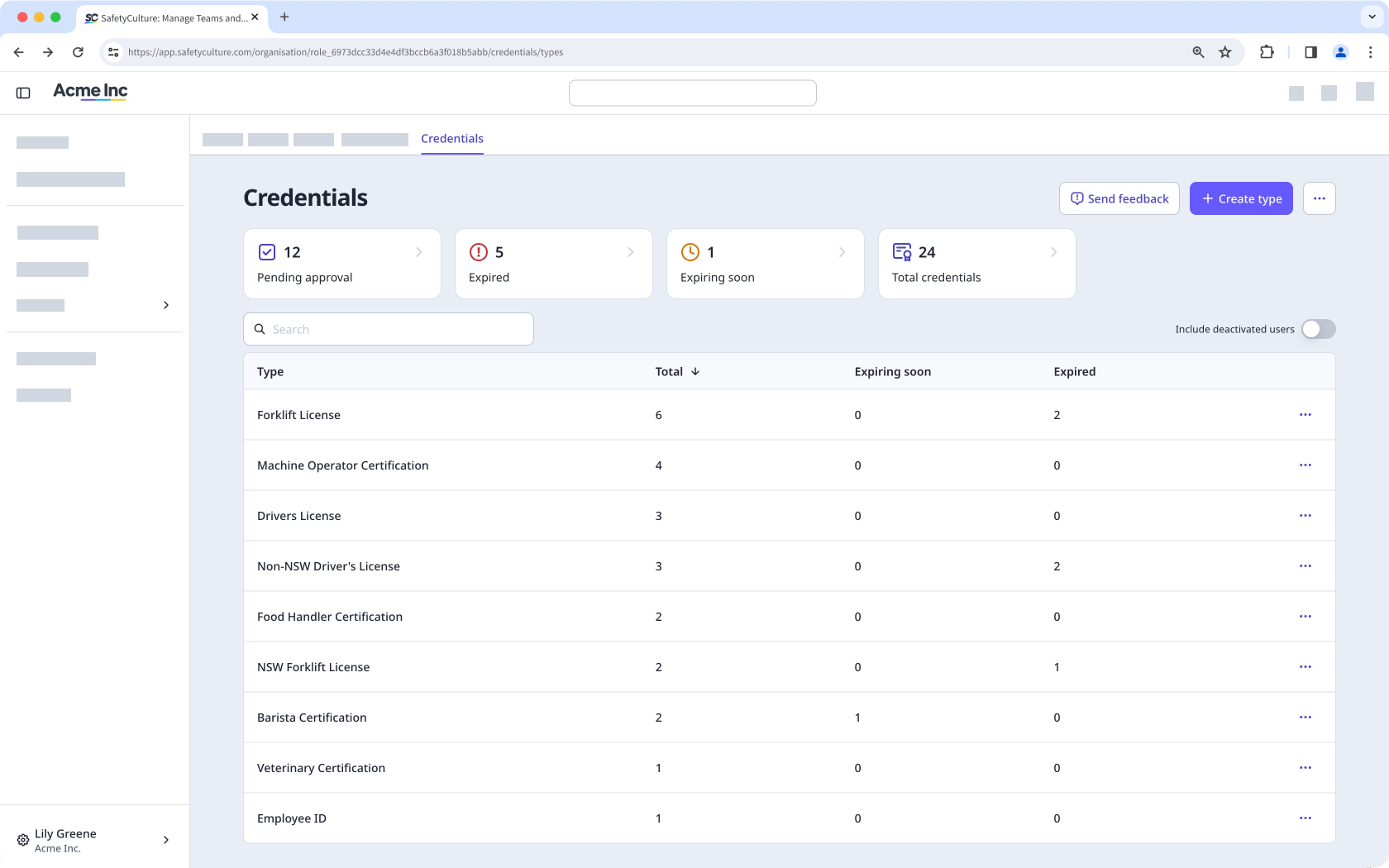
Users can customize their notification settings to be notified when their credential is about to expire.
What you'll need
If you have "Platform management: Credentials" permission, you can also manage another user's credentials in your organization.
Add your credential
Click your username on the lower-left corner of the page and select My profile.
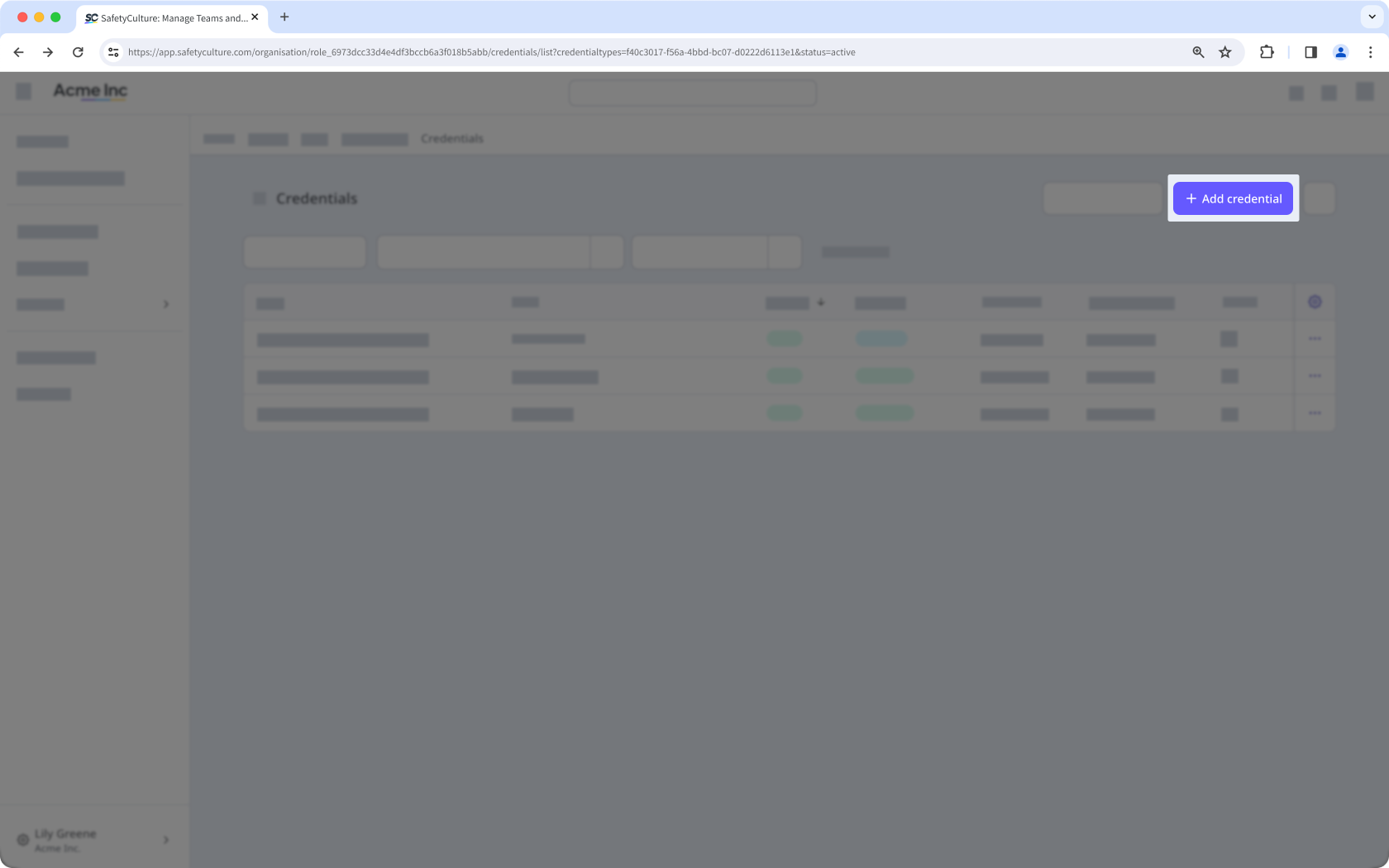
Click Add credential on the right-hand side of the page.
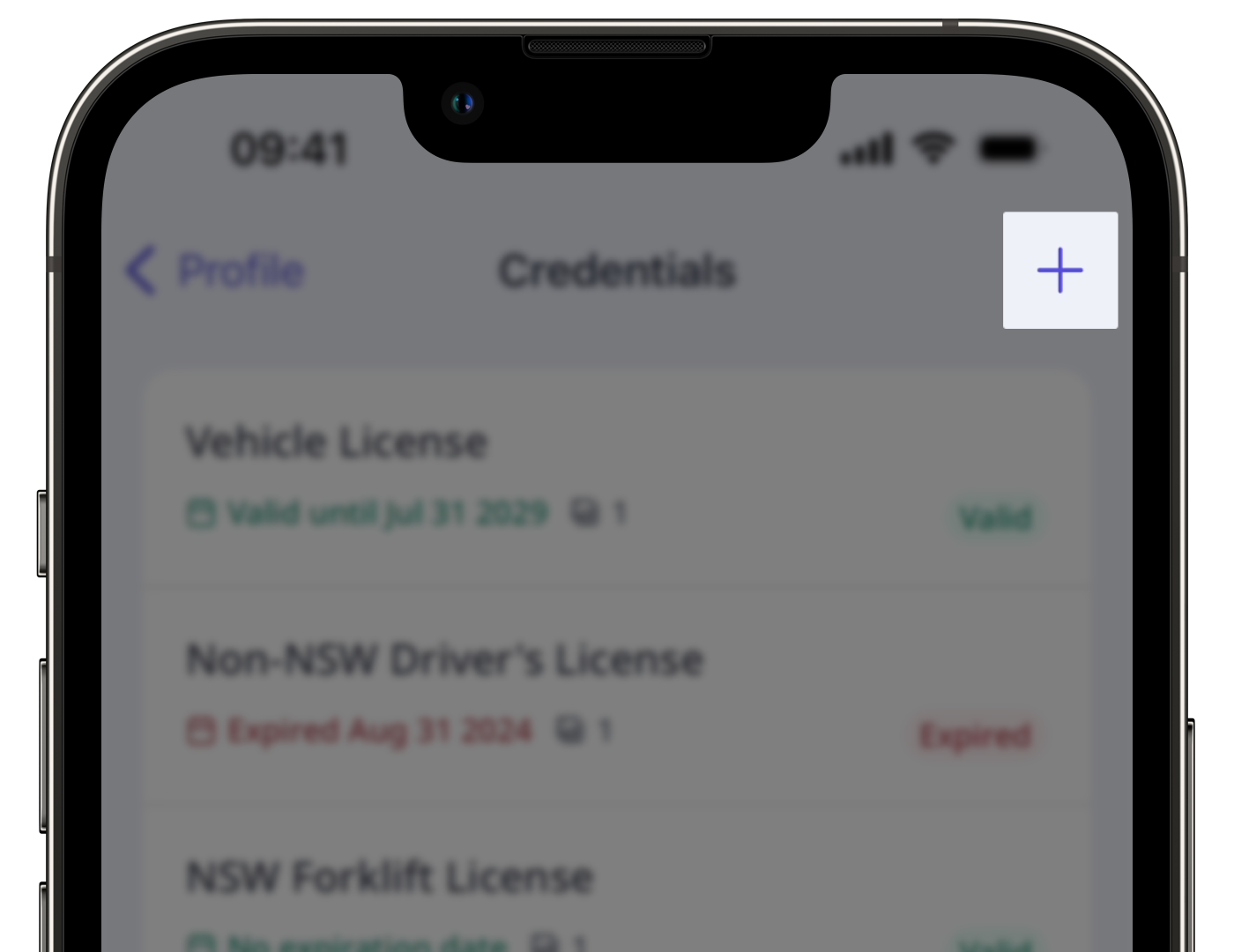
Upload photos or PDF files of your credential.
Enter the following required credential details:
Credential type: The type of a credential. For example, "Driver's license".
Issue date: The issue date of a credential.
Expiration date: The expiration date of a credential.
Click Save.
Edit your credential
Click your username on the lower-left corner of the page and select My profile.
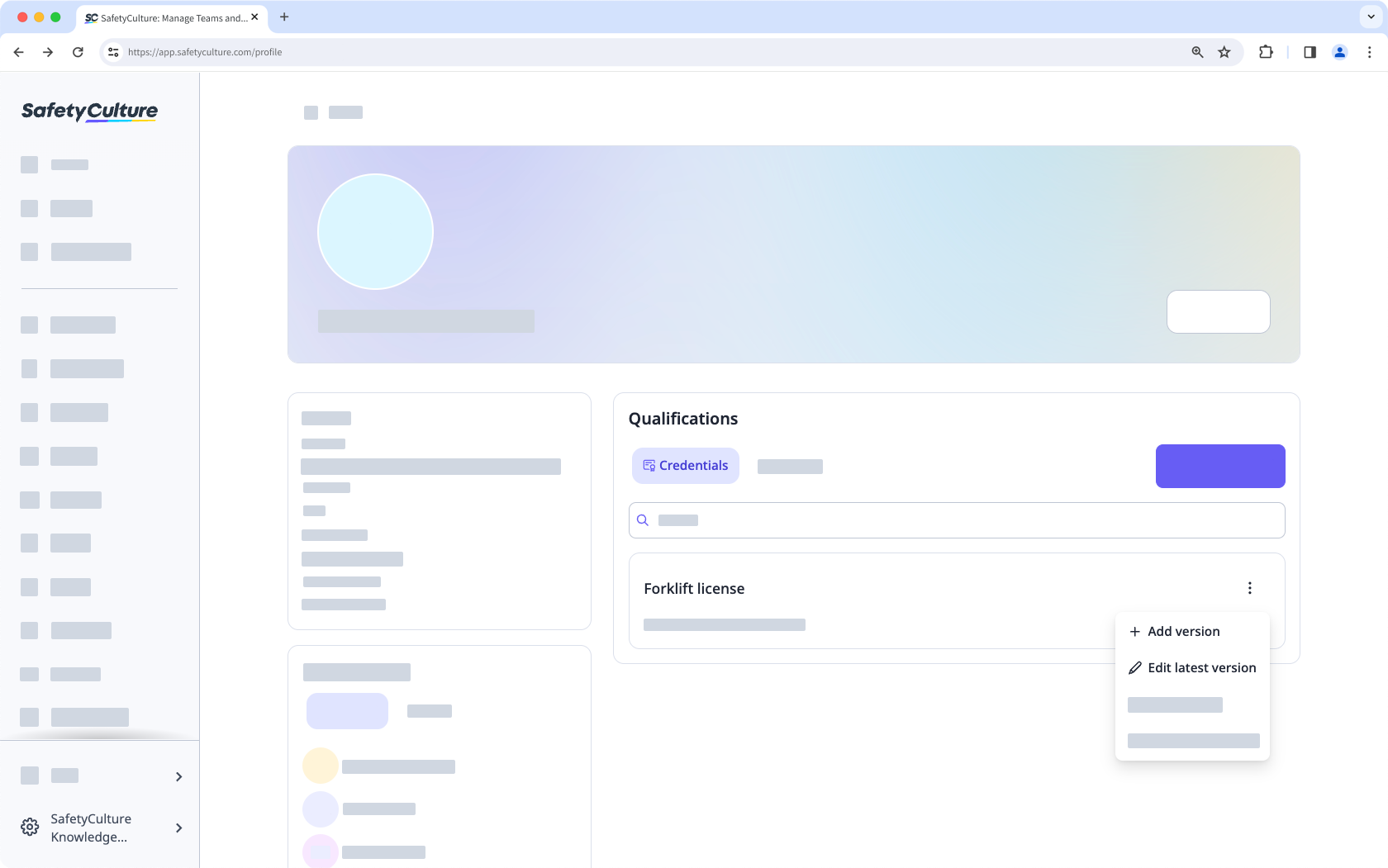
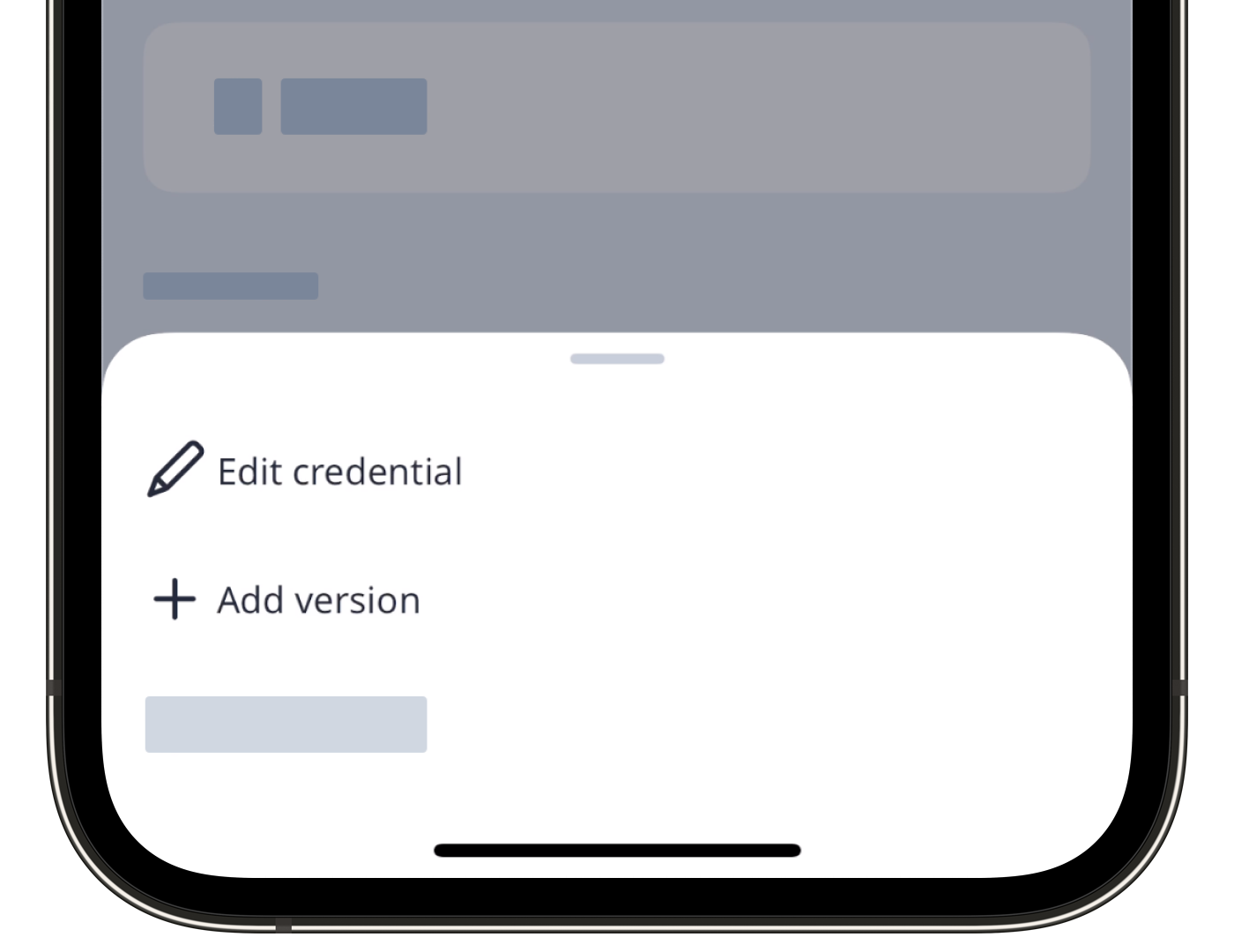
Click on the credential's right-hand side.
Select Add version or Edit latest version to create a new credential version or update an existing one.
Update the credential accordingly.
Click Save.
View your credential's history
Click your username on the lower-left corner of the page and select My profile.
Click on the credential's right-hand side, and select View history.
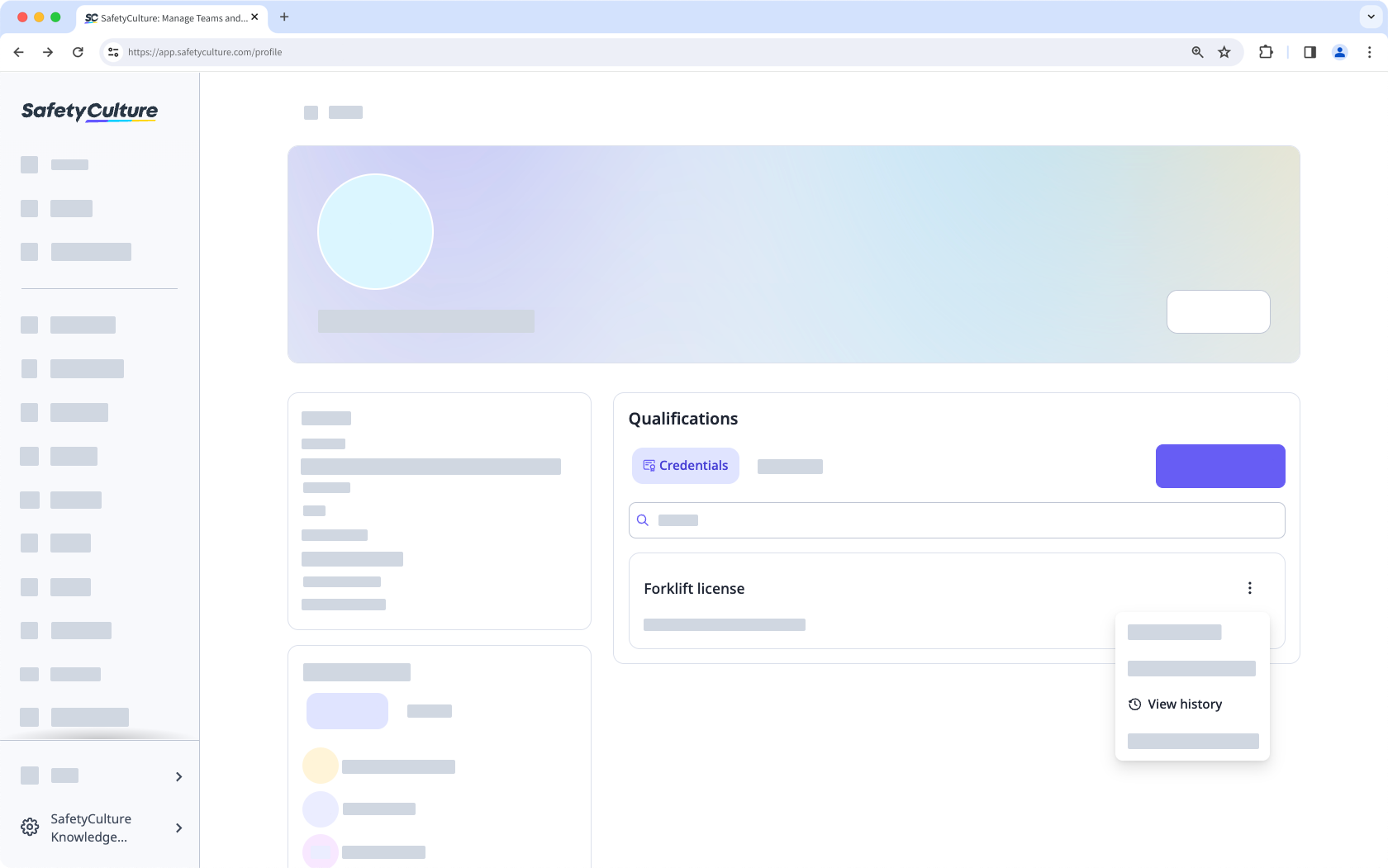
On this page, you can view all versions of the credential and select any of the versions to view more details.
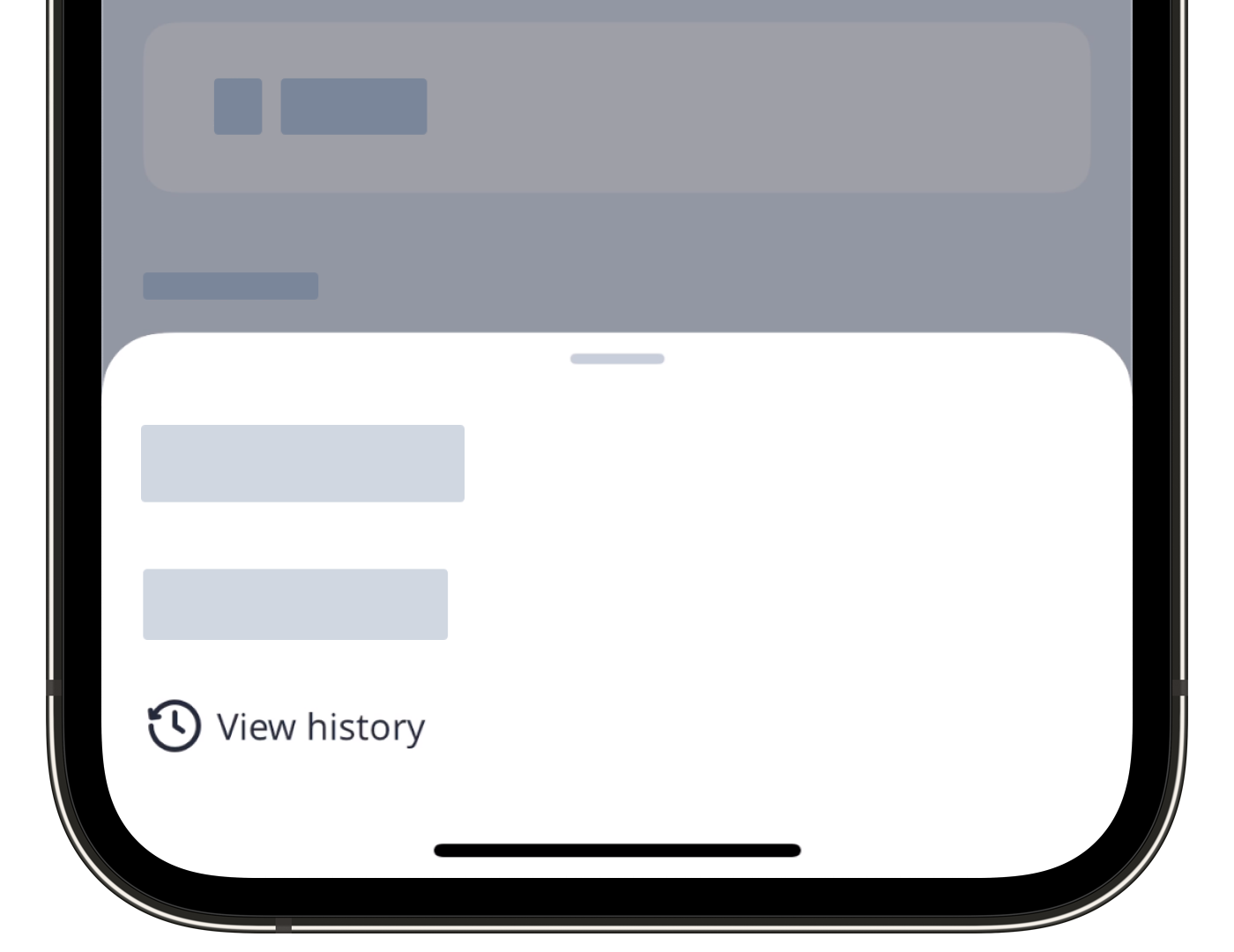
View your credential version’s activity
Click your username on the lower-left corner of the page and select My profile.
Select a credential.
Click Activity from the tab on the left-hand side of the page.
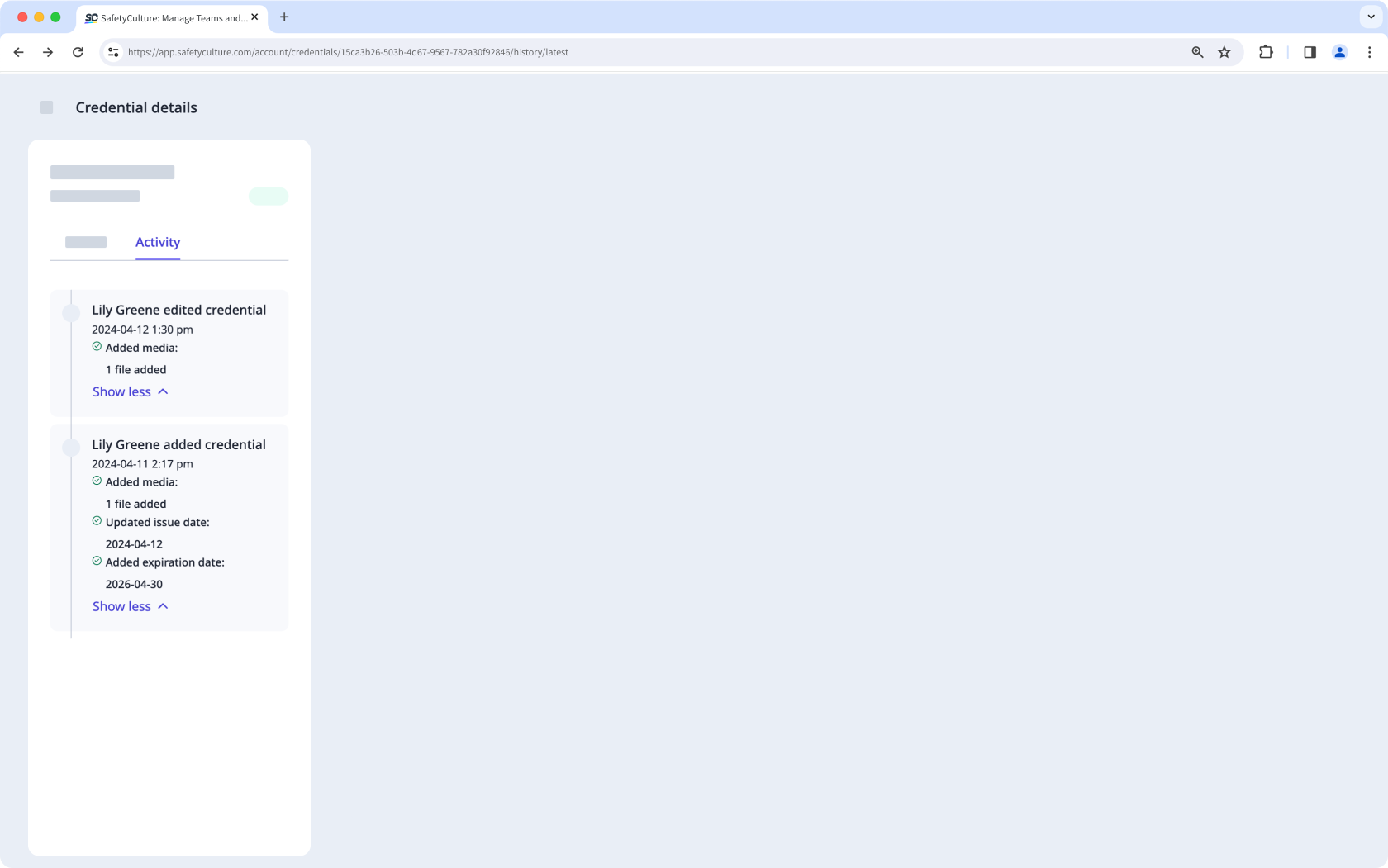
In this tab, you can view changes made to the following fields of the user’s credential over time:
Issue date
Expiration date
Media files
View your credential’s approval status
Click your username on the lower-left corner of the page and select My profile.
Select or search for the credential you want to view.
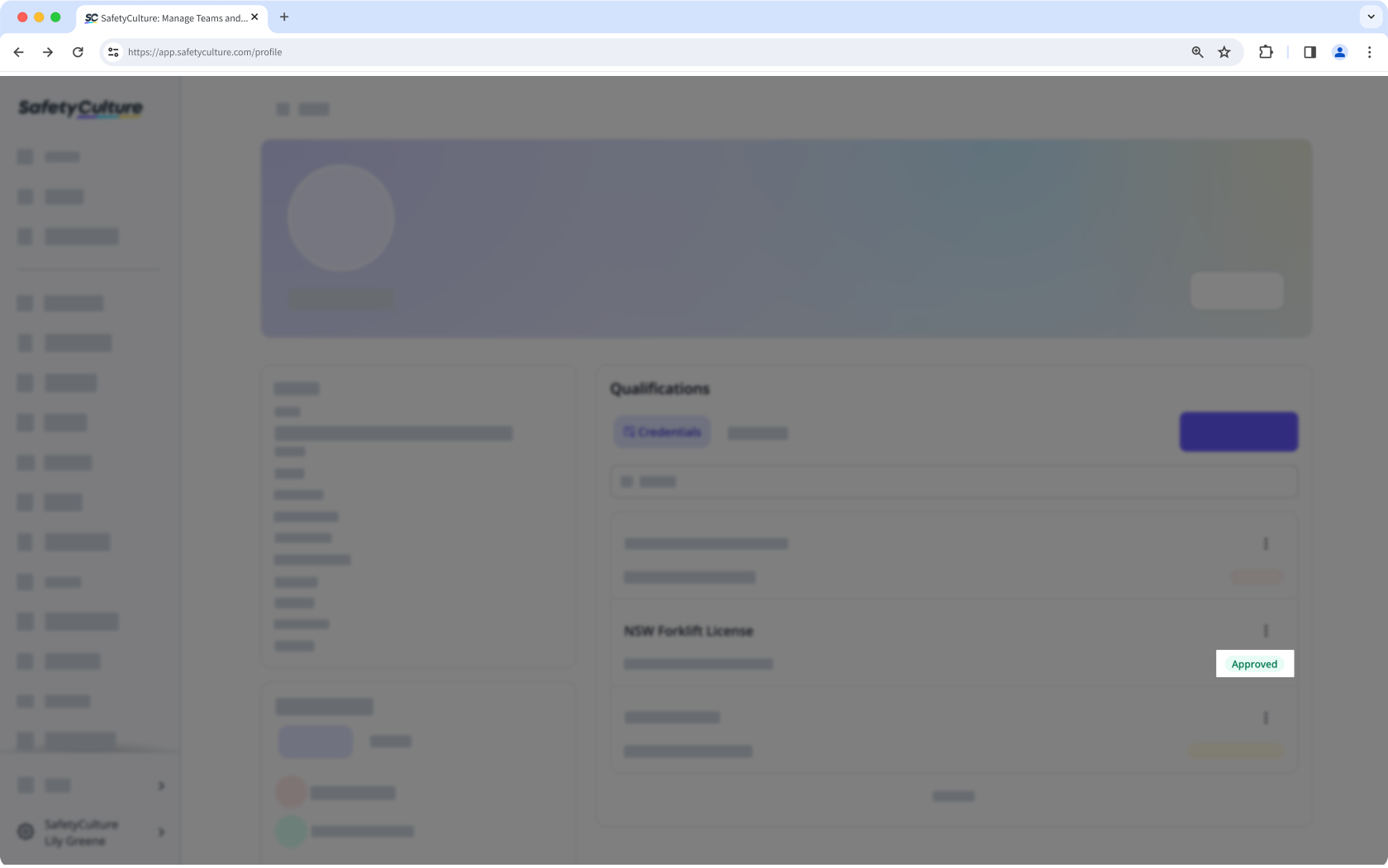
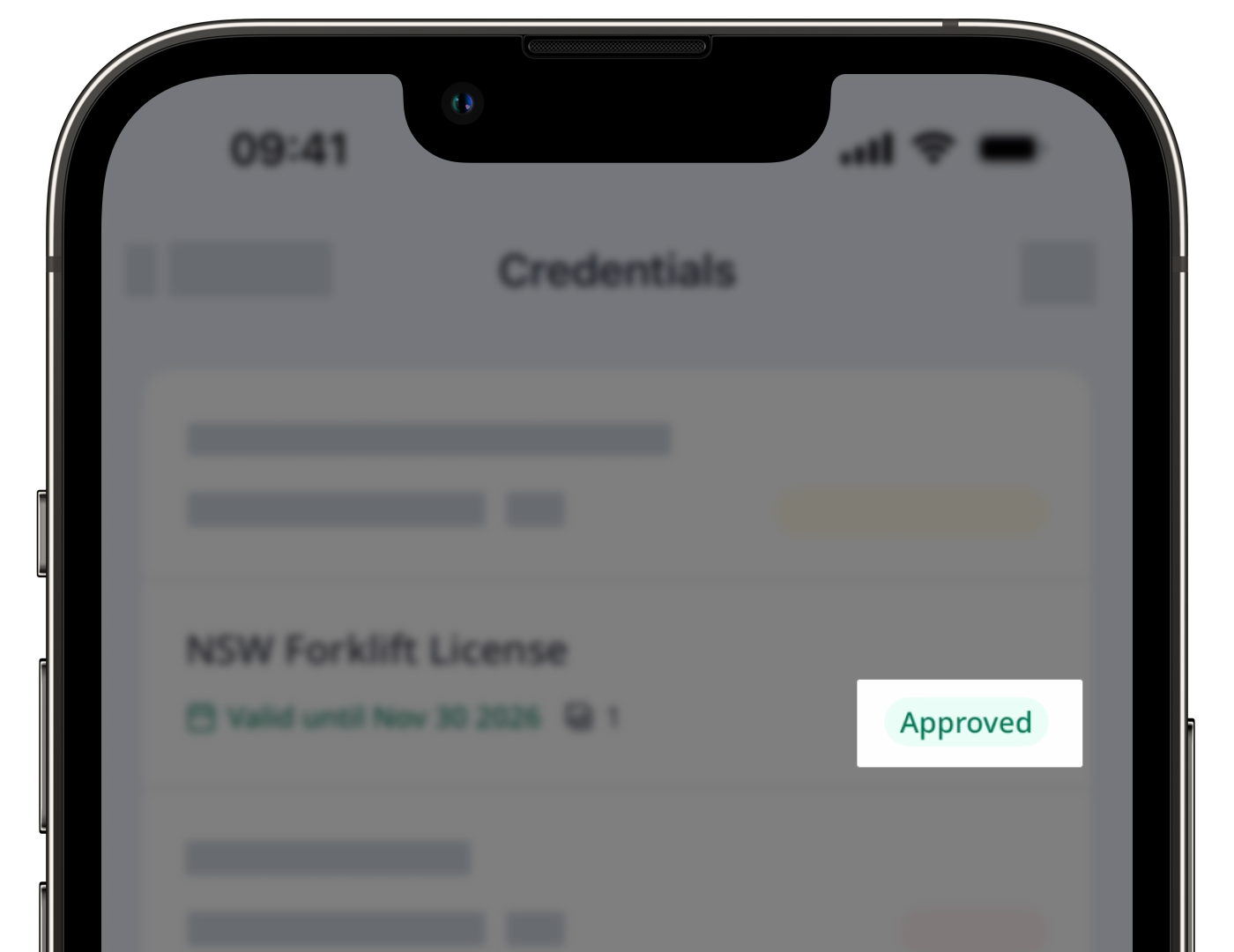
View the approval status on the lower-right of the credential.
You need to have "Platform management: Credentials" permission to delete credentials you’ve created and their associated media.


