
What are achievements?
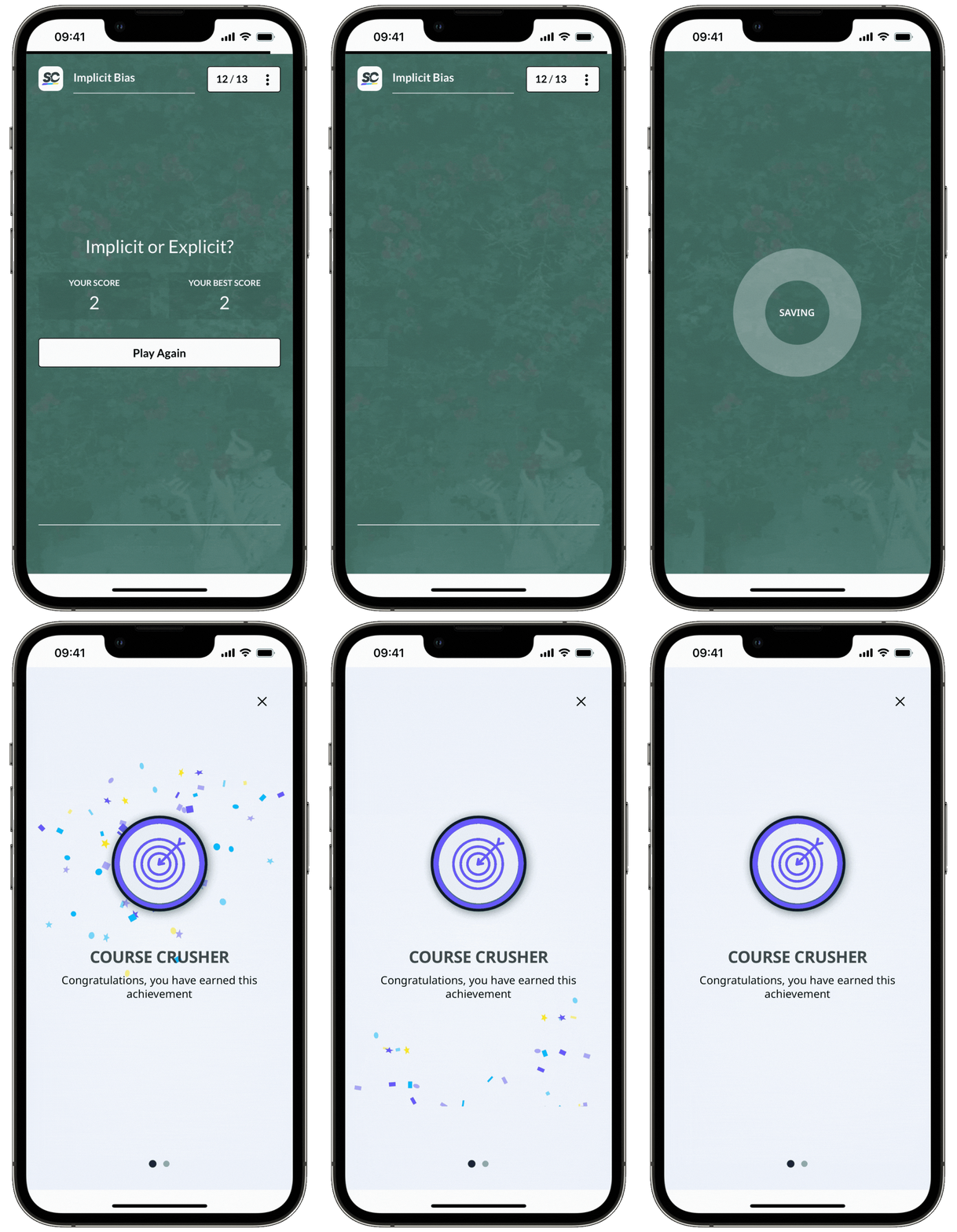
Achievements are a core part of the Training feature in SafetyCulture. They're special badges that your team can earn for reaching various milestones in their assigned training courses. Depending on the recipe of an achievement, it'll appear automatically to a user once they've met the criteria, rewarding them for their progress and gamifying their experience.
What you'll need
Create an achievement
Select Training in the sidebar or select it in More.
Click Engage at the top of the page and select Achievements.
Click Create an achievement on the upper-right of the page.
On this page, configure the following settings for the achievement:
Title (required): Enter a title for the achievement.
Recipe (required): Set the criteria for what a user must do to earn the achievement. For more details about the recipe, see the guide at the end of this article.
Styling: Update the image, color scheme, border, and message to match your brand and tone.
Translations: Add translations to support a multilingual team.
Once you're ready, click the dropdown menu below the title and select Live. Then, click Save on the upper-right of the page.
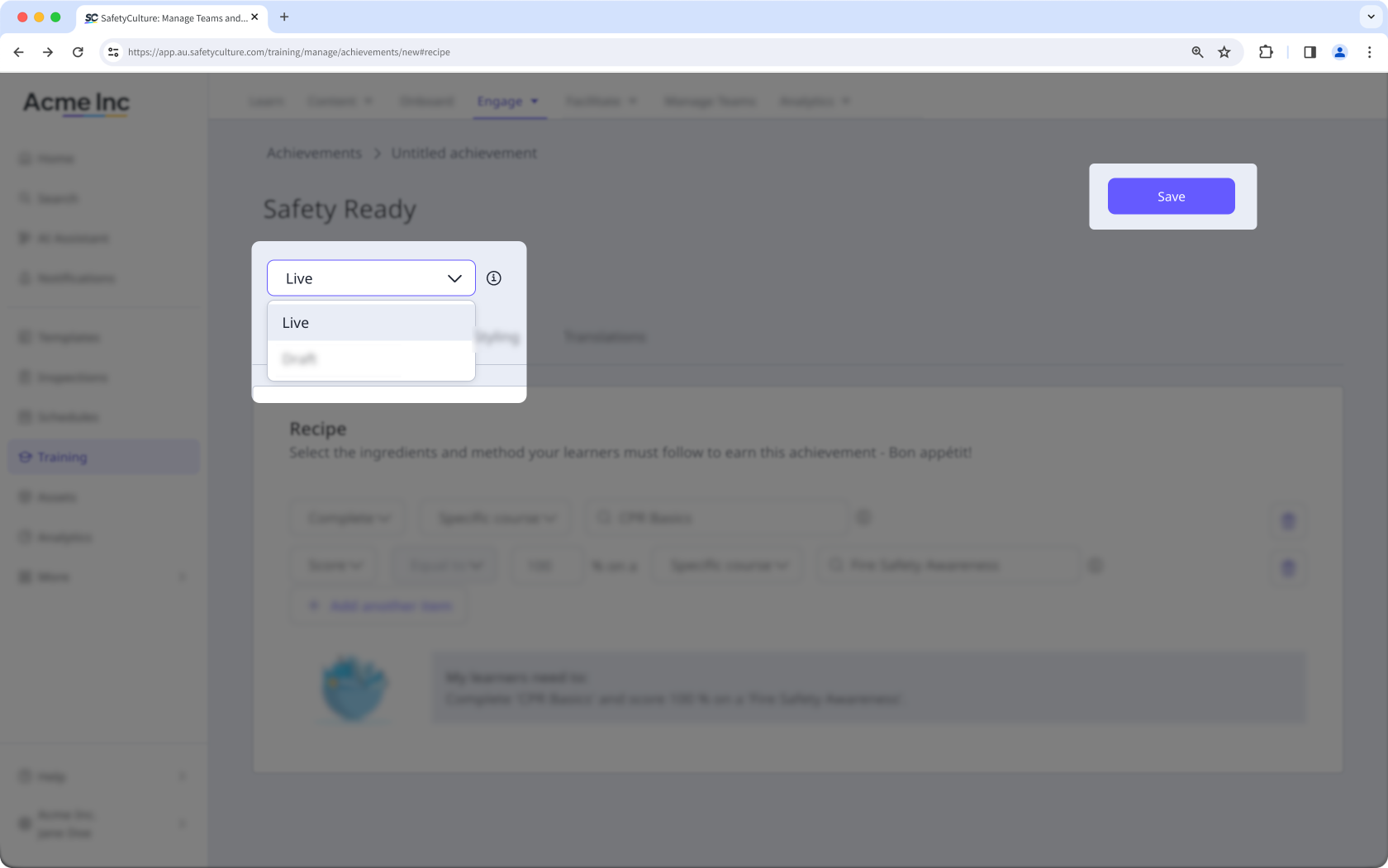
In the pop-up window, click Set to live.
Once an achievement is set to "Live" and saved, the recipe can't be edited to ensure fairness for your team in earning the same achievement, so be sure to check your recipe configuration before setting it "Live" and saving.
Archive an achievement
Select Training in the sidebar or select it in More.
Click Engage at the top of the page and select Achievements.
Select the achievement.
Click the dropdown menu below the title and select Archived.
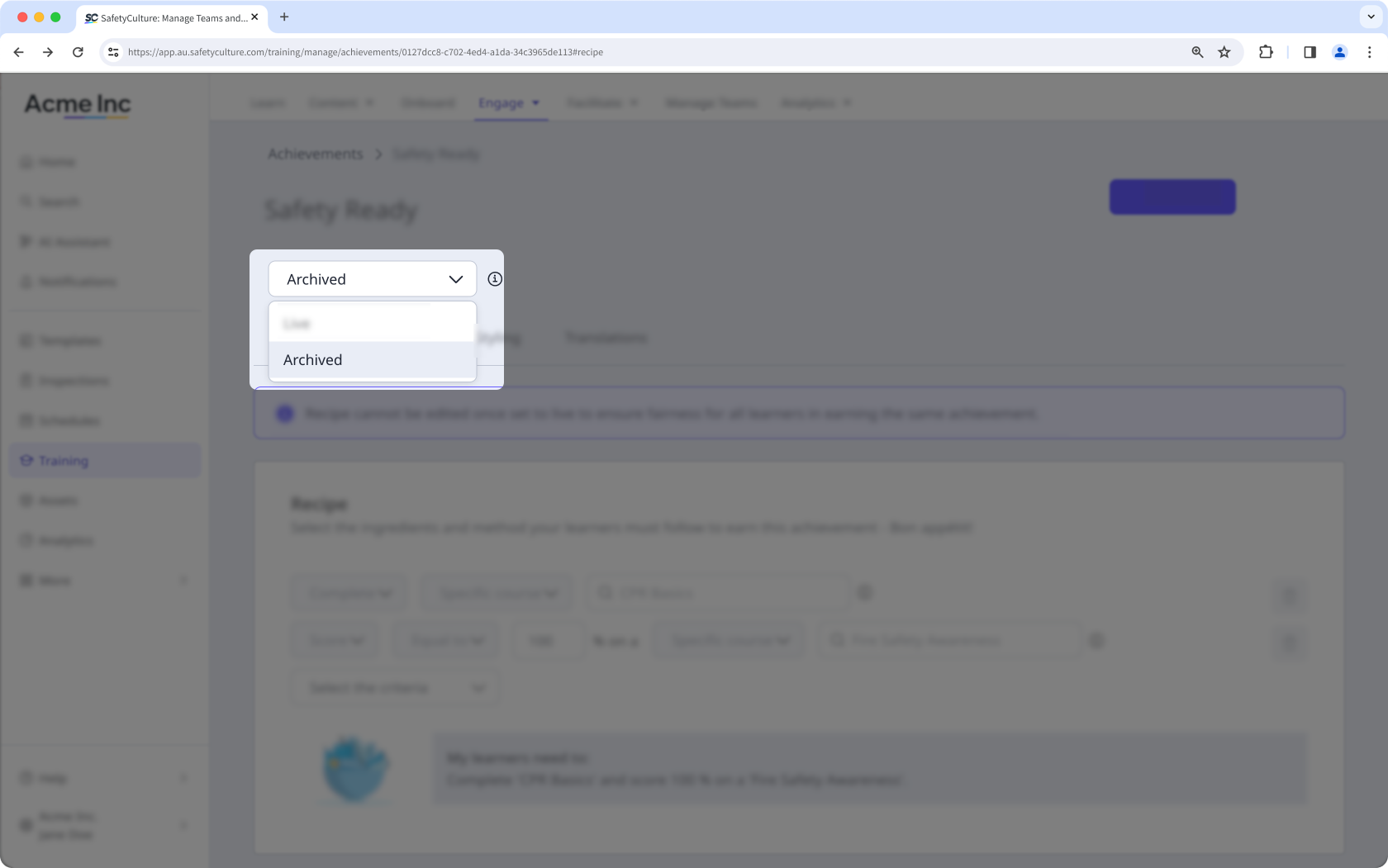
Click Save on the upper-right of the page.
When you archive an achievement, your team can no longer receive it, and you can edit its recipe. To make it available again, select Live from the same dropdown and click Save.
Deleting is irreversible, and we cannot restore permanently deleted items. Confirmation is always required before any deletion, so be sure you're not accidentally deleting the wrong item.
Delete an achievement
Select Training in the sidebar or select it in More.
Click Engage at the top of the page and select Achievements.
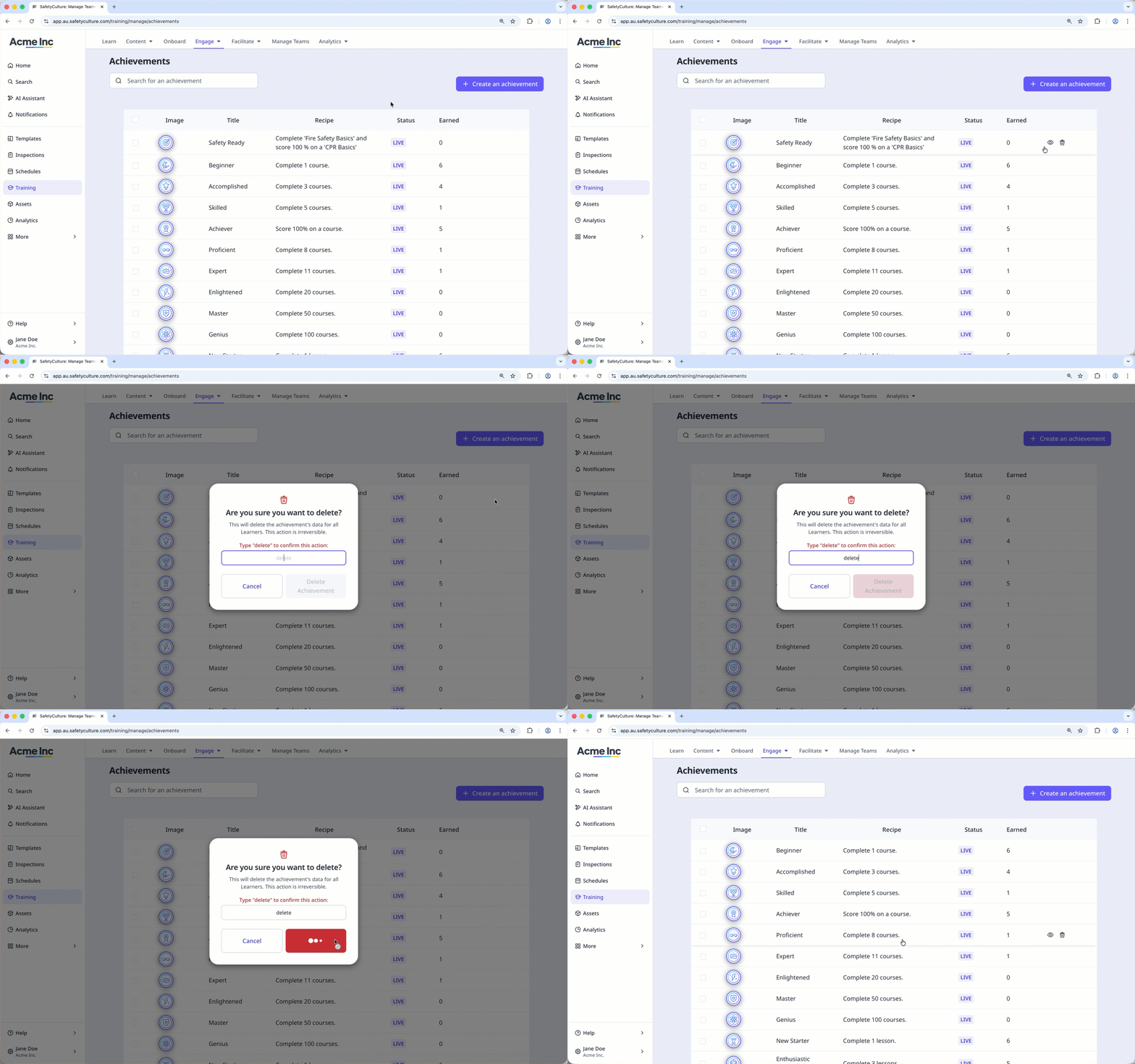
Hover your cursor over the achievement and select on the right-hand side of the achievement.
In the pop-up window, enter "delete" and click Delete achievement.
Bulk delete achievements
Select Training in the sidebar or select it in More.
Click Engage at the top of the page and select Achievements.
Check the achievements' boxes and click at the top of the list.
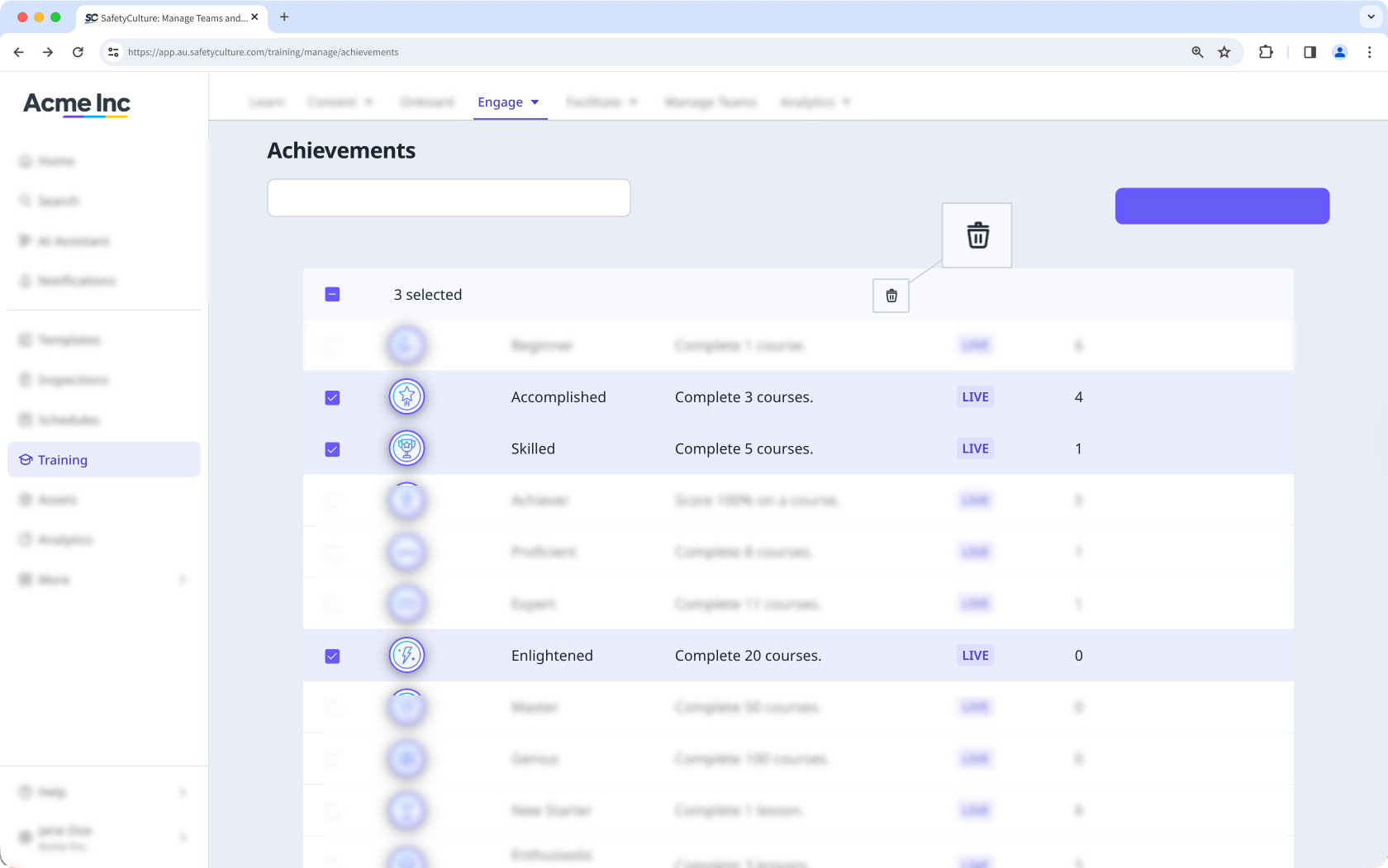
In the pop-up window, enter "delete" and click Delete achievement.
Export achievers as CSV
Select Training in the sidebar or select it in More.
Click Engage at the top of the page and select Achievements.
Select the achievement.
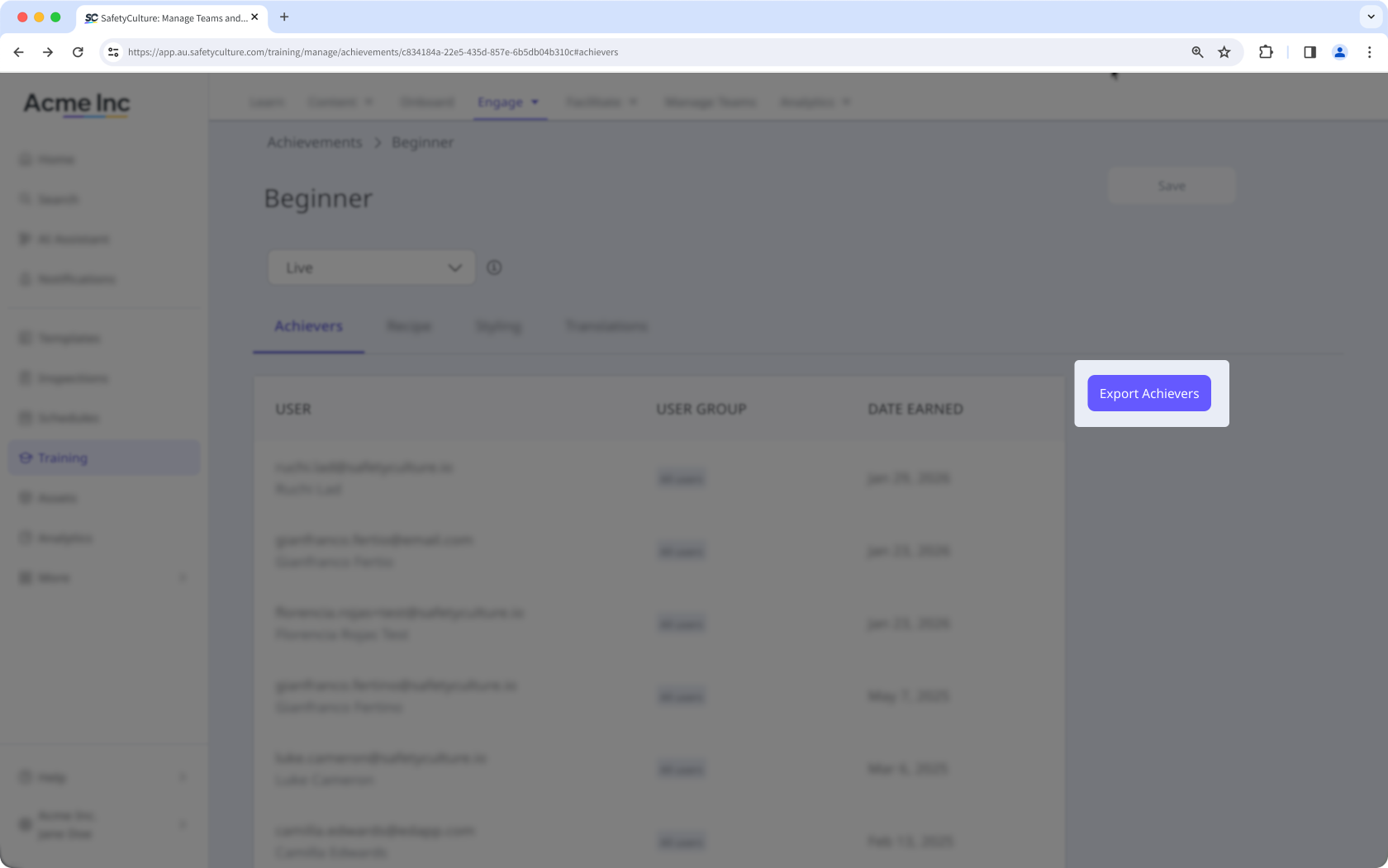
Select Achievers and click Export Achievers on the right-hand side.
Recipe guide
Fields | Description |
|---|---|
Criteria | The rules users must meet to earn an achievement. You can select a complete or score criterion, and add multiple criteria to a single achievement. |
Complete | This criterion allows users to earn an achievement by completing one or more courses or lessons based on the selected frequency or a specific course. |
Score | This criterion allows users to earn an achievement based on the score they achieve in a course, specific course, or lesson, based on the selected frequency. The score criteria defaults to equal to 100% and cannot be changed. |
Number | The number of courses or lessons a user must complete to earn the achievement. |
Type | This is what the completion or score applies to. You can select whether the completion or score is based on a course, a lesson, or a specific course. |
Frequency | How often users must meet the criteria. You can select once or repeat it daily, weekly, or monthly for a set number of days, weeks, or months. |


