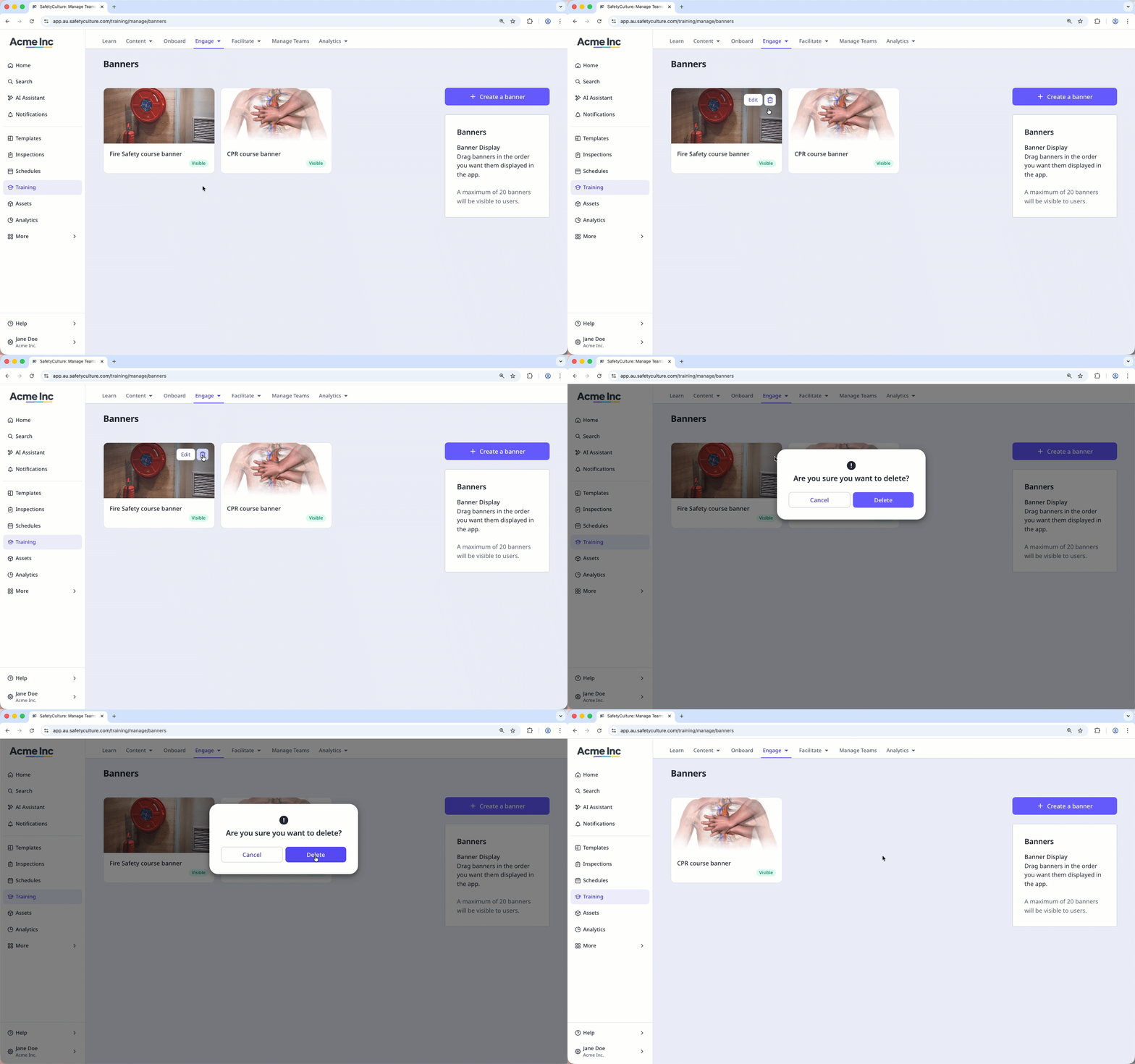
What are training banners?
Banners in the Training feature are a great way to engage with your teams. Depending on the content you want to deliver in your training, you can use banners to increase brand awareness or communicate an overview of what your teams can expect from certain courses.
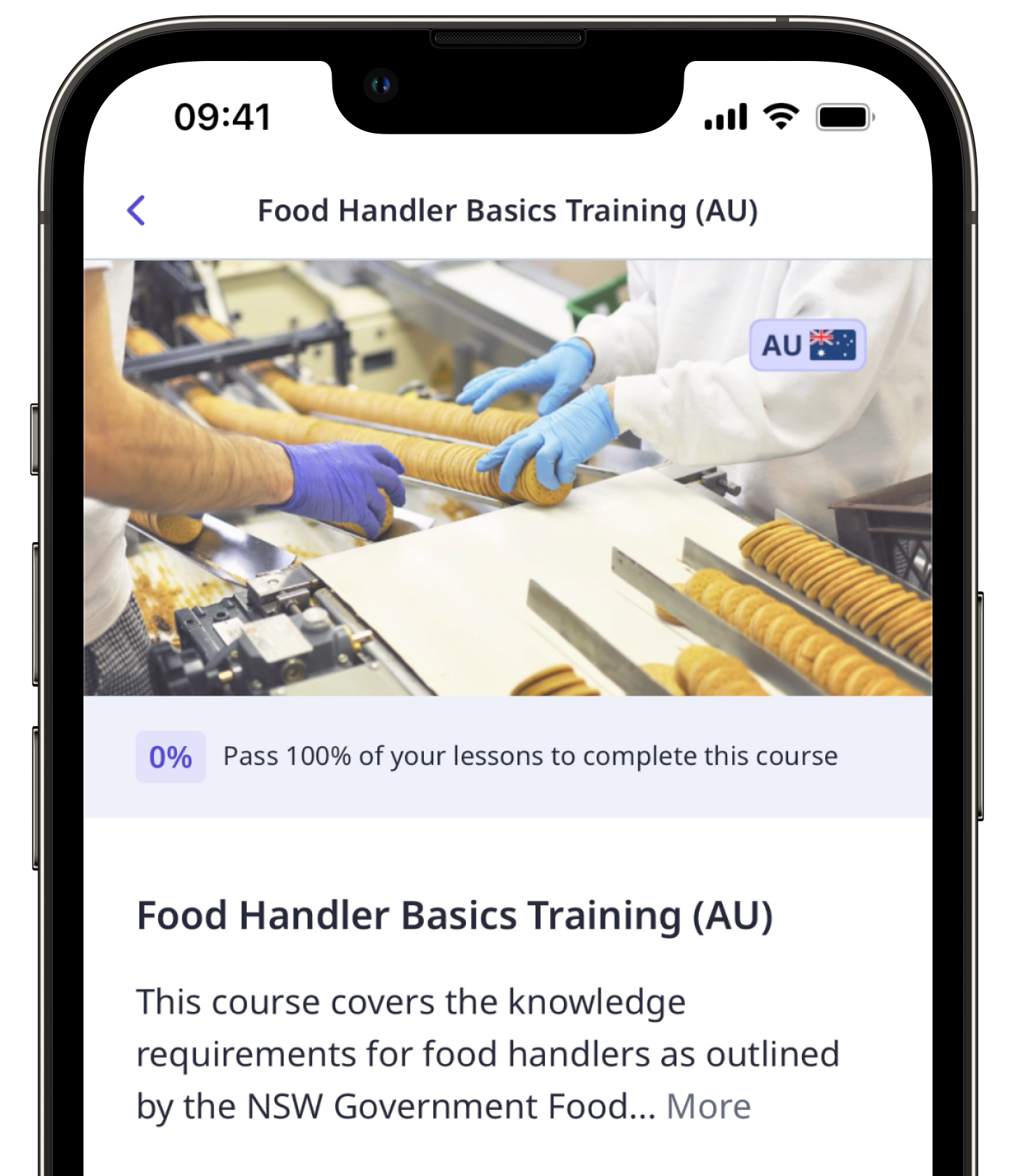
Each organization can only have up to 20 banners.
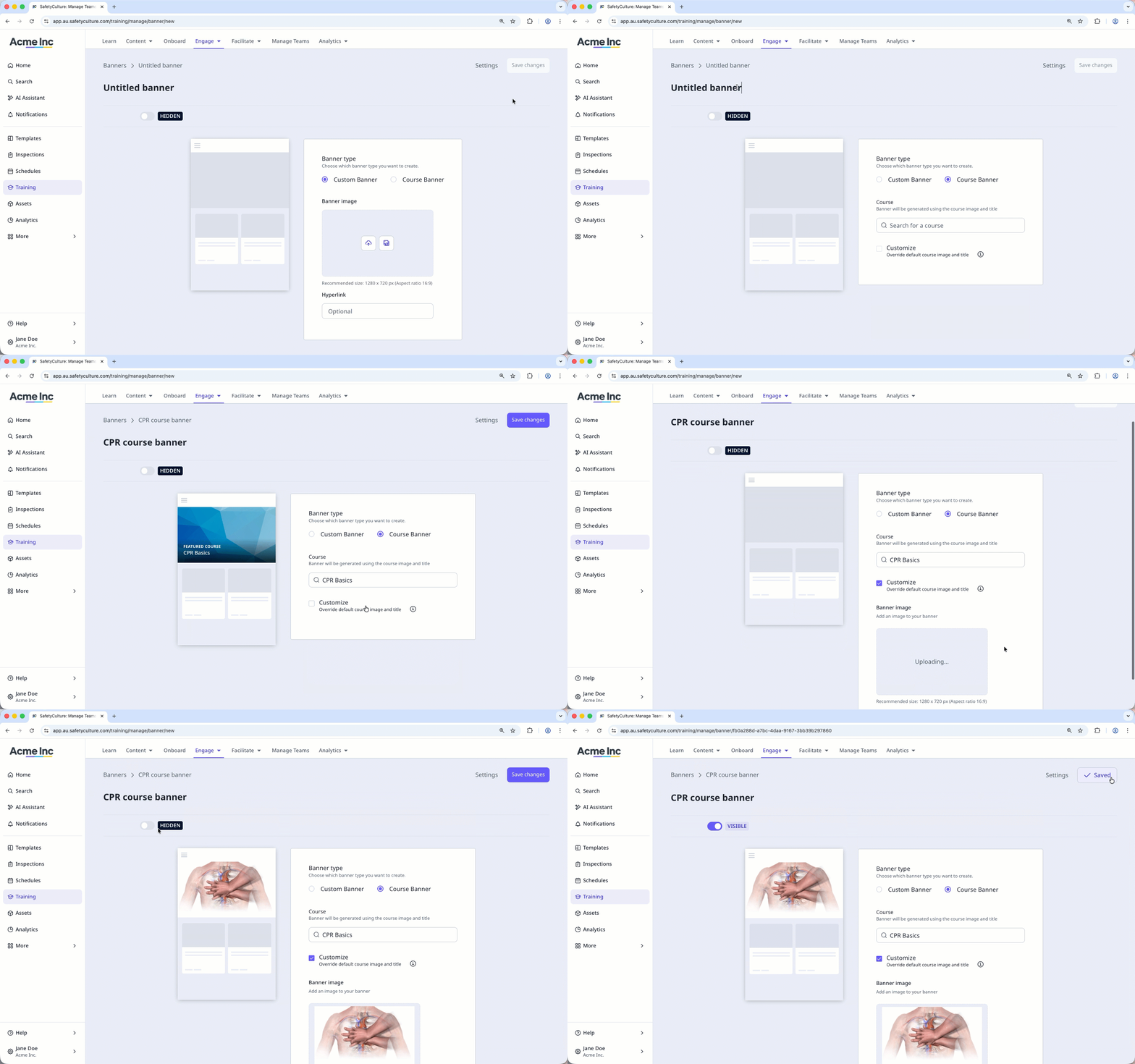
Create a banner
Select Training in the sidebar or select it in More.
Click Engage at the top of the page and select Banners.
Click Create a banner on the upper-right of the page.
On this page, configure the following settings for the achievement:
Banner type: Select a banner type. You can select Custom Banner to show the banner across the Training feature or Course Banner for a specific course.
Title: Enter a title for the banner.
Banner image: Upload an image for the banner. We recommend using an image that's 1280 x 720 in pixels or 16:9 in aspect ratio.
Hyperlink: If you're creating a custom banner, you can add a hyperlink that leads to your website.
Course: If you're creating a course banner, select the search bar and select the course.
Customize: If you're creating a course banner, check the box to override the default course image and title.
To manage who can see the banner, click Settings on the upper-right of the page. By default, "Universal Access" is checked, and the banner is visible to all users. You can select the checkbox to make it visibile to selected groups only.
Once you're ready, click the toggle below the title field to set it to "VISIBLE", and click Save changes on the upper-right of the page.
Configuring access rules for training banners is only available to organizations on Premium Plan or Enterprise Plan.
Edit a banner
Select Training in the sidebar or select it in More.
Click Engage at the top of the page and select Banners.
Hover your cursor over the banner and select Edit.
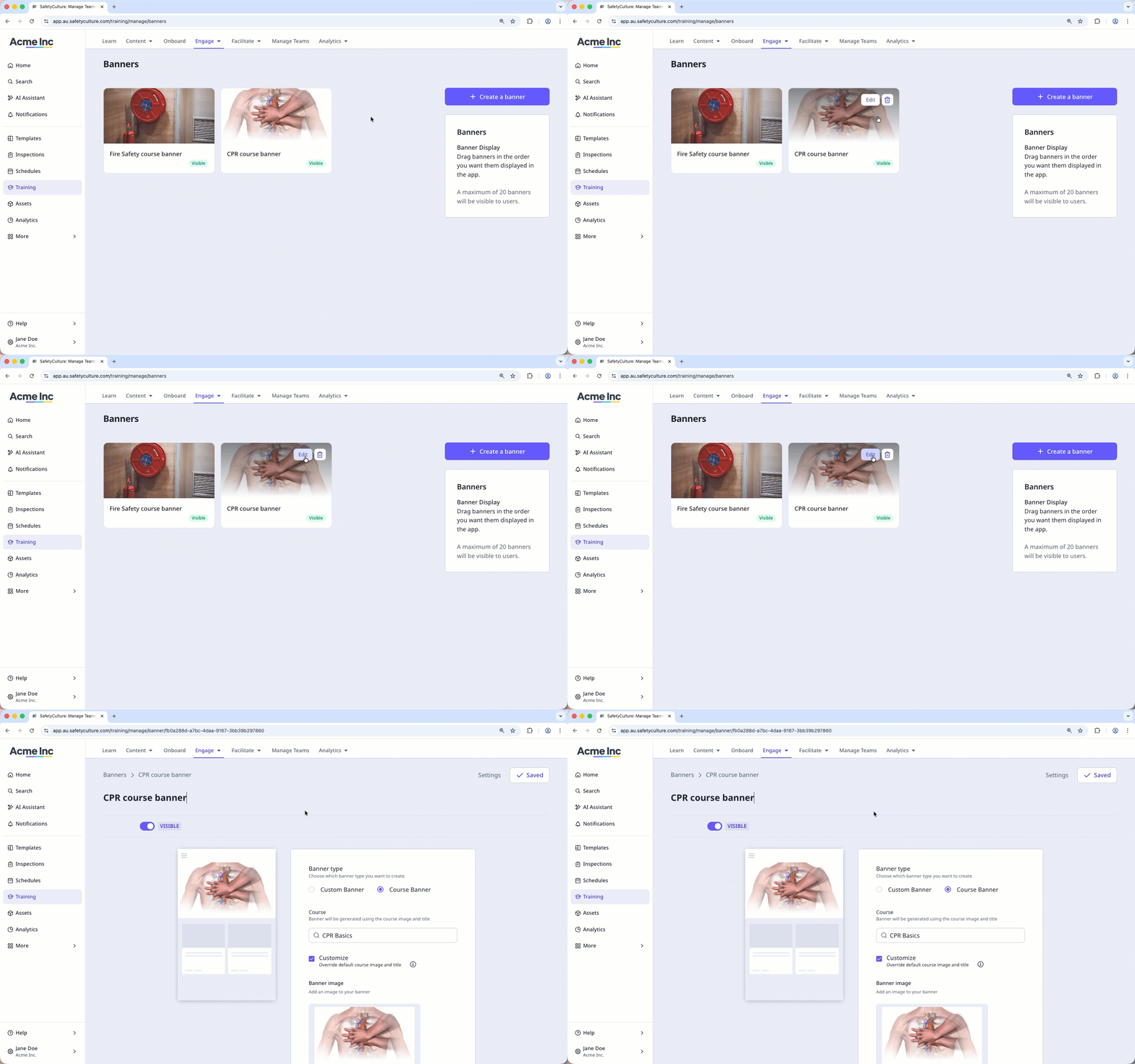
Edit the banner accordingly.
Deleting is irreversible, and we cannot restore permanently deleted items. Confirmation is always required before any deletion, so be sure you're not accidentally deleting the wrong item.
Delete a banner
Select Training in the sidebar or select it in More.
Click Engage at the top of the page and select Banners.
Hover your cursor over the banner and select .
In the pop-up window, click Delete.