
How does publishing a course work?
Course publishing gives you control over when to make a training course available to your team. When you publish a course for the first time, it becomes version one. Each time you republish the course, a new version number is created. This is important for courses that are already published and assigned, ensuring that any changes you make are only reflected to users when you republish the course.
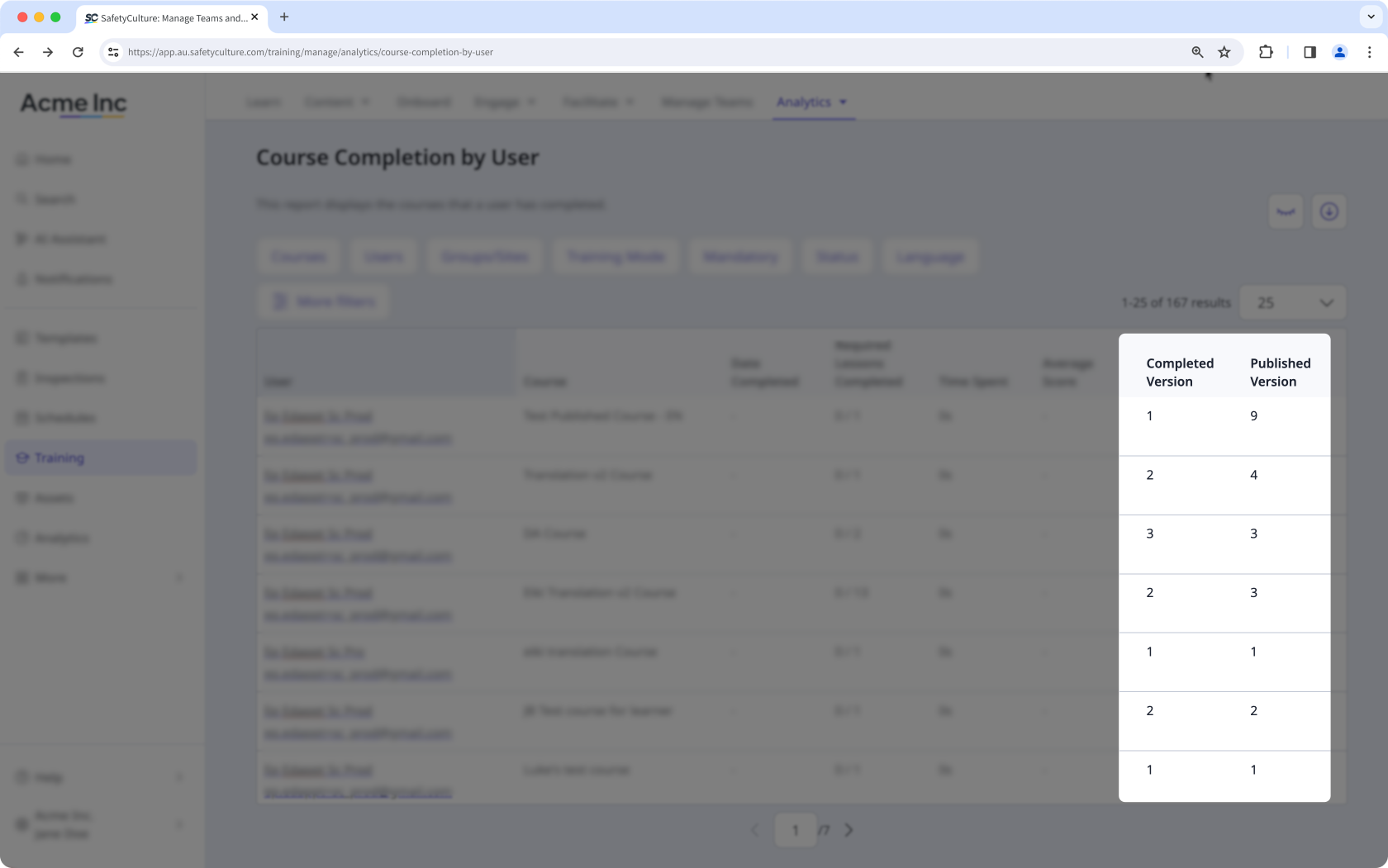
After a course is published or republished, you can view who made changes and when in the course's change log. To keep track of the different versions of courses your team is completing, you can also view which version of a course each user completed against the latest published version.
What you'll need
Publish a course
Select Training in the sidebar or select it in More.
If you're on the "Learn" page, click Content at the top of the page and select Courses.
You can choose how you want to view your courses by selecting between or on the upper-right of the page.
Select a course.
If the course is published, click Edit on the upper-right of the page.
Click Next: Set up on the upper-right of the page.
Click Next: Publish or Next: Republish on the upper-right of the page and review your publish settings:
Assigned to: Users, groups, or sites the course is assigned to.
Type: The type of the course.
Due: When the course is due after it's assigned.
Enabled notifications: Notifications users will receive for the course.
Lessons visible: Number of lessons users can see out of the total in the course. Click to update this setting.
Schedule and publish: Choose whether to publish the course now or later.
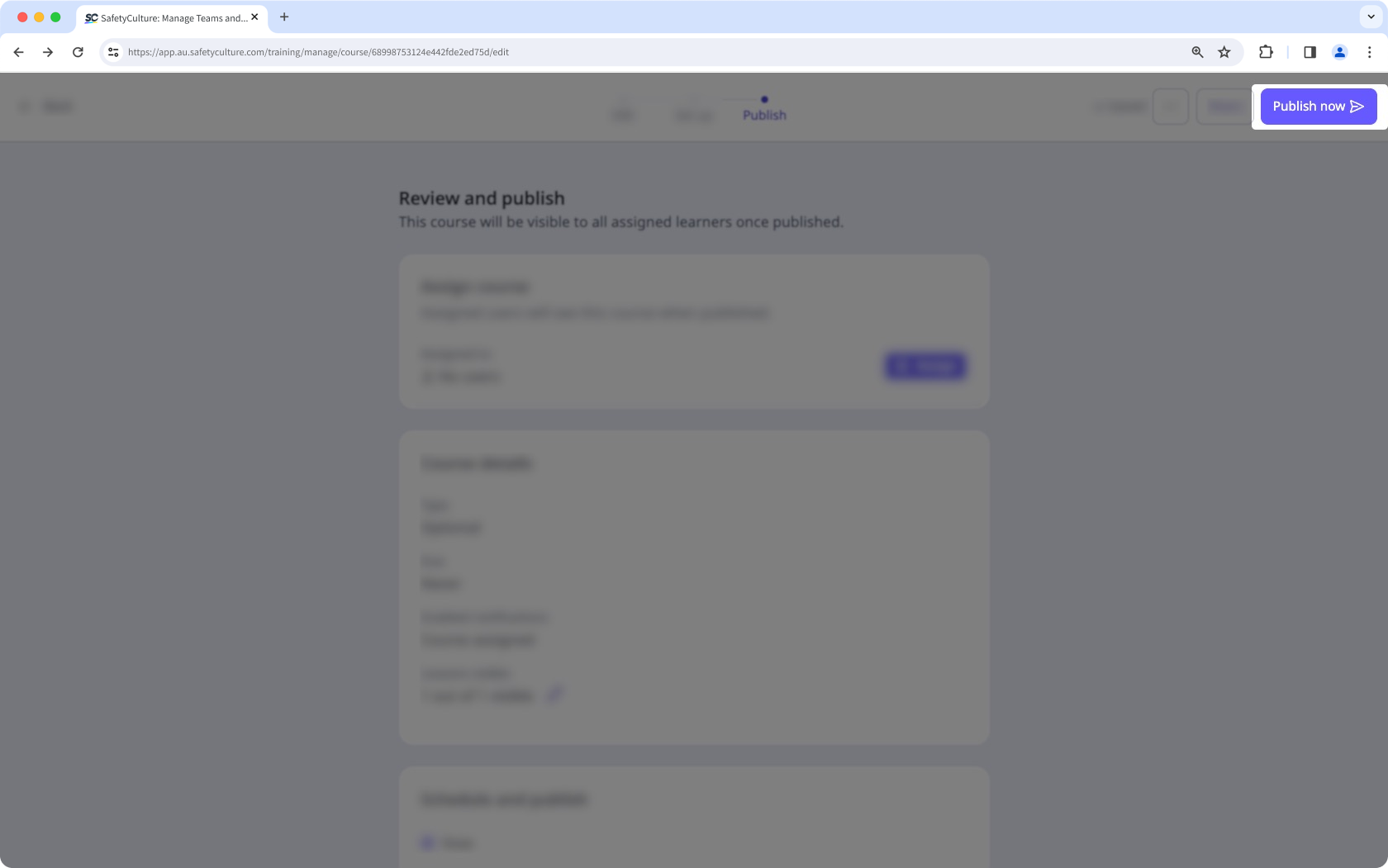
Once you're ready, click Publish now or Republish now on the upper-right of the page or Schedule now if you've set the course to publish later.
Once a course is published or scheduled, you can immediately share it with your team so assigned users can go straight to the course in the web app or mobile app.
If you share the course using Anyone with the link, users will be added on a lite seat with a "Basic" permission set before they can start the course.
Revert a course to draft
Select Training in the sidebar or select it in More.
If you're on the "Learn" page, click Content at the top of the page and select Courses.
You can choose how you want to view your courses by selecting between or on the upper-right of the page.
Select a published course.
Click on the upper-right of the page and select Revert to draft.
Click Revert to draft in the pop-up window to confirm.
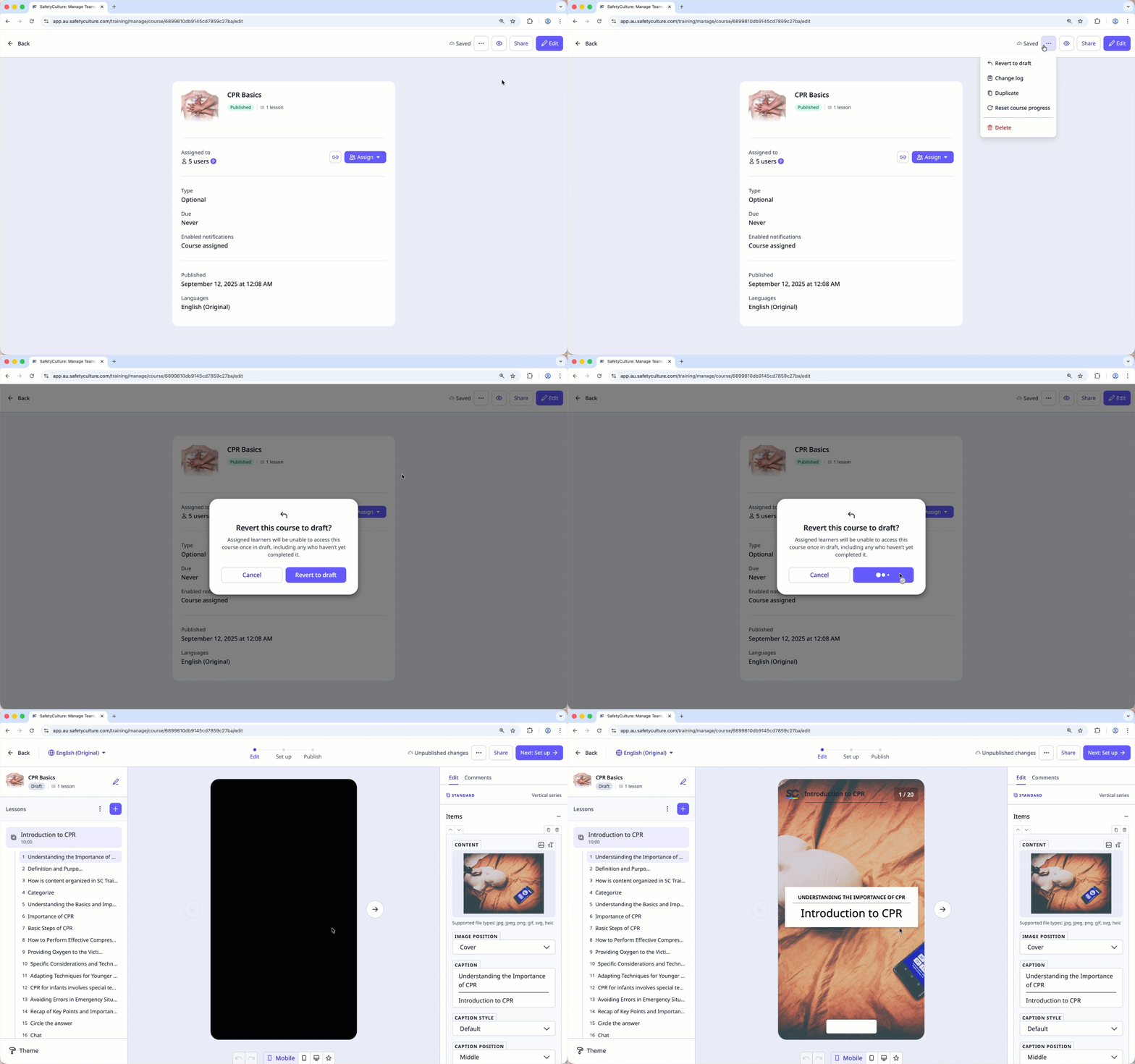
Reverting a course to draft will also hide the course from assigned users, even if they’ve started the course already.
If a published course is part of an onboarding workflow, make sure to remove the course from the onboarding steps before deleting or reverting it to draft.


