What are asset profiles?
An asset profile is a dedicated record for an individual asset in SafetyCulture, whether it's a vehicle, machine, tool, or any other physical item an organization manages. This ensures that information about each asset stays traceable and accessible throughout its lifecycle.
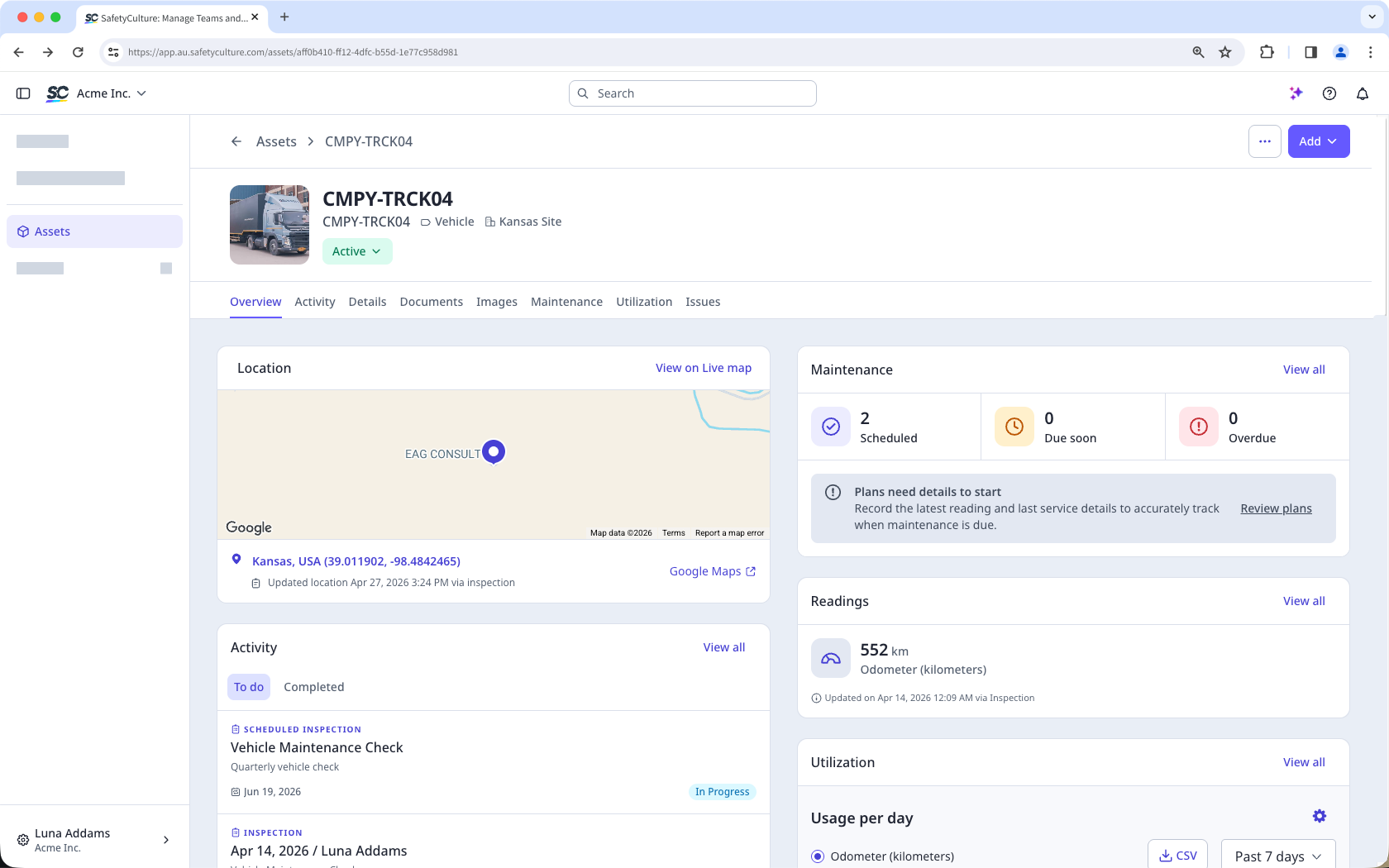
Asset profiles bring together related data from inspections, actions, issues, maintenance, usage, and location history in one place. This gives teams the context they need to plan maintenance, respond to issues, and keep assets in service.
Depending on asset access settings, the assets you can view and manage may vary based on your site membership.
If your device is offline, you can only view the asset name, asset type, photo, and site. However, sufficient asset data are stored offline for you to start an inspection or create an action from an asset.
Exploring asset profiles
View and manage key details
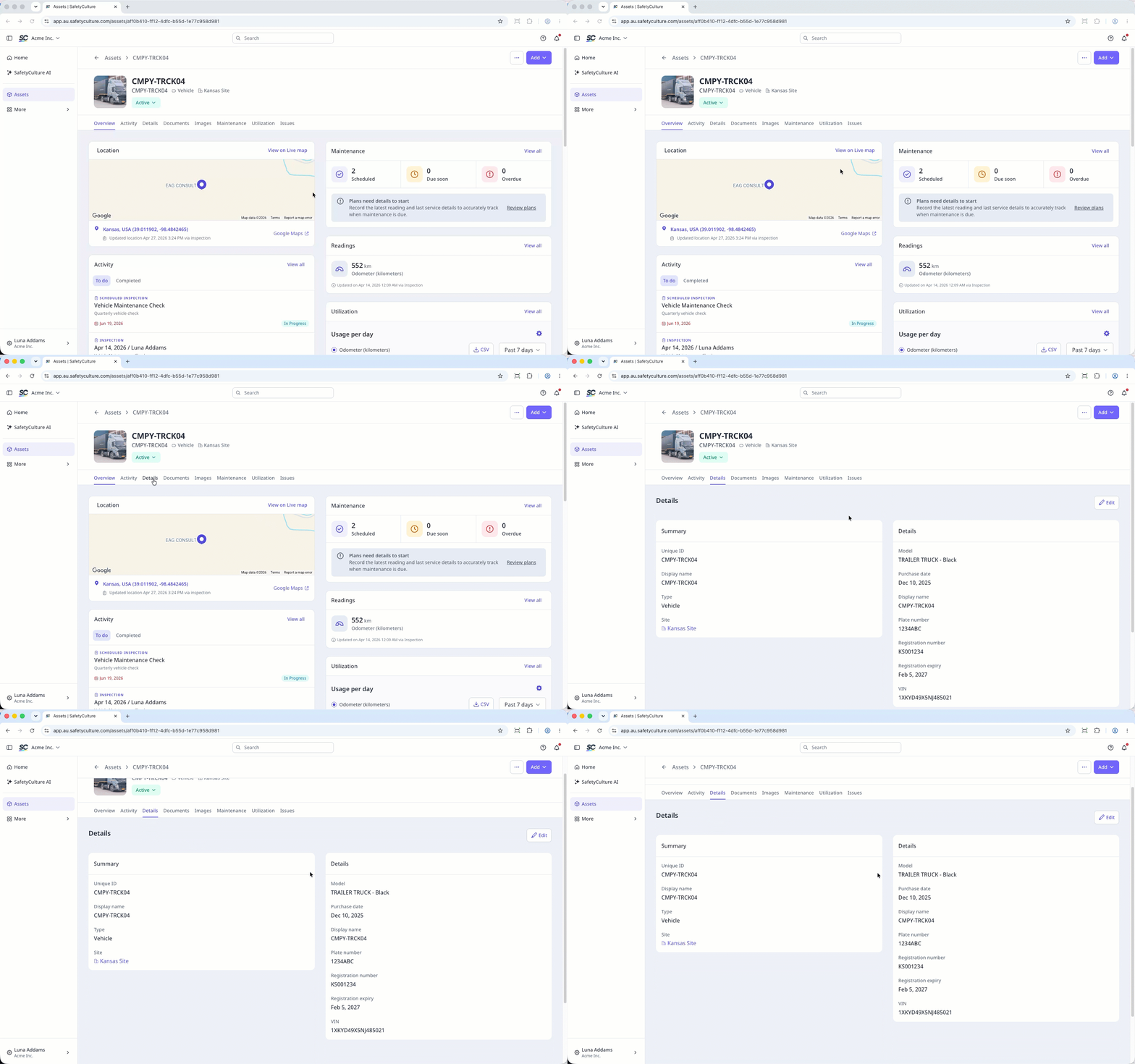
Depending on how you have set up your assets, you can view identifying details like the asset name, type, and custom fields tailored to your operations. You can also edit assets if you have the "Assets: Manage" permission.
Conduct inspections or assign actions
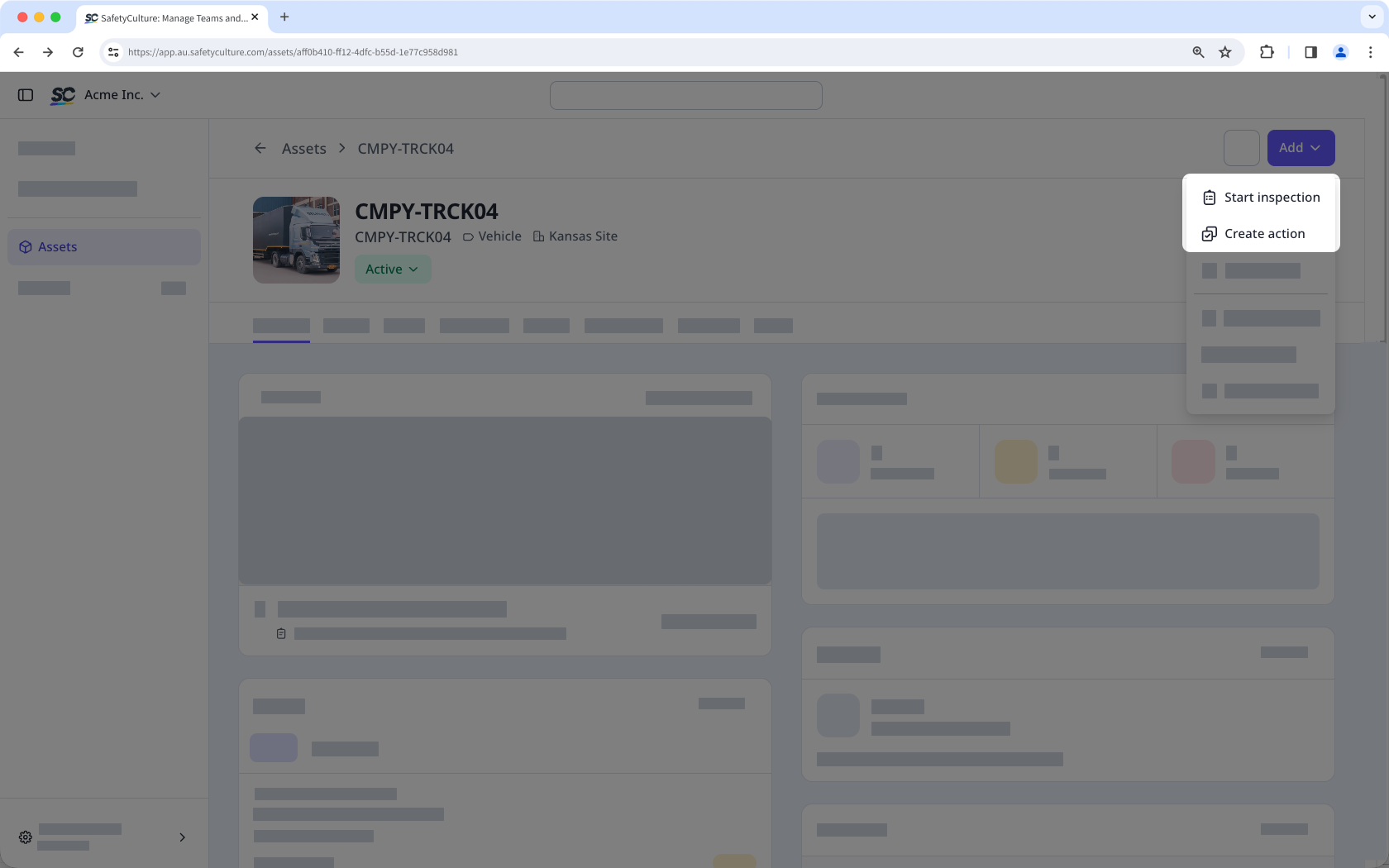
Quickly start an inspection from the profile with the asset field already filled in. If you have already assigned the asset to a site, that information will also be pre-filled, streamlining routine checks or maintenance inspections in the field. In addition, creating an action from the asset profile auto-fills the asset and site fields. It's a fast way to assign tasks related to that asset, like repairs, servicing, or status updates without starting from scratch.
Track asset activity in one place
Each asset profile gives you a clear view of what's been done and what's still in progress. You can check which inspections or actions are underway, which ones are overdue, and what's already been completed. This helps your team stay organized and follow up on open items.
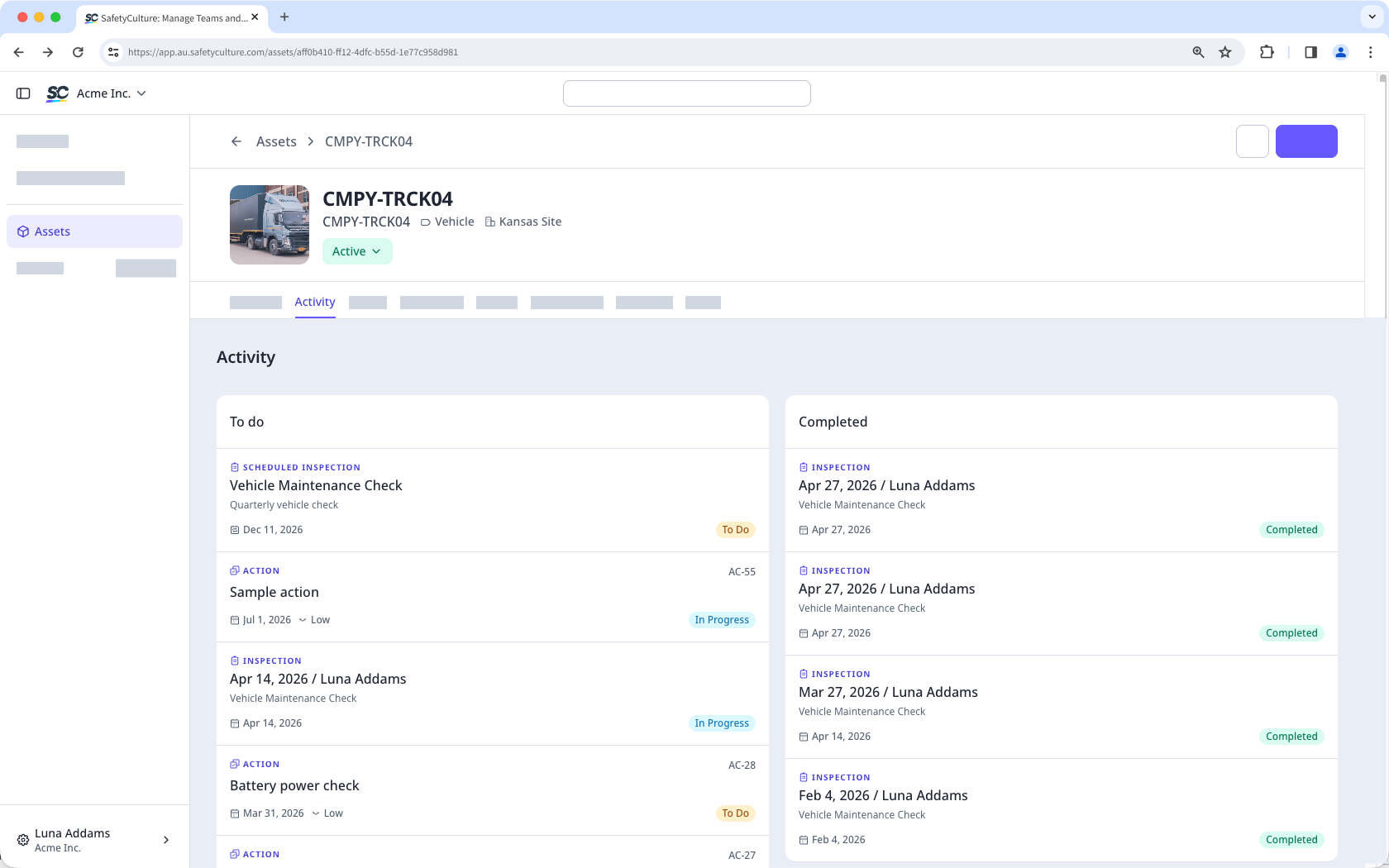
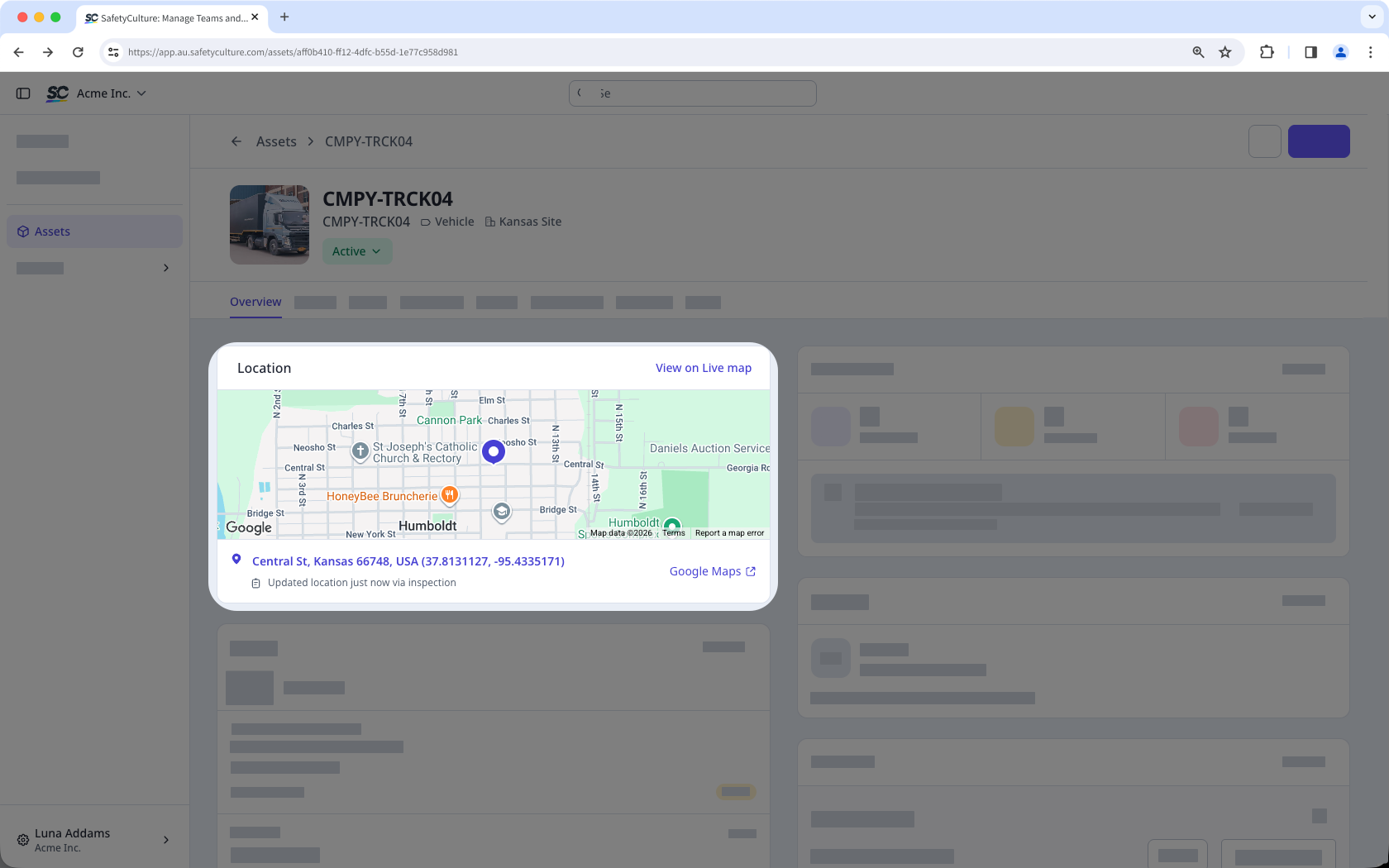
Locate your assets
Each asset profile shows the last known location based on its most recent inspection. Suppose you have a connected GPS tracking device or integrate with a supported system like Samsara, Geotab, and AT&T Fleet Management. In that case, the profile will instead display the GPS location from your asset management system, helping you find and track your assets more accurately.
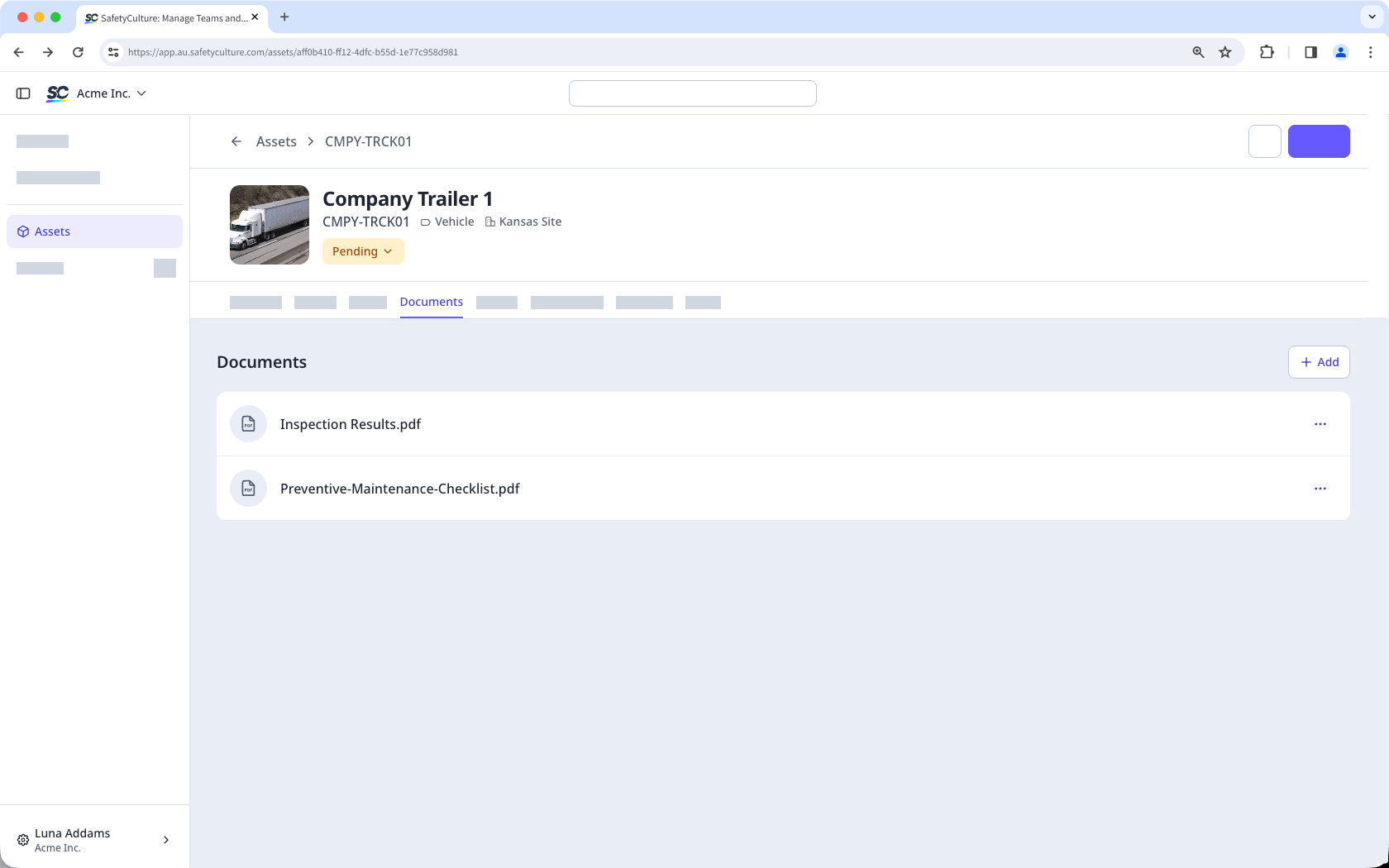
Add or link documents and images
Adding documents or images to your assets makes additional information and visual context easily accessible to your team. You can attach essential documents like manuals, warranties, service records, or safety guidelines or even link your existing files from Documents. Thus, critical details are always available when your team needs them, especially during asset inspections, servicing, or audits.
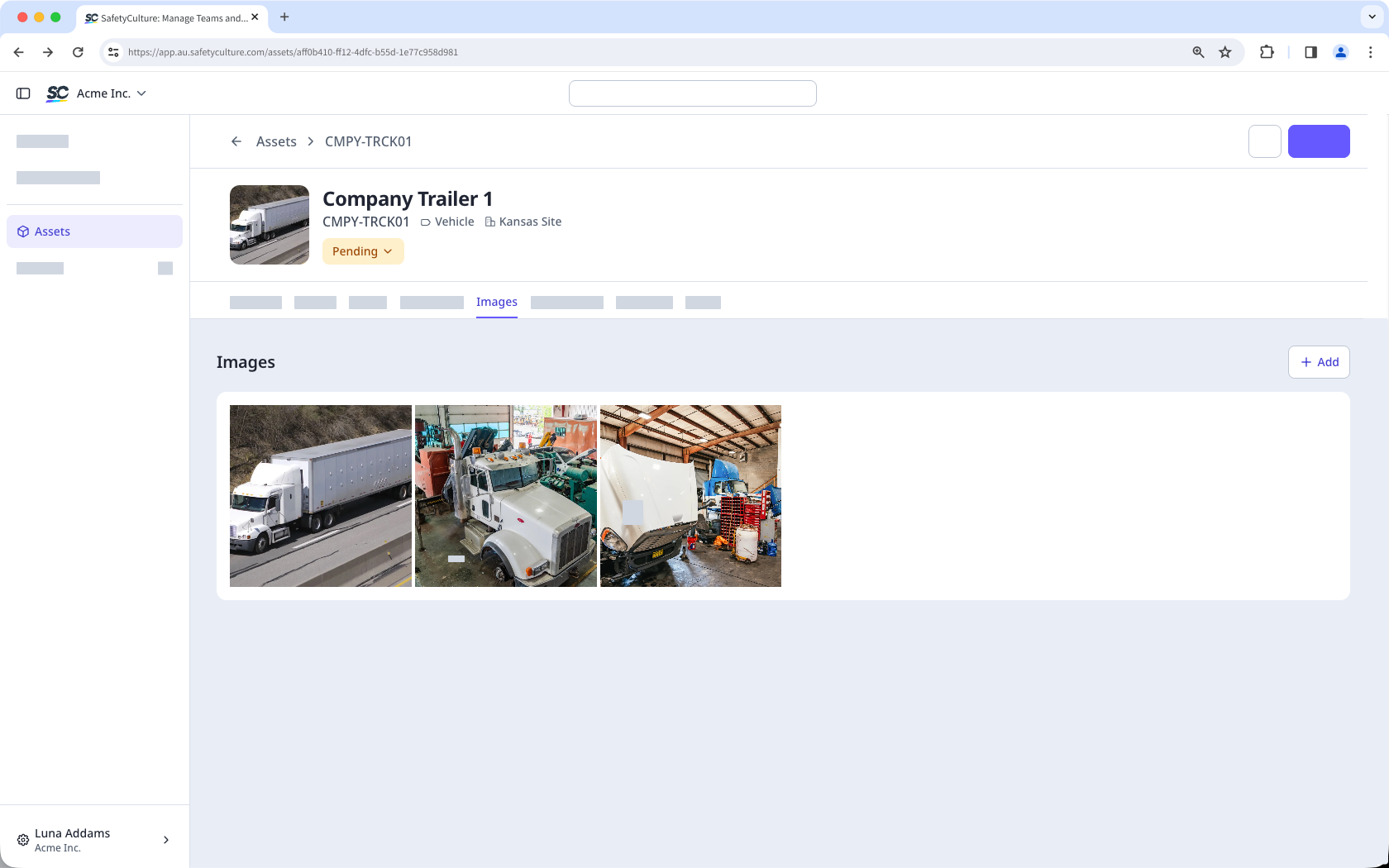
To capture visual details such as an asset's condition, installed configuration, serial number plates, or branding elements, you can add images as well. If you've printed and applied the asset's QR code on-site, you can also upload it, making it easier to confirm the asset at a glance.
Monitor current asset usage
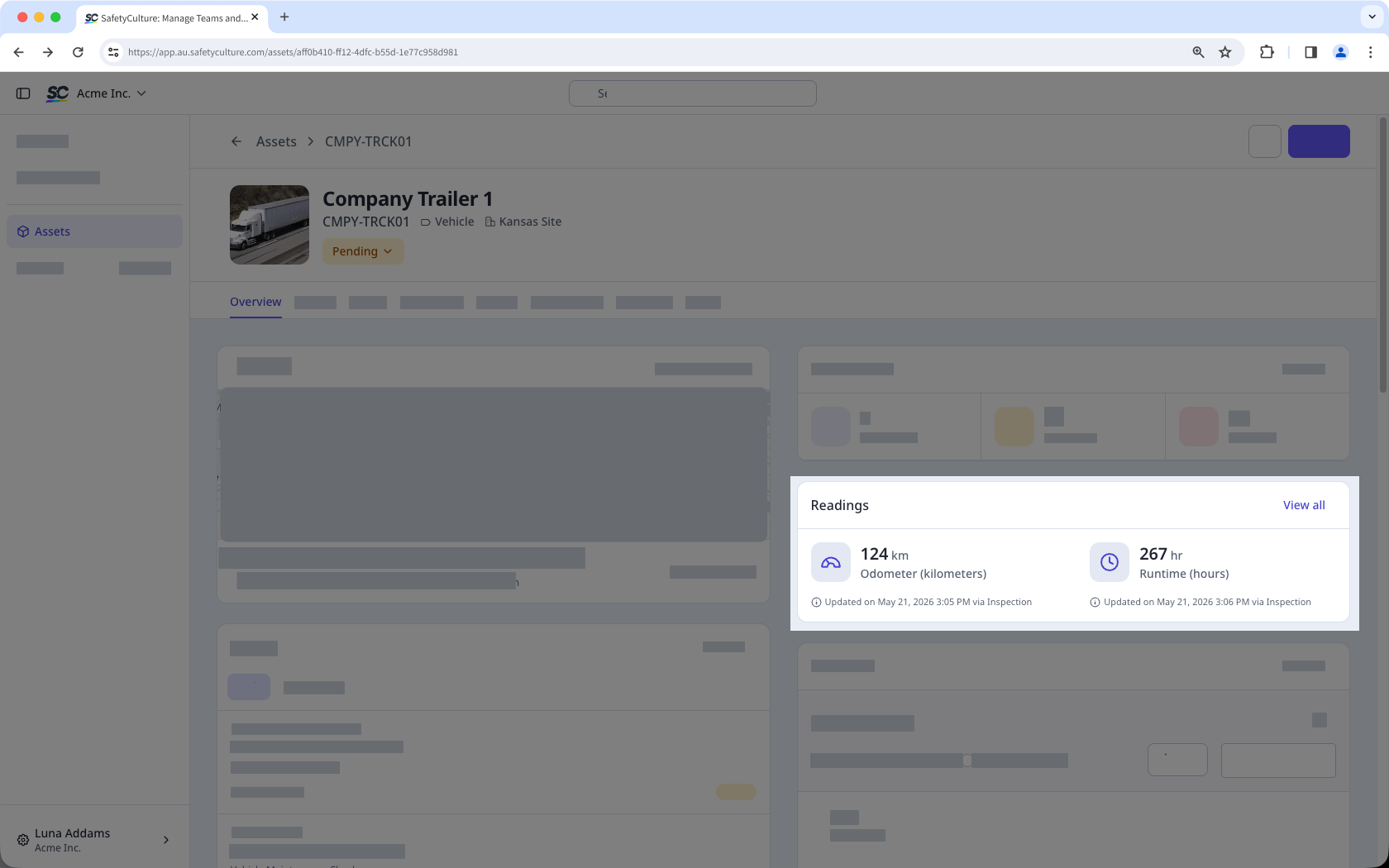
Viewing the latest asset readings provides immediate insight into current usage metrics, such as odometer or runtime data. You can capture these manually via inspections or automatically via telematics. This real-time visibility helps teams detect potential problems early, optimize asset performance, and support data-driven maintenance decisions.
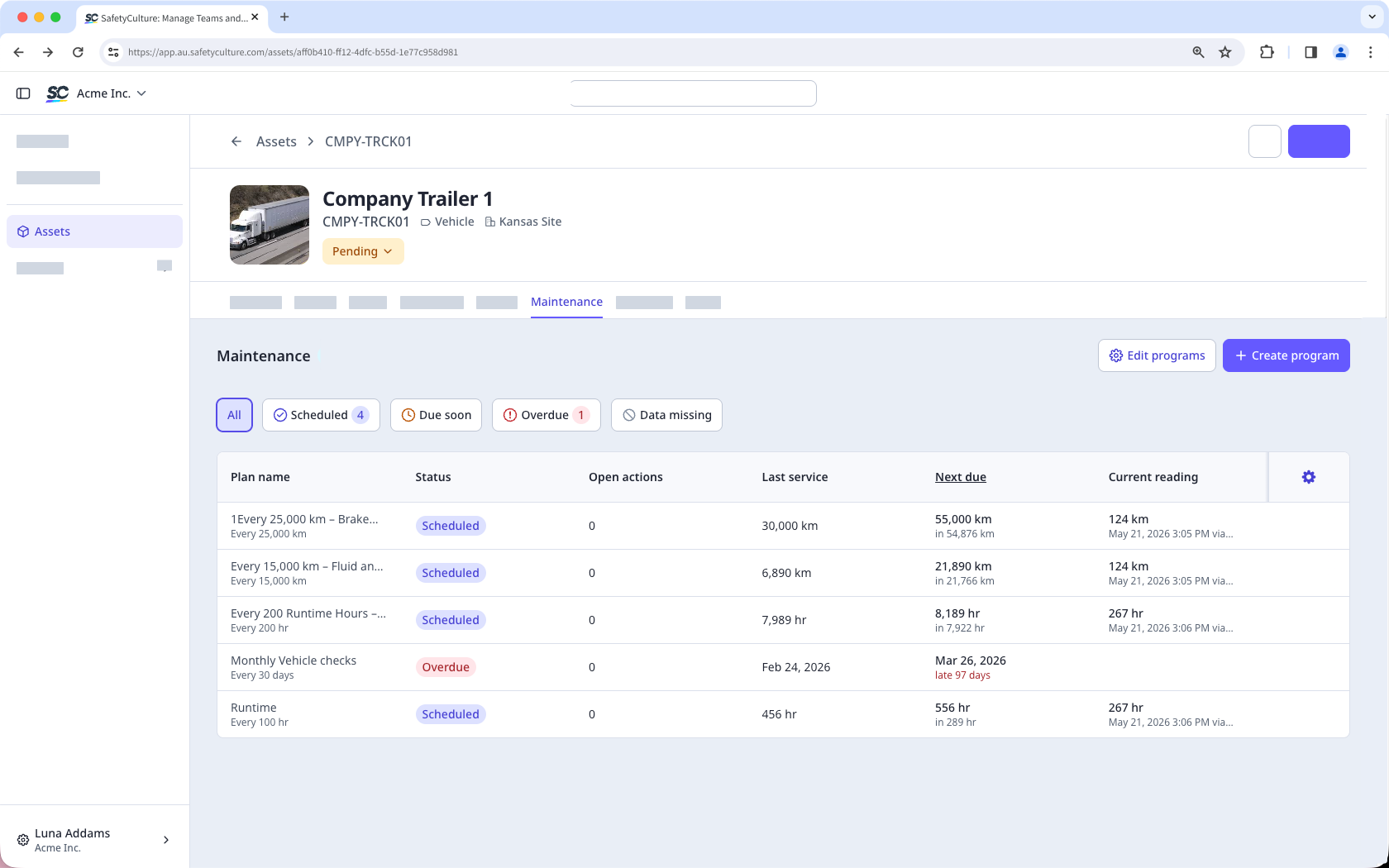
Check service history and upcoming maintenance
Asset profiles also bring together everything you need to manage ongoing servicing with usage-based and time-based maintenance. You can view when each asset was last serviced, what’s scheduled next, and whether anything is overdue. Use this information to plan ahead, prevent breakdowns, and keep maintenance on schedule.
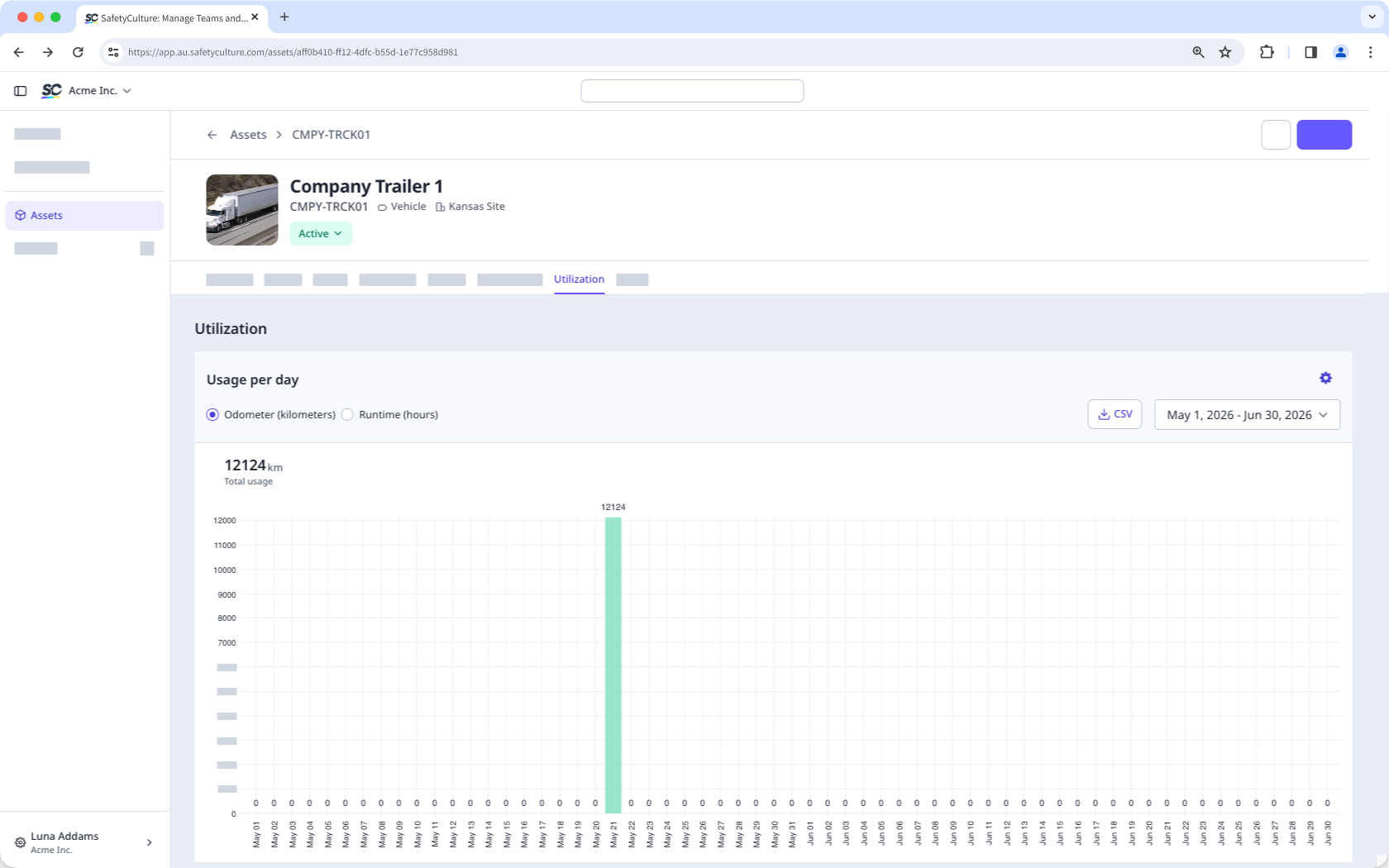
View asset utilization trends
Get a day-by-day breakdown of asset usage based on odometer or runtime readings. Filter by date, compare usage patterns, and export the data if needed. This helps you make smarter decisions about asset allocation and performance, including preventative maintenance.
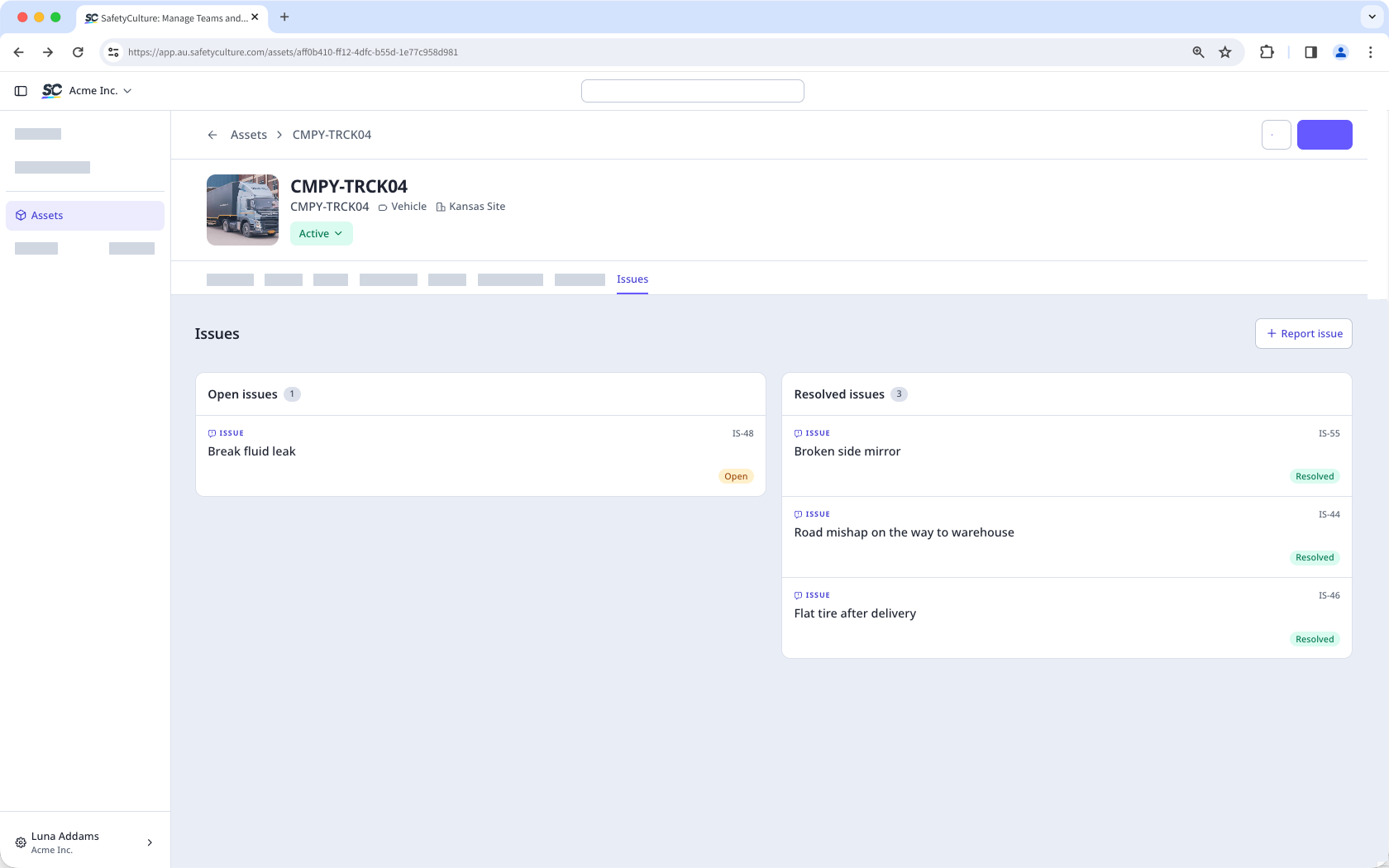
Keep asset issues visible and in one place
Over time, assets can accumulate issues based on reported problems and faults. From the asset profile, you can view all issues reported against an asset, so nothing goes unrecorded. Open and resolved issues are shown in one view, giving your team the complete context without having to search them manually. You can also report a new issue directly from the profile, with the asset details already pre-filled.