
What does it mean to link assets to files ?
When you link an asset to a file, the file becomes available on the asset profile while still being stored in Documents. This allows you to connect important files, such as manuals, maintenance records, or safety procedures, to one or more assets without needing to upload them again.
Linking helps reduce duplication and ensures your team can easily access the information they need in the context of the asset. When a file is updated in Documents, the changes automatically sync across linked assets. This is especially useful when the same file applies to multiple assets or needs to stay up to date in one place.
Unlike documents and images uploaded directly to assets, which are limited to JPEG, PNG, and PDF formats, linked files also support DOC, DOCX, XLS, XLSX, and WEBP.
What you'll need
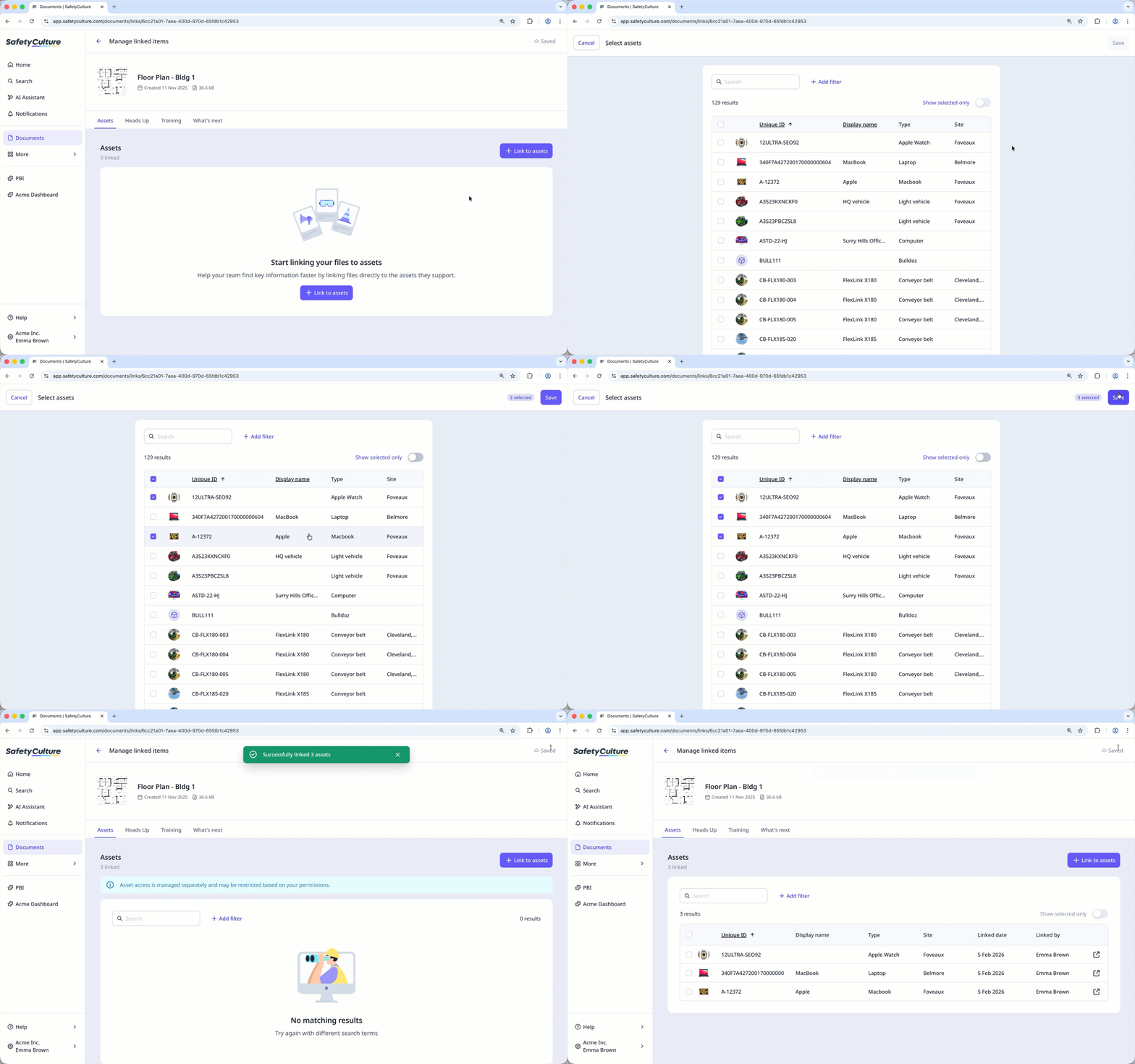
Link an asset to a file
Select Documents in the sidebar or select it in More.
Select a folder if you want to manage links for a file in it.
Click on the file's right-hand side and select
 Manage linked items.
Click
Link to assets on the upper-right of the page.Check the box on the asset's left-hand side.
Click Save on the upper-right of the page.
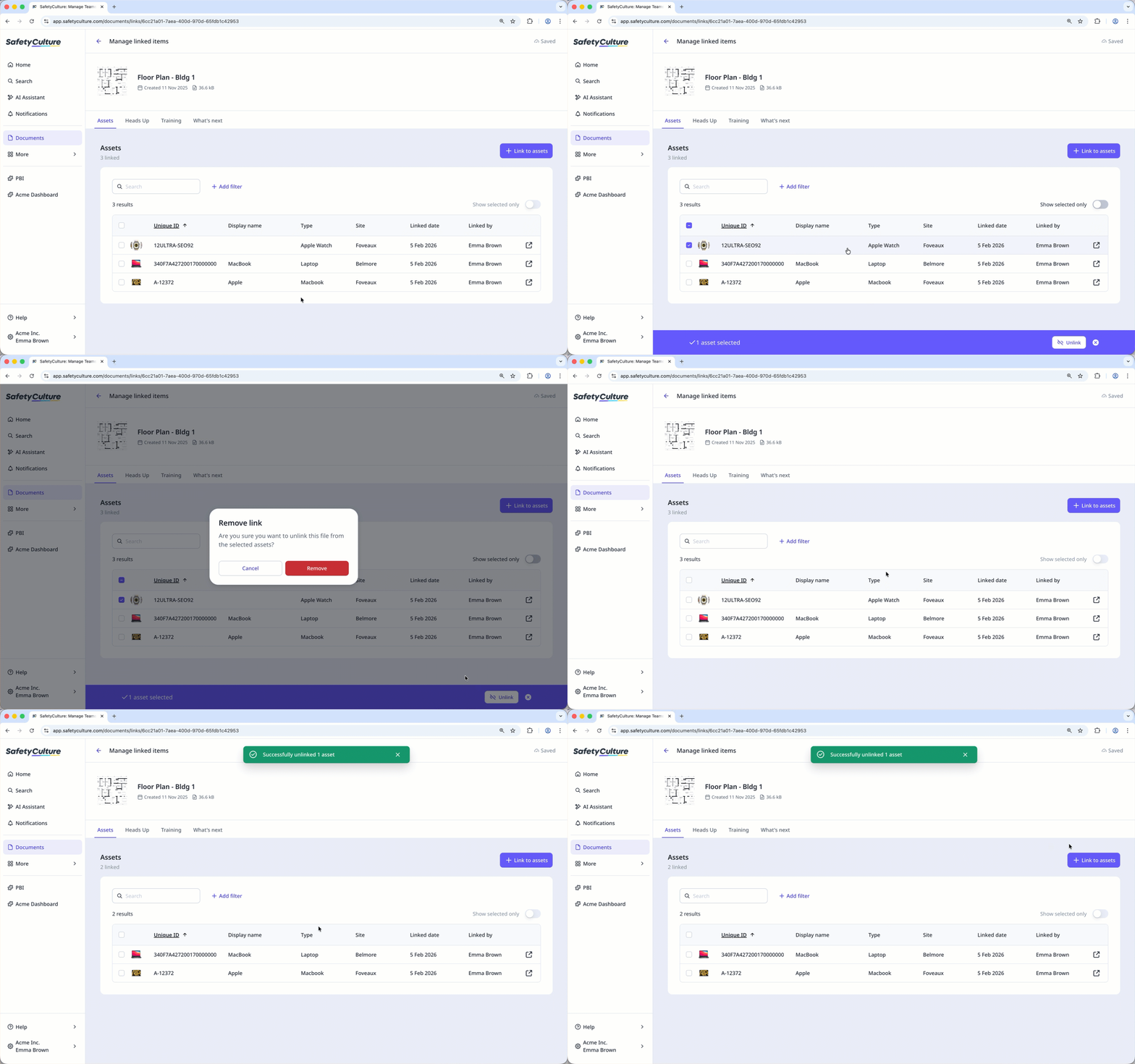
Unlink an asset from a file
Select Documents in the sidebar or select it in More.
Select a folder if you want to manage links for a file in it.
Click on the file's right-hand side and select
Manage linked items.Check the box on the asset's left-hand side.
Click Unlink on the lower-right of the page.
In the pop-up window, click Remove.
Click What's next and select up to 2 features you want Documents to link with next. Your feedback helps shape the future of Documents.


