
Why use SafetyCulture offline?
It's not always possible to be connected to your mobile network or Wi-Fi, especially in remote areas. That's why we've made it possible to use SafetyCulture offline. If you anticipate using SafetyCulture in a low-connectivity area, it's important to know which features are supported so that you can have the best experience while understanding any limitations in place.
Using SafetyCulture while offline is only supported on the mobile app.
Which features are supported offline?
There may be limitations for features that are supported while offline. Refer to each feature's section for more details.
Supported
Unsupported
Best practices
Before going offline, make sure to prepare your app by checking the following:
Depending on what you use in the mobile app, check your syncing settings to store necessary assets and inspections for offline access.
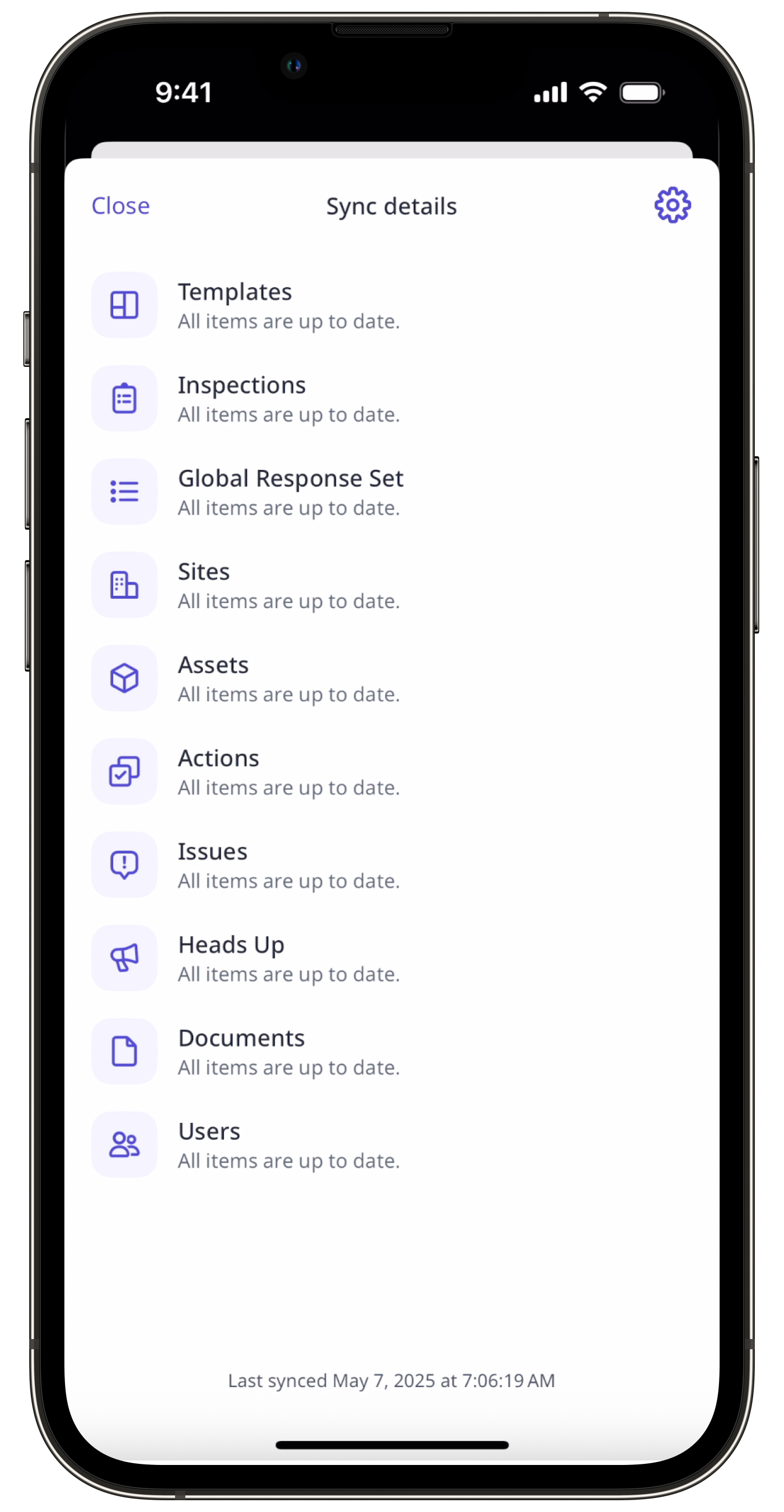
Check the sync status to confirm that all recent updates have been fully downloaded and are ready for offline access.
Remember to save photos taken in the mobile app to create a backup and avoid losing important images.
When you go back online, the mobile app automatically syncs to keep your data up to date across your devices. If you notice that data isn’t aligned, manually sync the mobile app to make sure everything stays up to date.


