Why add assets to sites?
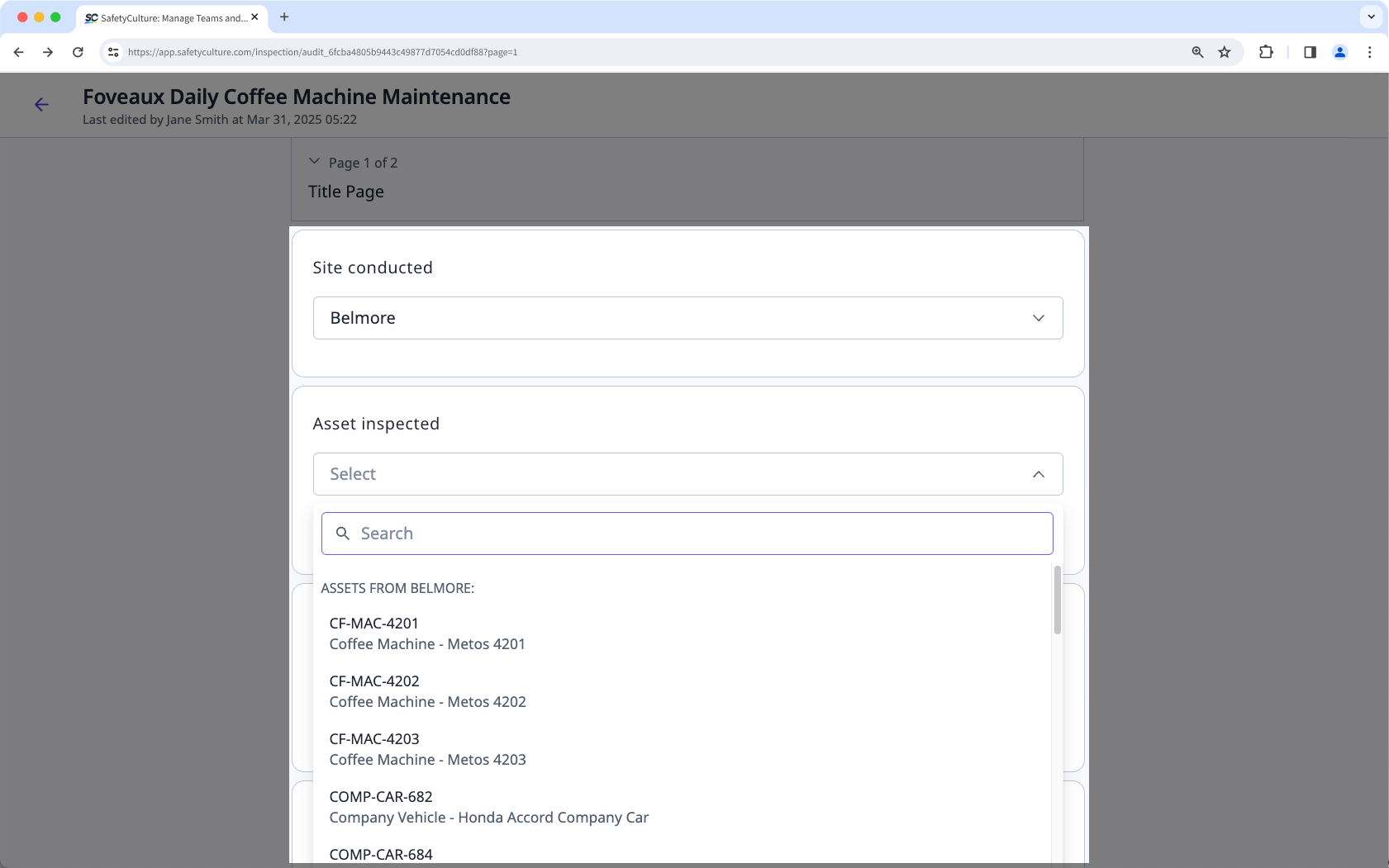
Adding assets to sites helps organize your list by grouping them under specific locations or projects. This makes it easier to manage assets at scale and quickly identify which ones belong to each site. It also improves your inspection process. When a site is selected in an inspection, your asset question will show relevant assets from that site first. You can add or remove assets from sites using the asset list or via CSV.
What you'll need
Each asset can only be added to one site. If you're on the web app, you can add assets to sites using the "List" view.
When managing several assets, you can also add to or remove them from sites via CSV.
Add assets to a site
Select Assets in the sidebar or select it in More.
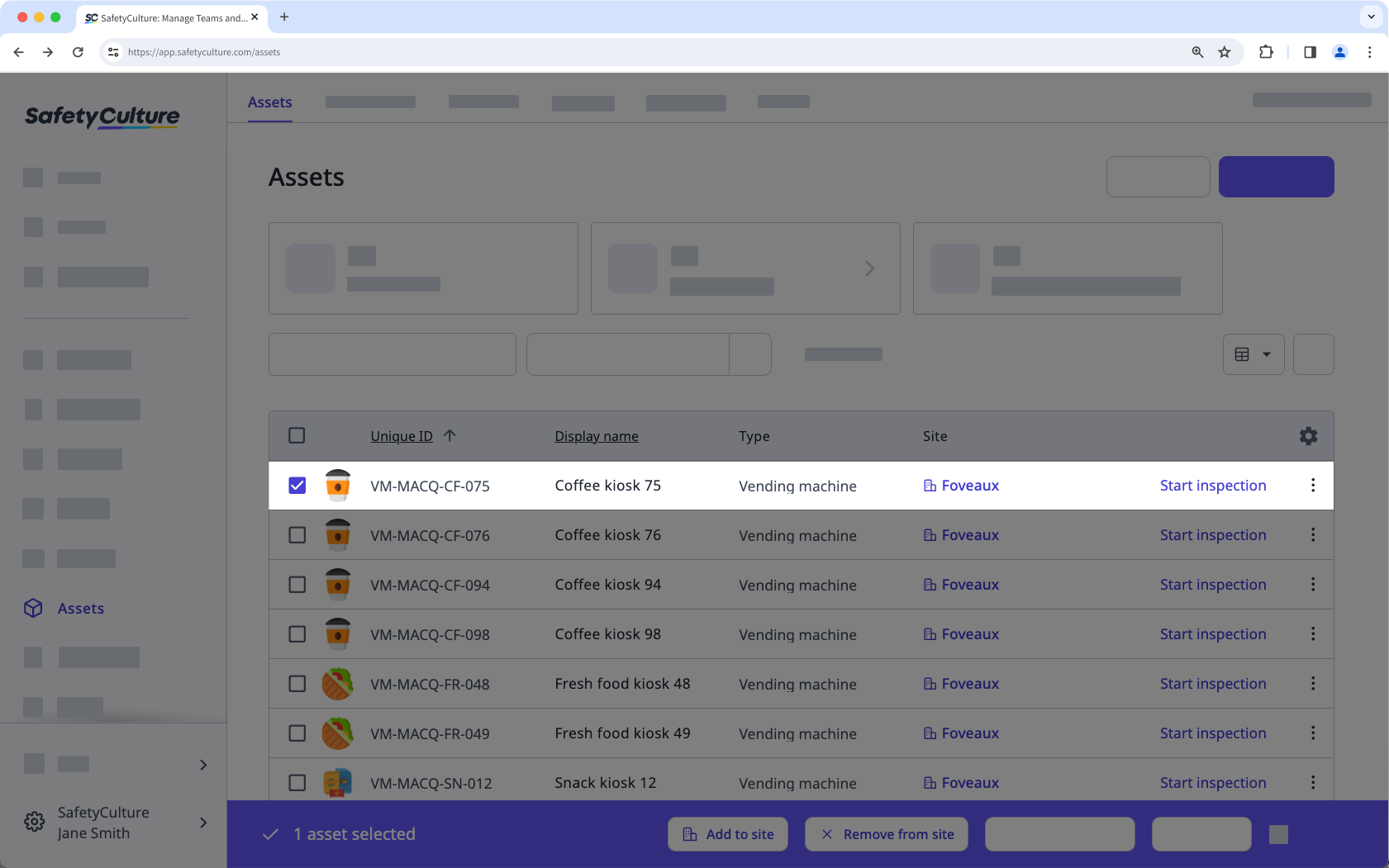
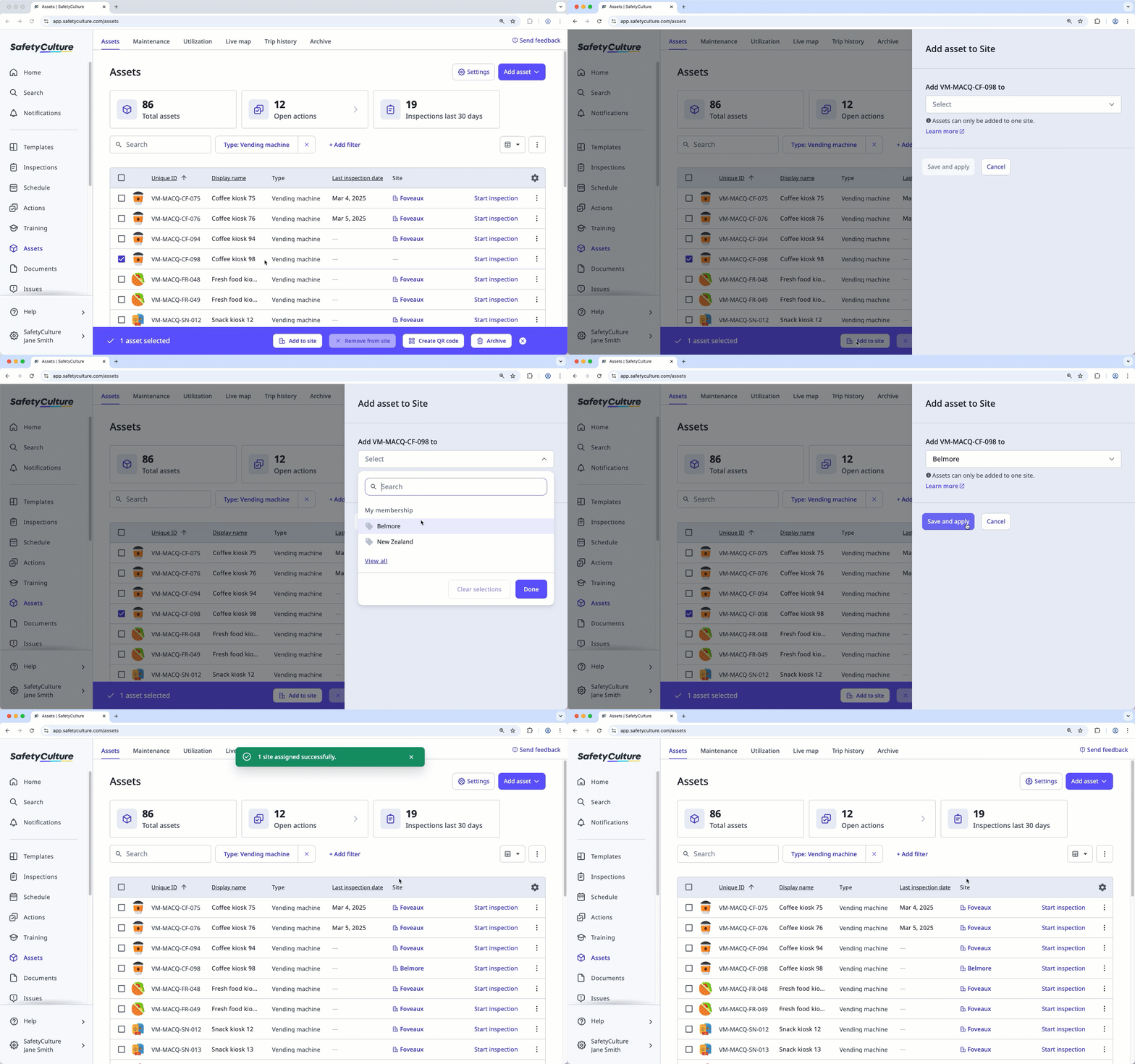
Select the assets you want to add to a site.
To select a single asset, click on the left-hand side of the asset.
To select multiple assets, click in the table header to select all assets currently visible.
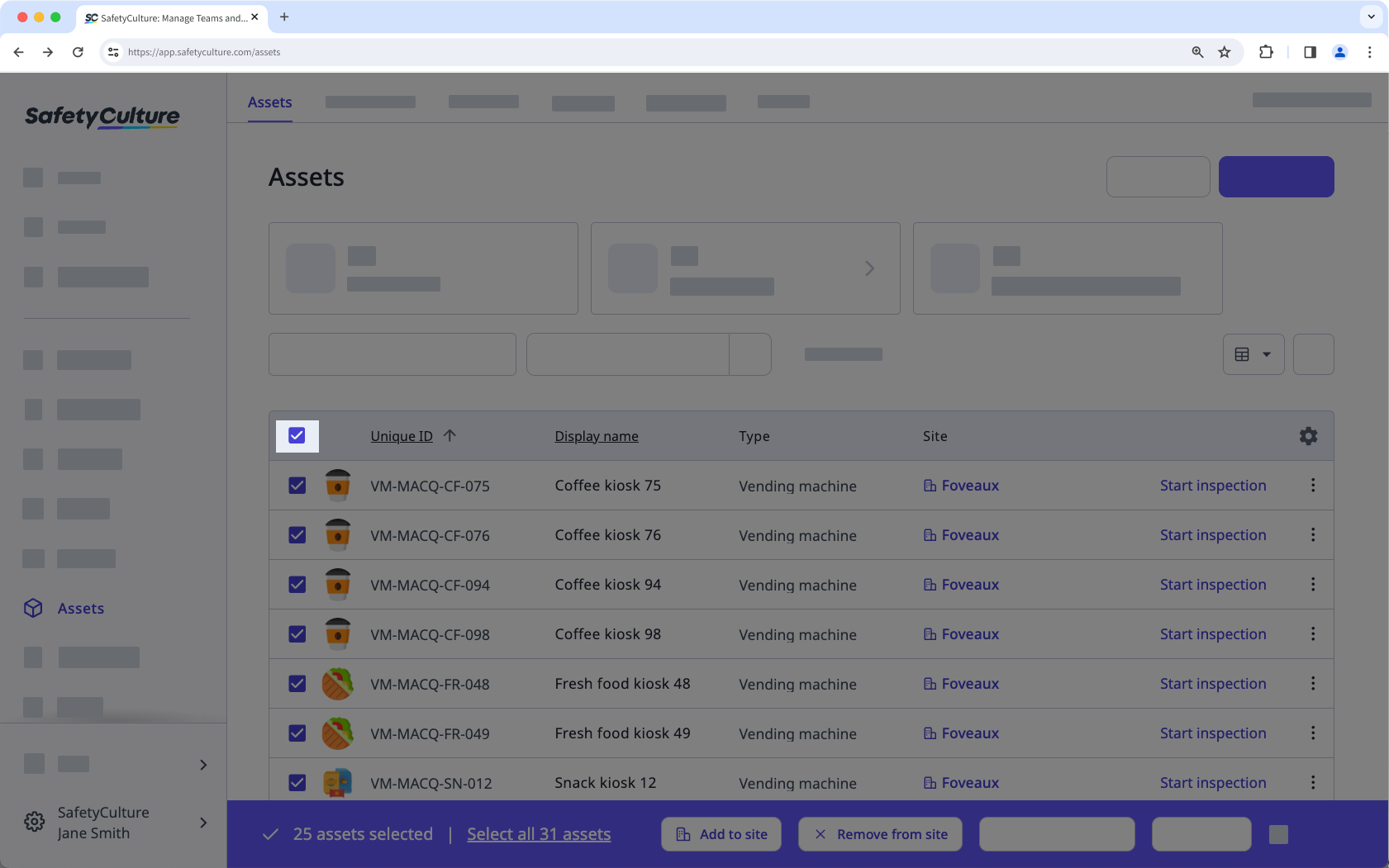
If you want to include all assets in the list, click Select all assets at the bottom of the page.
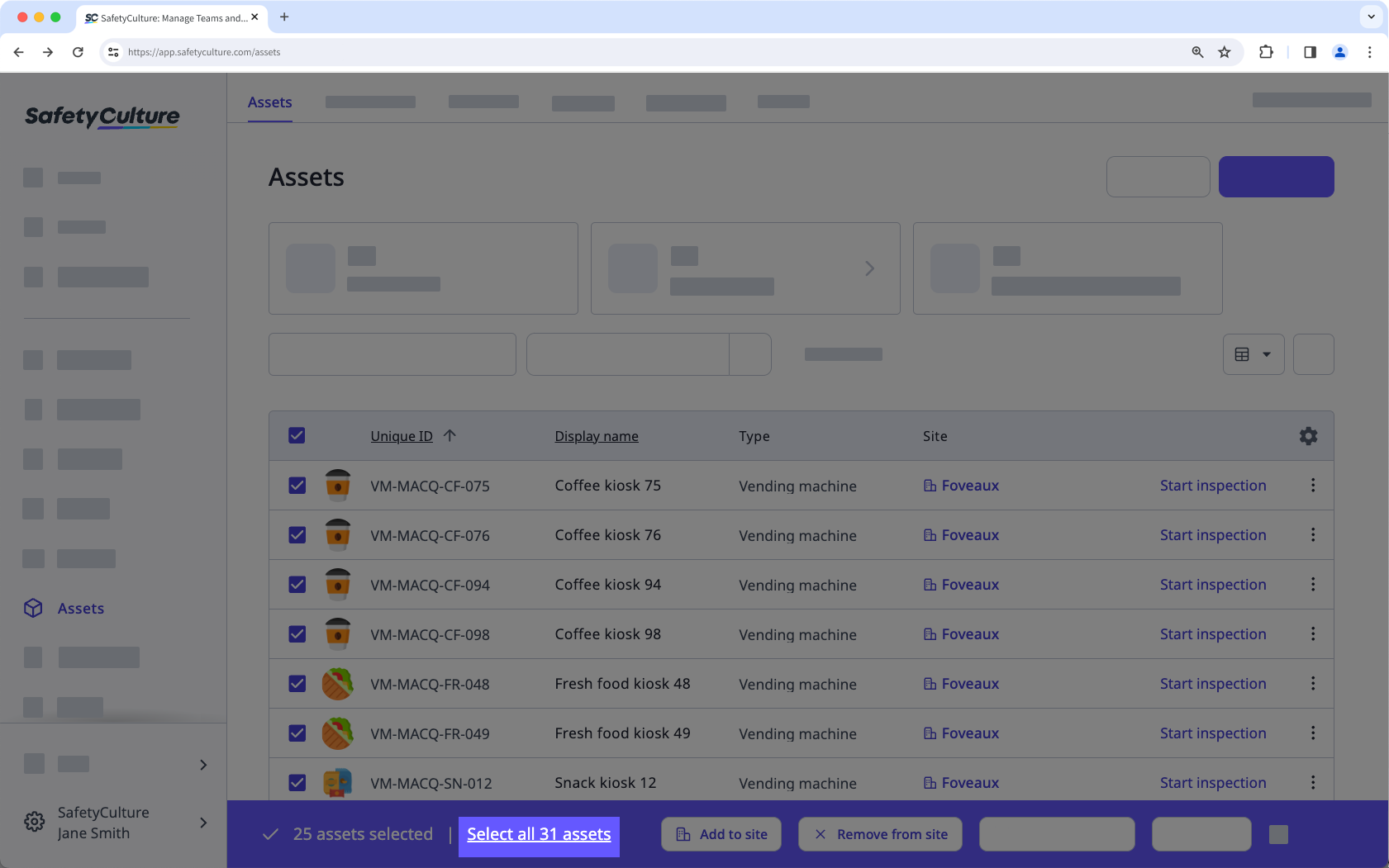
Click
 Add to site at the bottom of the page.
In the side panel, select a site.
Click Save and apply.
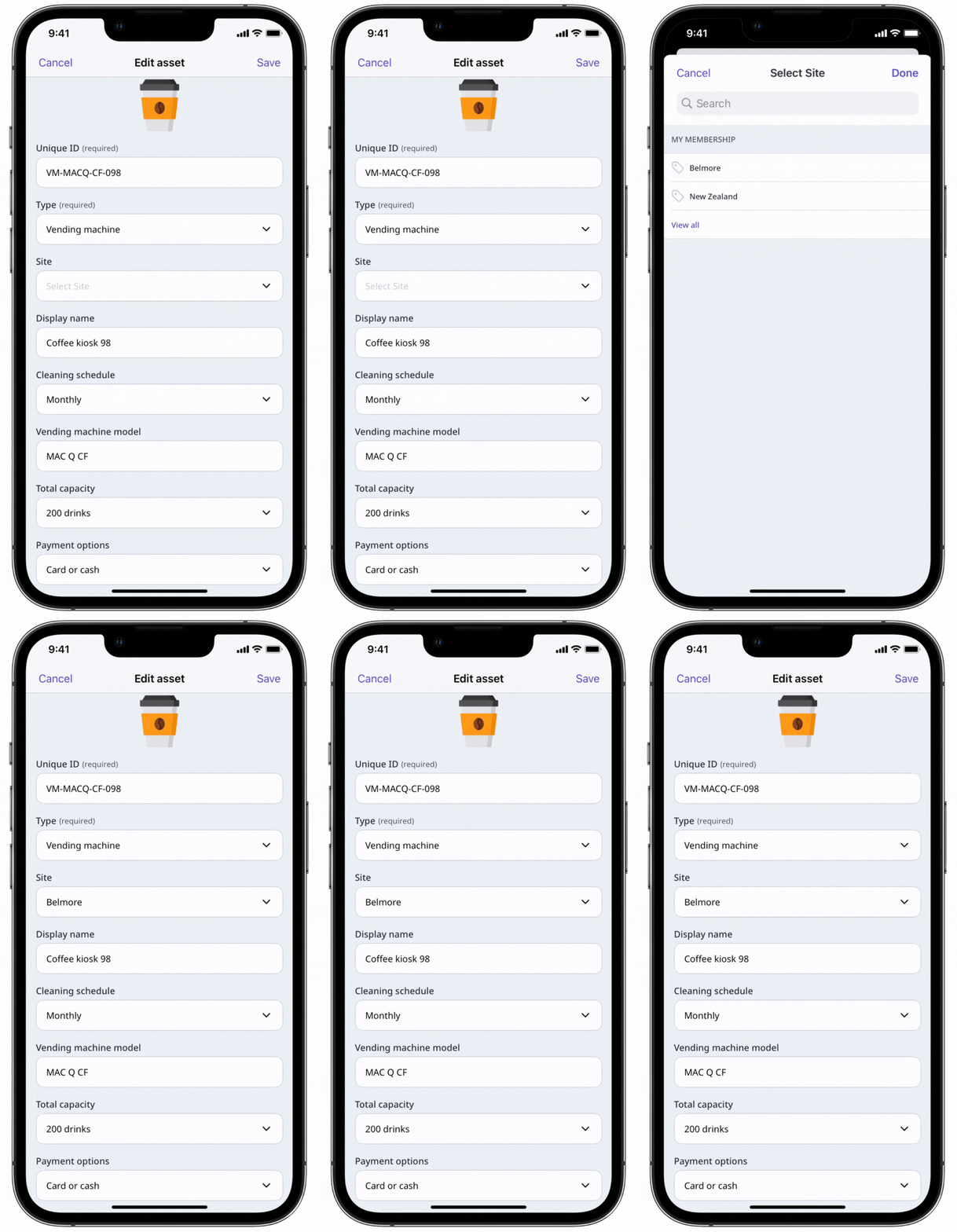
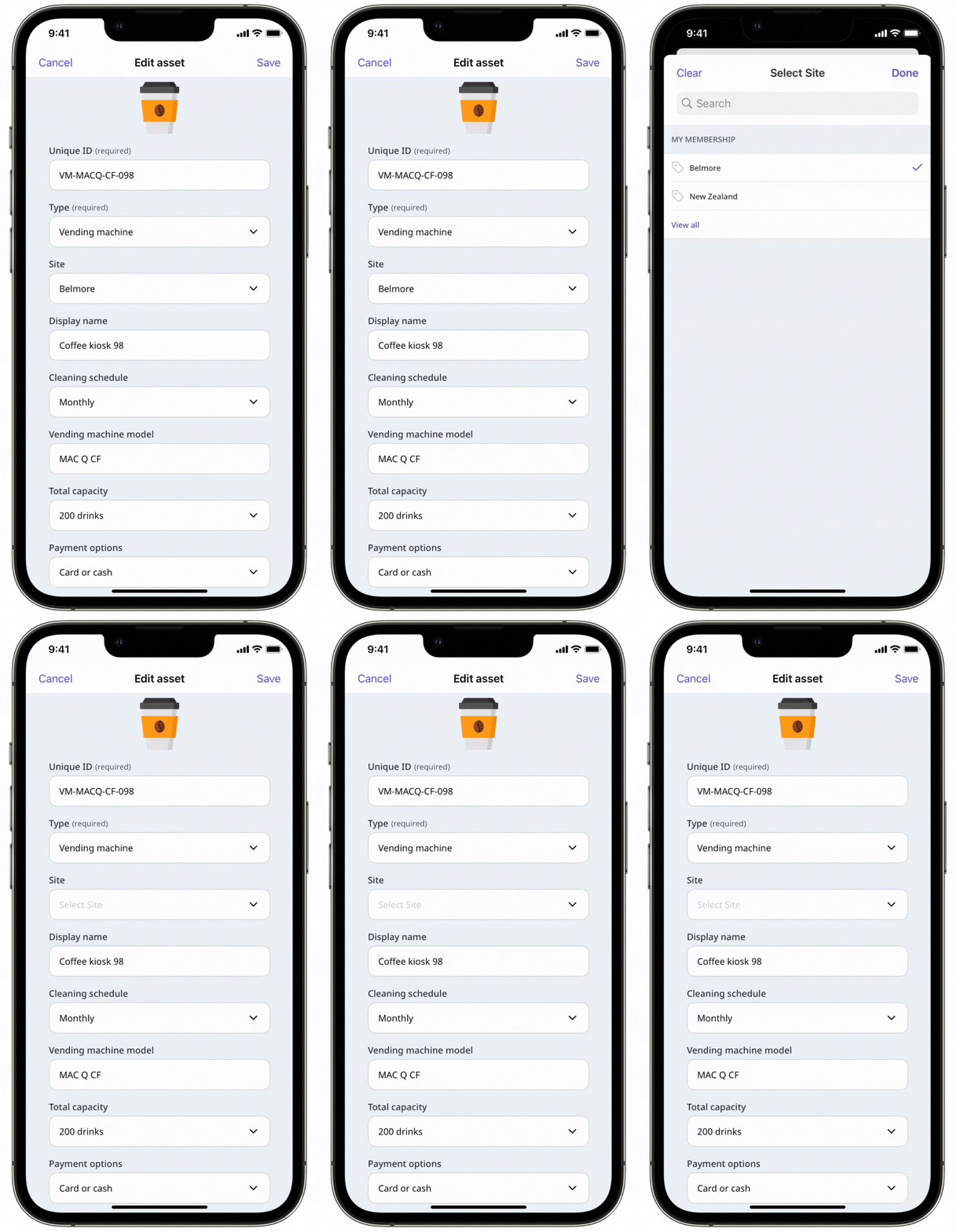
You can only remove one asset at a time from a site via the mobile app.
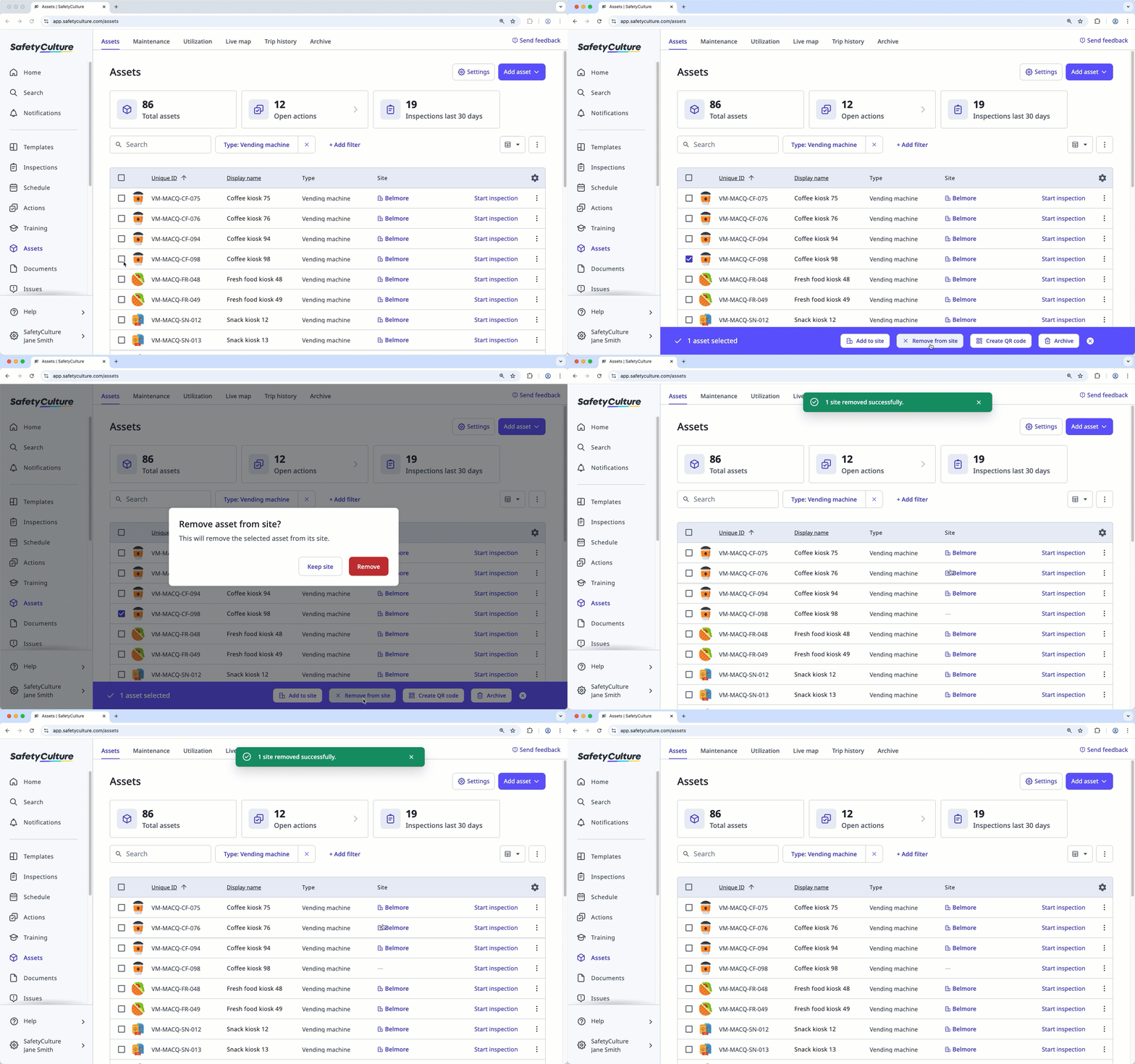
Remove assets from a site
Select Assets in the sidebar or select it in More.
Select the assets you want to remove from a site.
To select a single asset, click on the left-hand side of the asset.
To select multiple assets, click in the table header to select all assets currently visible.
If you want to include all assets in the list, click Select all assets at the bottom of the page.
Click Remove from site at the bottom of the page.
In the pop-up window, click Remove.