What are the differences between Briefcase and Documents?
In EdApp, Briefcase allows you to attach reference files and videos to a specific course so users can access them alongside their training. Documents is a central workspace for storing and managing files across your organization in SafetyCulture, independent of any single course.
Functionality | Briefcase | Documents |
|---|---|---|
Admin setup | Added by admins or authors from the Briefcase tab in a course Set Up page | Users with "Dokumente: Administrator"-Erlaubnis can create and manage files and folders |
Access control | Controlled by publish status and optional lesson prerequisites | Admins can assign view or edit permissions to users |
Platform availability | Admin portal (web) and learner's app (mobile) | Available on the web app and mobile app |
Bulk file upload | Unavailable | Files can be uploaded individually or in bulk |
Expiration dates | Unavailable | Admins can set expiration dates on files to keep content up-to-date |
File management | Dedicated Briefcase tab within a course | Folders and subfolders, with options to archive or move files |
File owners | Unavailable | Files have assigned owners to keep content up-to-date |
Supported file types and sizes | PDF, JPG, PNG, GIF, videos, PowerPoint, Keynote, and Pages documents up to 60 MB | DOCX, DOC, GIF, JPEG, JPG, PNG, WEBP, PDF, XLS, and XLSX up to 50 MB |
Integration with other features | Copied automatically when a course is copied | |
Offline access | Unavailable | Files can be made available offline |
QR codes | Unavailable | QR codes can be generated for files and folders |
Version control | Updated by uploading a new file, with no version history | Maintains version history, but previous versions can't be restored |
Die Funktion „Briefcase“ von EdApp ist in SafetyCulture nicht verfügbar. Verwenden Sie stattdessen „Dokumente“, um Ihre Dateien zu speichern und zu verwalten. Wenn Sie zuvor „Briefcase“ genutzt haben, um Dateien innerhalb eines Kurses zu teilen, können Sie Dateien direkt zu einer Folie hinzufügen, um sie mit einem Kurs zu verknüpfen.
Was Sie brauchen
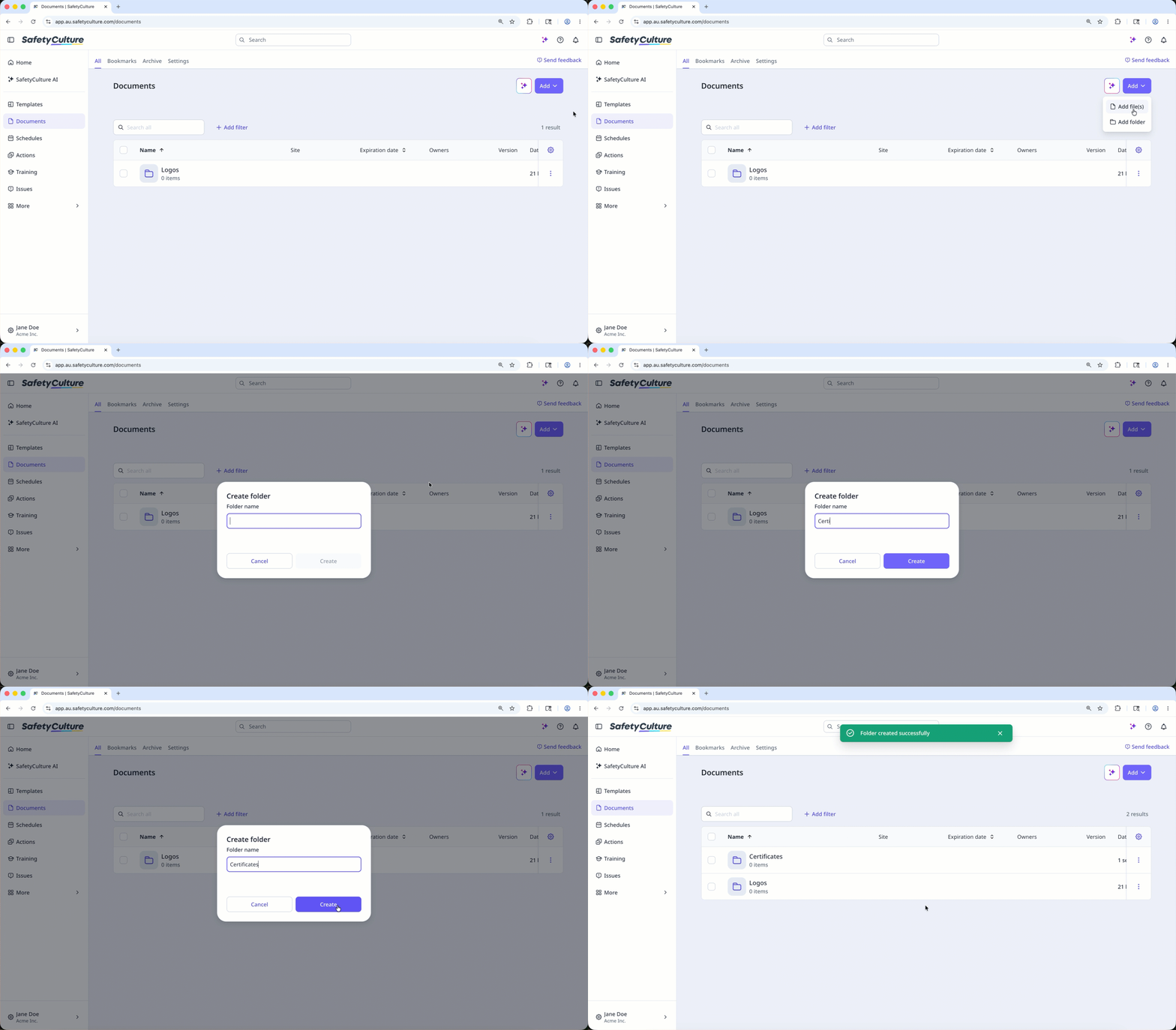
Ordner hinzufügen
Select Dokumente in the sidebar or select it in Mehr.
Select a folder if you want to create subfolders in it.
Click Hinzufügen on the upper-right of the page.
Select Ordner hinzufügen.
In the pop-up window, enter the folder name and click Erstellen.
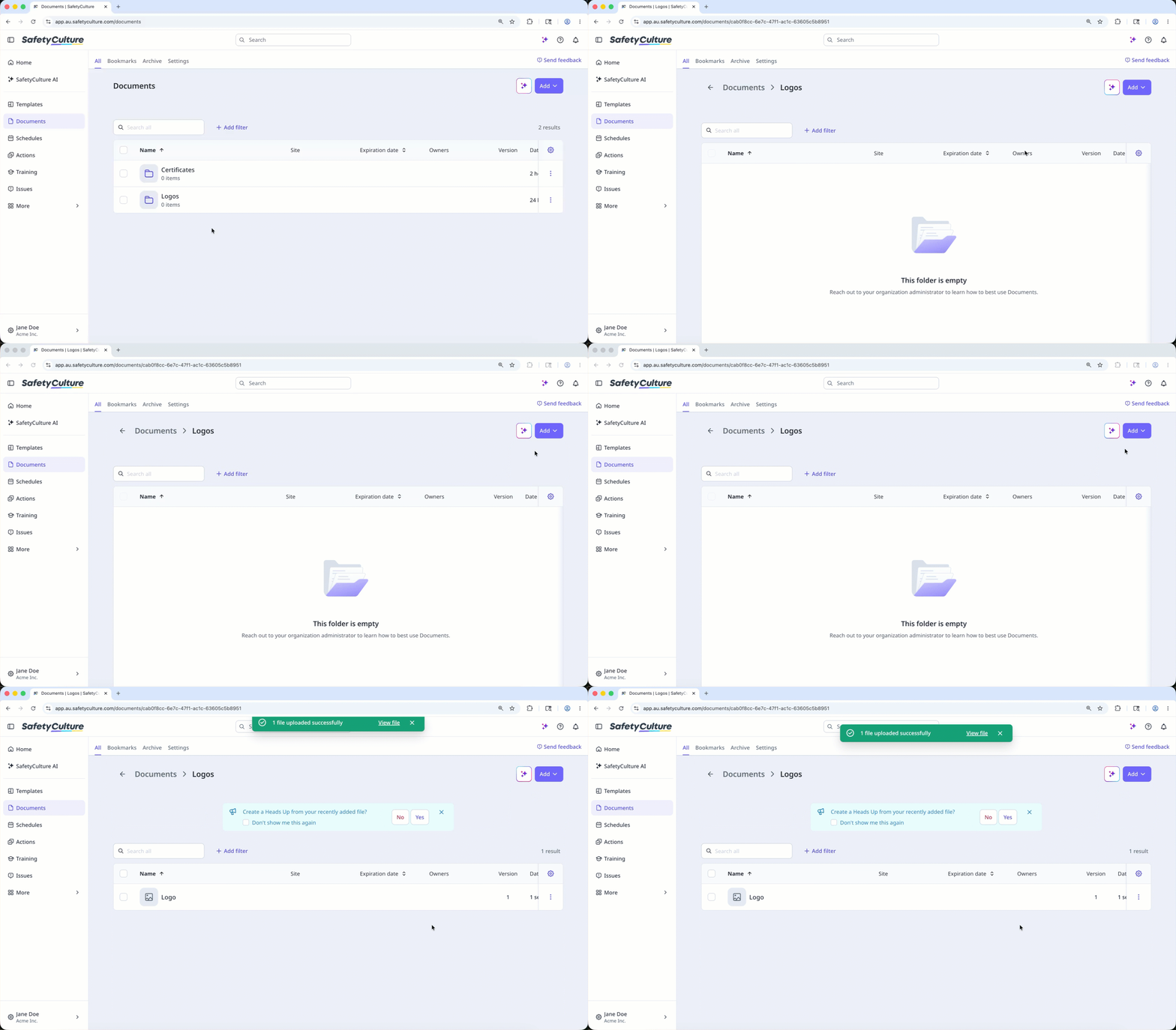
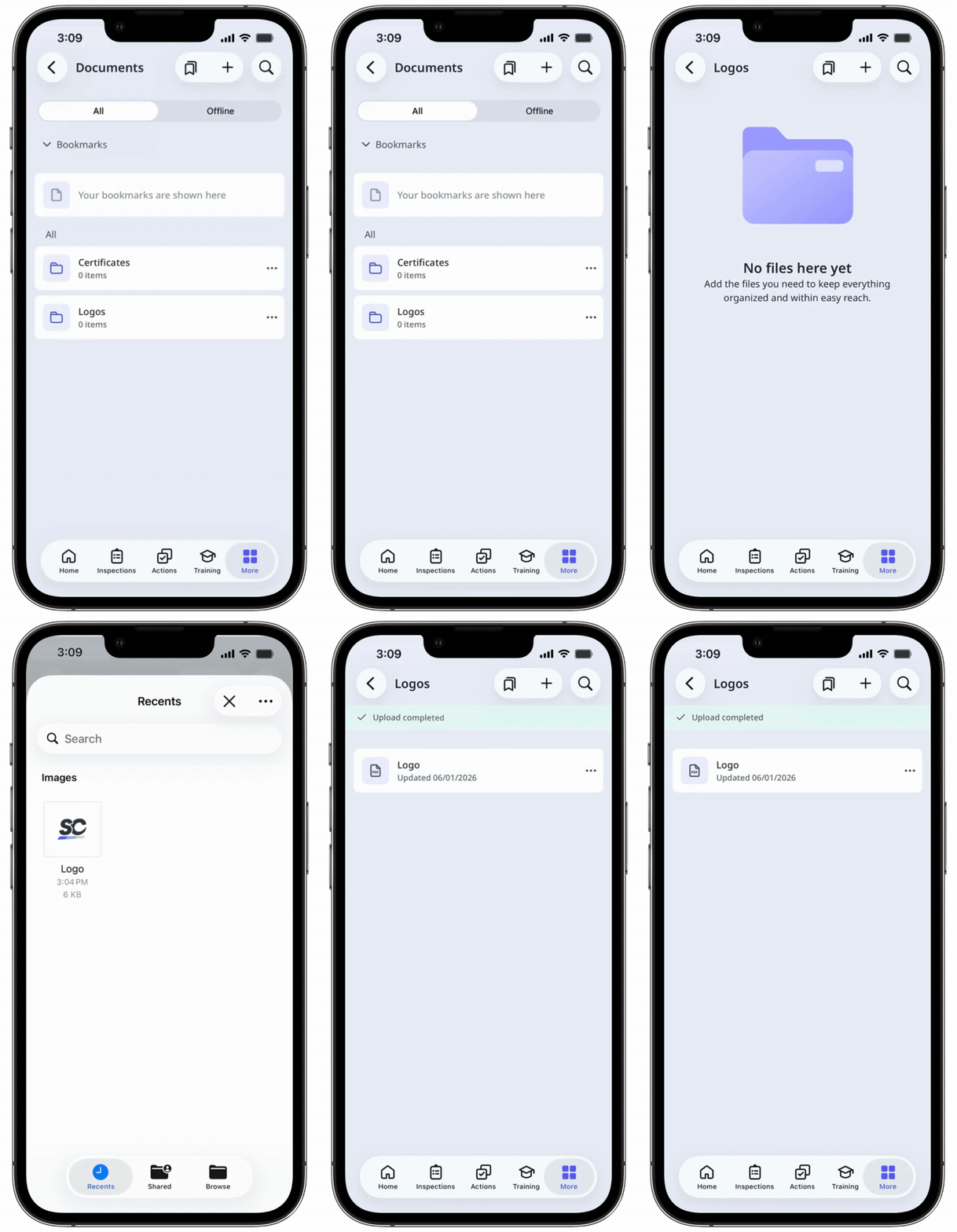
Eine Datei hinzufügen
Select Dokumente in the sidebar or select it in Mehr.
Select a folder if you want to add files in it.
Click Hinzufügen on the upper-right of the page.
Select Datei(en) hinzufügen.
Upload your file accordingly. Alternatively, you can drag and drop up to 100 files in one go.
Add or link files to a course
Select Schulungen in the sidebar or select it in Mehr.
If you're on the "Learn" page, click Inhalt at the top of the page and select Kurse.
Create a new course or click Anzeigen or Bearbeiten on an existing one.
If you're editing an existing course and it's published, click Bearbeiten on the upper-right of the page.
Click on the upper-left and select Standard.
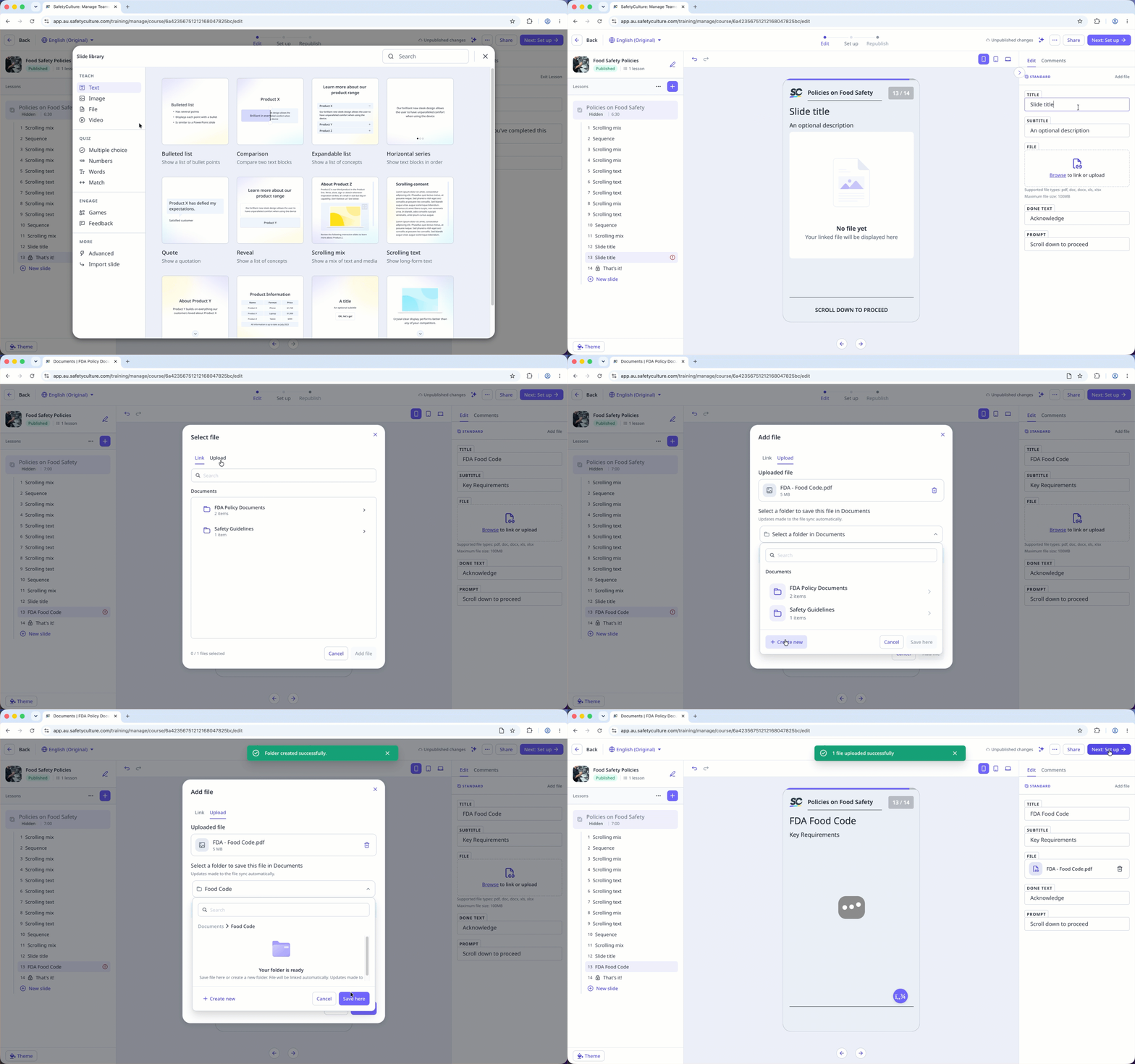
Click Neue Folie on the left-hand side of the page.
In the pop-up window, click Datei and select Datei hinzufügen.
Click Durchsuchen in the "File" section on the right-hand side panel to select files.
In the pop-up window, choose whether to link an existing file from Documents or upload a new one:
To link a file: Click Verknüpfen, then select the file you want to link from Documents.
To upload a file: Click Hochladen, then drag your file or click durchsuchen to select it from your device. Select a folder from the dropdown, or create a new one, to save your file in Documents. Then, click Hier speichern.
Once you're ready, click Datei hinzufügen.
Sie können Dateien bis zu 100MB in den Formaten PDF, DOCX, DOC, XLS, und XLSX hochladen.
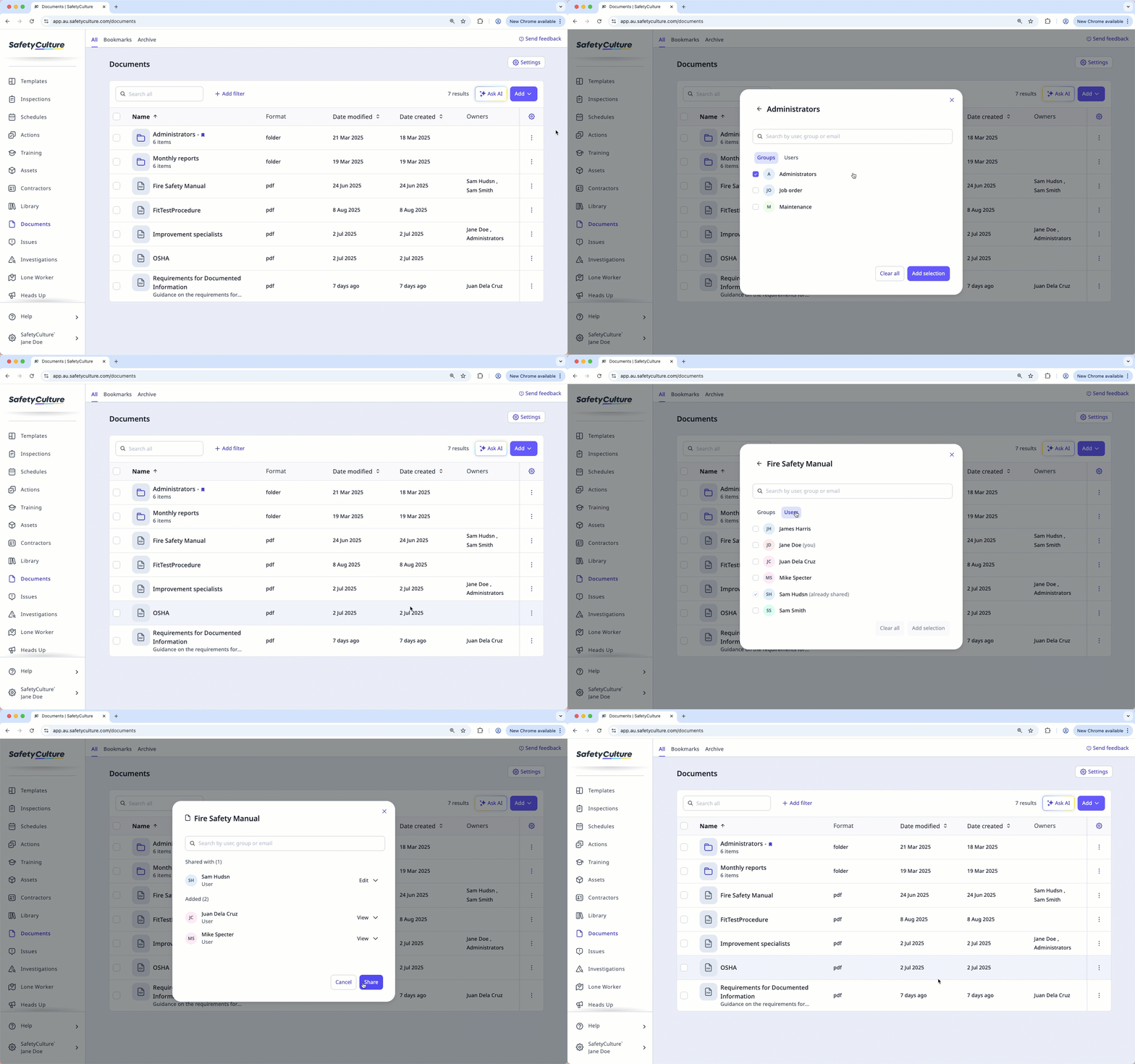
Zugriff auf eine Datei oder einen Ordner verwalten
Wählen Sie Dokumente in der Seitenleiste oder in Mehr aus.
Wählen Sie einen Ordner, wenn Sie den Zugriff auf eine Datei oder einen Ordner darin verwalten möchten.
Klicken Sie auf der rechten Seite des Ordners auf und wählen Sie Zugriffsverwaltung aus.
Im Pop-up-Fenster den Nutzer oder die Gruppe suchen und auswählen.
Klicken Sie auf Auswahl hinzufügen.
Standardmäßig erhalten alle Nutzer und Gruppen den Zugriff „anzeigen“ auf die Datei oder den Ordner. Sie können das Drop-down neben jedem Nutzer oder jeder Gruppe anklicken, um den Zugriff zu ändern.
Klicken Sie auf Teilen.