What does it mean to be a file owner?
In Documents, a file owner is the user or group responsible for a file. Assigning an owner makes it clear who is accountable for keeping the file up to date and allows you to filter your files by owner, so you know who's responsible and which files are yours to maintain.
We’re working on expanding the role of file owners!
Currently, owners receive notifications when a file they own is updated, about to expire, or has already expired. These notifications help owners stay aware of changes and review files on time.
Soon, owners will also be notified when action is required, such as approving updates. This will help you maintain better control over your files and support compliance requirements, including ISO standards.
If you have "Documents: Administrator" permission, you can manage owners to any files in your organization.
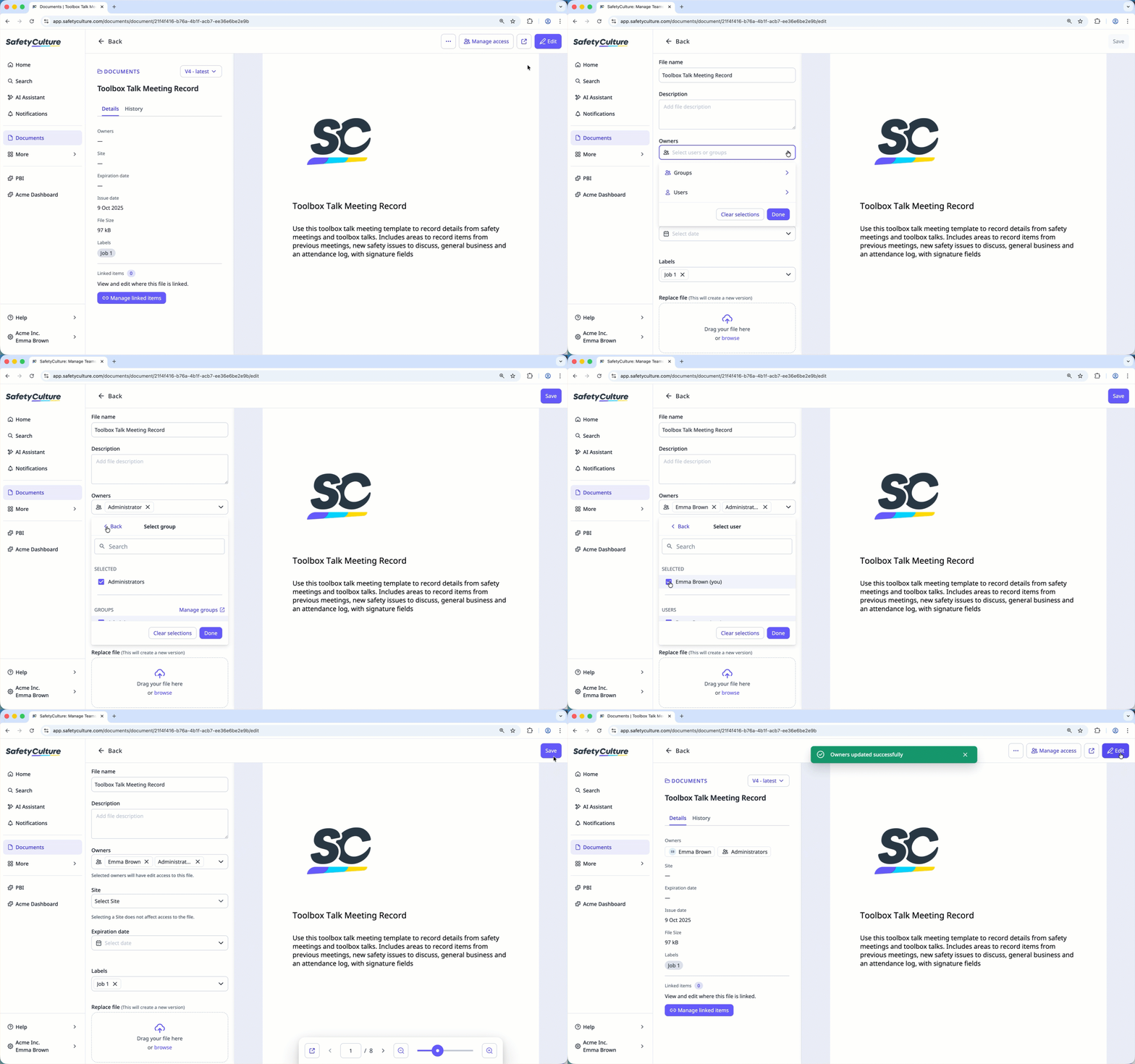
Add a file owner
Select Documents in the sidebar or select it in More.
Select a folder if you want to add an owner to a file in it.
Click on the file's right-hand side and select Edit file.
In the side panel, click the dropdown under "Owners" and select Groups or Users.
Select the group or user you want to add by checking each box and click Done.
Click Save on the upper-right of the page.
You can add up to 5 owners to a file.
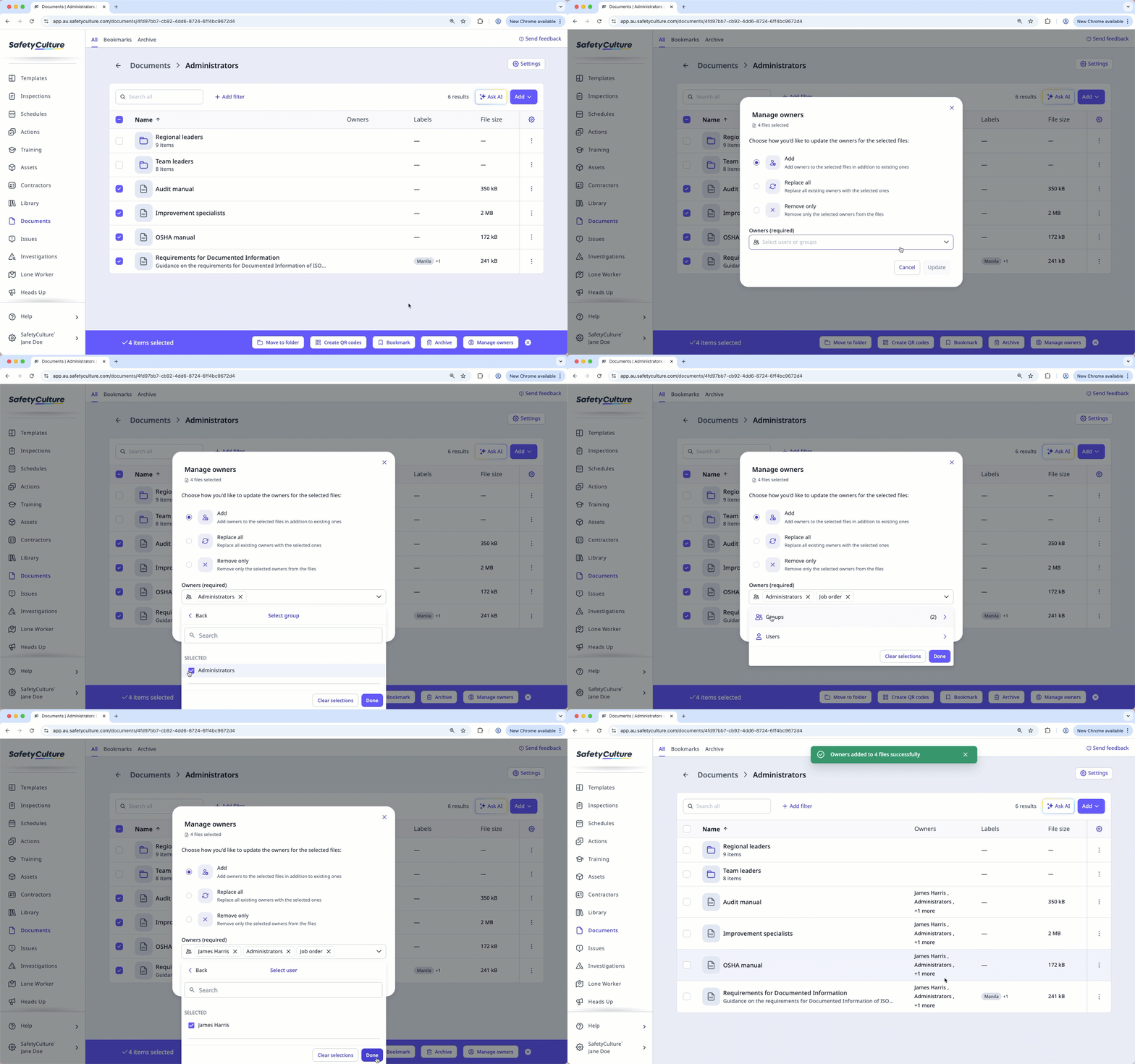
Bulk add file owners
Select Documents in the sidebar or select it in More.
Select the files by checking the box on the left-hand side of the page.
Select Manage owners at the bottom of the page.
In the pop-up window, select Add.
Click the dropdown under "Owners" and select Groups or Users.
Select the group or user you want to assign by checking each box and click Done.
Click Update.
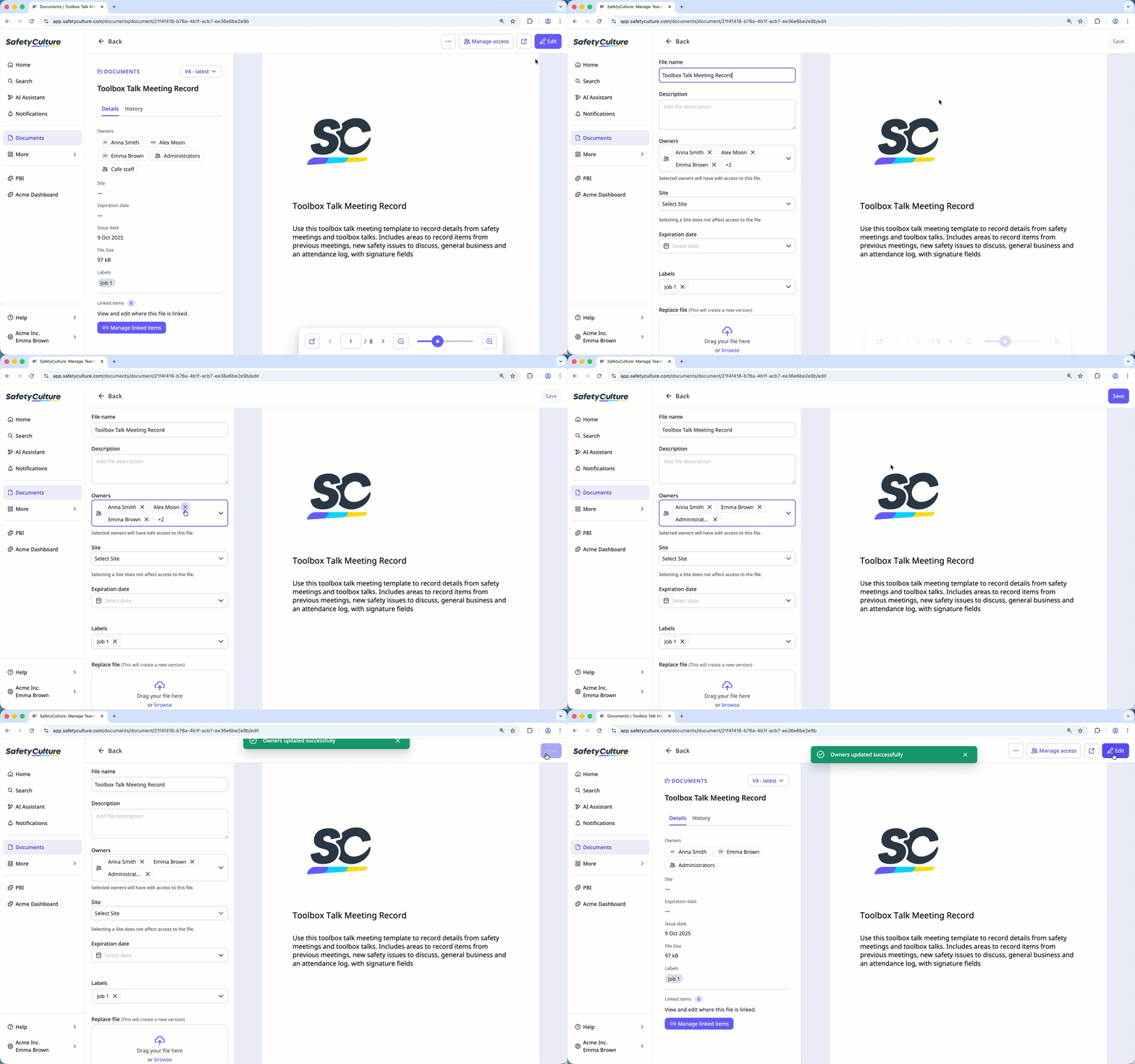
Remove a file owner
Select Documents in the sidebar or select it in More.
Click on the file's right-hand side and select Edit file.
Under "Owners", click on the user or group you want to remove.
Click Save on the upper-right of the page.
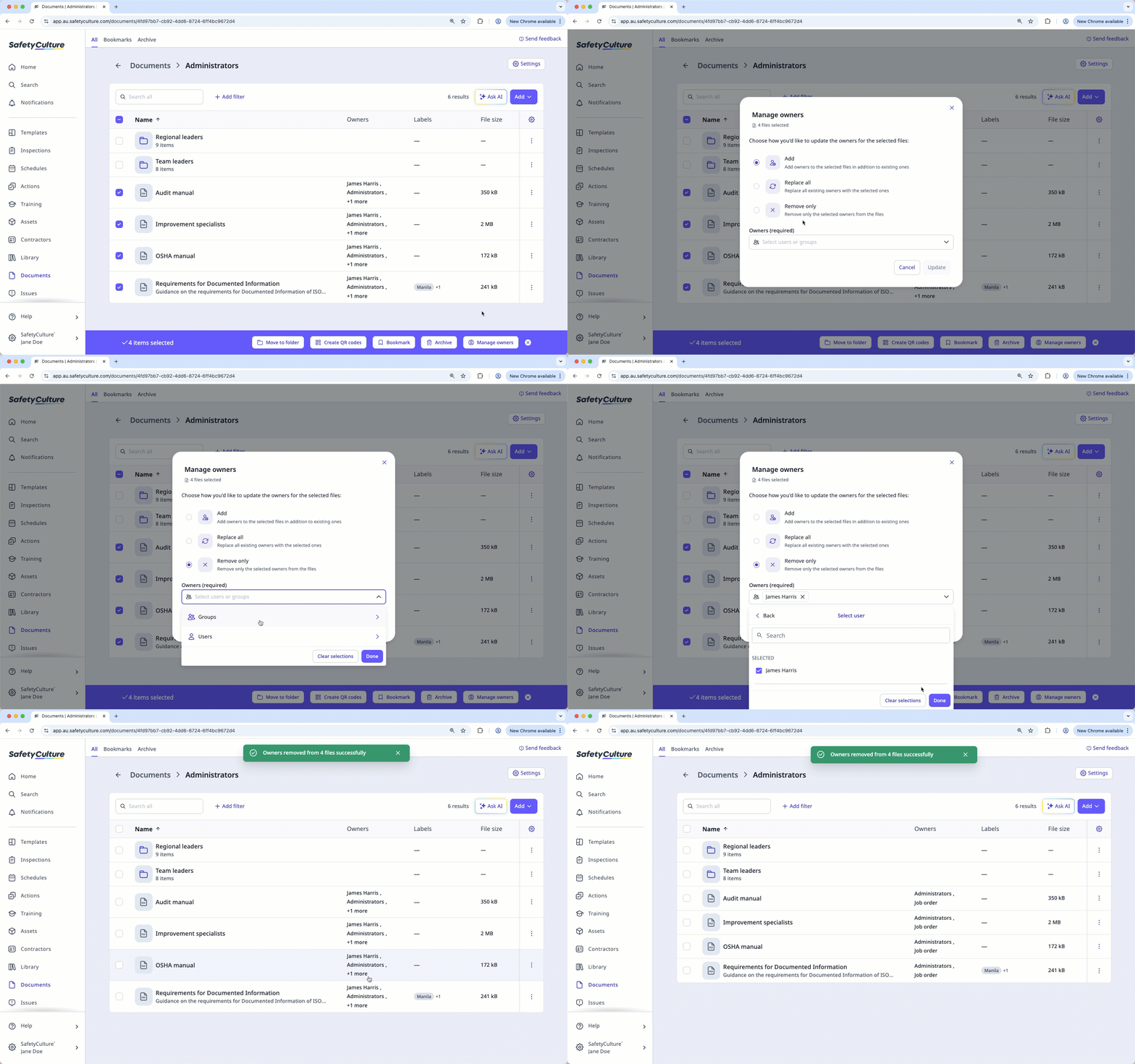
Bulk remove file owners
Select Documents in the sidebar or select it in More.
Select the files by checking the box on the left-hand side of the page.
Select Manage owners at the bottom of the page.
In the pop-up window, select Remove only.
Click the dropdown under "Owners" and select Groups or Users.
Select the group or user you want to remove by checking each box and click Done.
Click Update.
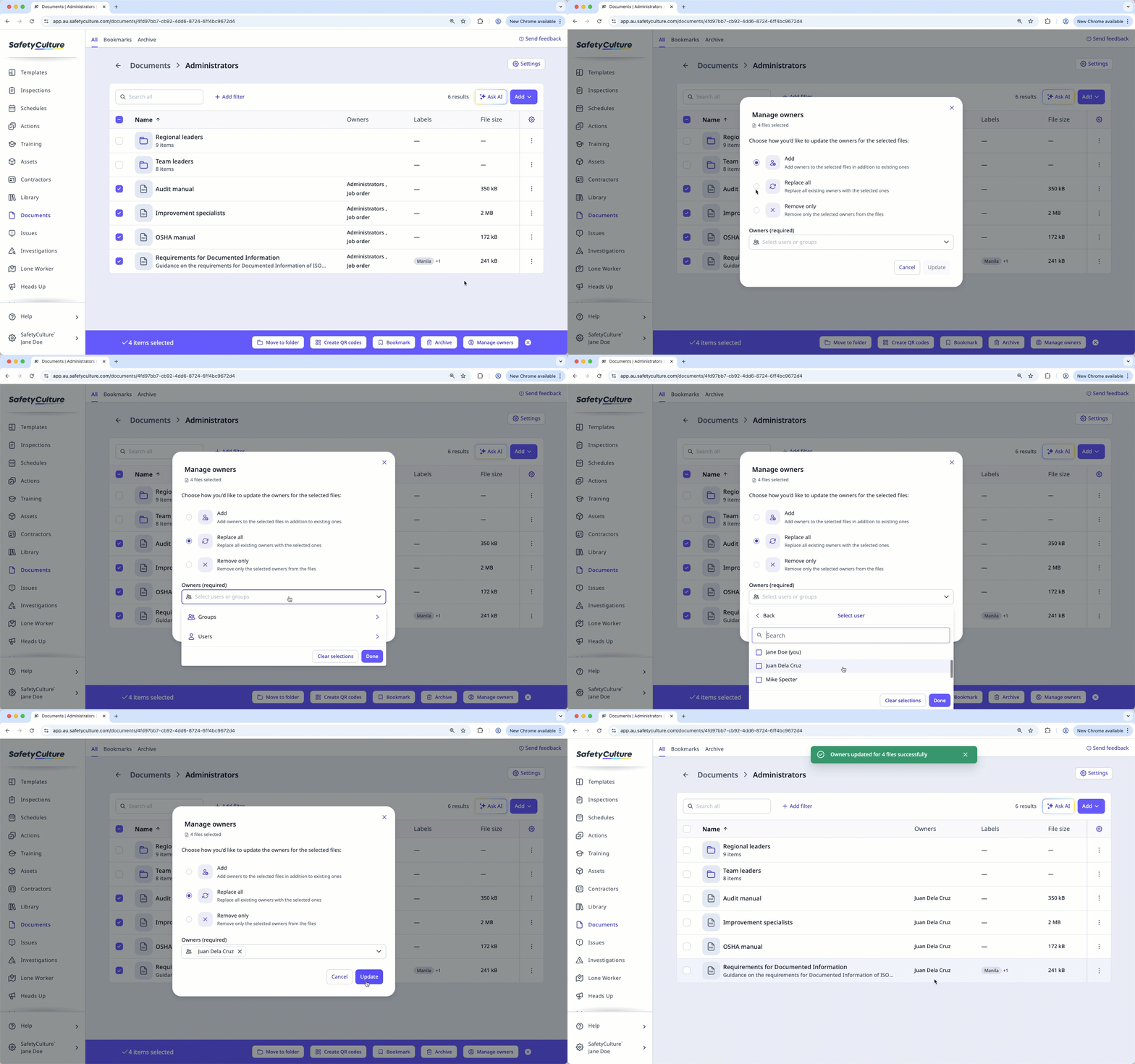
Bulk replace file owners
Select Documents in the sidebar or select it in More.
Select the files by checking the box of on the left-hand side of the page.
Select Manage owners at the bottom of the page.
In the pop-up window, select Replace all.
Click the dropdown under "Owners" and select Groups or Users.
Select the group or user you want to assign by checking each box and click Done.
Click Update.