
How does adding and linking files work?
When you add or link files to a course, you can either upload new files or reuse existing ones from Documents. Adding a file allows you to upload training materials that are specific to a course, such as reference guides, and store them directly in Documents. Linking a file lets you reuse existing manuals, procedures, or policies from Documents without uploading them again.
By managing files in Documents, this helps teams keep training materials consistent across courses, as updates apply wherever the file is used. It also reduces duplication and ensures users always see the most current materials as they move through a course.
What you'll need
Add or link files to a course
Select Training in the sidebar or select it in More.
If you're on the "Learn" page, click Content at the top of the page and select Courses.
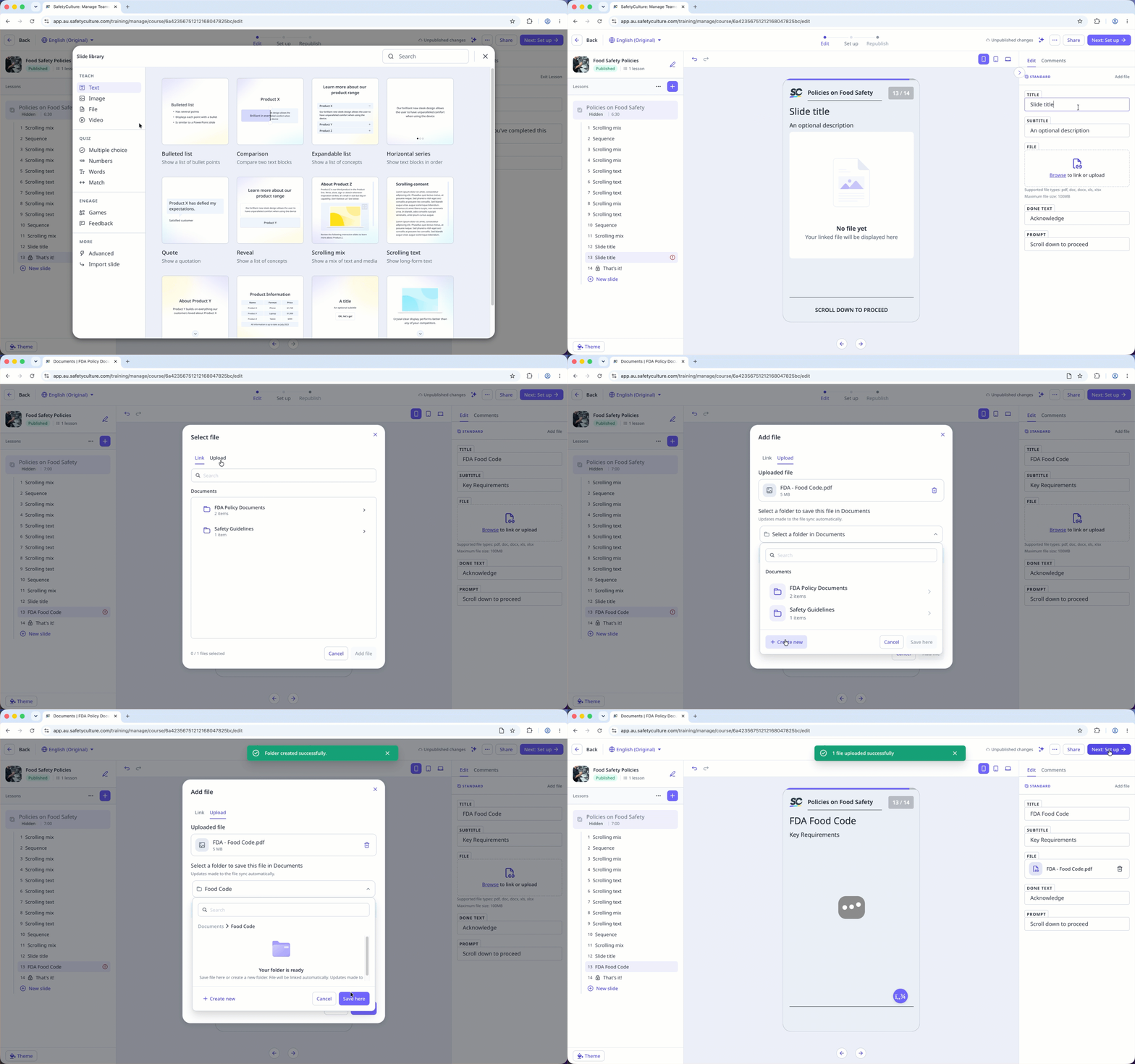
Click New slide on the left-hand side of the page.
In the pop-up window, click File and select Add file.
Click Browse in the "File" section on the right-hand side panel to select files.
In the pop-up window, choose whether to upload a new file or link an existing file from Documents:
To add a file: Click Upload, then drag your file or click browse to select it from your device. Save your file in Documents by selecting an existing folder from the dropdown or creating a new one. Then, click Save here.
To link a file: Click Link, then select the file you want to link from Documents.
Once you're ready, click Add file.
You can upload files up to 100MB in PDF, DOCX, DOC, XLS, and XLSX formats.


