
How are folders used in Documents?
In Documents, folders help keep your files organized and easy to manage. Your files are stored in a hierarchical structure, starting with main folders at the top. These main folders are where all subfolders are created and organized. Think of it like a set of document binders on a shelf, where the main folders are the binders and subfolders are the sections or files inside each binder. To keep files and folders secured, only users with "Documents: Administrator" permission can manage main folders and their access.
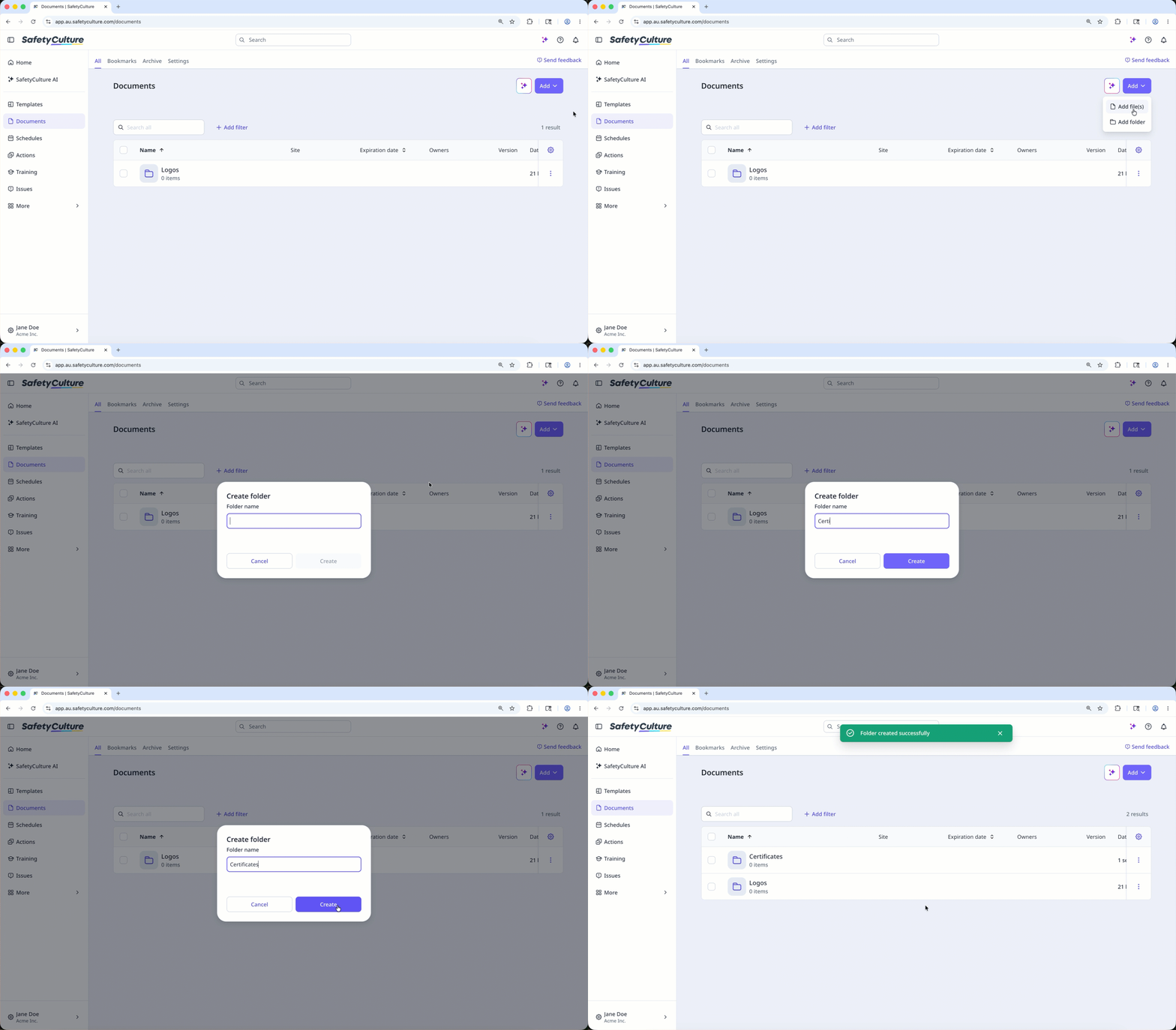
After creating a main folder and giving users and groups appropriate access, your team can add subfolders and upload files to keep everything organized and easy to find.
Keep in mind that what you see in Documents may look different from what others on your team see. Instead of displaying every folder, Documents only shows the highest-level folders you have access to, so your view depends on the access you’ve been given.
You need "Edit" access to a folder if you want to add subfolders to it.
Add a folder
Select Documents in the sidebar or select it in More.
Select a folder if you want to create subfolders in it.
Click Add on the upper-right of the page.
Select Add folder.
In the pop-up window, enter the folder name and click Create.
Rename a folder
Select Documents in the sidebar or select it in More.
Select a folder if you're renaming a subfolder.
Click on the folder's right-hand side.
Select Rename folder.
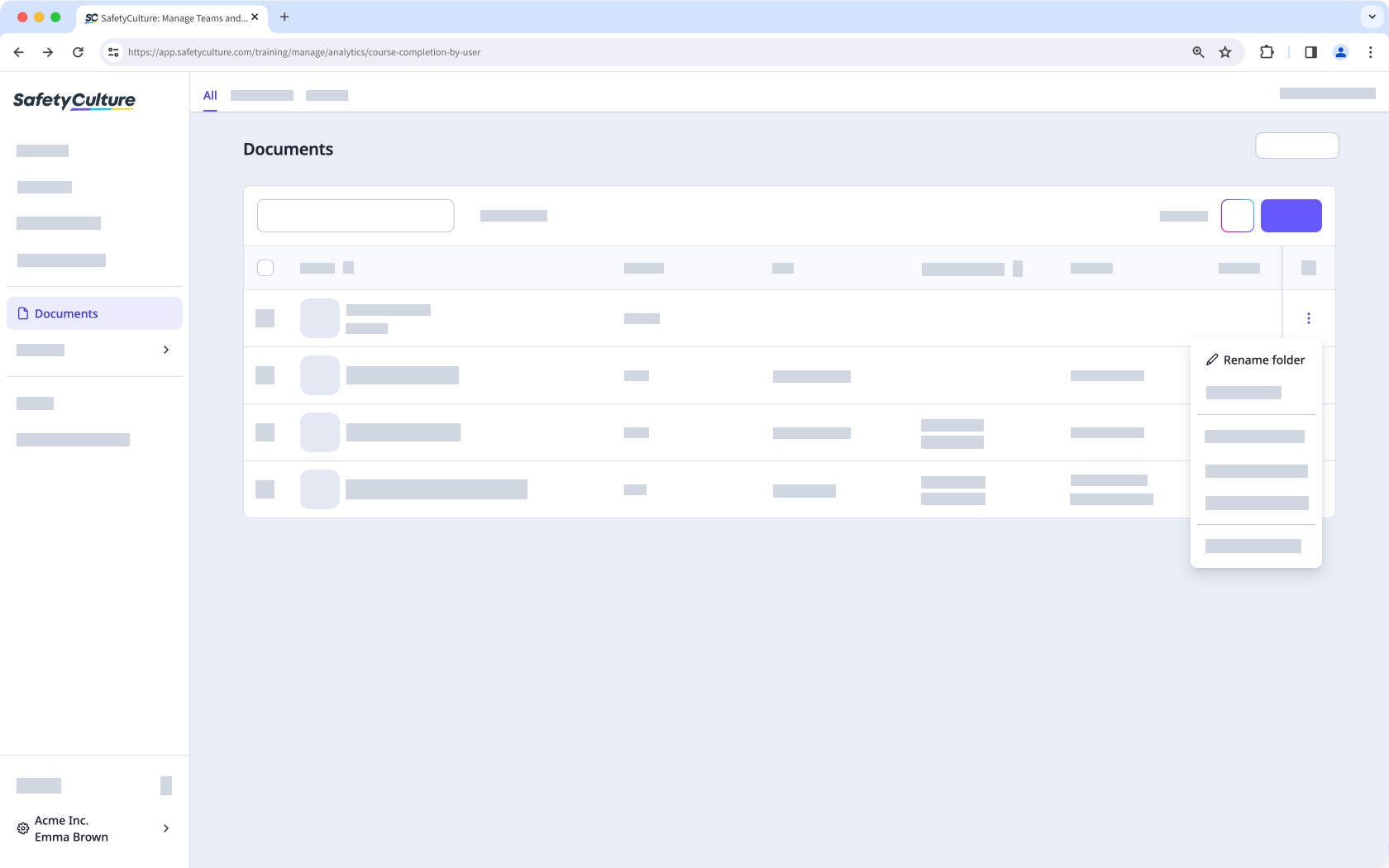
In the pop-up window, enter the folder name and click Rename.
Folders in Documents are different from the template folders in Templates.
Limitations
You can create up to 100 main folders. Each folder can have up to 100 subfolders, with a maximum of 2,000 folders overall.
Folders are always listed first, followed by files. Everything is sorted alphabetically by name. If you're using numbers to organize items, they may not appear in the order you expect. For example, 10 might appear before 2. To keep things in the right order, use leading zeros such as 01, 02, and 03. You can also change the sort order by clicking the column headers.
You can't name your folders with the following reserved names: CON, PRN, AUX, NUL, COM1–COM9, and LPT1–LPT9.
Folder names can't begin with the following: space, tilde (~), the Japanese dakuten character (゛), and the Burmese letter e (ဧ).
The following special characters are not supported for folder names: “, *, :, <, >, ?, /, \, and |.


