What is Documents?
The Documents feature lets you store and manage your organization’s files directly in SafetyCulture. You can organize files using folders, labels, bookmarks, and sites, and keep them up to date by assigning file owners and tracking file versions with expiration dates. Share files with the right people, add them to specific sites, and access them offline so your team can find and use them anytime.
To help manage your organization's files, certain permissions are in place to control who can add files and create folders, as well as manage file ownership, labels, and expiration dates.
You can add your downloaded templates as PDFs in Documents to keep them accessible to your team anytime, anywhere.
What you'll need
To add files to a folder, you need "Edit" access for that folder.
Add a file
Select
 Documents in the sidebar or select it in More.
Select a folder if you want to add files in it.
Click Add on the upper-right of the page.
Select
Add file(s).Upload your file accordingly. Alternatively, you can drag and drop up to 100 files in one go.
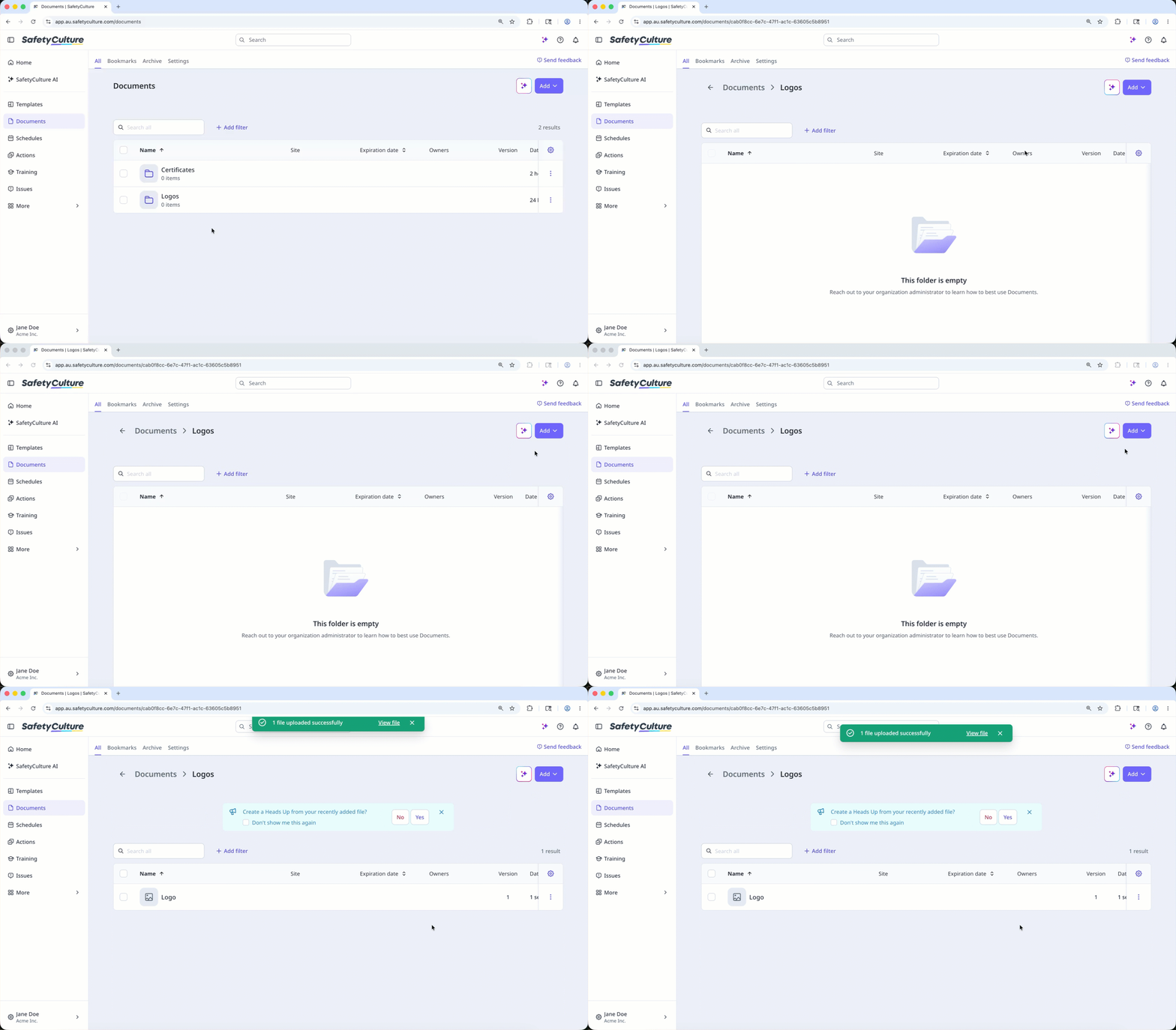
You can create a Heads Up to quickly share new information with your team using recently added files.
Limitations
You can upload files up to 100MB in DOC, DOCX, GIF, JPEG, JPG, PDF, PNG, WEBP, XLS, and XLSX formats.
If your organization is on Premium Plan or Enterprise Plan, you can add up to 10,000 files in total. Each folder can contain up to 400 items, which includes both files and a maximum of 100 subfolders.
If your organization is on Free Plan, you can add up to 100 files.
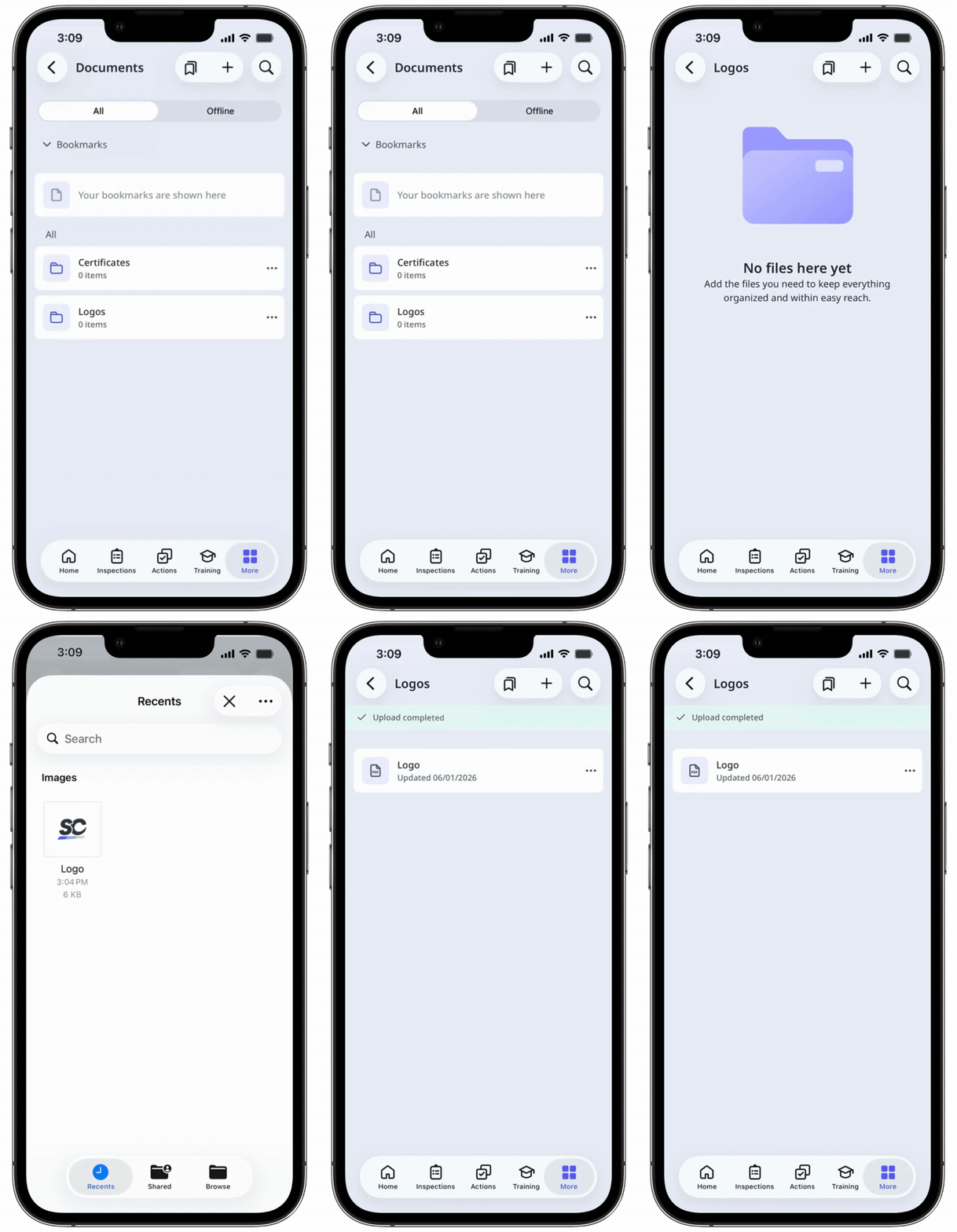
You can only add 1 file at a time on the mobile app.
You can't name your files with the following reserved names: CON, PRN, AUX, NUL, COM1–COM9, and LPT1–LPT9.
Folder names can't begin with a space and a tilde (~).
The following special characters are not supported for file names: “, *, :, <, >, ?, /, \, and |.
Folders are always listed first, followed by files. Everything is sorted alphabetically by name. If you're using numbers to organize items, they may not appear in the order you expect. For example, 10 might appear before 2. To keep things in the right order, use leading zeros such as 01, 02, and 03. You can also change the sort order by clicking the column headers.