How does access in Documents work?
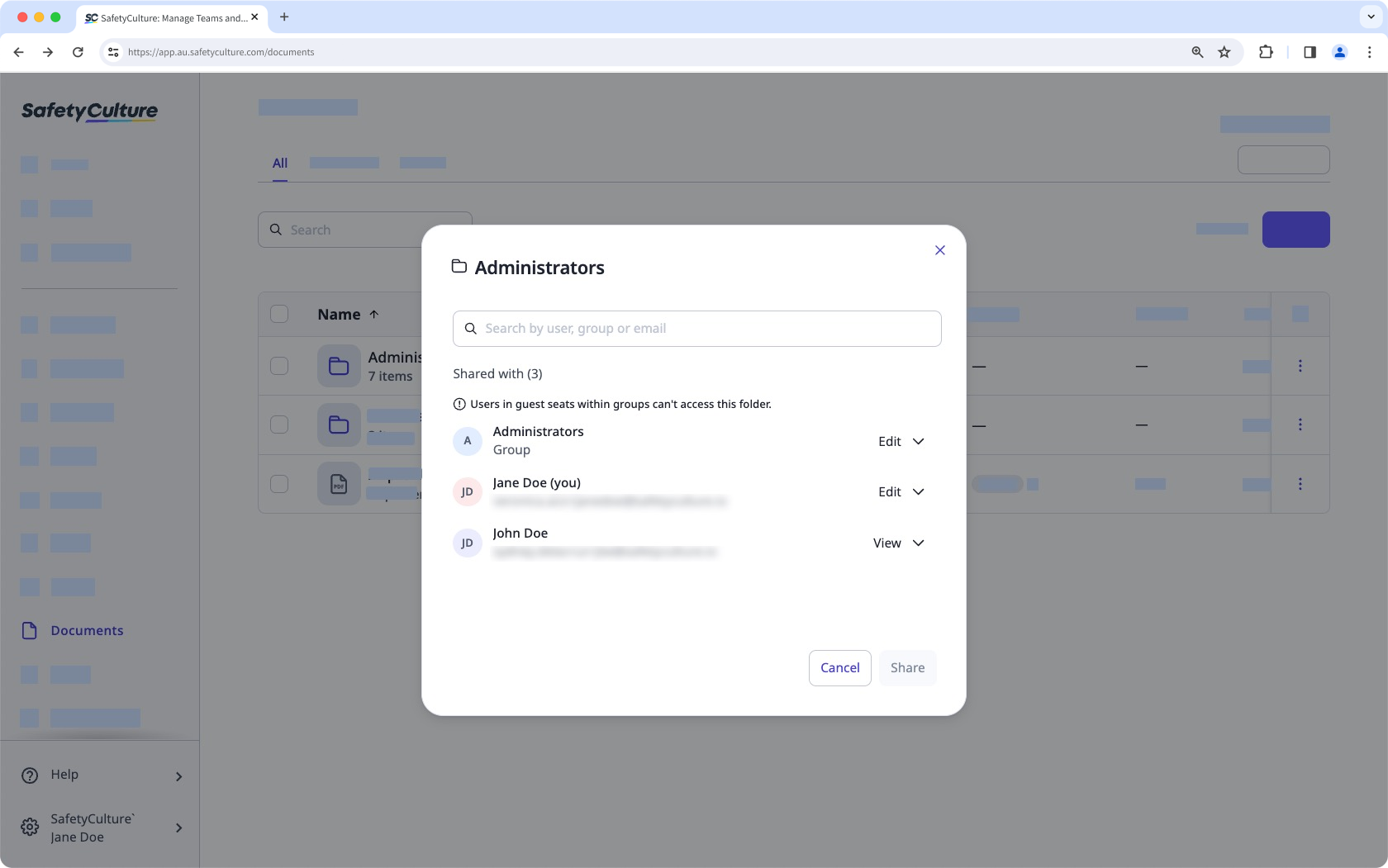
Access in SafetyCulture determines who can view and interact with different features in your organization. In Documents, access can be managed both at the folder level and for individual files or subfolders. When you give someone access to a folder, that same level of access automatically applies to everything in it unless you update the access for specific files or subfolders. There are two types of access you can give to your team:
View: Allows users to view (read-only) and download specific files or all files inside a folder.
Edit: Allows users to view and download specific files or all files in a folder, create subfolders and add files into them, edit, archive, restore, and move files or folders.
What you'll need
If you have "Documents: Administrator" permission, you can manage the access of all files and folders in your organization
Manage access to a file or folder
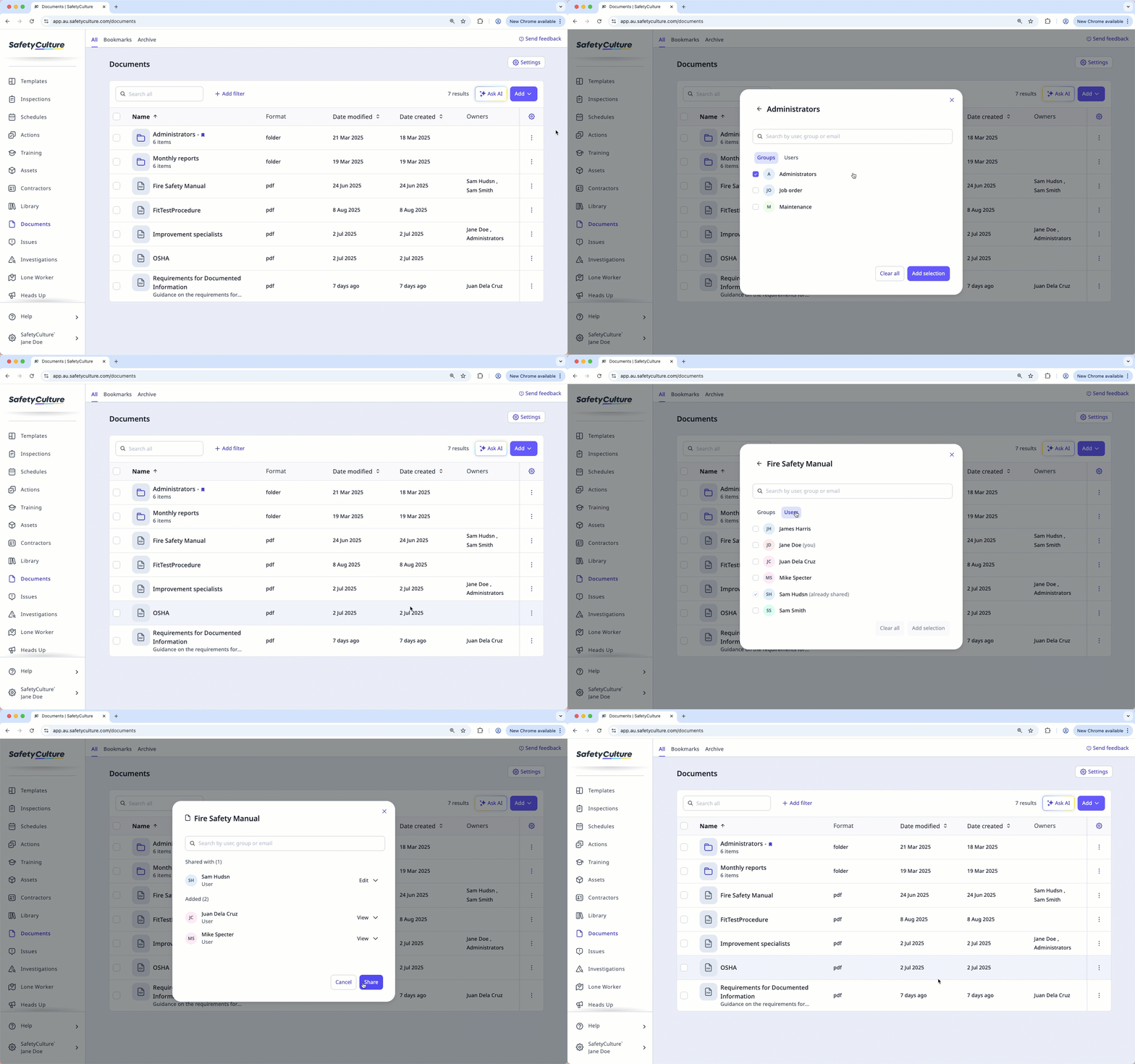
Select Documents in the sidebar or select it in More.
Select a folder if you want to manage access to a file or folder in it.
Click on the file or folder's right-hand side and select Manage access.
In the pop-up window, search and select the user or group.
Click Add selection.
By default, each user and group is given the "View" access to the file or folder. You can click the dropdown next to each user or group to update its access.
Click Share.