
This feature is currently in Early Access. If you're interested, please contact your customer success manager to check if your organization is eligible.
How does username login work?
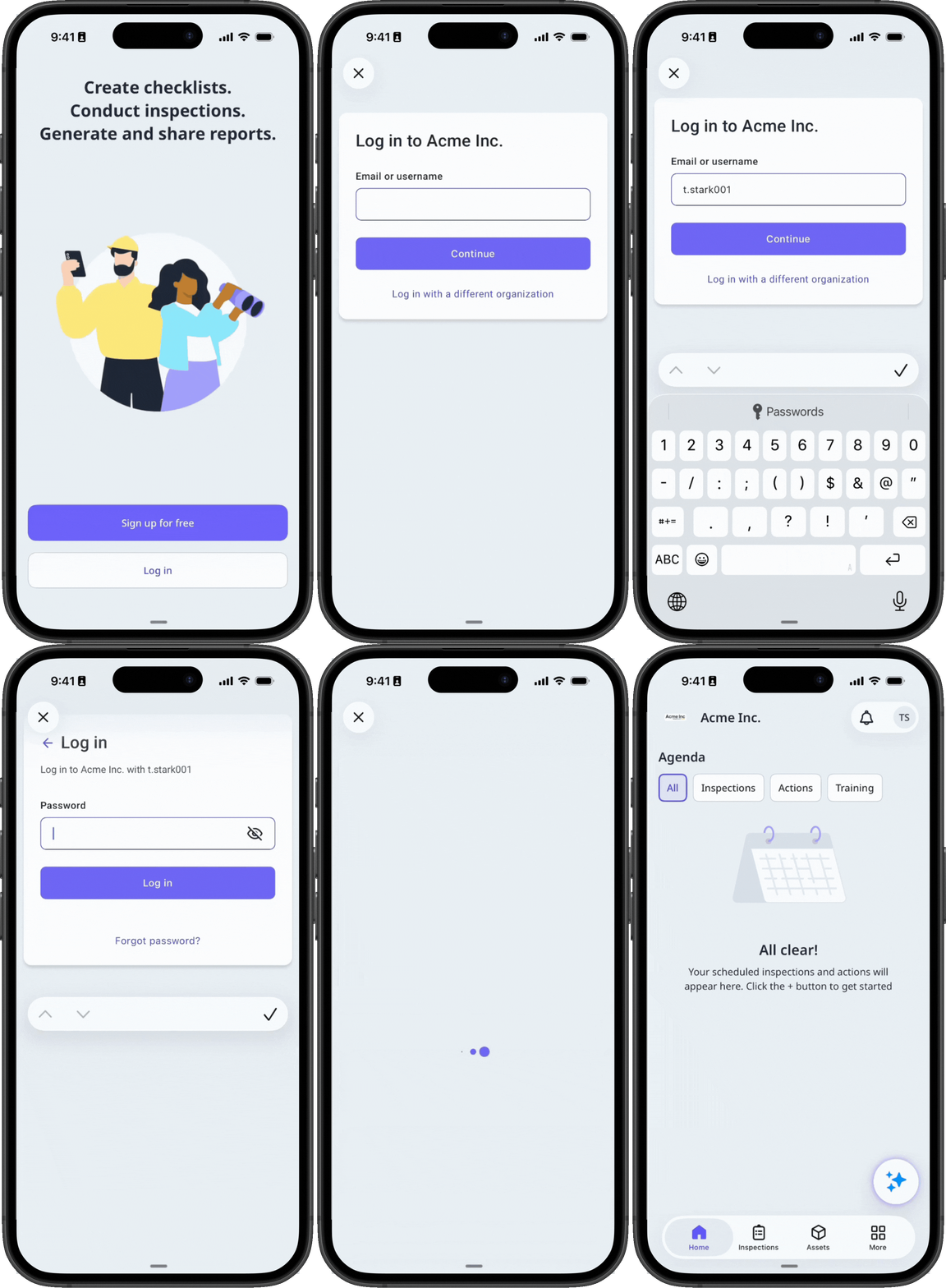
Many frontline workers don't have a corporate email address, but they still need access to take training courses, complete actions, stay informed about organization updates, and more. Username login allows you to create accounts for your workers so they can log in with a username and password instead of an email address. Workers log in using a username like their employee ID via a login link or QR code specific to your organization.
Get started as an admin
As an admin, you control whether your organization uses username login, and you manage these users from setup through ongoing account changes.
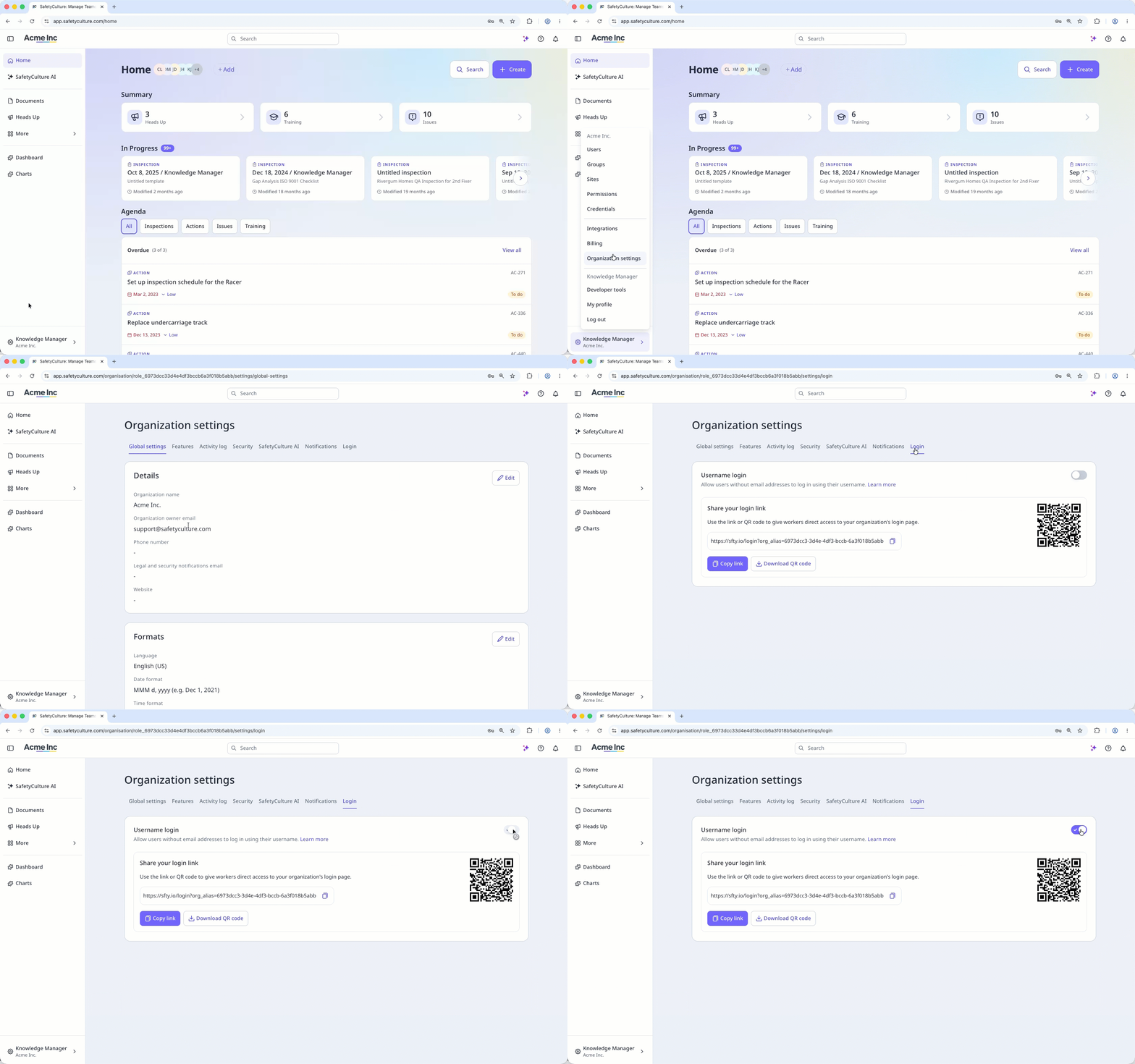
Turn on username login
You can turn on username login for your entire organization to add users without email addresses. They can sign in with a username and password once you've set it up. If you want to turn the setting off, you can do so when every user has an email address or you deactivated username login users.
If your organization's default permission set for full seats includes "Platform management" or "Override permissions" permissions, you'll need to remove them, as users without an email address can't hold these permissions.
Users without an email address can only log in using the organization-specific login link or QR code. They can't access the platform from the default login page.
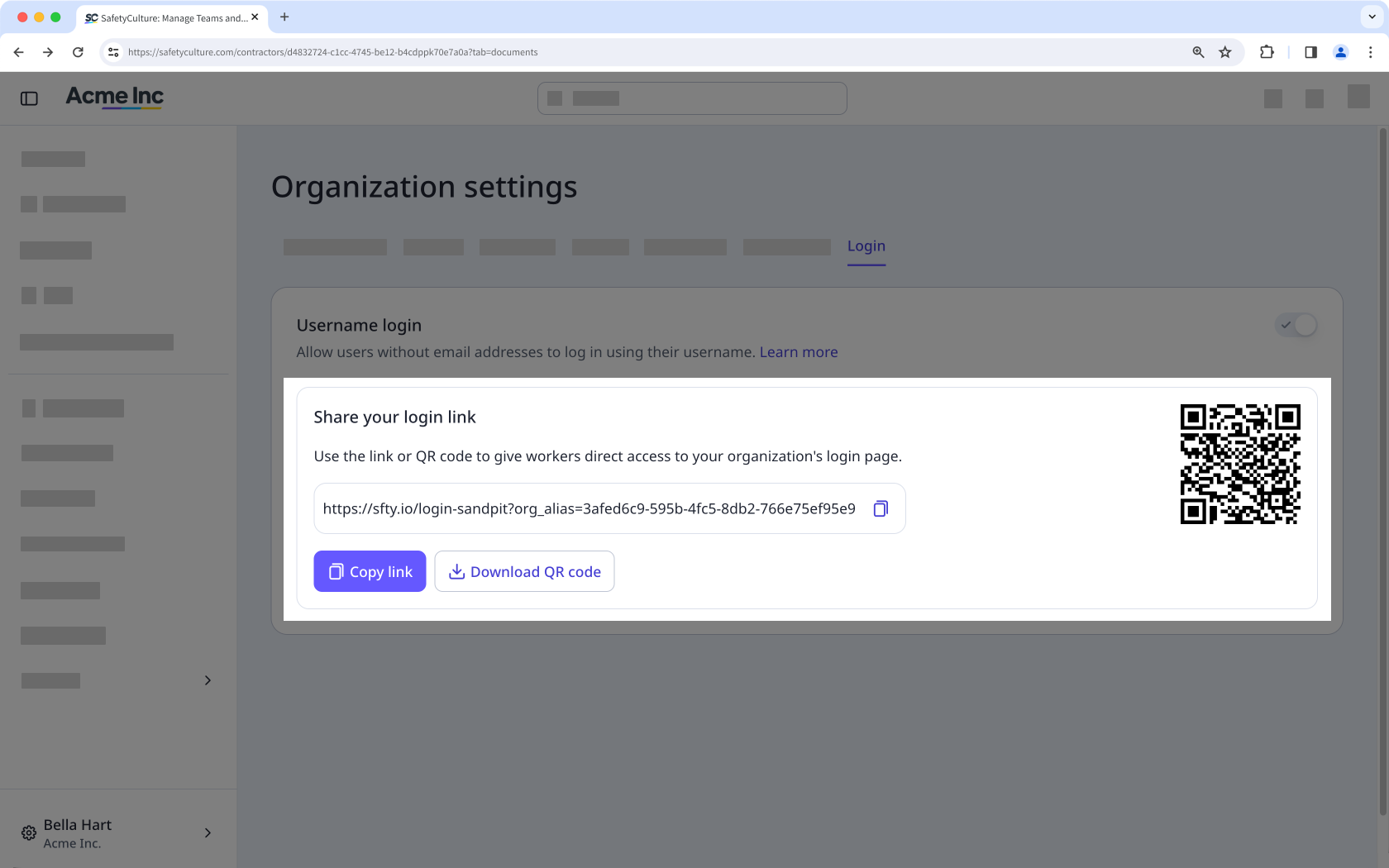
Share your login link
Once you turn the setting on, share your organization's login link or QR code with your users so they can sign in. This link is specific to your organization and different from an invite link, which is for users with an email address.
Add username login users
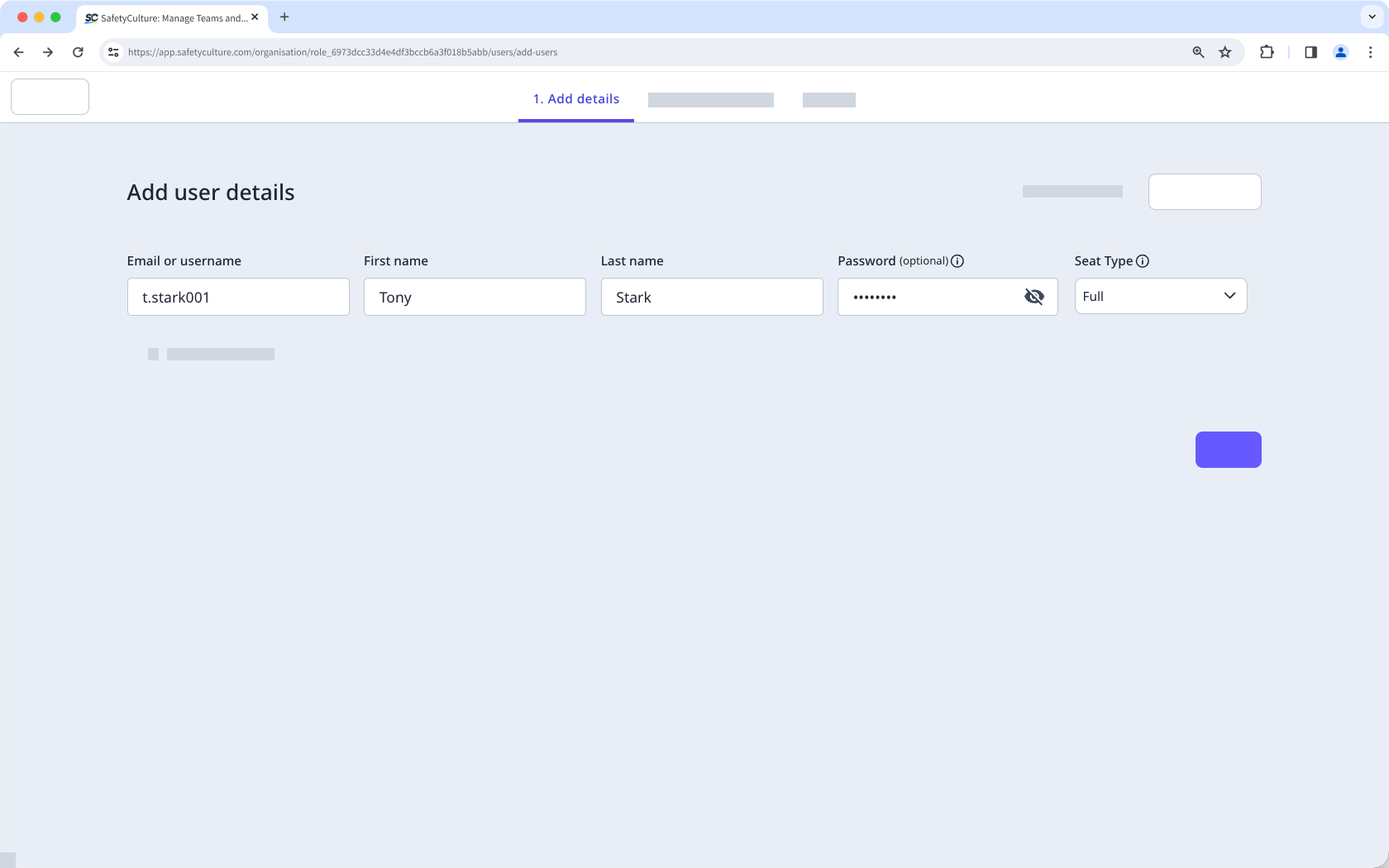
Add users to your organization one at a time, or add them in bulk via CSV or Excel. Set a password for each username login user, since they need one to activate an account without an email. You can require them to create a new password when they log in for the first time.
Users without an email address can't be assigned the "Administrator" permission set or any permission set that includes "Platform management" or "Override permissions" permissions.
Update a username login user
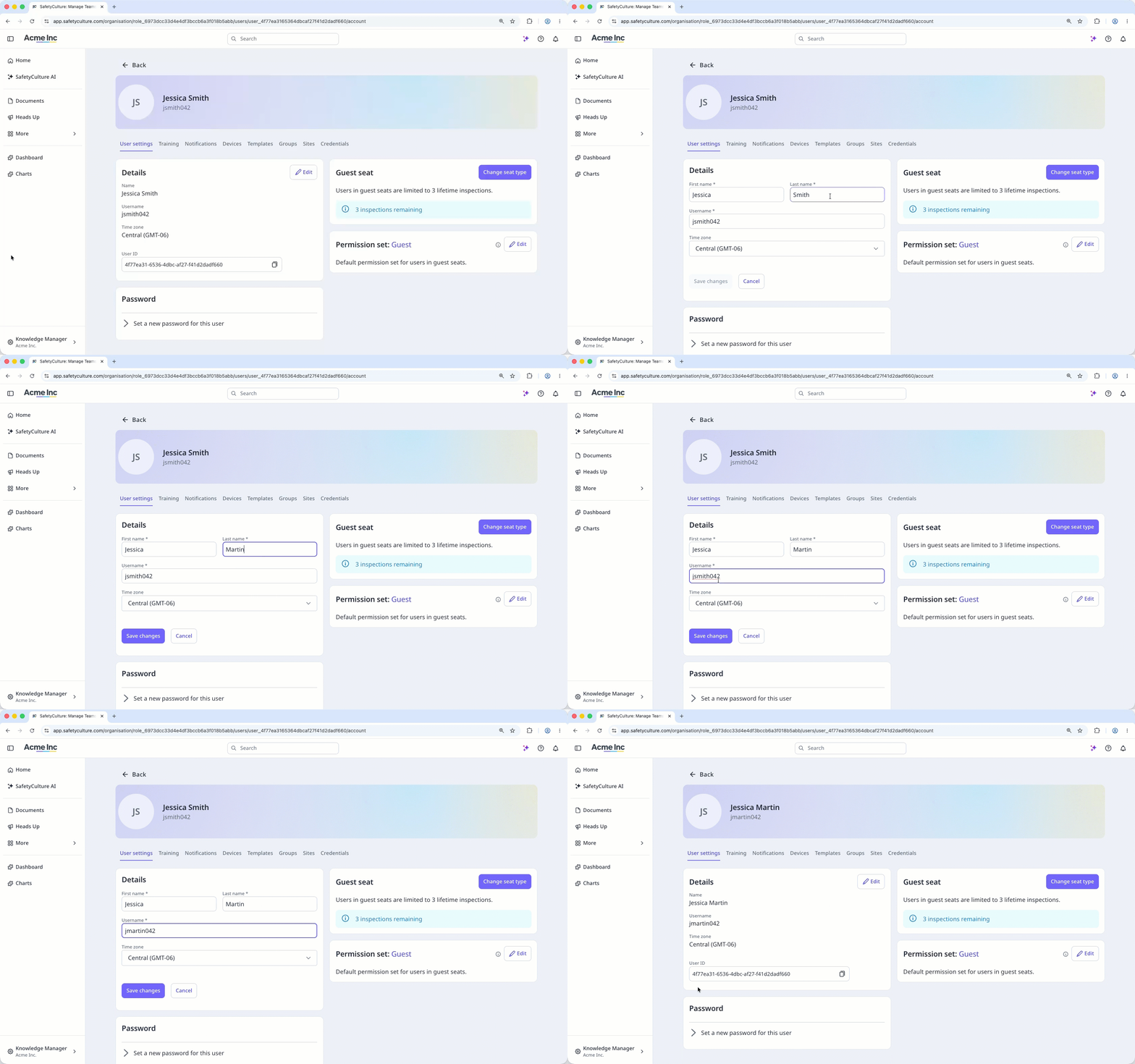
Update a user's details, including changing their username, setting their password, and adding an email address, from their profile. Users without an email address can't change their own username, so you'll need to make these updates for them.
Get started as a user
As a username login user, you sign in with a username and password instead of an email, and you can still manage your own notifications and account details.
Log in with a username
Log in with a username using the link or QR code your admin shares, then enter your username and password. You get full access to SafetyCulture right away, without needing an email address of your own.
Set a new password on first login
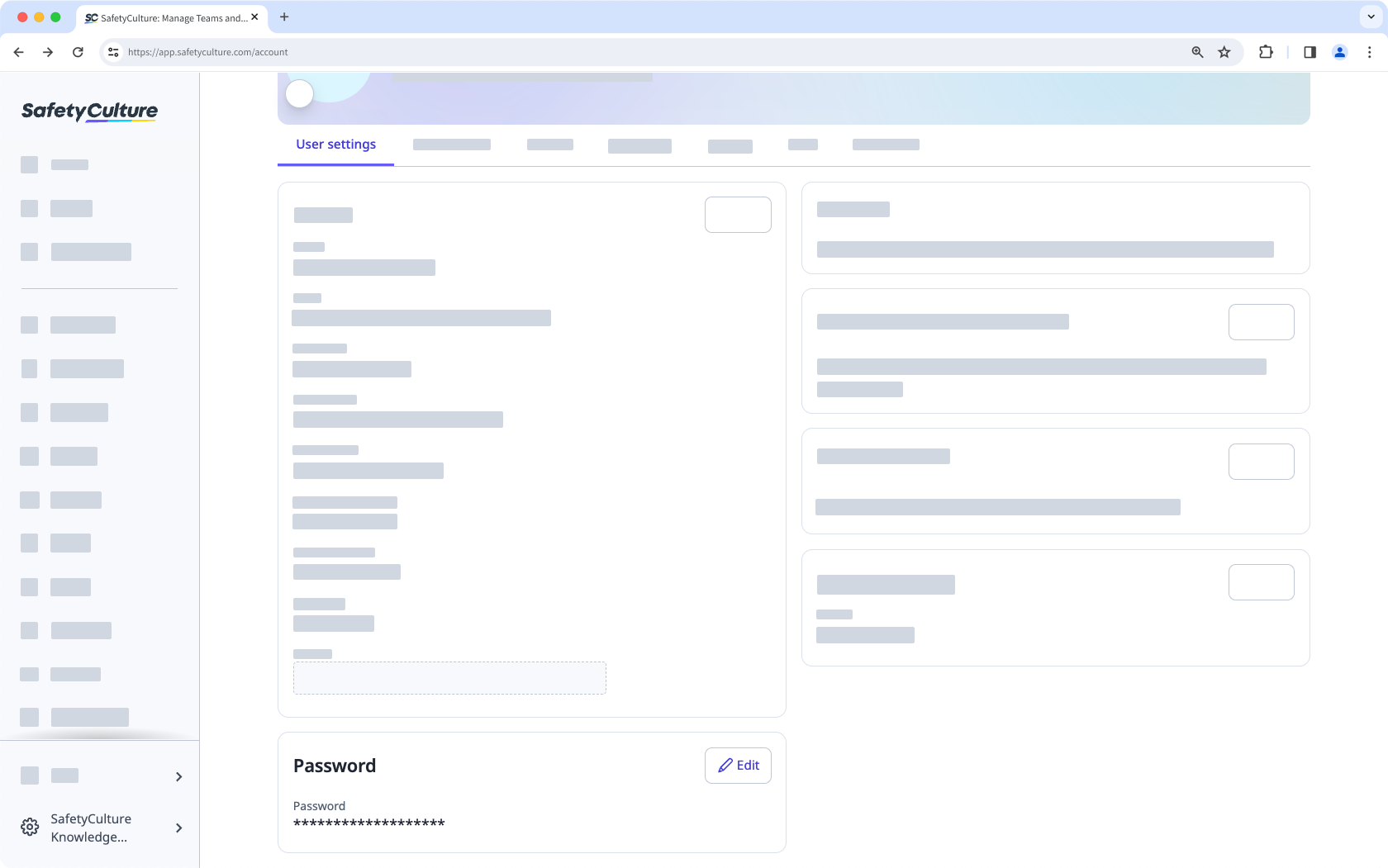
If your admin requires a password reset, you'll need to create a new password the first time you log in. Otherwise, you can keep using your current password, or change it whenever you like from your account settings.
Add a mobile number for notifications
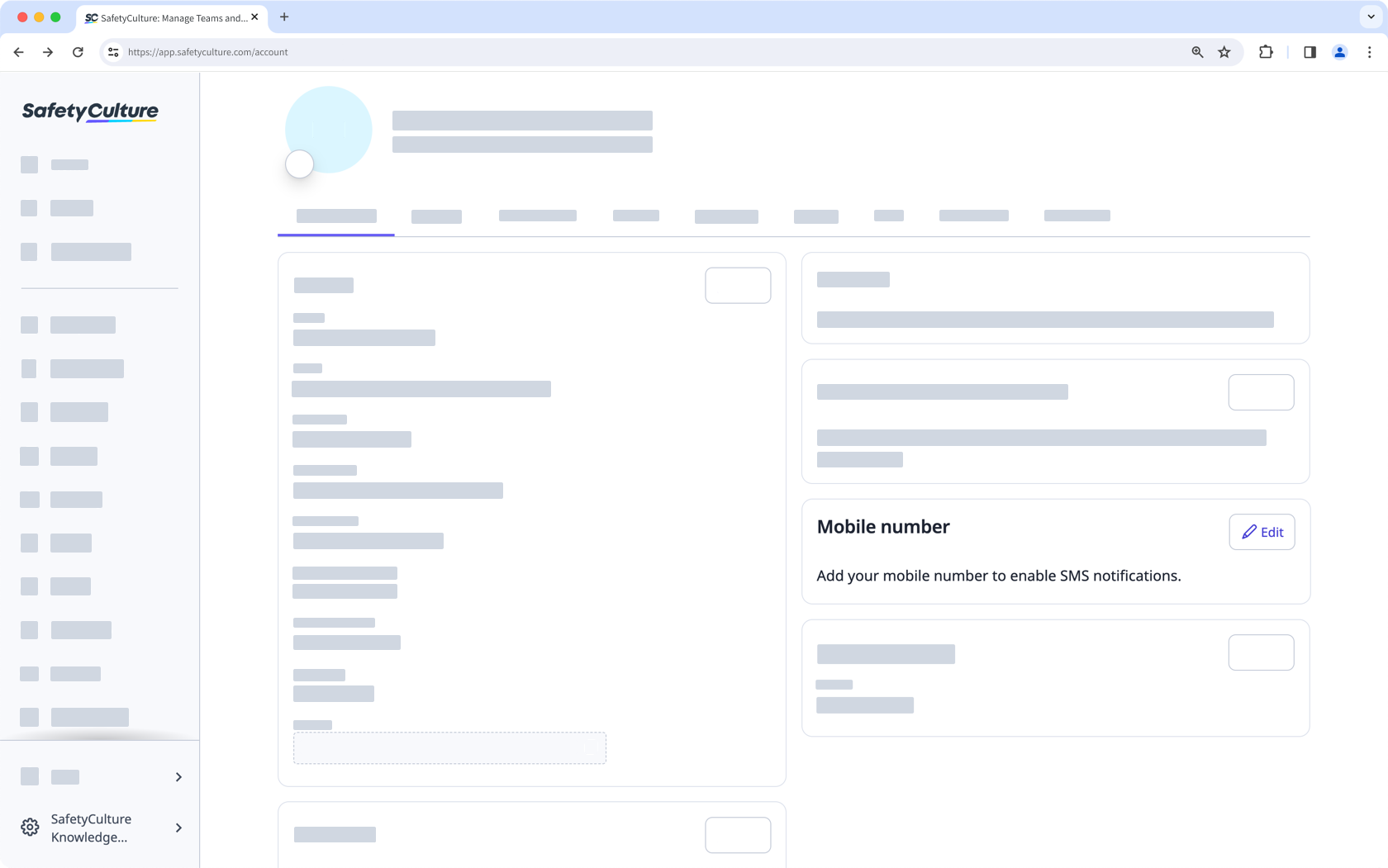
You get push notifications by default on the mobile app. Add a mobile number to also receive SMS notifications.
The mobile app remembers your organization after your first login. You won't need the link or QR code again unless you're using a different device.
Limitations
Username login doesn't support Single sign-on (SSO) or email-based password recovery.
Username login users don't receive email notifications, though they still get push notifications on the mobile app and can add a mobile number for SMS.
They can't be assigned "Platform management" or "Override permissions" permissions, or belong to multiple organizations.
They also can't change their own username. An admin needs to update it for them.


