
What does it mean to switch organizations?
At SafetyCulture, you can switch between multiple organizations using the same email address and password. This means that once you've logged in to either the web app or mobile app, you can easily switch between the organizations you're part of depending on your work for the day without needing separate logins.
When you switch organizations, SafetyCulture loads your workspace, data, and permissions for the selected organization and closes the previous one. Profile settings like time zone and language are saved separately per organization, so any changes you make in one won't carry over to another. This is especially helpful for users who manage multiple organizations or work across expansive teams.
What you'll need
Switch organizations
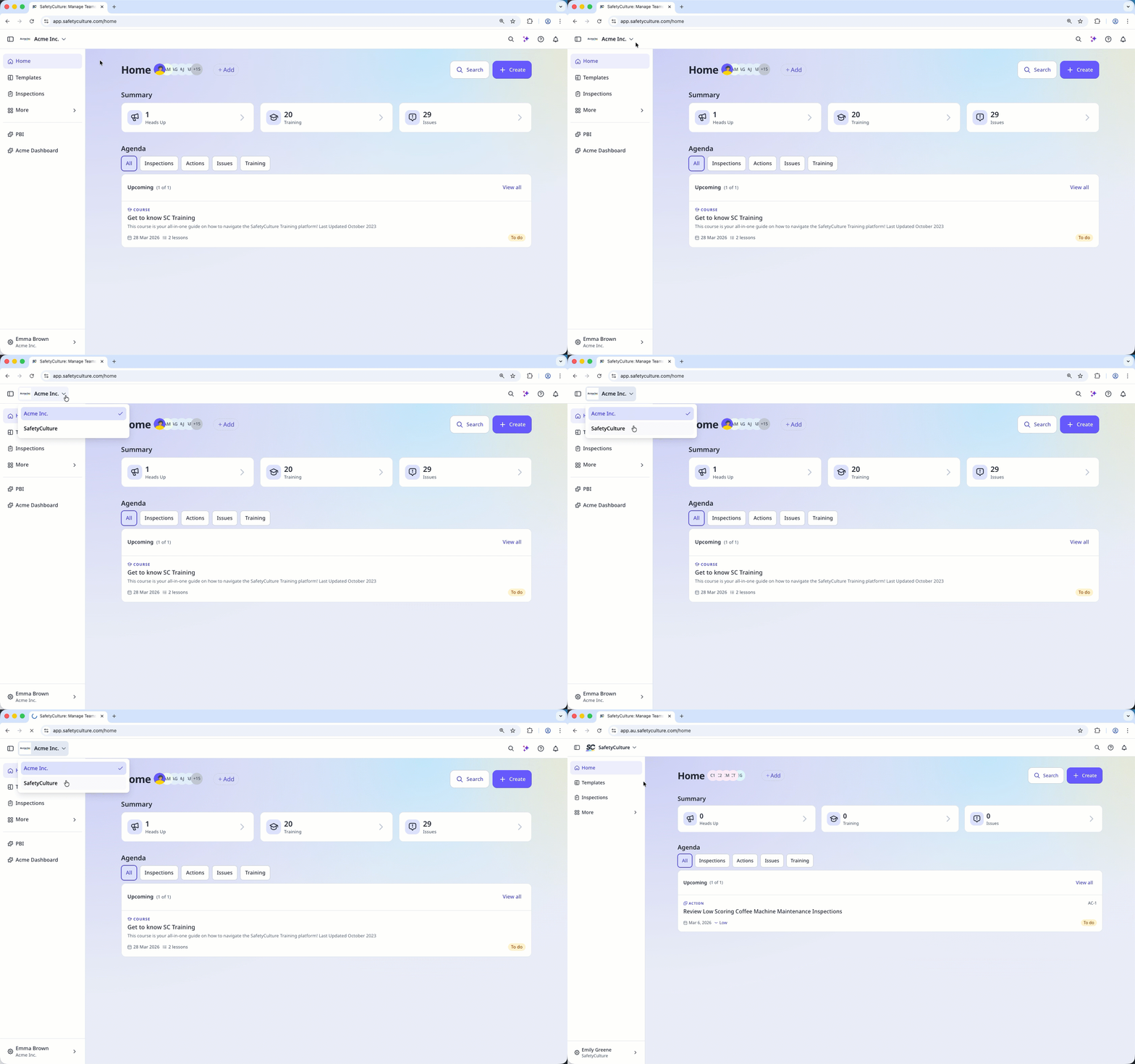
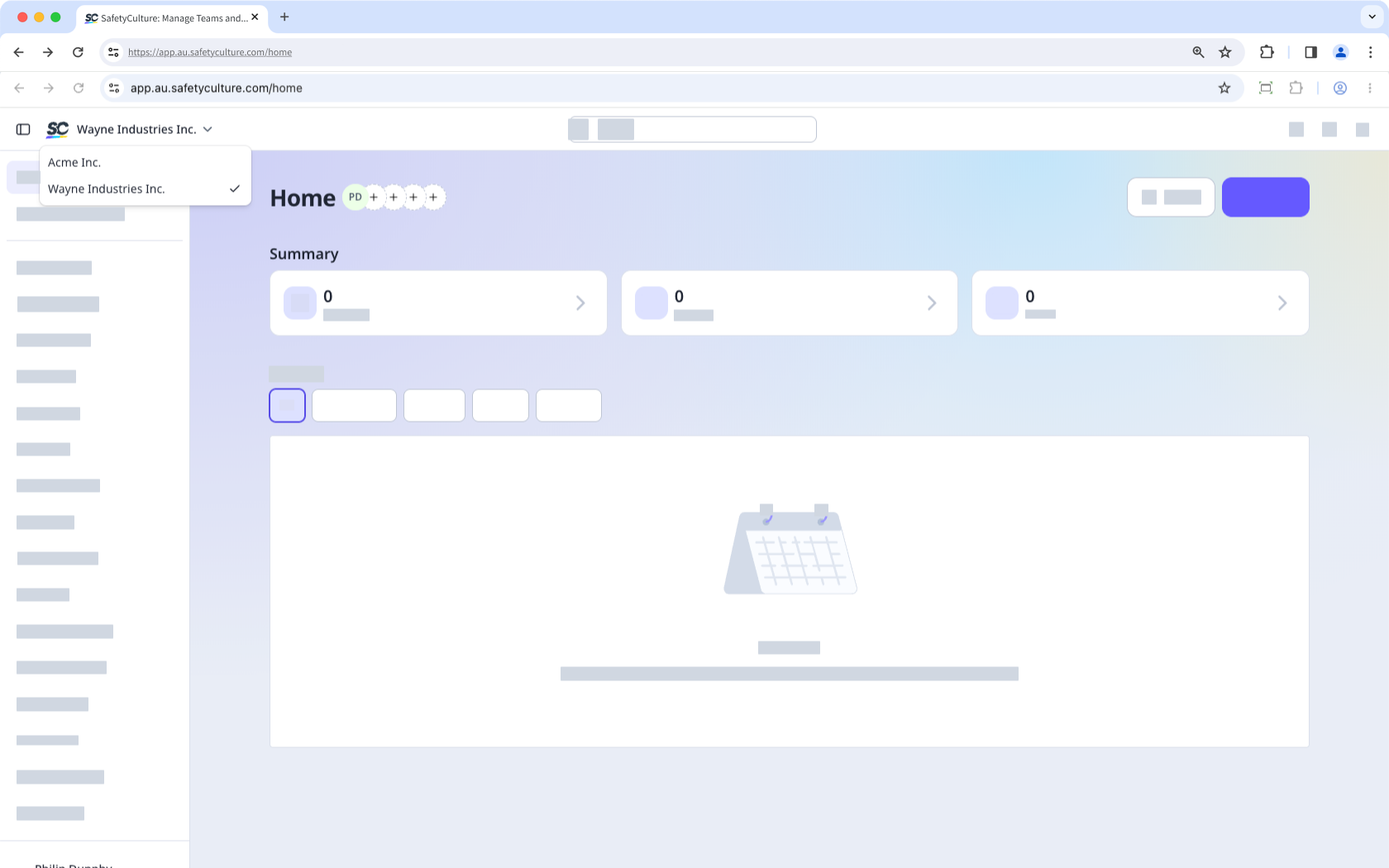
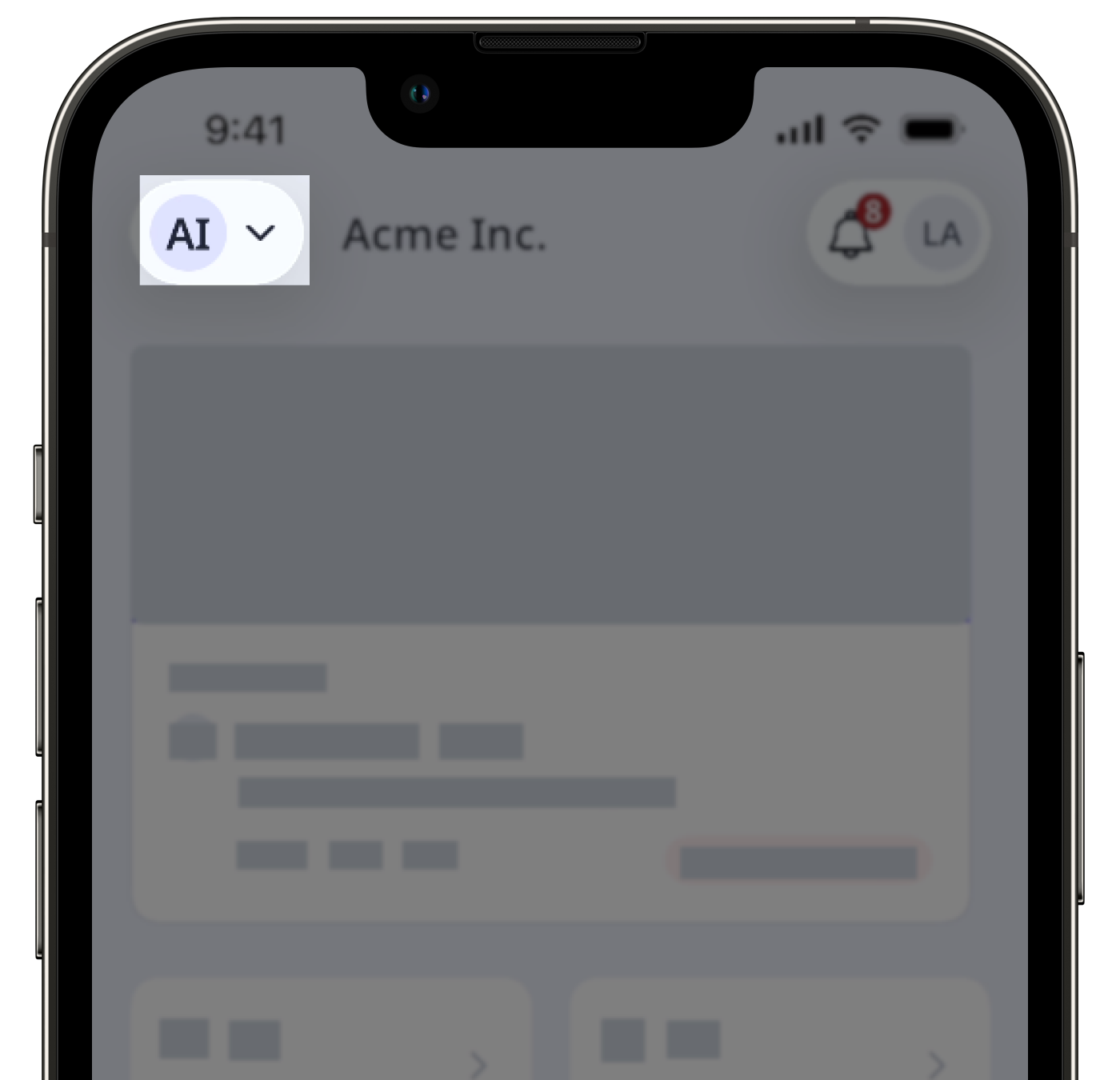
On the left-hand side of the top bar, click and select the organization you want to switch to.
If you haven't logged in using password or single sign-on (SSO) for a while, you may be prompted to log in again.
Opening multiple browser windows in different organizations on the web app is not supported.
If you want to use the web app in different organizations simultaneously, you can open them in separate browser sessions. Either use multiple browsers or switch between your primary and incognito windows.
Limitations
Switching between organizations is not available while offline.
Changes to user profile settings, including profile name, time zone, and language preference, are saved separately in each organization you're a part of.
If you're an administrator, account email and password for users who are in multiple organizations can't be edited. However, you can help users change their password by sending password reset emails.
If you want to set up integrations using Zapier, please contact our customer support team (opens in new tab) for assistance in manually selecting which SafetyCulture organization to connect from.
If you need to authenticate the SafetyCulture connector in Power BI, you can only use the API token method to authenticate.


