
Why set default permission sets?
Setting default permission sets ensures that users are automatically given the correct permissions when added to your organization or when their seat type changes. This helps you avoid manually updating permissions each time and ensures consistent permission sets across your team.
What you'll need
Set default permission sets
Click your organization name in the lower-left corner of the page and select Permissions.
Click on the upper-right of the page and select Set default permission sets.
In the pop-up window, select the default permission set for each seat type.
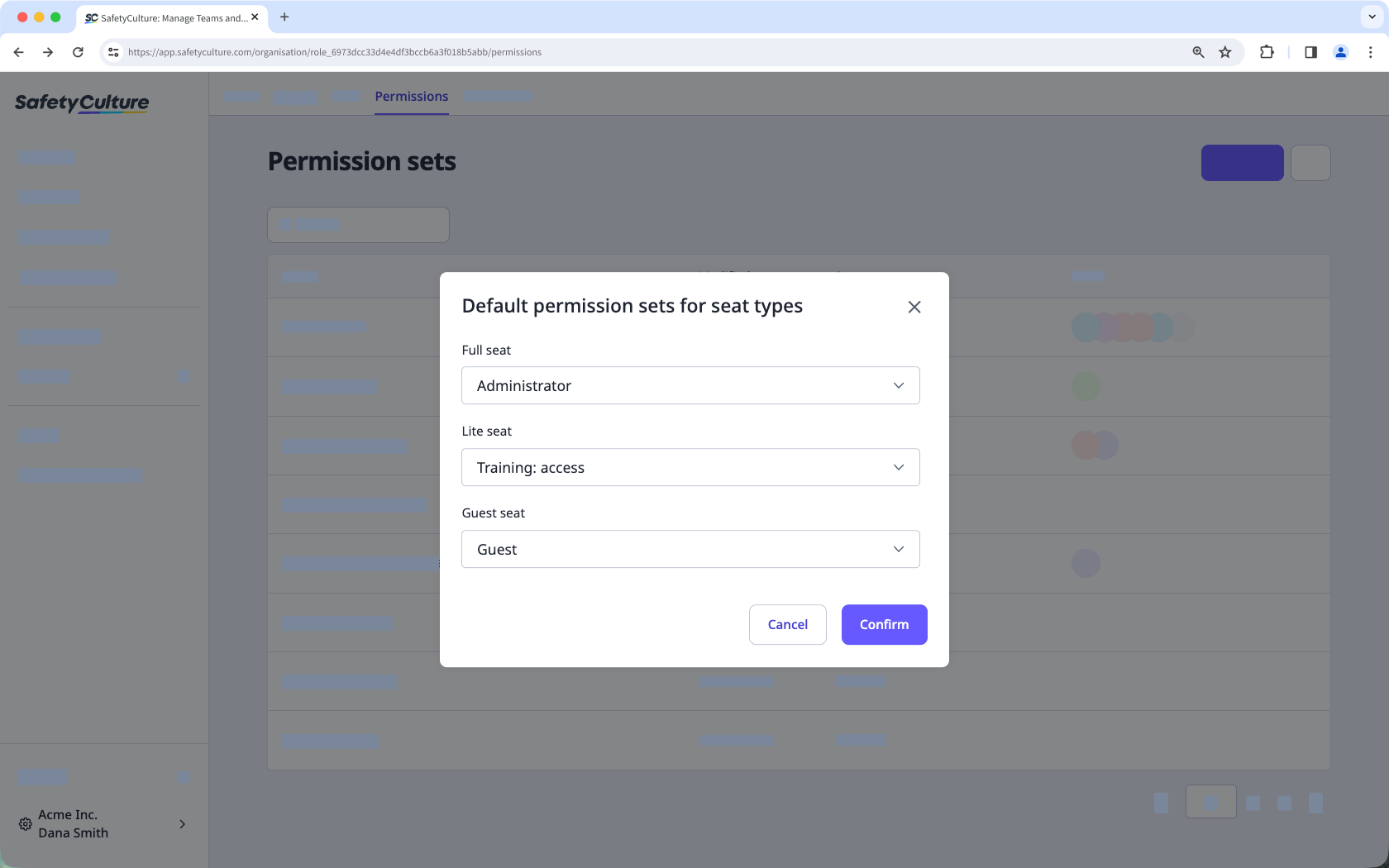
Click Confirm.


