
If you have "Platform management: Users" permission, you can also send password reset emails or set new passwords for your users.
What you'll need
If your organization uses single sign-on (SSO) for SafetyCulture, you will need to reset or change your password in your organization's SSO portal instead.
Reset your password
Enter your SafetyCulture account email and click Continue.
This sends out an email to your address. Check your email inbox for an email titled "SafetyCulture Password Reset".
Click Reset password on the email to open a web page.
Enter your new password and click Reset password.
You can now log into SafetyCulture with the new password.
Make sure that your inbox spam filter or firewall is not blocking emails from "support@safetyculture.com".
If you're having trouble receiving password reset emails, you can contact our customer support team for assistance.
For security purposes, you must have access to the email address associated with your SafetyCulture account to reset your password. If you don't, please contact your SafetyCulture admin to update your email address or contact our customer support team.
Change your password
Click your username on the lower-left corner of the page and select My profile.
Click Settings on the upper-right of the page.
In the "Password" section, click Edit.
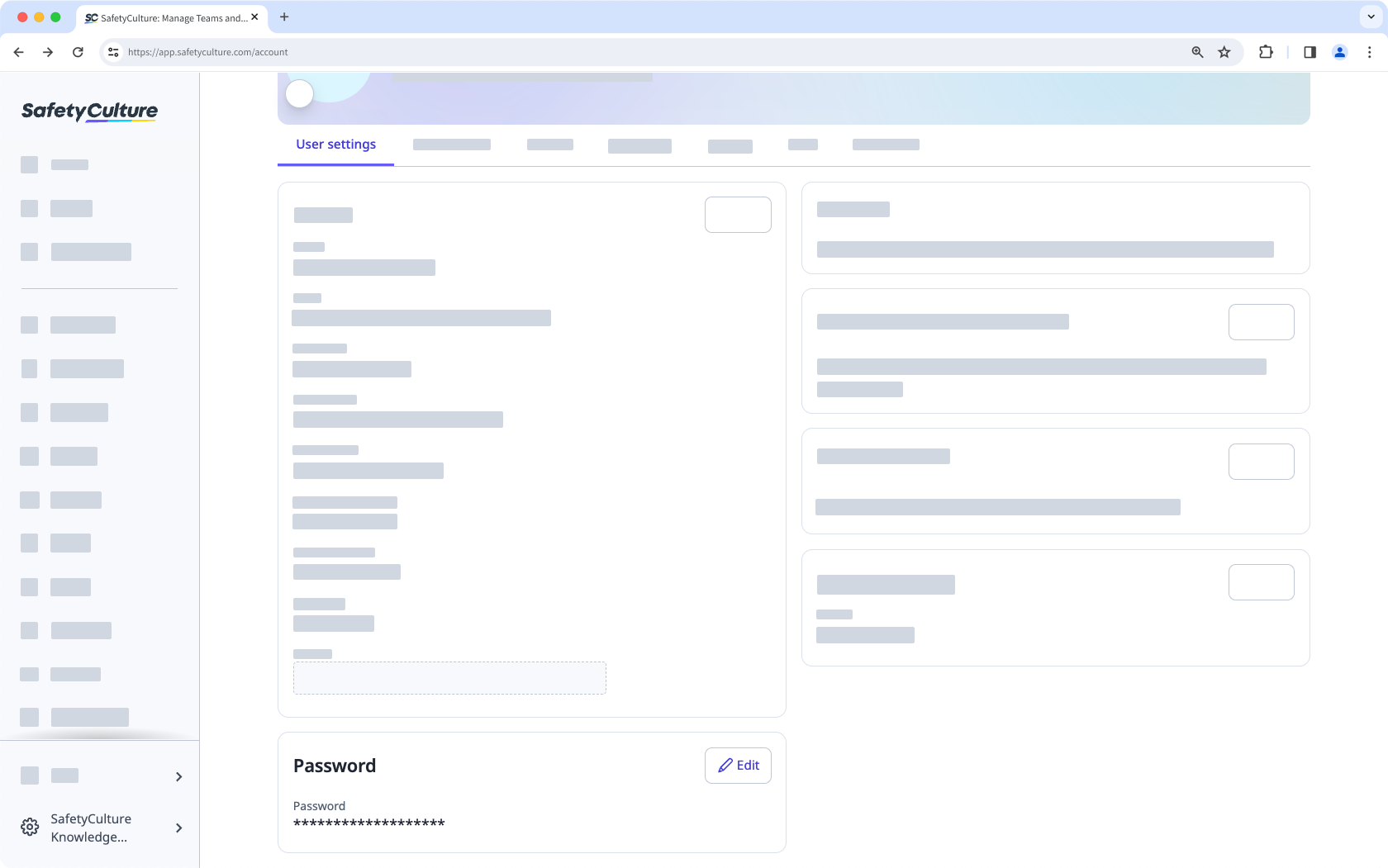
Enter your current password in the "Old password" field and set your new one in the "New password" field.
Click Change password.
This logs you out from existing logins for both the web app and the mobile app, prompting you to log in with your new password.
You can only change your account password via the web app.


