
If you’re in multiple organizations, you'll need to add your mobile number separately per organization to receive SMS notifications.
What you'll need
If your organization is on Premium Plan trial, adding a mobile number to your account and receiving SMS notifications won't be available during the trial.
Add your mobile number
Click your username on the lower-left corner of the page and select My profile.
Click Settings on the upper-right of the page.
Click Edit in the "Mobile number" box. If you already have a mobile number and want to change it, remove the number first, then continue adding your new number.
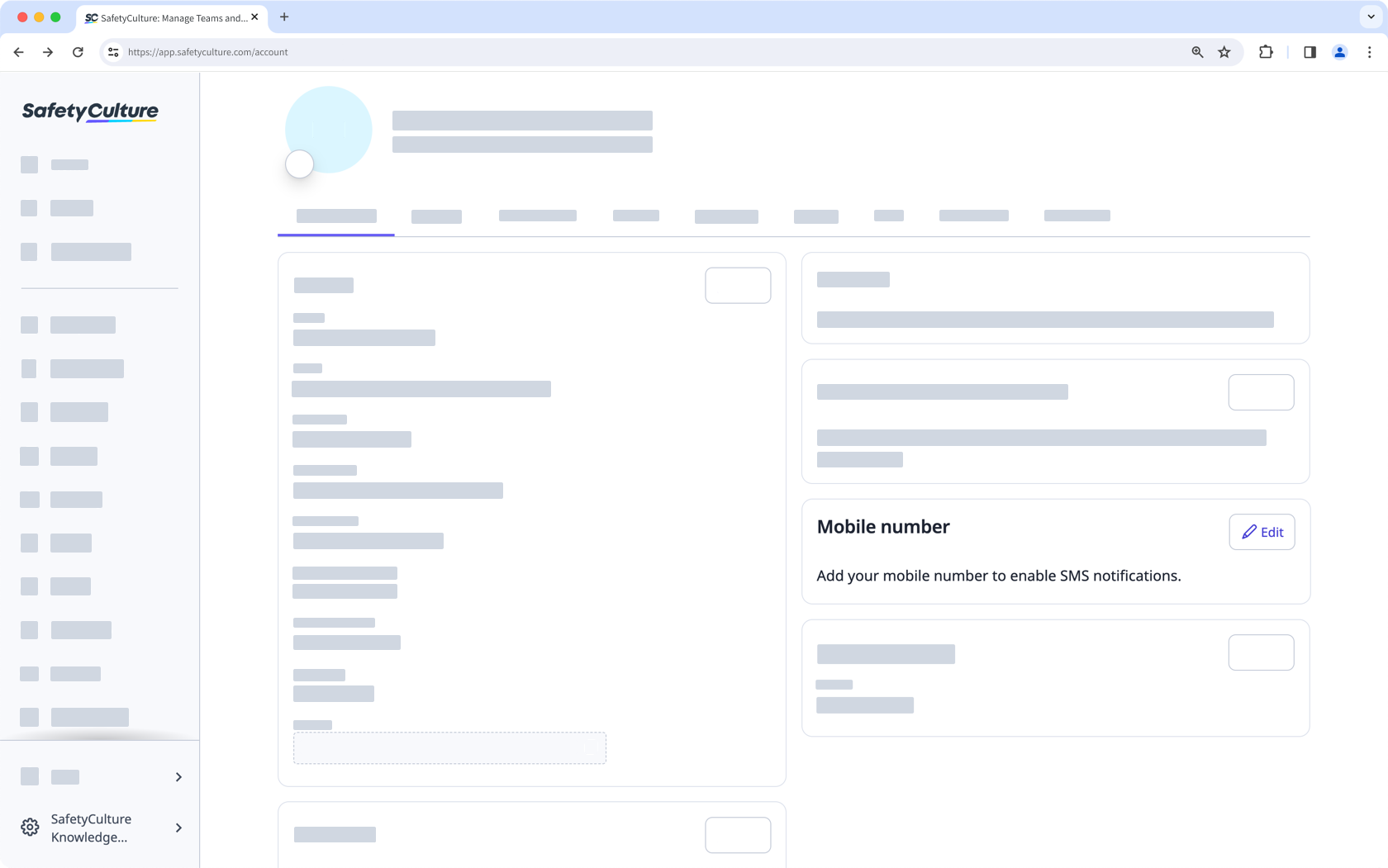
Select your region and enter your mobile number.
Click Save and send verification code. This sends a six-digit verification code to your mobile number as a text message.
Enter the verification code.
Click Verify.
For security reasons, you can only request up to 3 verification codes per hour. If you’re adding mobile numbers to multiple accounts, you can only request up to 10 verification codes per hour based on your IP address.
Remove your mobile number
Click your username on the lower-left corner of the page and select My profile.
Click Settings on the upper-right of the page.
Click Edit in the "Mobile number" box.
In the pop-up window, click Delete phone number.
SMS notification regional restrictions
Unsupported regions
In compliance with local law and regulations, SMS notifications are not supported for phone numbers registered in the following countries and territories:
Greece
Isle of Man
Malaysia
New Zealand
Saudi Arabia
Singapore
Turkey
United Arab Emirates
In some cases, SMS notifications may still be received, but local carriers generally either completely block the notifications or mark them as spam.
Banned regions
SafetyCulture doesn't support SMS notifications for phone numbers registered in the following countries, to protect against fraud and abuse. If your number is registered in one of these countries, you also won't be able to add it to your account, as a verification code sent via SMS is required to confirm your number.
Azerbaijan
Bangladesh
Bulgaria
Cambodia
Cameroon
Dominican Republic
Ethiopia
Georgia
Ghana
Haiti
Indonesia
Iran
Iraq
Jamaica
Jordan
Kenya
Kazakhstan
Laos
Lebanon
Lithuania
Latvia
Libya
Moldova
Myanmar
Mozambique
Namibia
Nigeria
Nepal
Papua New Guinea
Peru
Philippines
Pakistan
Réunion
Romania
Russia
Senegal
Sri Lanka
Tanzania
Uganda
Yemen
Venezuela
Zambia
Zimbabwe
If your mobile number is from a supported region but you're still not receiving SMS notifications, contact our customer support team.


