
This feature is currently in Early Access. If you're interested, please contact your customer success manager to check if your organization is eligible.
How does username login work?
Many frontline workers don't have a corporate email address, but they still need access to take training courses, complete actions, stay informed about organization updates, and more. Username login allows you to create accounts for your workers so they can log in with a username and password instead of an email address. Workers log in using a username like their employee ID via a login link or QR code specific to your organization.
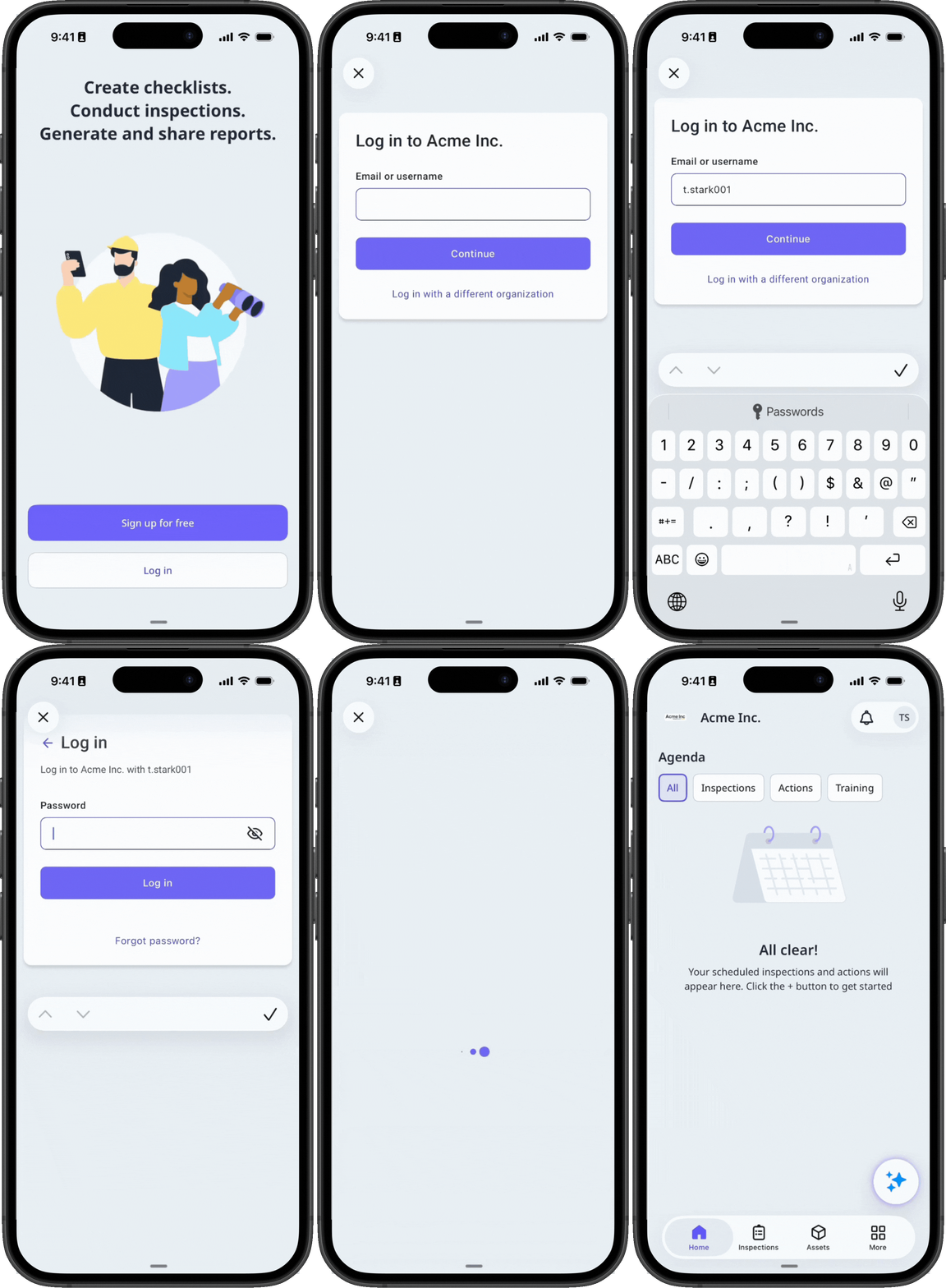
What you'll need
Turn username login on or off
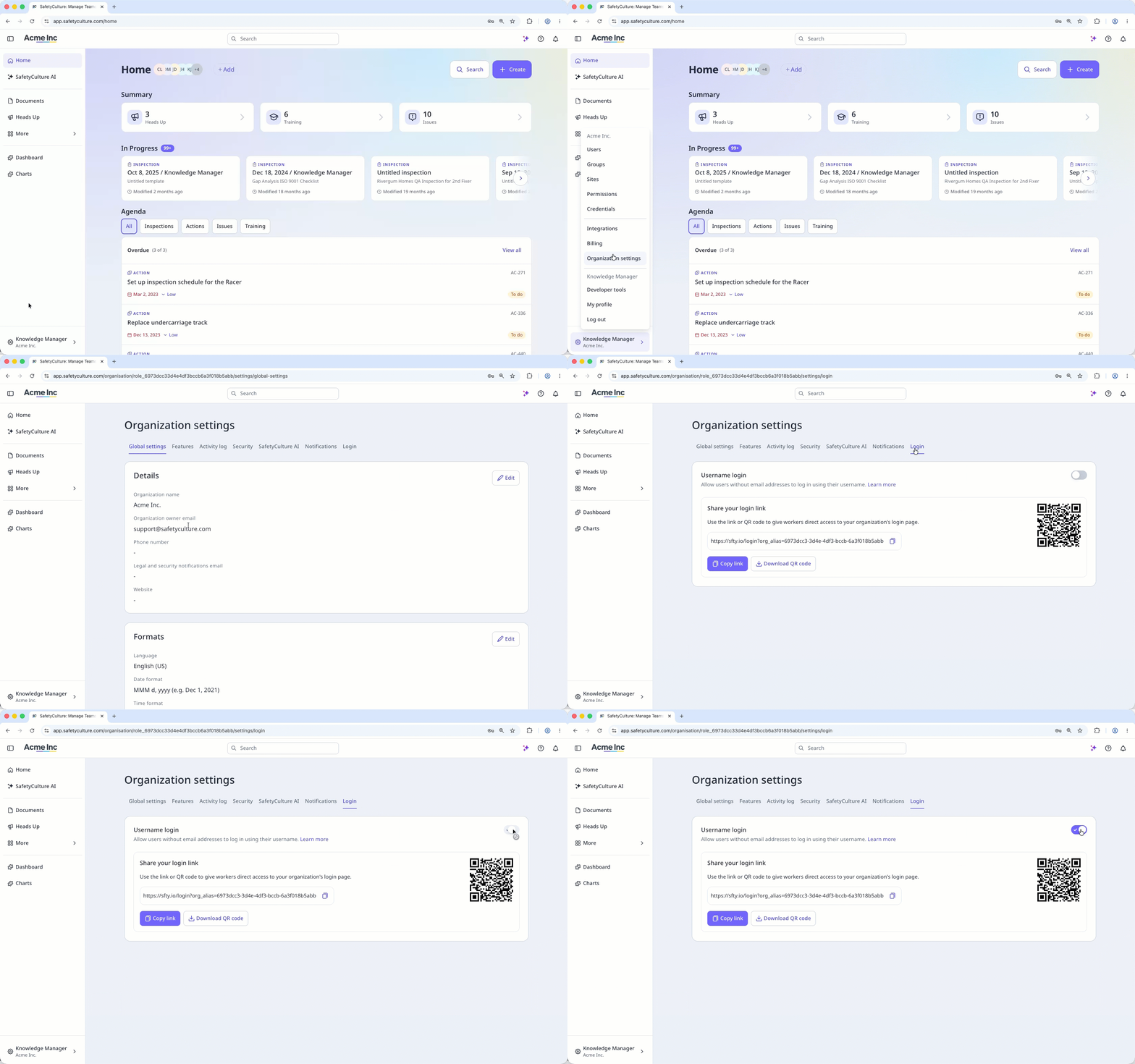
Click your organization name on the lower-left corner of the page and select Organization settings.
Select Login tab at the top of the page.
Turn the "Username login" setting on or off. If you want to turn username login off later, add an email address to every worker without one, or deactivate them first.
If your organization's default permission set for full seats includes "Platform management" or "Override permissions" permissions, you'll need to remove them, as users without an email address can't hold these permissions.
Users without an email address can only log in using the organization-specific login link or QR code. They can't access the platform from the default login page.


