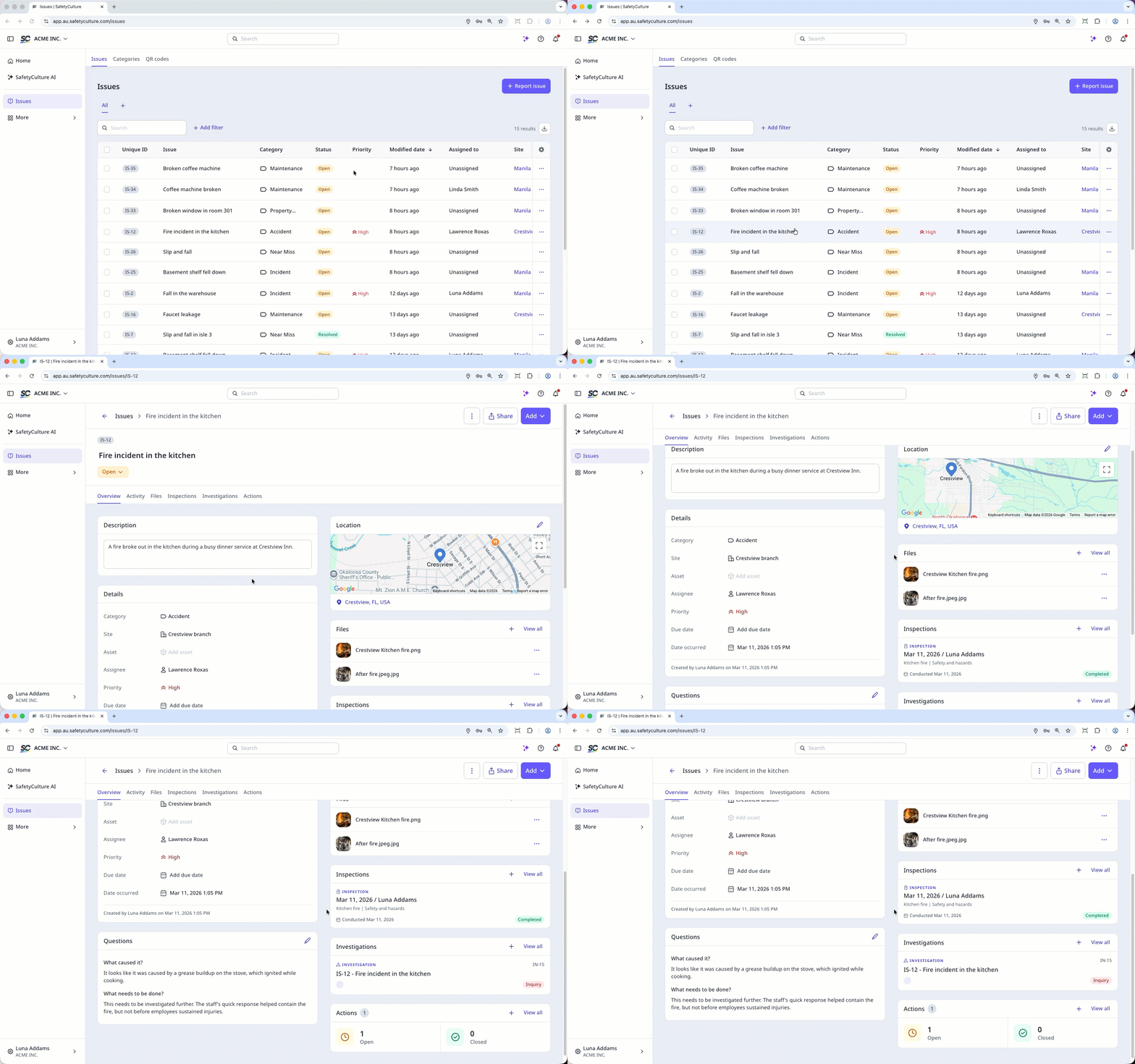
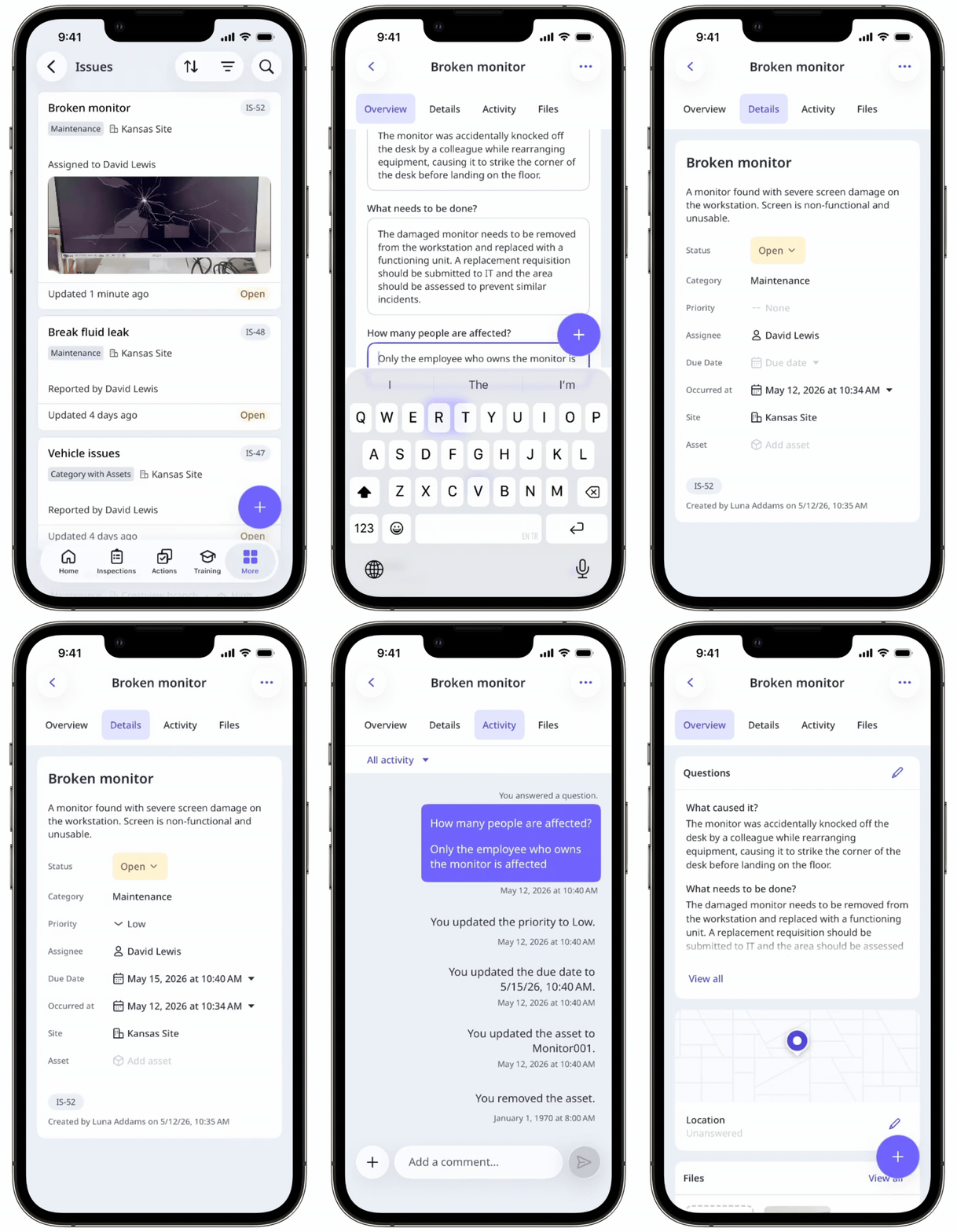
What can I update in an issue?
You can update an issue's details at any stage after it's been reported. From the issue profile, you can change its status, capture detail changes, link an investigation or an asset, create an action, or add supporting files. Regular updates reduce confusion, prevent gaps in communication, and keep follow-up work on track. This makes issue updates useful for field teams, managers, and anyone who needs a clear record of what changed and what happens next.
For example, a field technician can update the status and attach photos immediately after an inspection. Their manager can then pick up the same record to link a formal investigation and assign corrective actions.
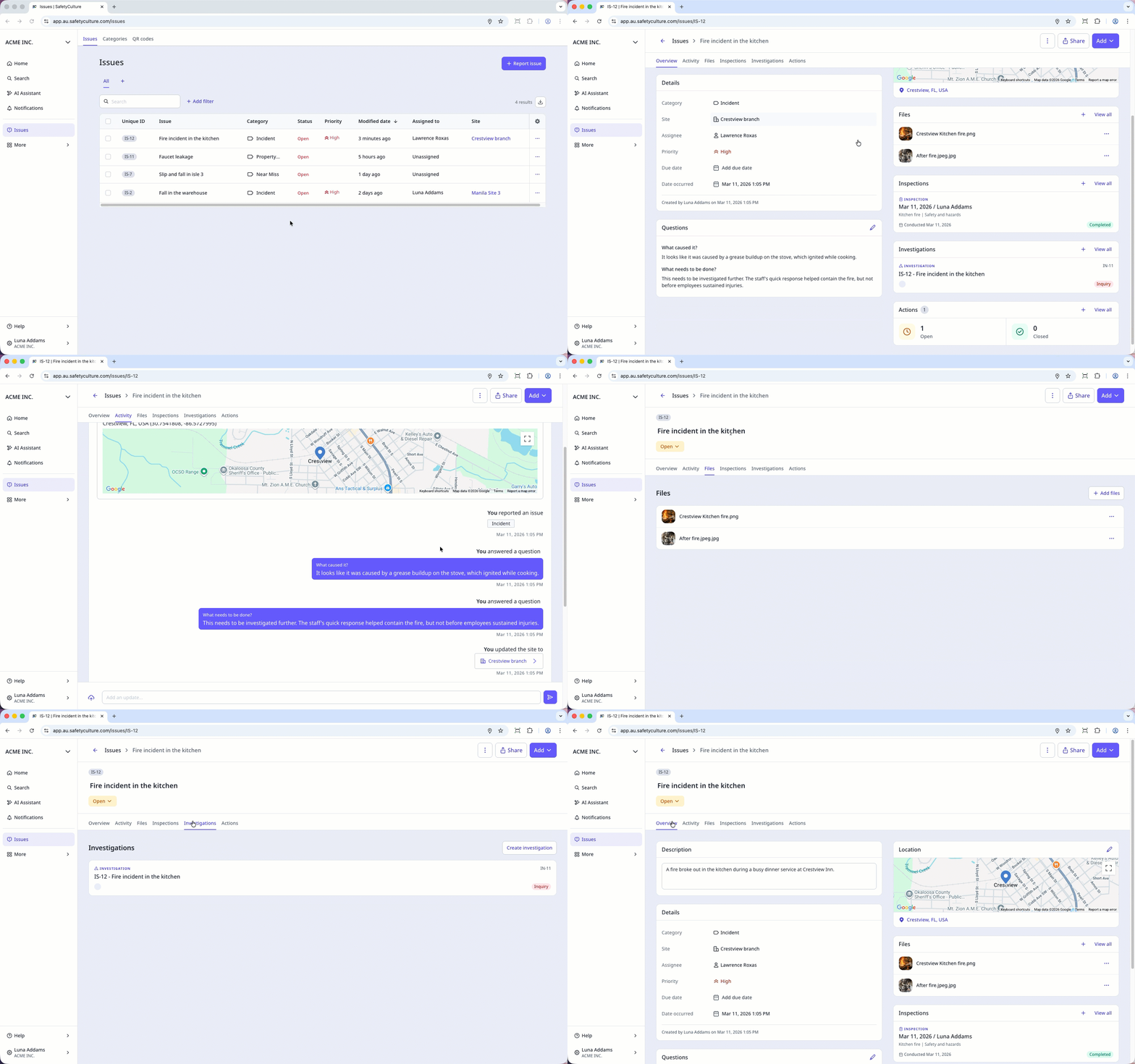
Update an issue
Select Issues in the sidebar or select it in More.
Filter and sort the issue list to find and click the issue.
In the issue profile, update the issue details:
If an issue needs further details, you can also:
Attach files.