
Why start inspections from issues?
Starting an inspection from an issue helps you capture the information needed to understand and resolve it. You can start an inspection when the issue requires more information or supporting evidence. Select a linked template to start and complete the inspection. The inspection provides a clear trail of documentation and helps your team resolve issues faster.
If you have the "Issues: Settings" permission, you can pre-select up to 25 templates to link to an issue category on the web app. Anyone who then reports an issue related to that category can easily start an inspection using any of the templates you've chosen.
What you'll need
Start an inspection from an issue
Select Issues in the sidebar or select it in More.
Report an issue or select an existing one.
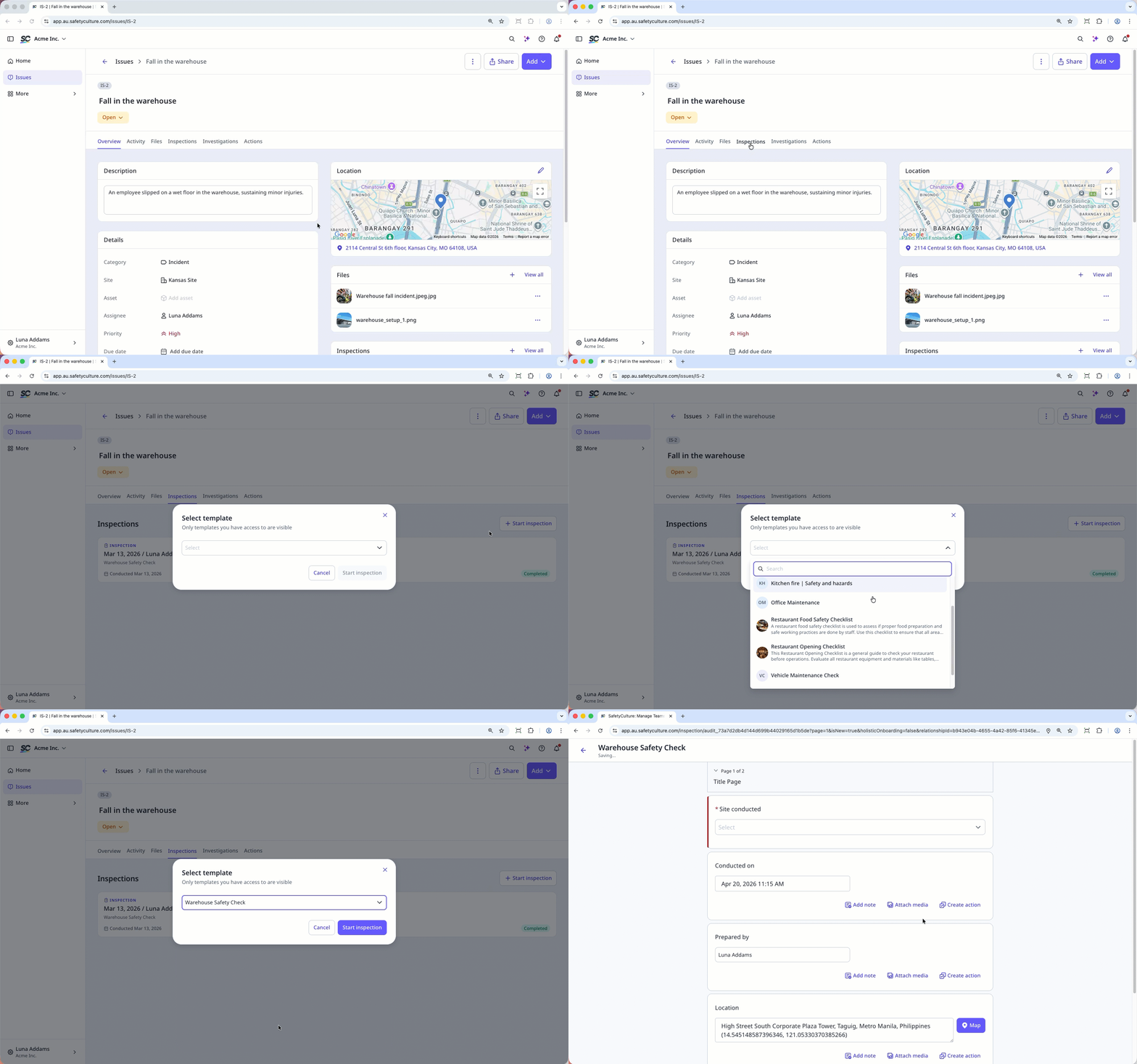
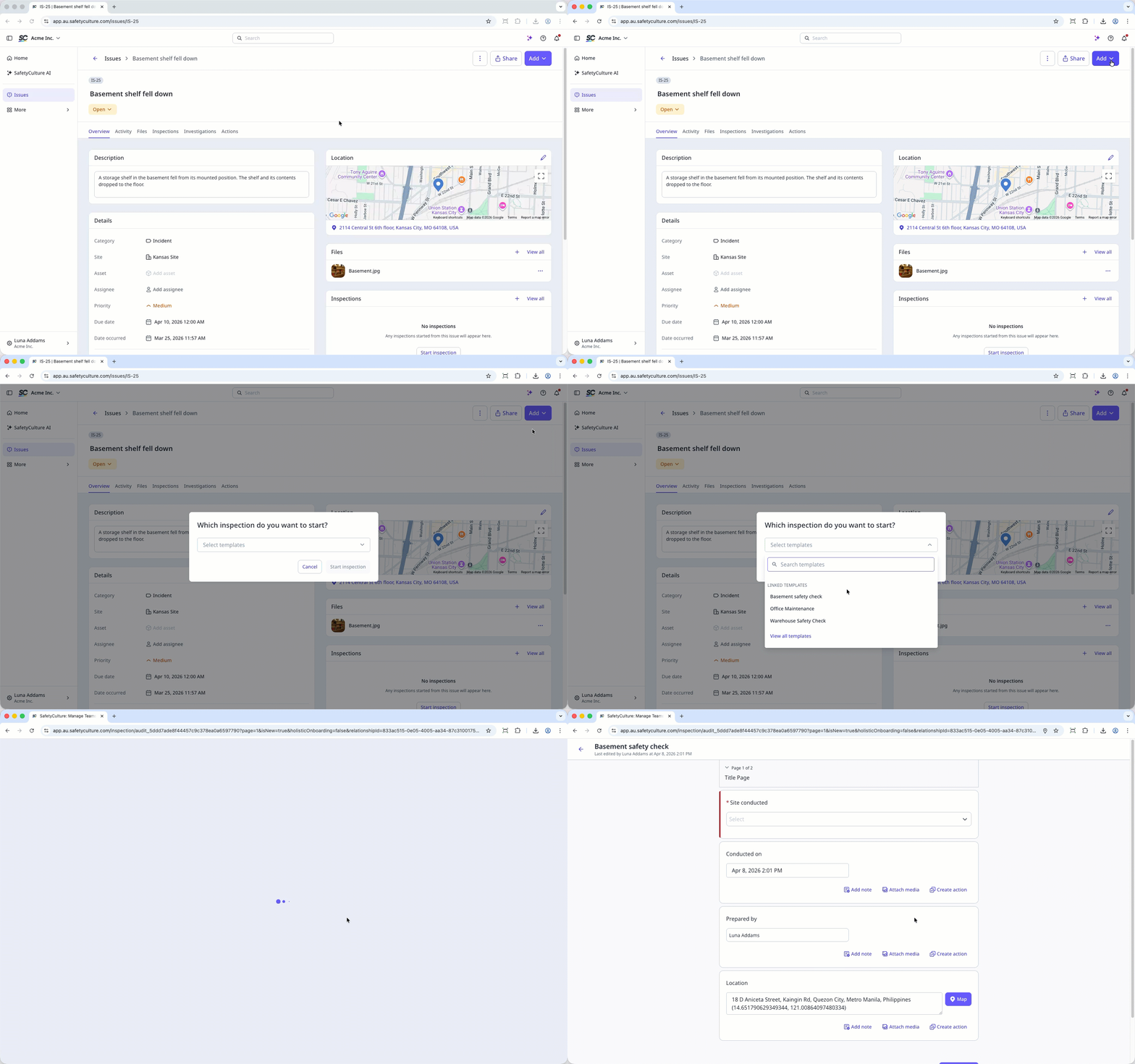
Start an inspection in any of the following ways:
Click Add on the upper-right of the page, and select Start inspection.
In Overview tab, scroll down to Inspections and click on the upper-right or click Start inspection.
In Inspections tab, click Start inspection.
In the pop-up window, click the dropdown menu and select a linked template or search for one.
Click Start inspection.
Go through the inspection accordingly.
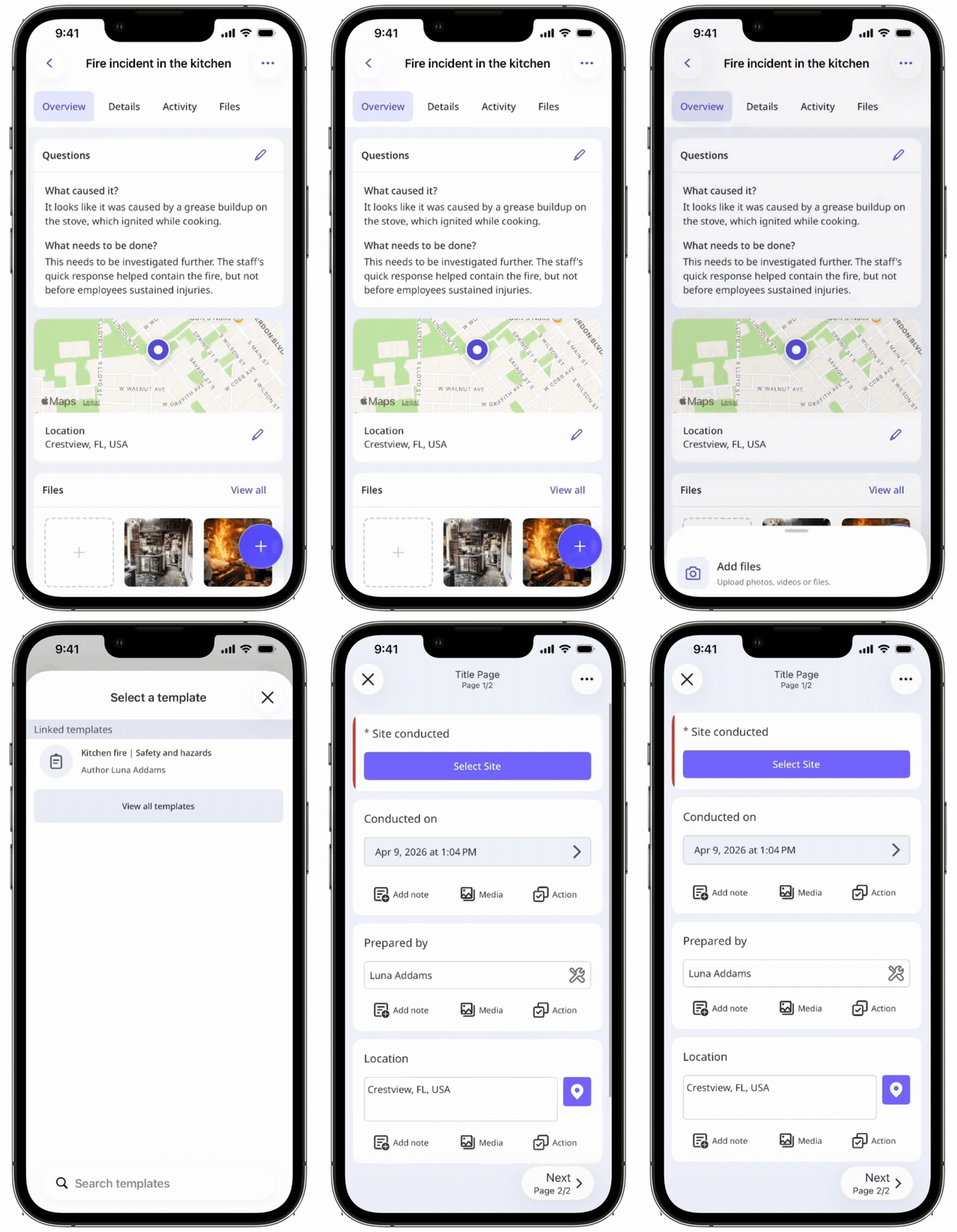
Inspections started from issues are only visible to assignees and users with access to the relevant inspections.


