What happens when you delete files from issues?
When you delete files from issues, it's permanently removed from the issue and can't be recovered. A record of who deleted it and when is added to the issue's activity timeline, so there's still a traceable history of what changed. This keeps issue records accurate, so your team can make faster decisions based on the right information.
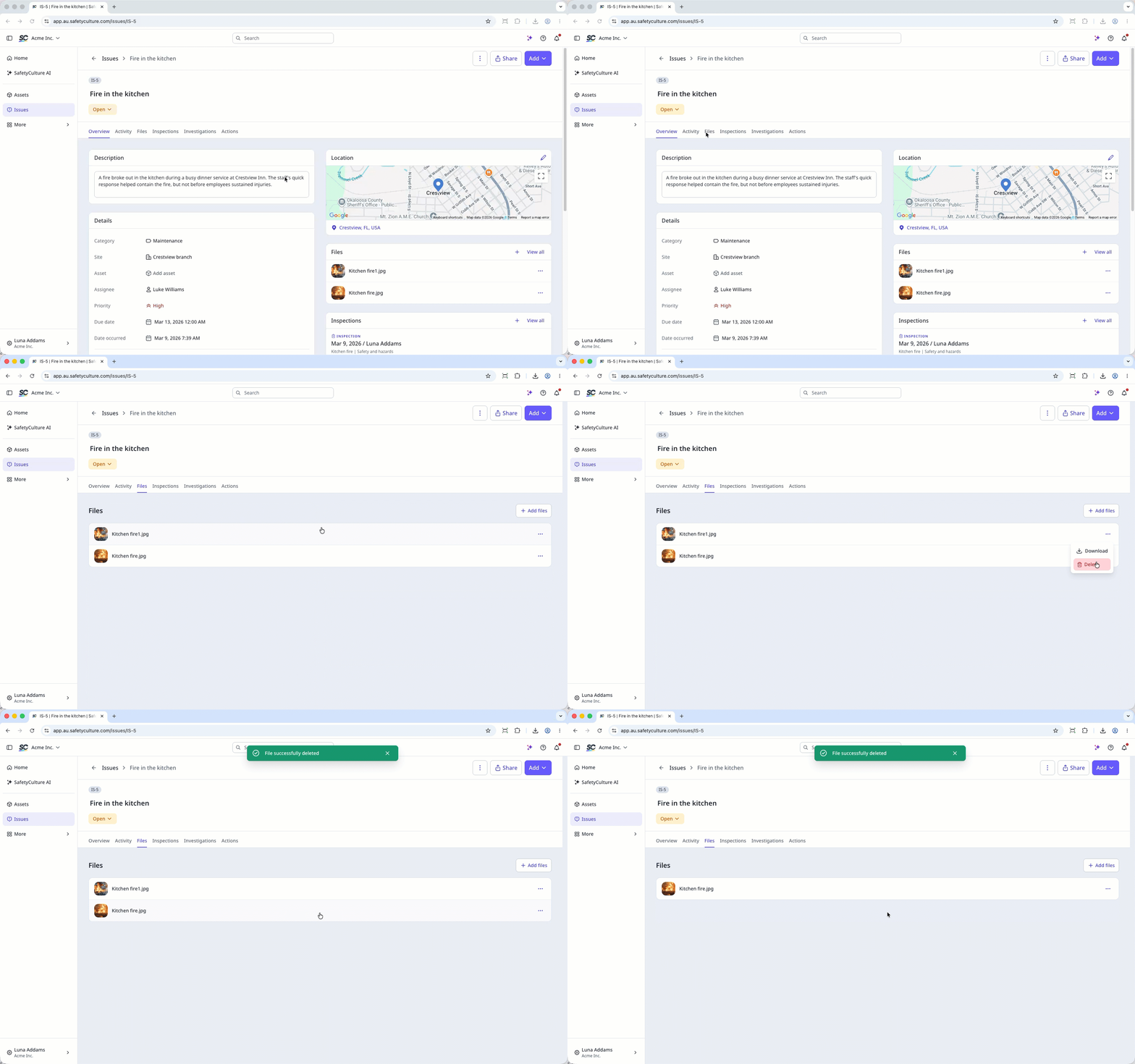
Delete a file in an issue
Select Issues in the sidebar or select it in More.
Select an issue.
You can delete a file in any of the following ways:
In Files tab, click on the right-hand side of the file and select Delete.
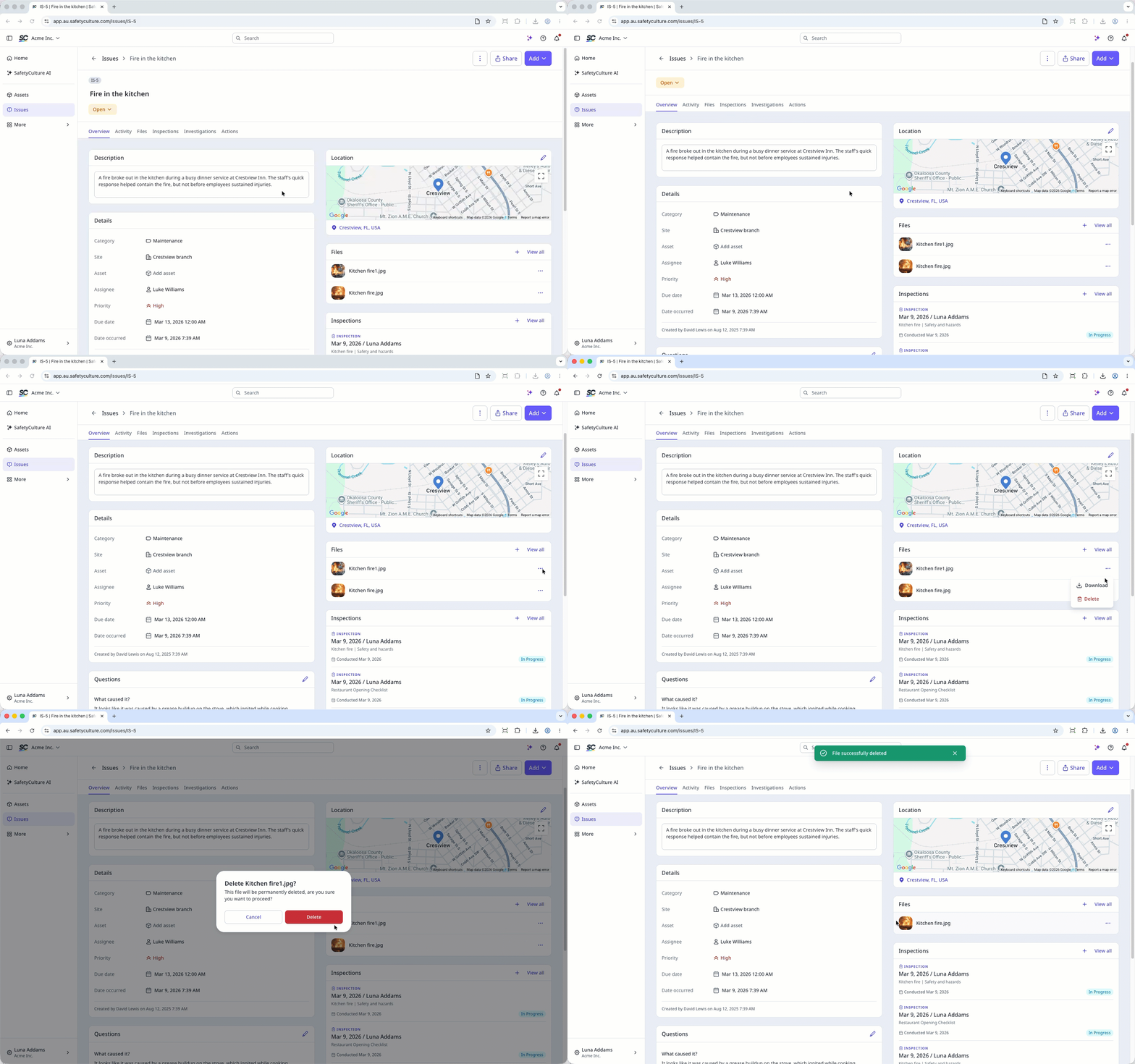
In Overview tab, scroll down to Files section. Click on the right-hand side of the file and select Delete.
Click the file to preview. Then, click on the upper-right of the page.
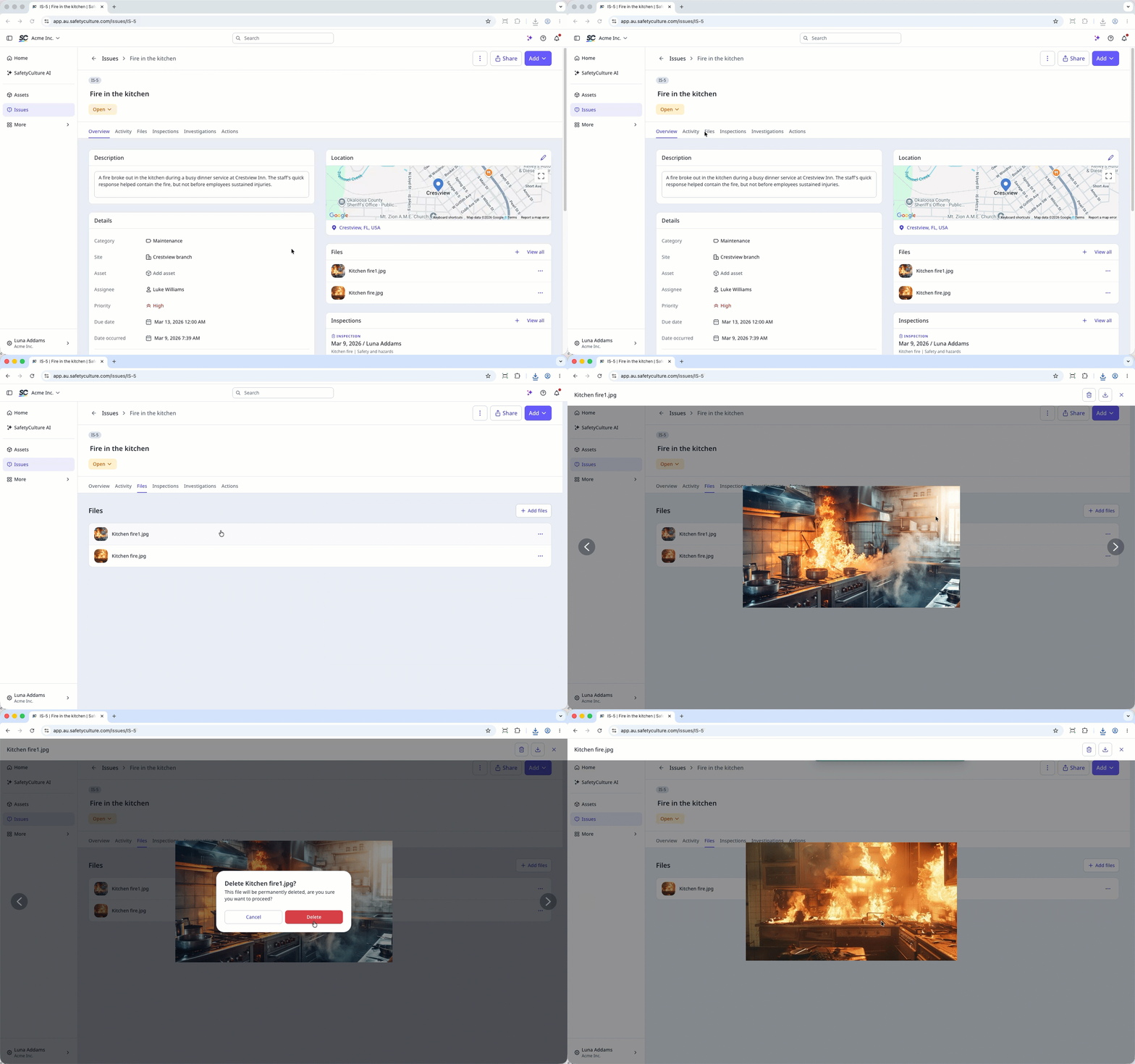
In the pop-up window, click Delete.