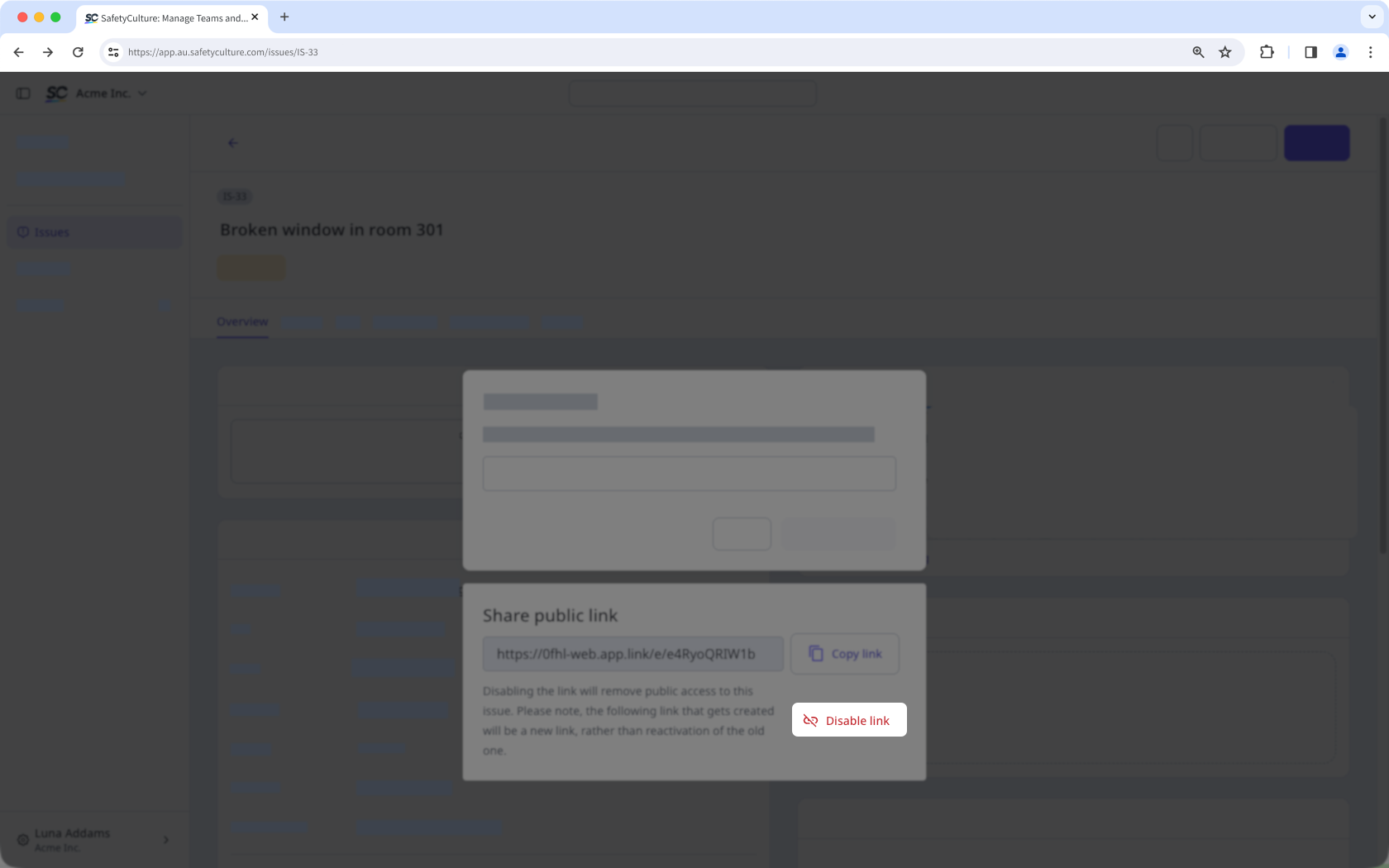
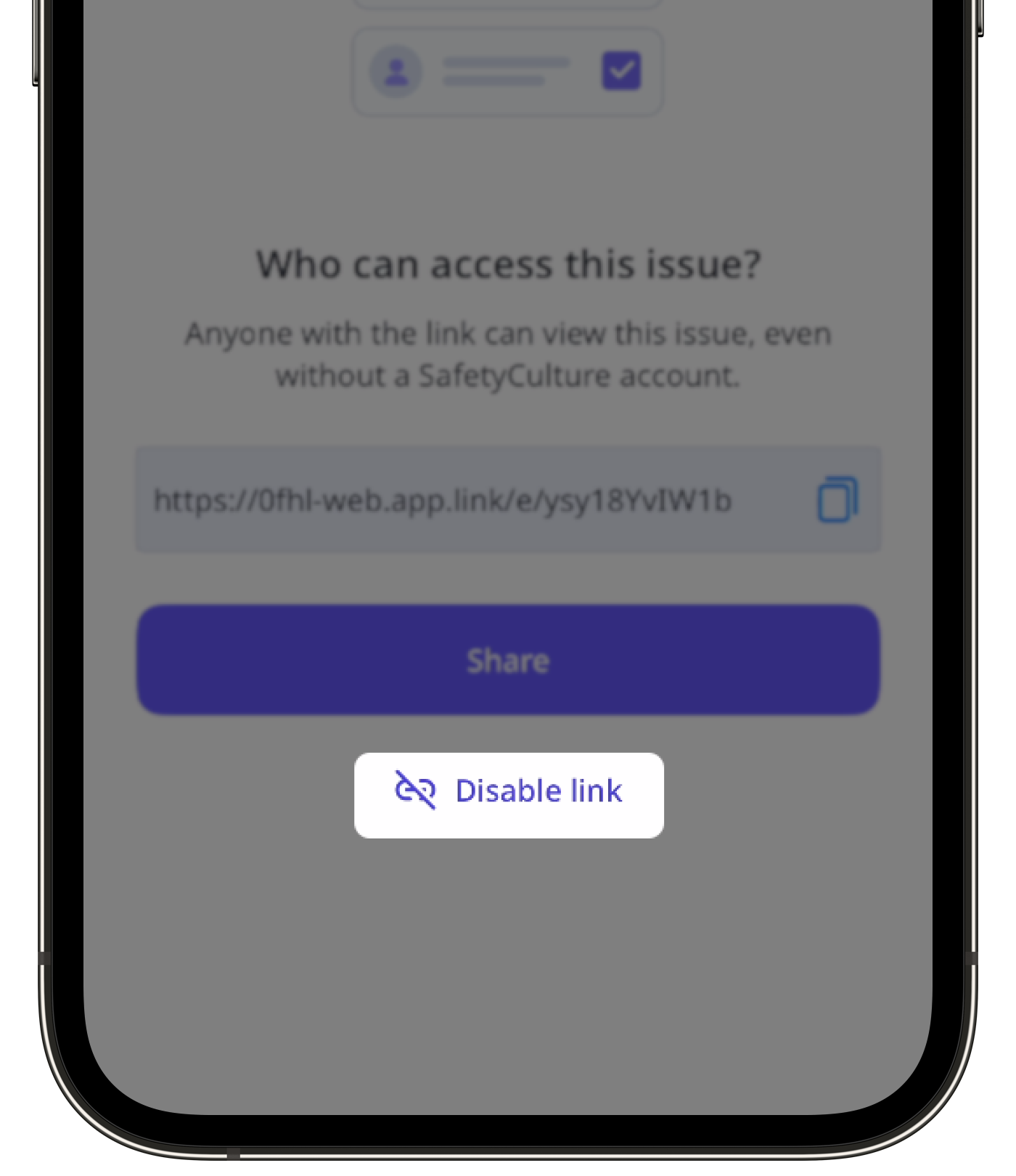
Public issue links are different from issue report links. The former offers an uneditable view of an issue timeline, allowing stakeholders to stay up-to-date about issues relevant to them as they’re being resolved. Whereas the latter offers an issue report and allows stakeholders to download everything as a PDF.
How do I share issues?
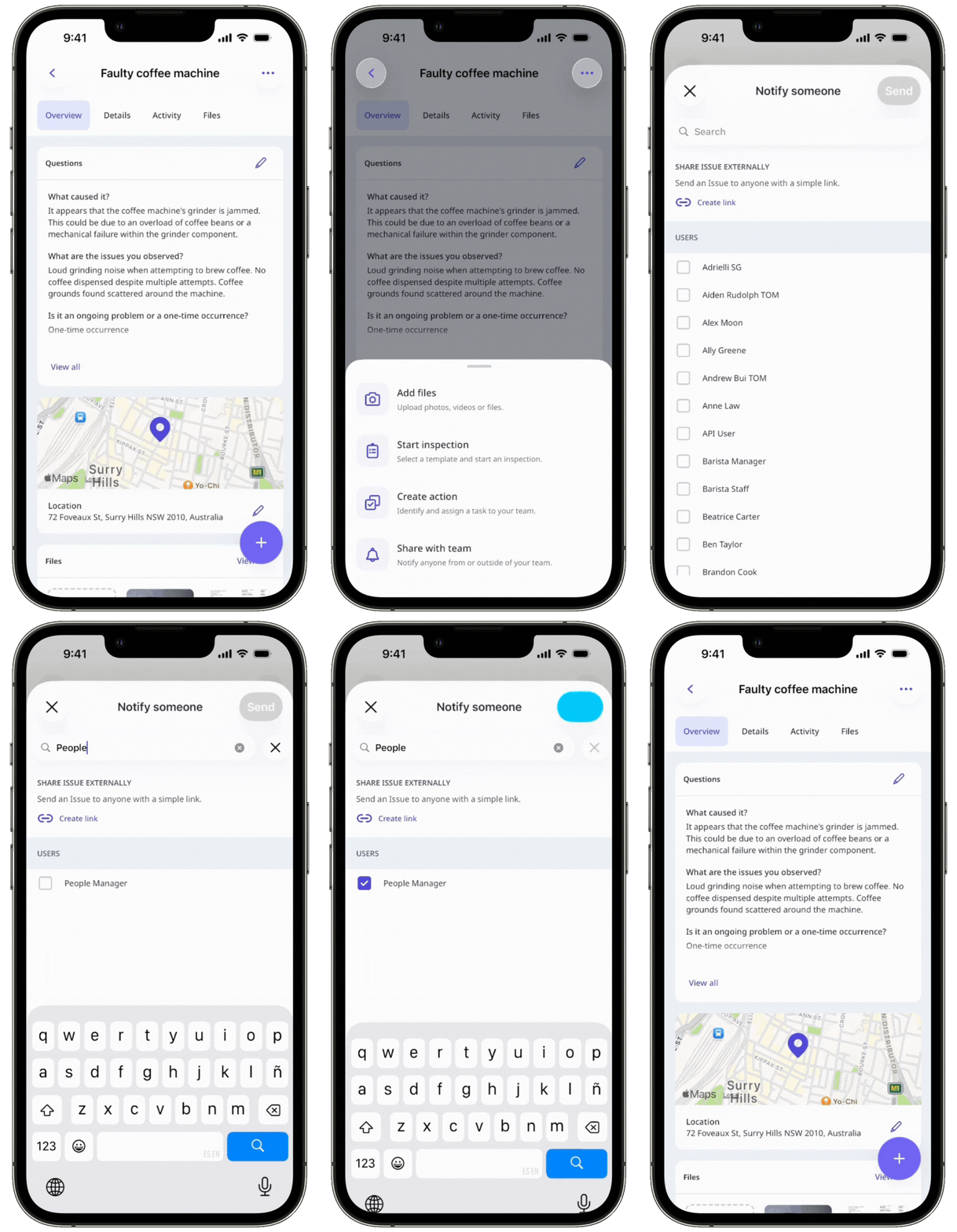
You can share issues with your team by notifying selected users, or with external stakeholders by sending a public link. Issue notifications alert users about updates to reported issues that are relevant to them and are triggered by issue activity. These notifications are sent to selected users via push, email, or SMS based on their account notification settings. This ensures team members responsible for an issue are informed at the right time, reduces unnecessary alerts, and helps teams collaborate efficiently to resolve issues faster.
If you need to share an issue externally, you can generate a public link and send it to anyone. This allows people outside your organization to view the issue and track its progress without needing a SafetyCulture account.
Share an issue via a notification
Select Issues in the sidebar or select it in More.
Report an issue or select an existing issue.
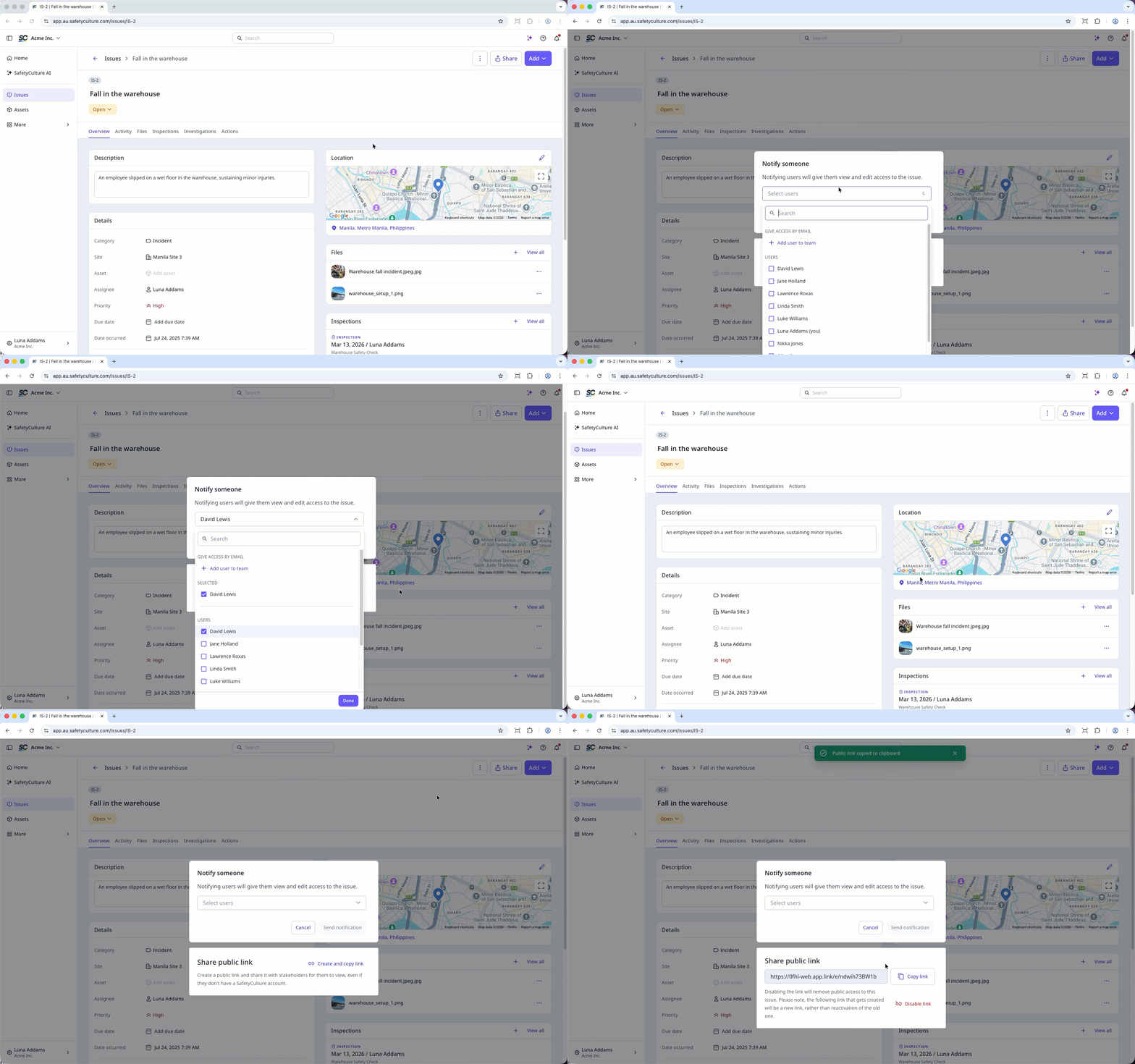
Click Share on the upper-right of the page.
Select the users you want to notify.
Click Done on the lower-right corner of the dropdown menu.
Click Send notification.
Anyone with a public issue link can view the issue until the link is turned off or the issue is deleted. When you turn off an issue link, the following link that gets created will be a new link, rather than reactivation of the old one. This means you would need to share the new link again for stakeholders to view.
Share an issue via a public link
Select Issues in the sidebar or select it in More.
Report an issue or select an existing issue.
Click Share on the upper-right of the page.
In the pop-up window, click
 Create and copy link.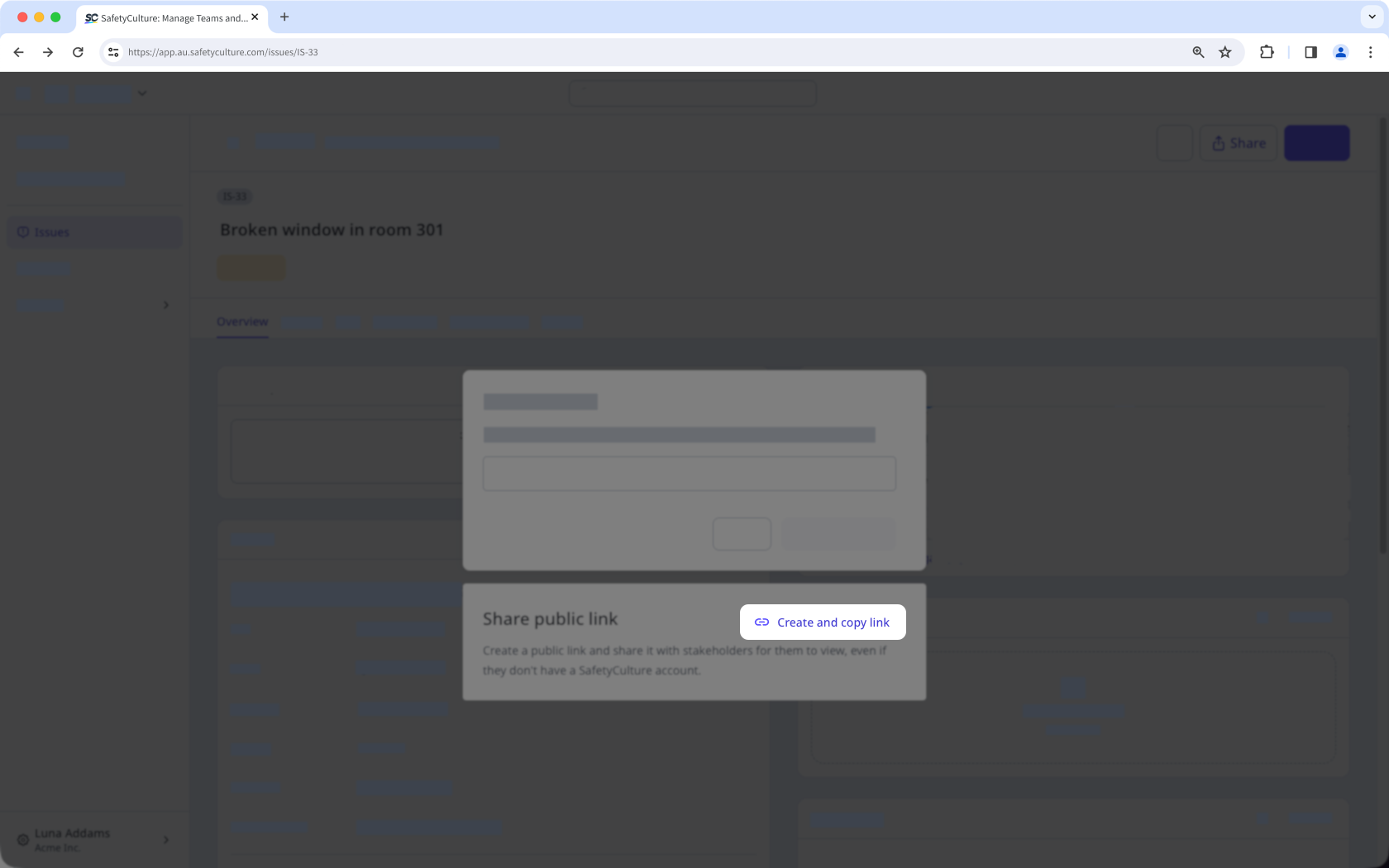
Share the link with anyone who needs to follow up on this issue. If you need to copy the link again, click Copy link.
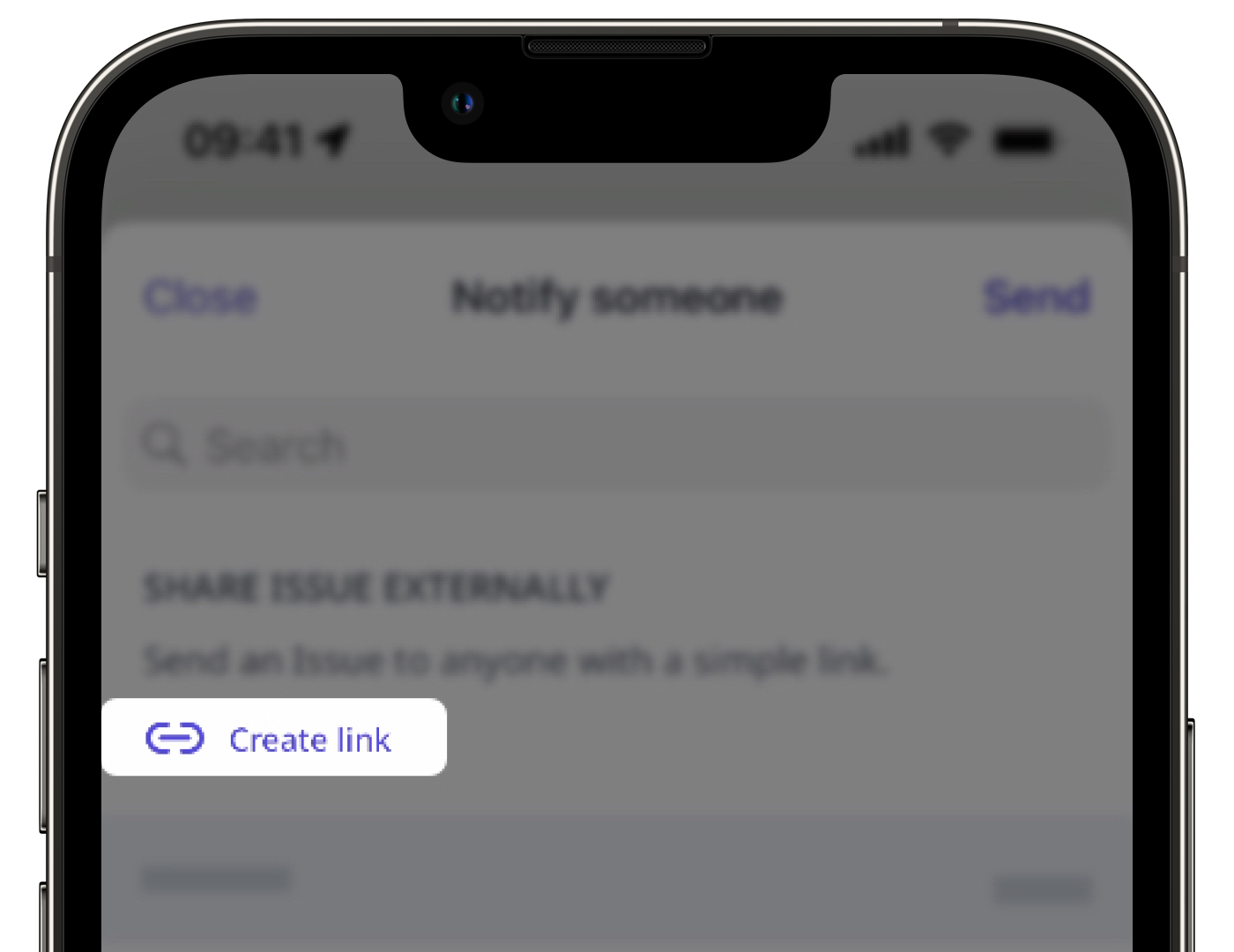
Turn off an issue public link
Select Issues in the sidebar or select it in More.
Select the issue.
Click Share on the upper-right of the page.
In the pop-up window, click
 Disable link.