What uses your AI credits?
Credits measure the AI work behind each request you make to AI Assistant. The more complex the request, the more credits it uses, because AI Assistant does more to complete it, not because of how long it takes or what's happening behind the scenes.
For example, asking a quick question uses fewer credits than asking AI Assistant to analyze several inspections and draft a summary. This gives you one consistent way to gauge how much a request will use before you make it.
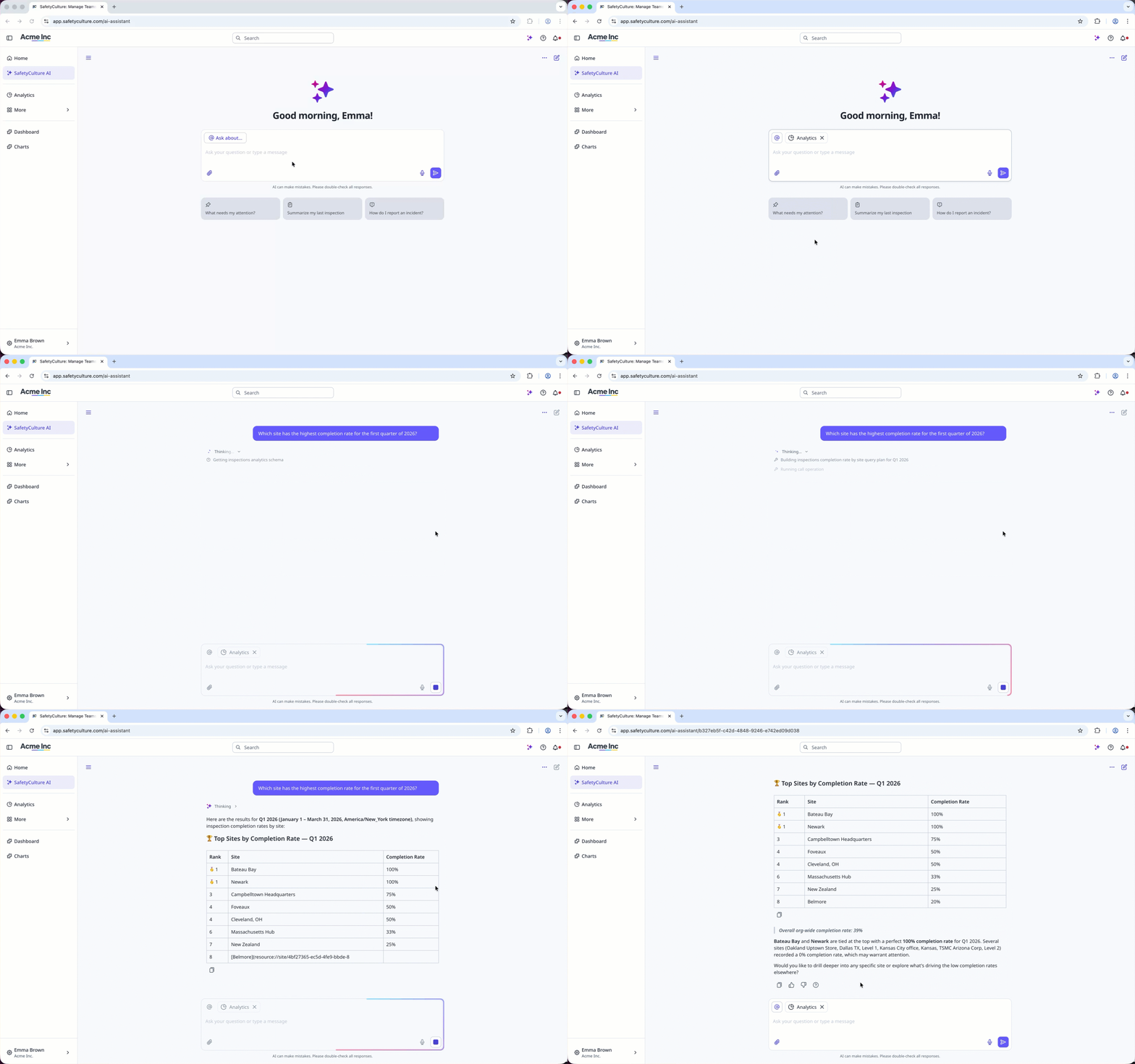
Cet article explique à quoi servent vos crédits IA, qui ne constituent qu'une partie de toutes les fonctionnalités offertes par l'Assistant IA dans SafetyCulture.
Which tasks cost credits?
Credits are used only when you ask AI Assistant to do something in the chat. What you ask for determines how many credits it costs.
Find information: Search your account, summarize results, or answer questions about your organization.
Analyze your data: Spot patterns, compare results, or surface risks.
Take action across the product: Create or update actions, issues, assets, and inspections from the chat.
Create a template or course from the chat: Build a template or training course by asking the AI Assistant.
Generate reports and files: Produce a downloadable report or document from your organization's data or files you've uploaded.
Search the web: Bring in current information from the web as part of a response.
AI tools that don't cost credits
SafetyCulture also includes other AI-powered tools you can use alongside the AI Assistant. None of these use credits, so they're still available once your credits run out.
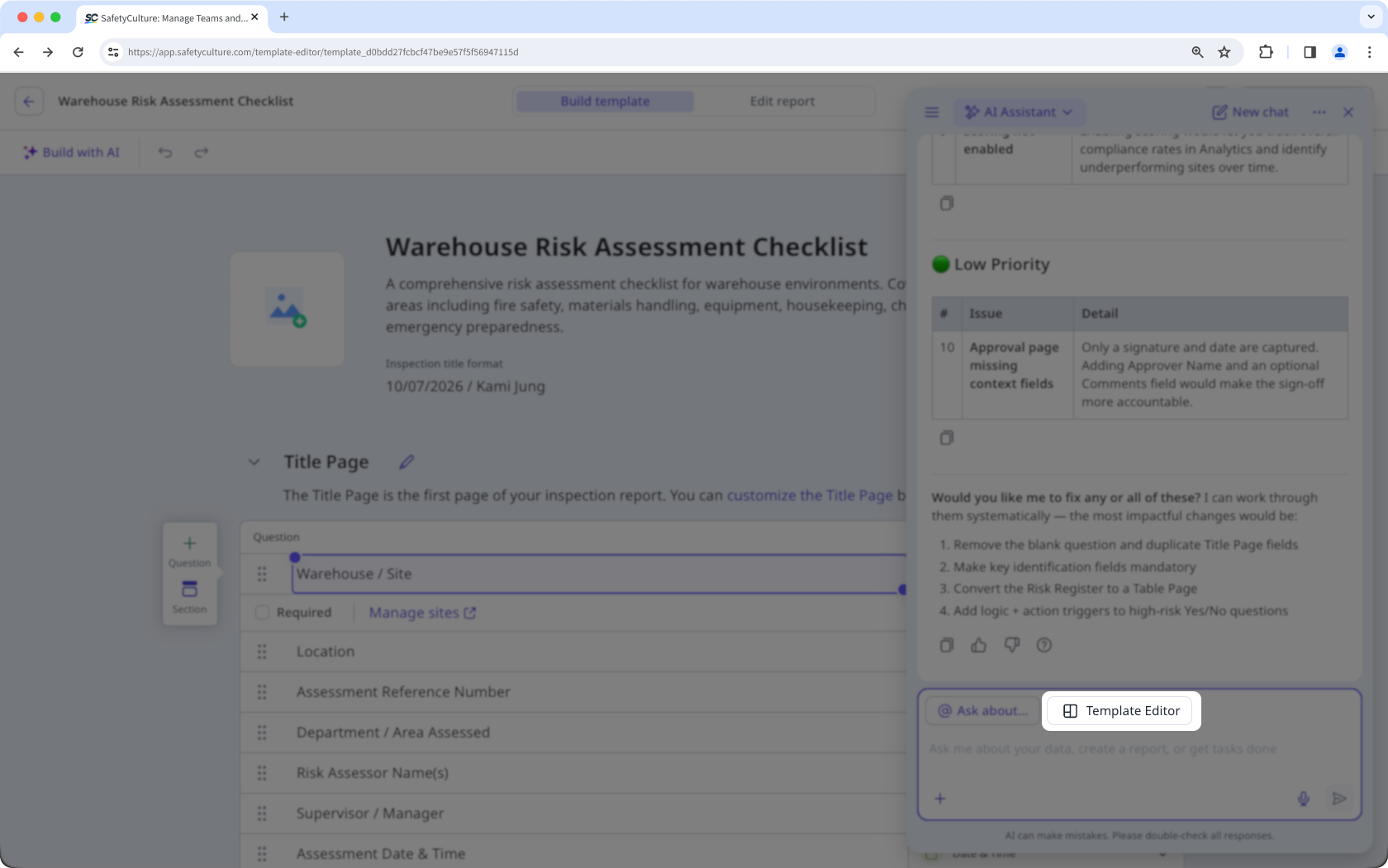
Edit with AI in the template editor: Refine your template using the AI Assistant in the template editor.
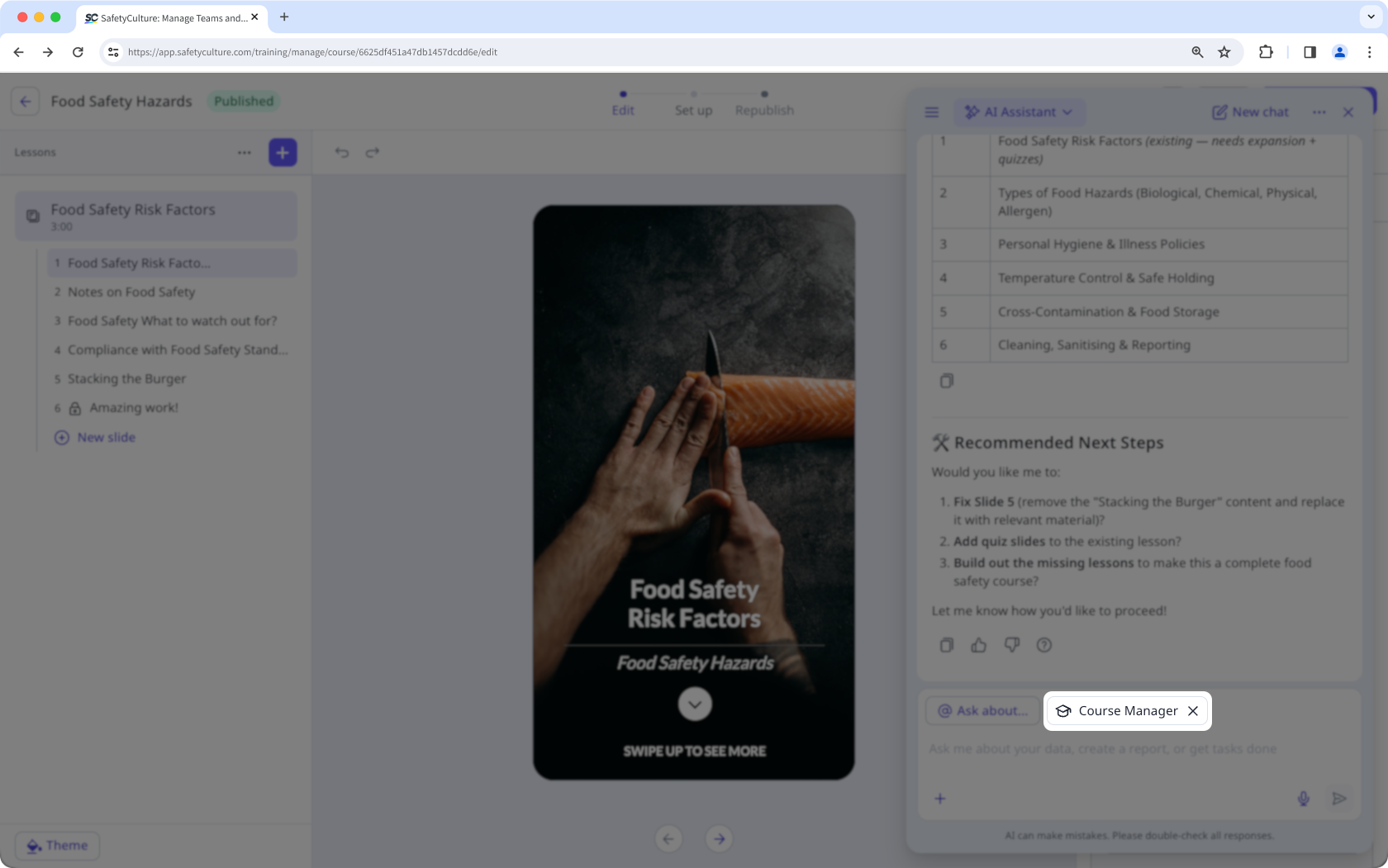
Build with AI in Training: Create and edit a course using the AI Assistant in the course editor.
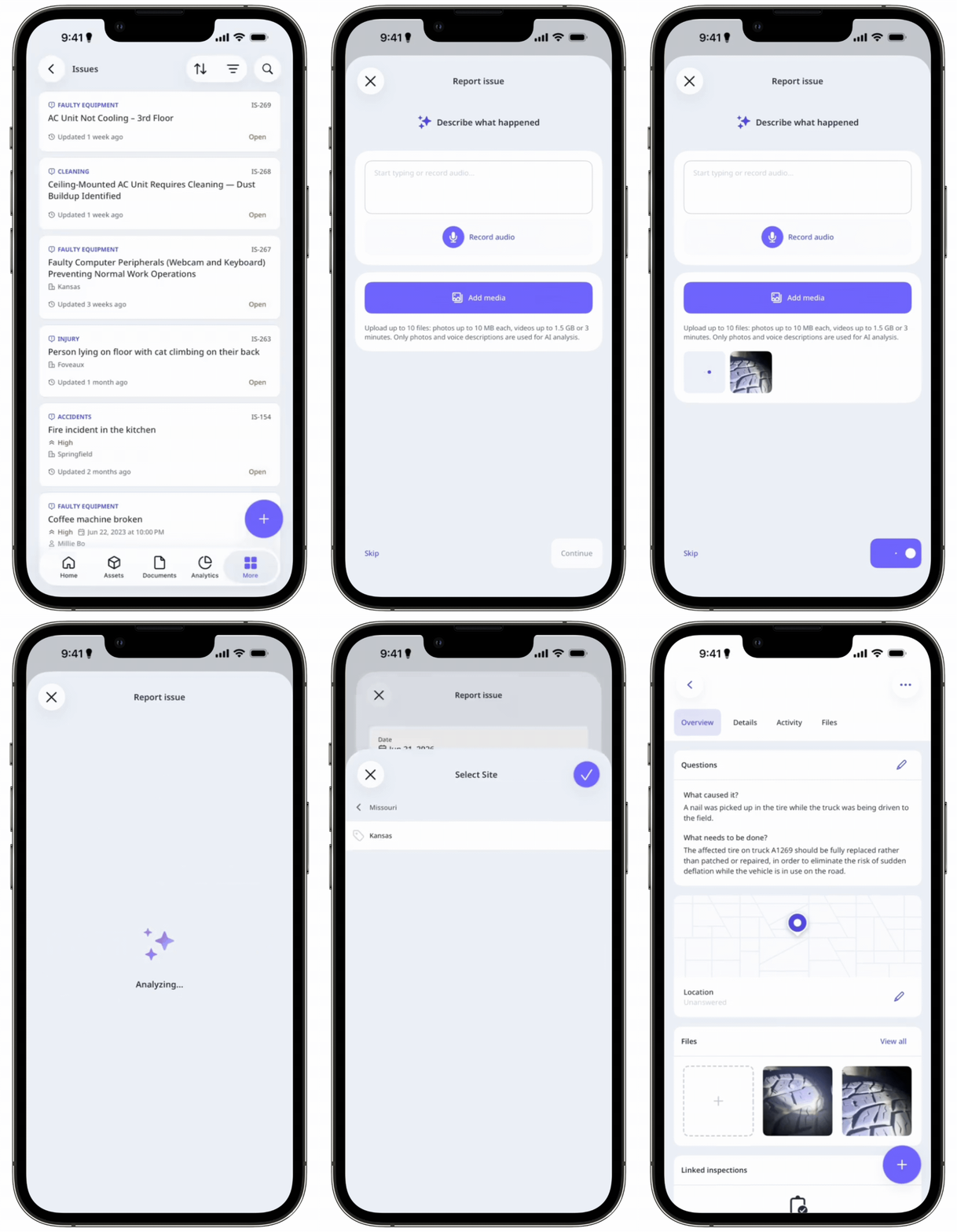
AI issue creation: Enter a description and attach photos to let AI generate details for the issue.
Agents: Automate repetitive tasks and workflows on your behalf.
Site benchmarking: Compare performance and standards across your sites.
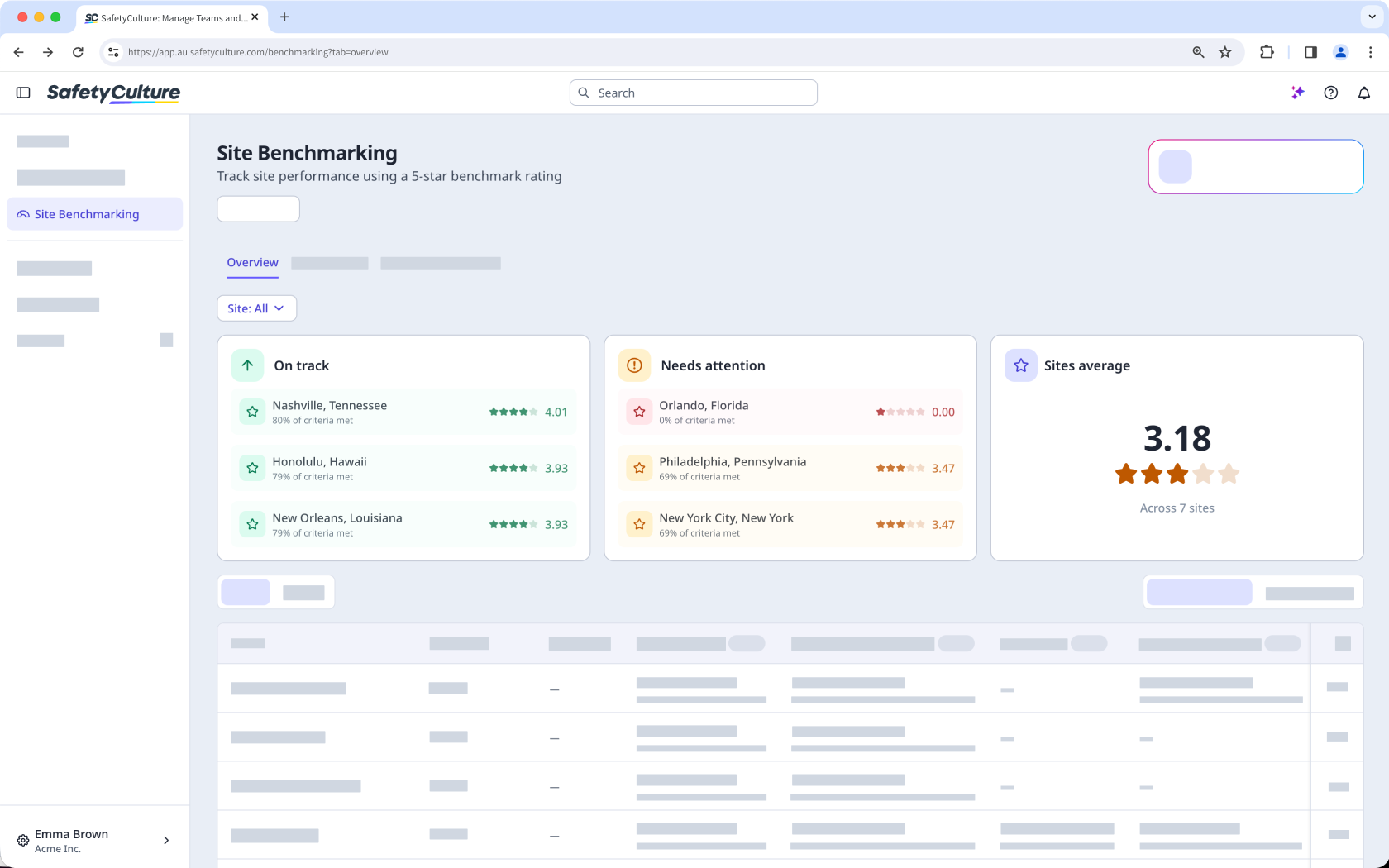
Les agents ne coûtent pas de crédits. Les tarifs des agents sont susceptibles d'être modifiés.
Qu'est-ce qui consomme le plus ou le moins de crédits ?
L'utilisation des crédits dépend de la charge de travail que doit fournir l'Assistant IA pour vous répondre. À titre indicatif :
Demandes rapides et précises : Poser une seule question ou obtenir une réponse brève coûte moins de crédits.
Actions quotidiennes dans le produit : La création ou la mise à jour d'une action, d'une observation, d'un actif ou d'une inspection utilise un nombre modéré de crédits.
Demandes volumineuses ou nécessitant un traitement important de données : Demander à l'assistant IA d'analyser des données provenant de nombreux enregistrements ou de générer un document consomme davantage de crédits, car la charge de travail est plus importante.
Il ne s'agit pas d'une formule stricte, car le montant exact peut varier en fonction du travail engendré par votre demande. Utilisez-la pour vous faire une idée générale de ce à quoi vous pouvez vous attendre, puis vérifiez votre consommation pour connaître les chiffres réels.
A good prompt can help the AI Assistant do less work, so it uses fewer credits. Write better prompts for the AI Assistant to get the most out of your credits.
How many credits do I get with my plan?
Users on a full seat get a monthly credit allocation based on your plan. Users on lite seats don't get any credit allocation, so any AI Assistant usage on those seats counts as overage from the first request.
Plan | Seat type | Monthly credits |
|---|---|---|
Free | Full seat | 300 |
Premium | Full seat | 500 |
Enterprise | Full seat | 800 |
Premium and Enterprise | Lite seat | 0 |
Monthly credits don't roll over. Your balance resets to your plan's monthly allocation at the start of each month.
All organizations on Offre Premium ou Offre Enterprise also receive a one-time welcome credit allocation of 10,000 credits. Unlike the monthly allocation, which is per seat, welcome credits are shared across everyone in your organization. They expire three months after they're granted, whether or not you've used them.
If your organization needs more credits than its included allocation, users with Autorisation « Gestion de la plateforme : Facturation » can purchase a credit subscription for additional monthly credits or set an overage limit to control how much extra usage is allowed.
Comment puis-je suivre ma consommation ?
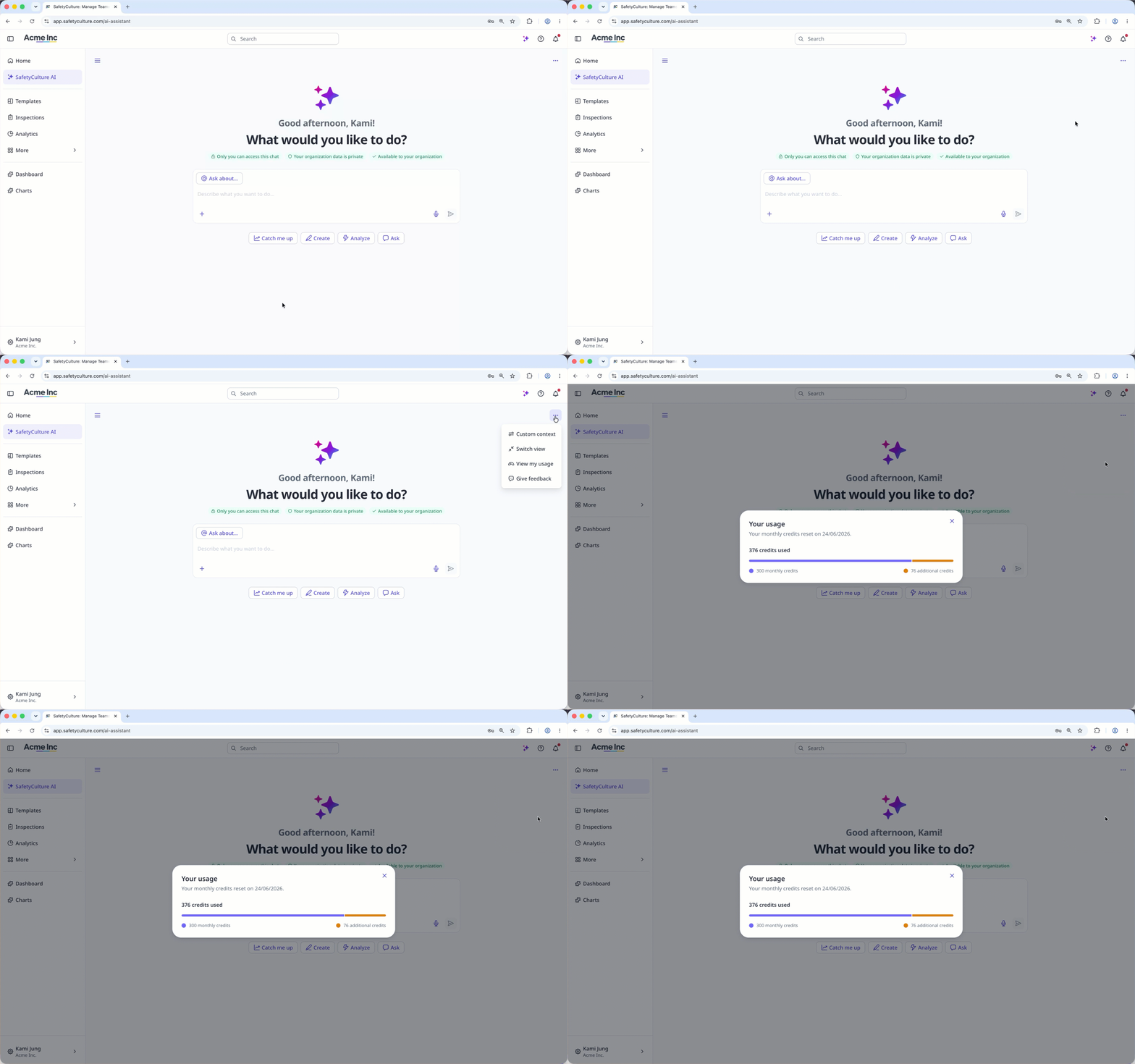
Vous pouvez suivre votre consommation directement depuis l'Assistant IA. Cliquez sur « » en haut à droite de la page, puis sélectionnez « Afficher mon utilisation ». Vous verrez ainsi le nombre de crédits que vous avez utilisés et la date de réinitialisation de vos crédits.
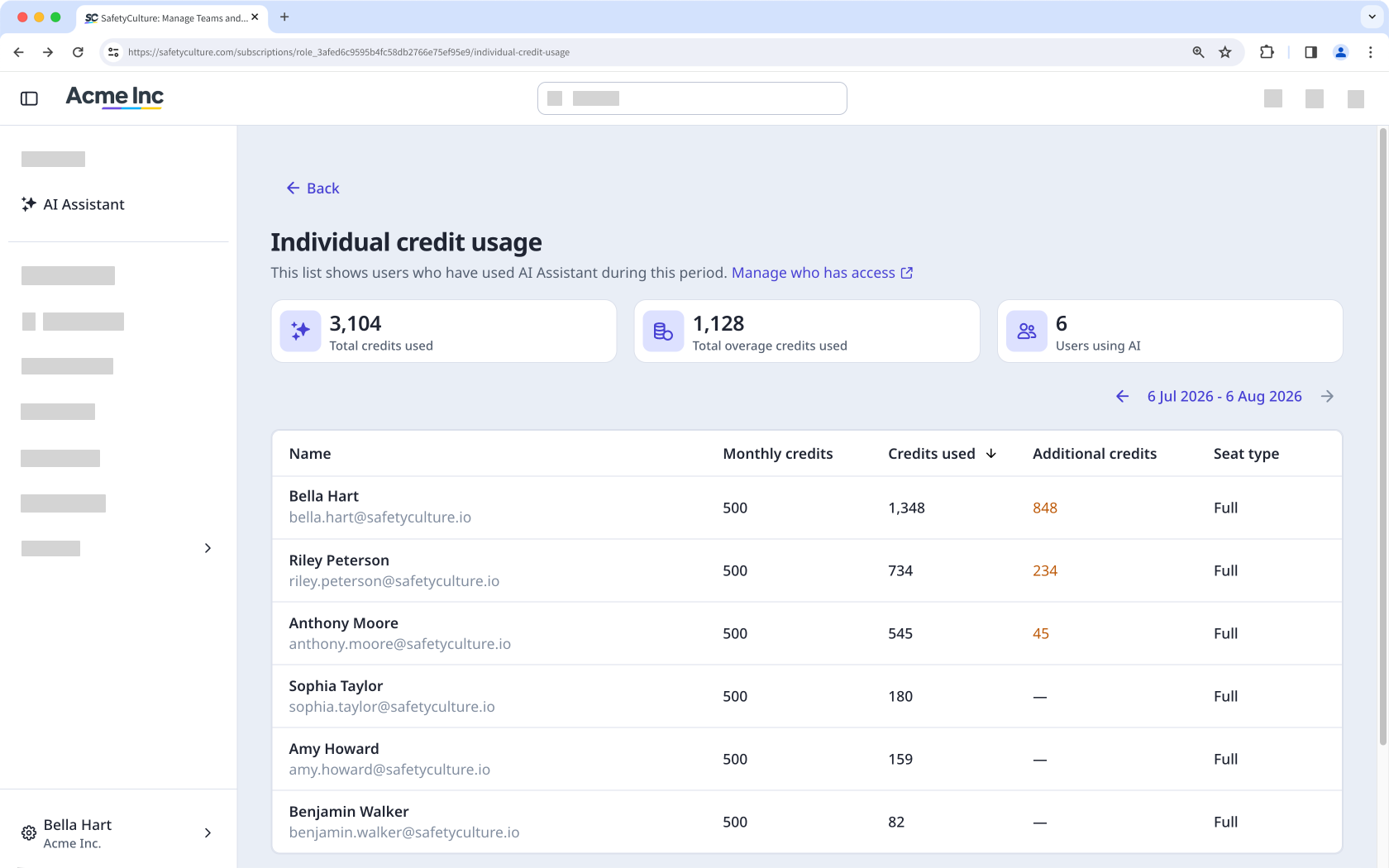
Les utilisateurs disposant d'un compte Autorisation « Gestion de la plateforme : Facturation » peuvent suivre l'utilisation de leur organisation, y compris une ventilation par utilisateur, sur la page « Facturation ».
Vous recevrez une alerte dans l'Assistant IA lorsque vous serez sur le point d'épuiser tous vos crédits. Les administrateurs avec Autorisation « Gestion de la plateforme : Facturation » sont également avertis, afin qu'ils puissent ajouter un abonnement de crédits ou définir une limite de dépassement avant de perdre l'accès.
What happens when I use all my credits?
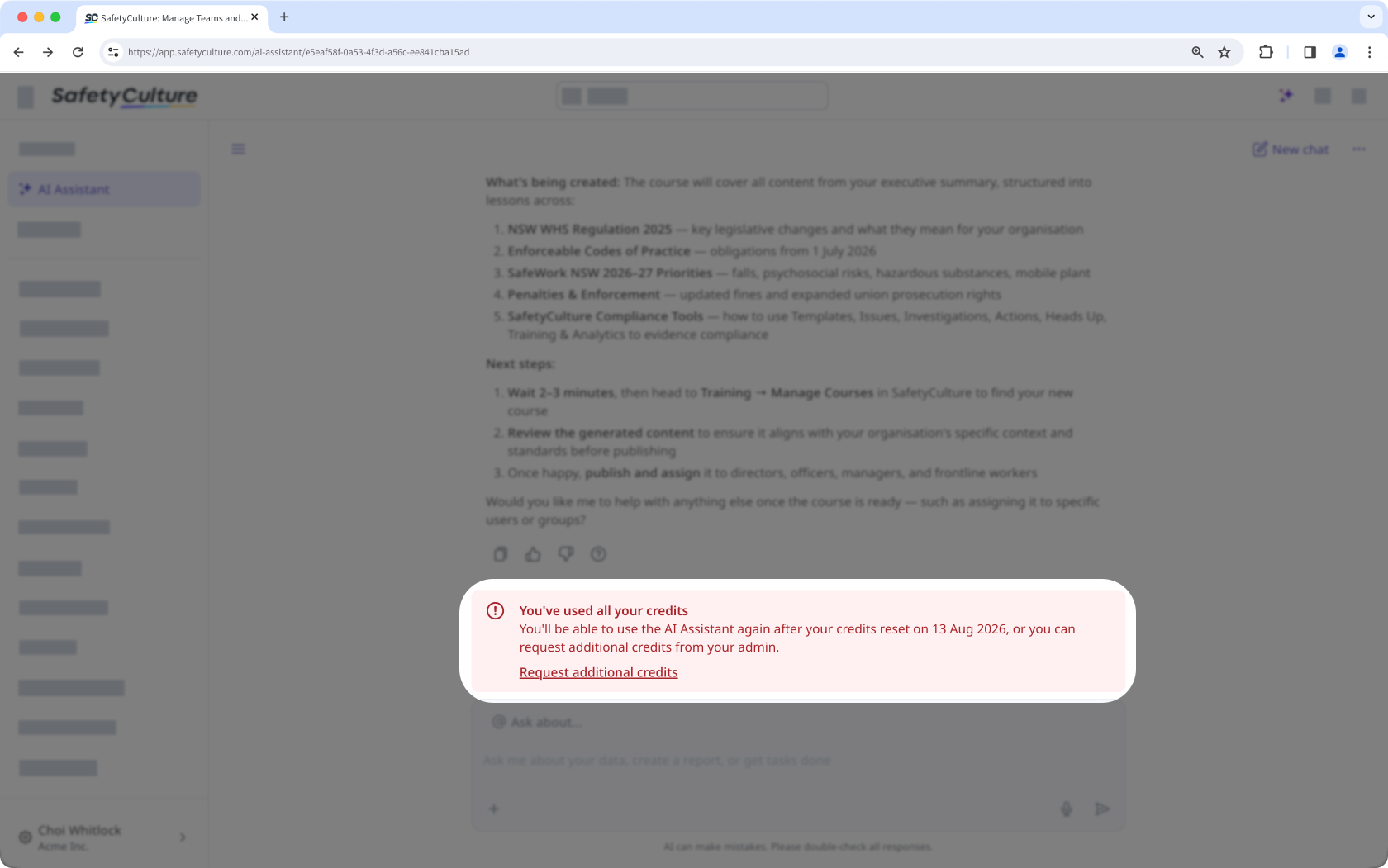
On Offre Premium ou Offre Enterprise, once your organization has used all its credits, you'll see an alert in the AI Assistant letting you know you're out of credits. You can request more credits from an admin directly from that alert.
Admins with Autorisation « Gestion de la plateforme : Facturation » get notified when the organization is out of credits, along with any requests from the team, and can resolve it by adding a credit subscription or setting an overage limit. If neither happens, no one can use the AI Assistant until credits reset the following month. This applies to the entire organization, so you can't add credits for a single user.
On the Offre Gratuite, once monthly credits run out, users can't use the AI Assistant until they reset the following month. Organizations can upgrade to the Premium Plan for a larger monthly allocation and access to credit subscriptions and overage limits.
Some tools stay free to use no matter how many credits you have left. See the list above for what's included.