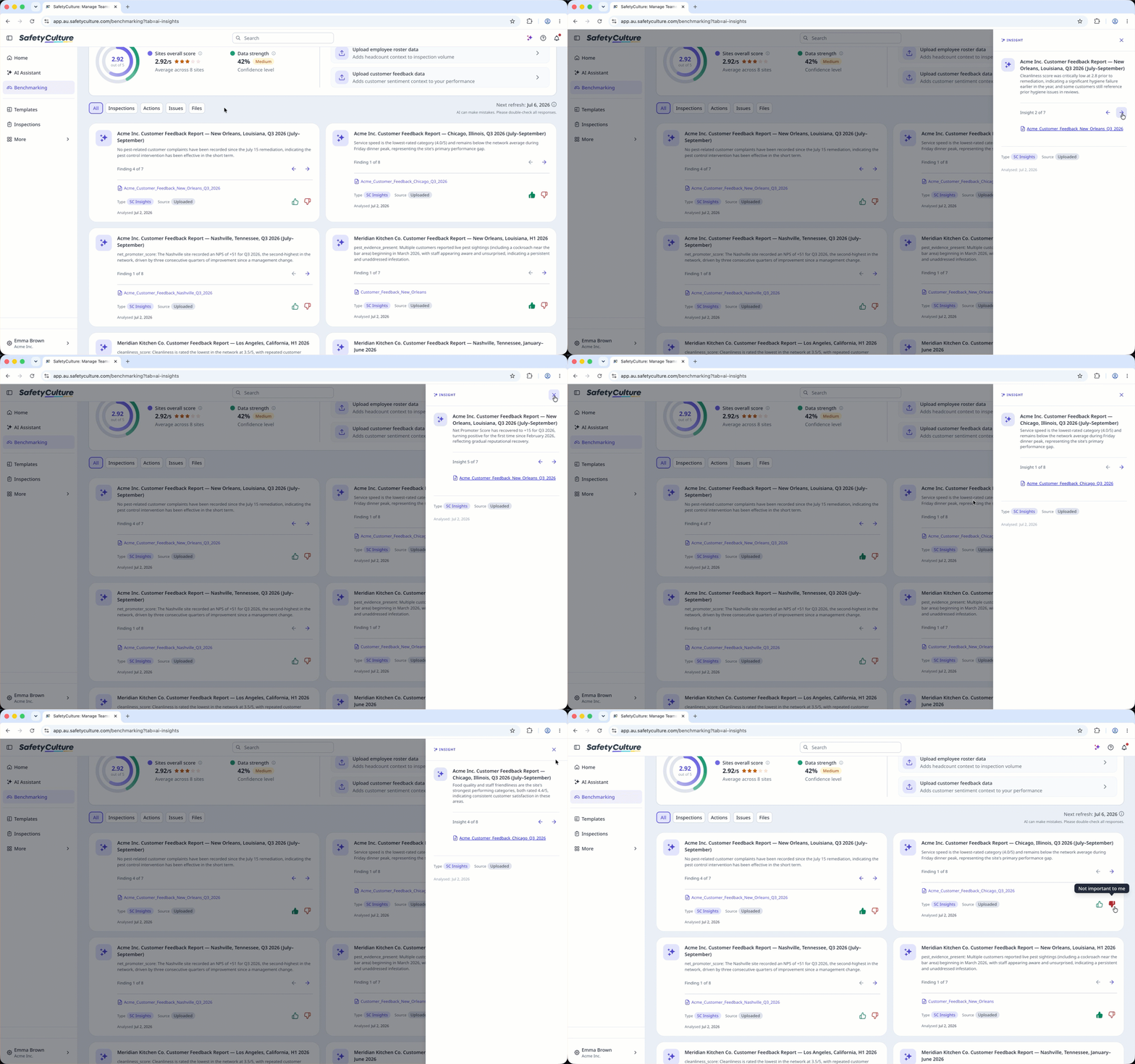
What is Site Benchmarking in SafetyCulture?
Site Benchmarking helps you understand how sites across your organization are performing. You set the benchmarking criteria using the metrics that matter to your team, such as inspection count, completion rates, average scores, or action count. Each site automatically receives a 5-star rating, so you can identify which sites are doing well and which need attention.
AI-generated insights show which sites are performing well and which are underperforming. Use these insights to spot trends, recognize strong performers, and focus improvement efforts on the sites that need them most.
Your organization needs at least 3 sites, each with 1 or more inspections completed in the last 9 weeks, to view AI-generated insights for Site Benchmarking.
Get started as an admin
Check your permissions
To access Site Benchmarking, you need "Analytics: Manage" permission. If Site Benchmarking doesn't appear on your sidebar, contact your admin to confirm you have the right permission assigned.
You also need access to view the data from Site Benchmarking. If you can't view the inspection, action, or issue, check with your admin to confirm you have the right access assigned.
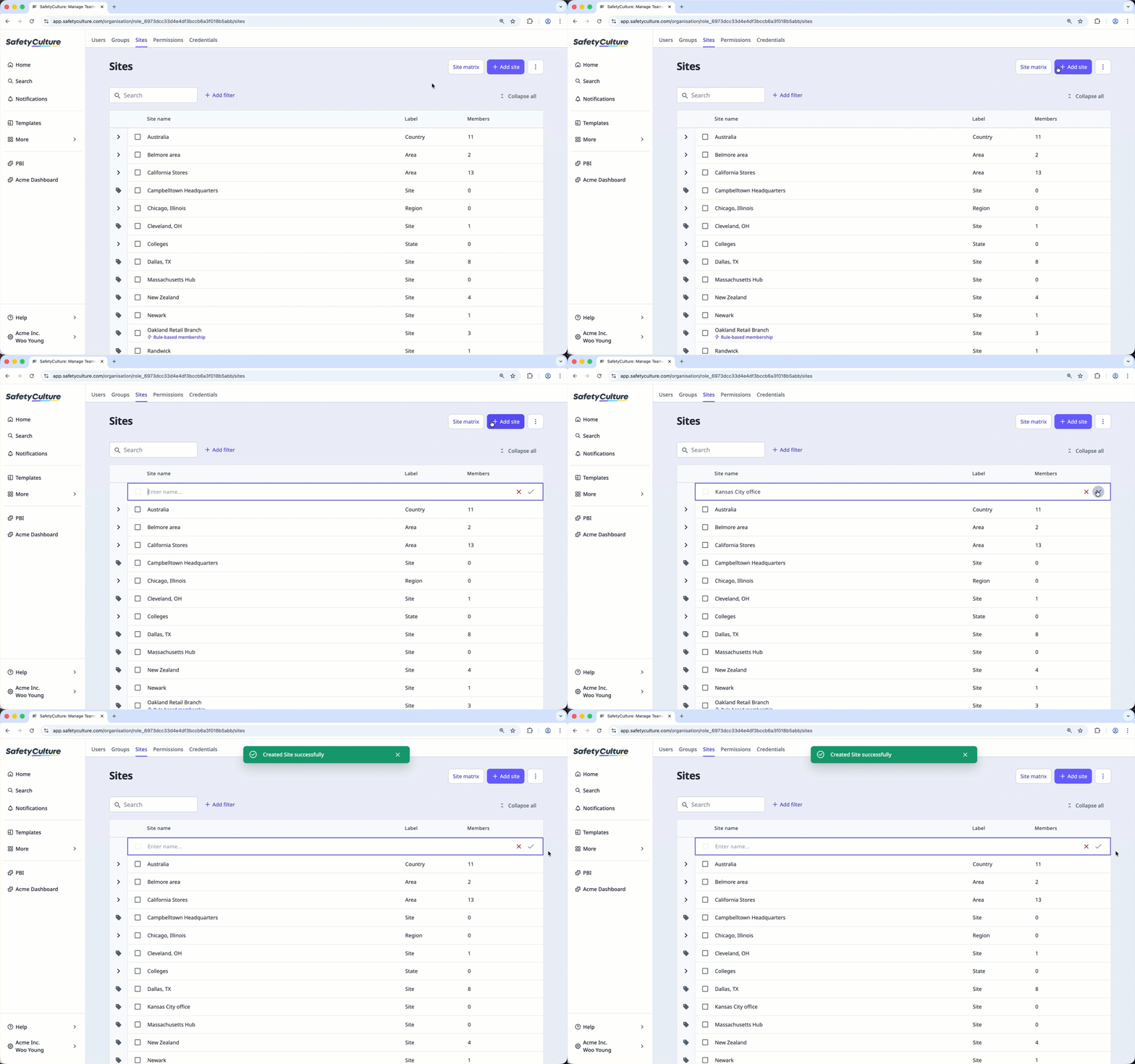
Add sites to your organization
Start by adding the sites to your organization. Site Benchmarking only monitors sites already in your organization, and rates each one individually.
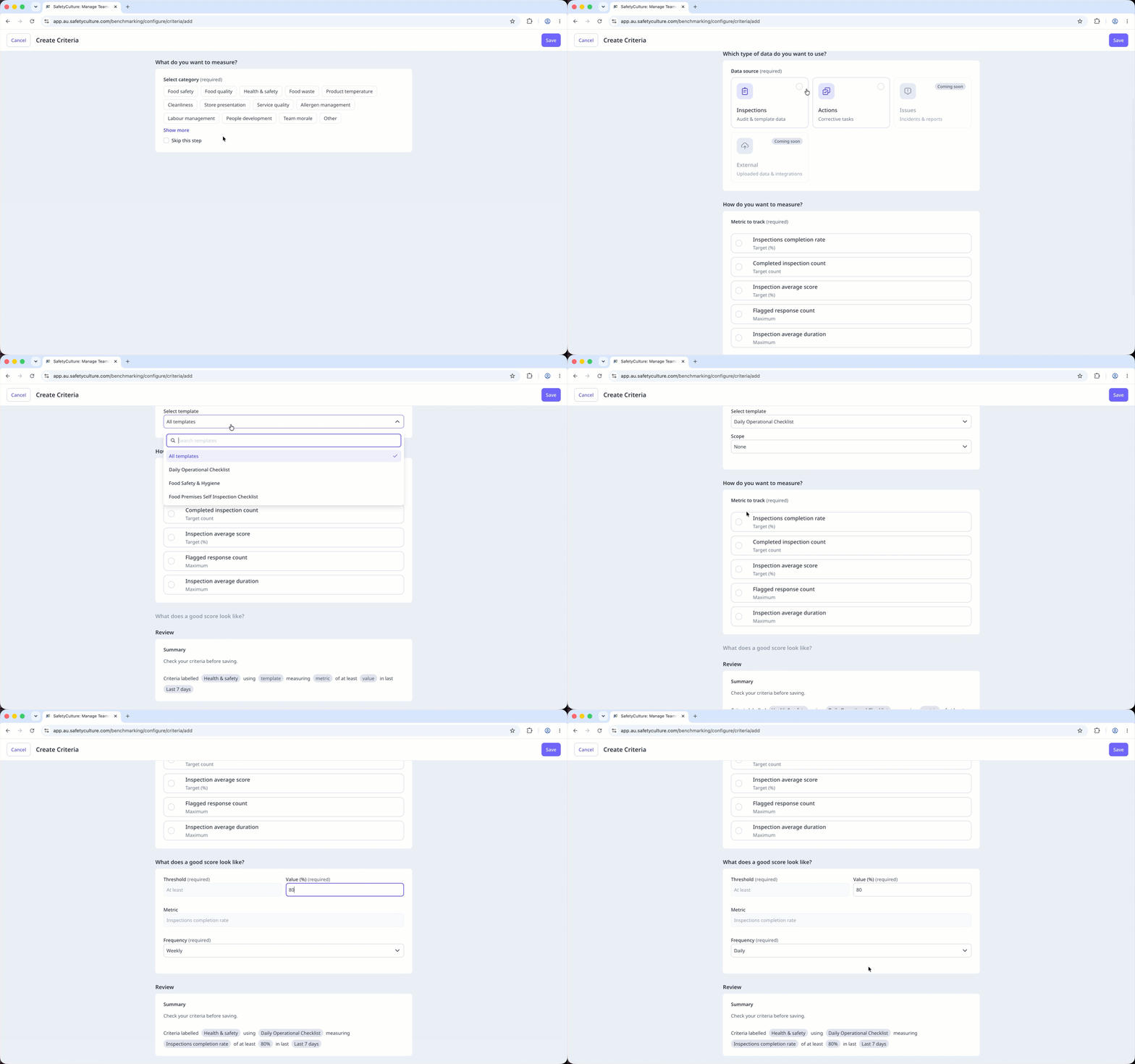
Configure criteria
Configure benchmarking criteria based on the metrics that matter to your organization. You can adjust the weight for each criterion to control how much it counts toward a site's overall star rating, so the most important metrics have the biggest impact. Applying the same criteria across all sites helps ensure consistent measurement and makes it easier to compare results across your organization.
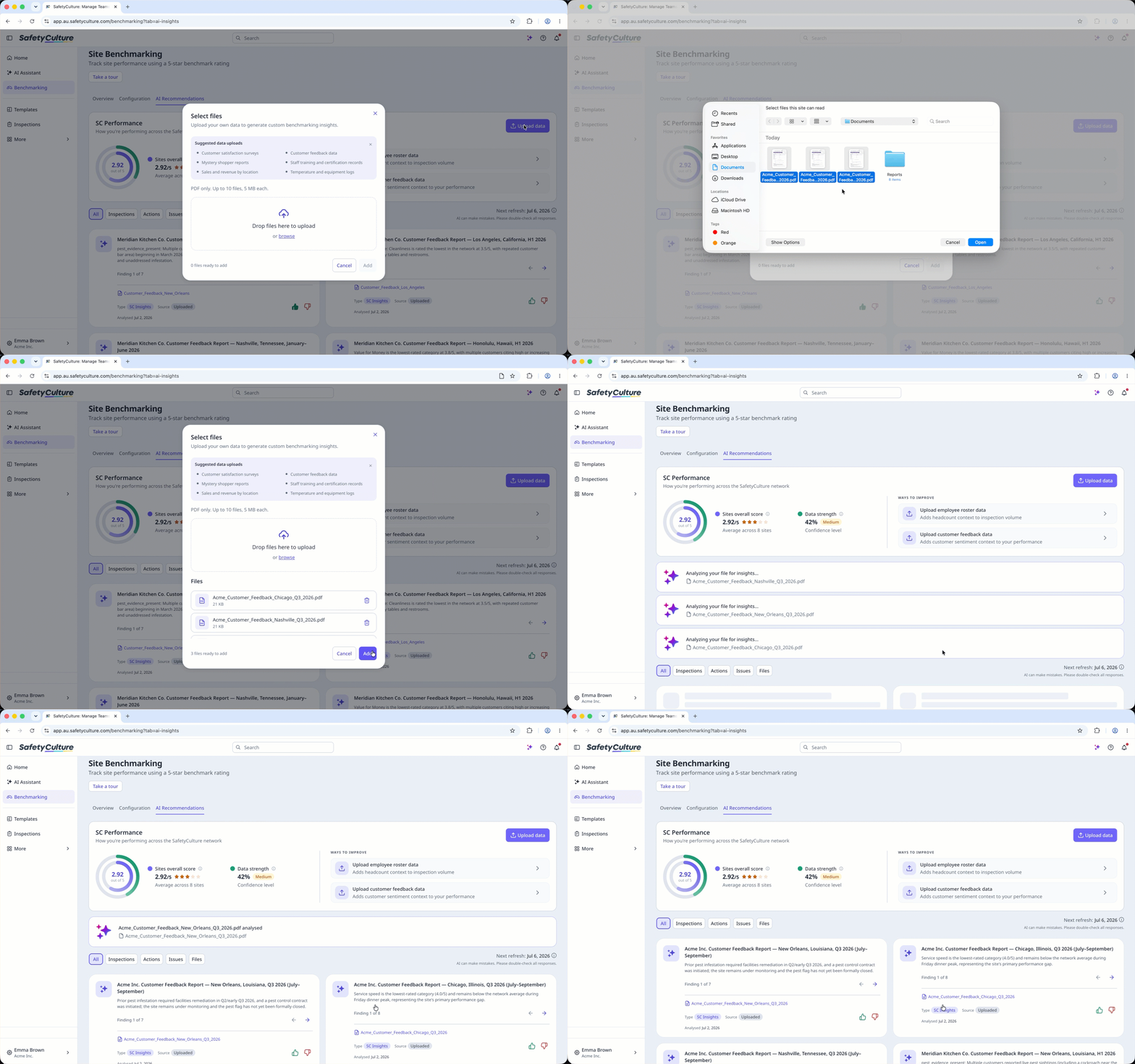
Upload data
Upload relevant files to provide additional context for AI-generated insights. The more relevant data you provide, the more detailed and reliable the insights. You can also use the Data Strength indicator to understand how much your uploaded data is contributing to the insights.
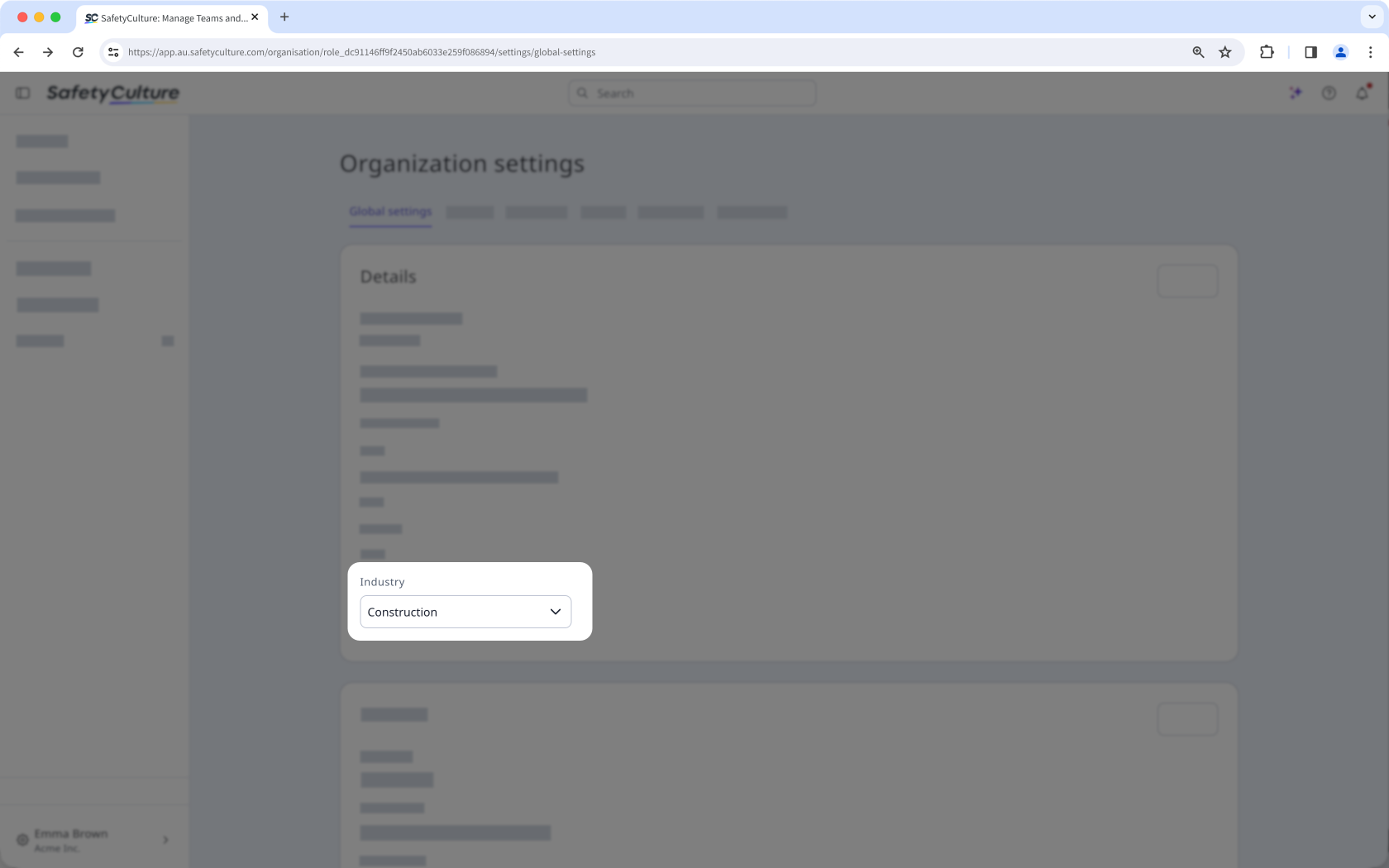
Choose your industry
In organization settings, select the industry that best represents your organization. The industry you select determines which criteria labels you can use when you create a criterion in Site Benchmarking.
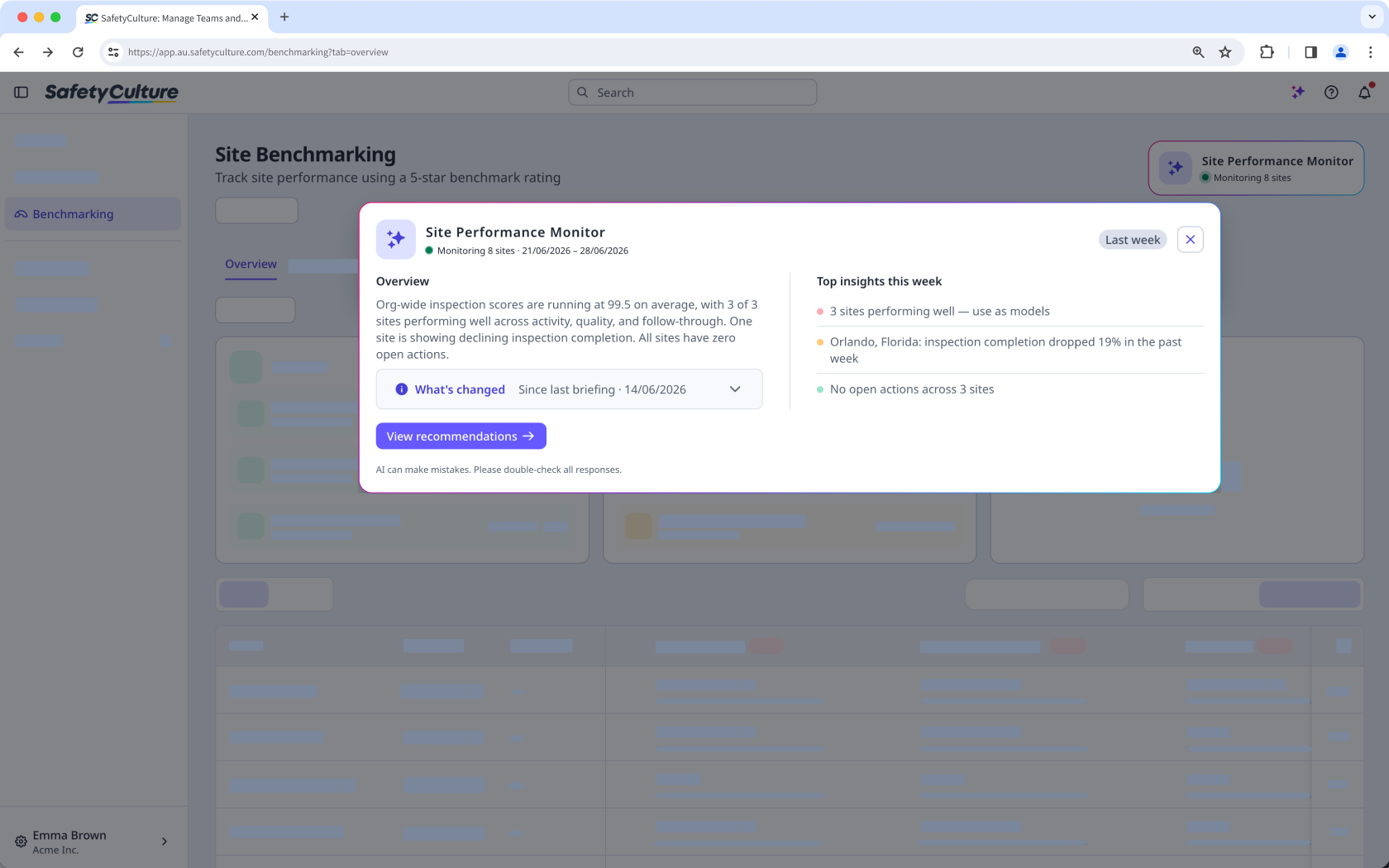
View weekly performance summary
The Site Performance Monitor combines an AI-generated weekly summary with the top insights for the week, so you can understand performance without reviewing every site individually. It also highlights what's new since your last briefing, giving you the latest updates.
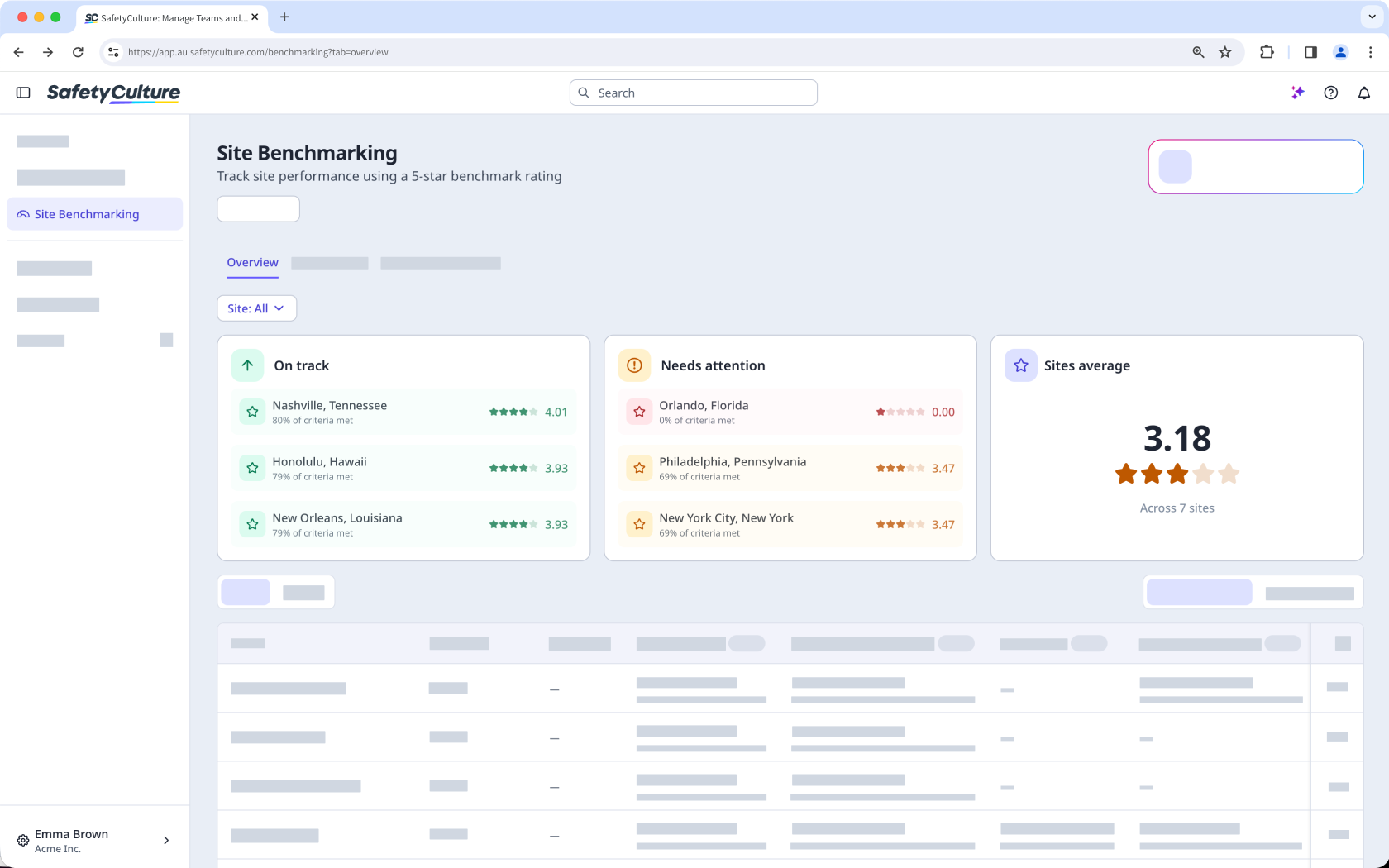
Identify top and low performing sites
Review the top three sites that are on track, the top three sites that need attention, and the average score across your sites. Use this overview to identify sites that are performing well and prioritize where to improve.
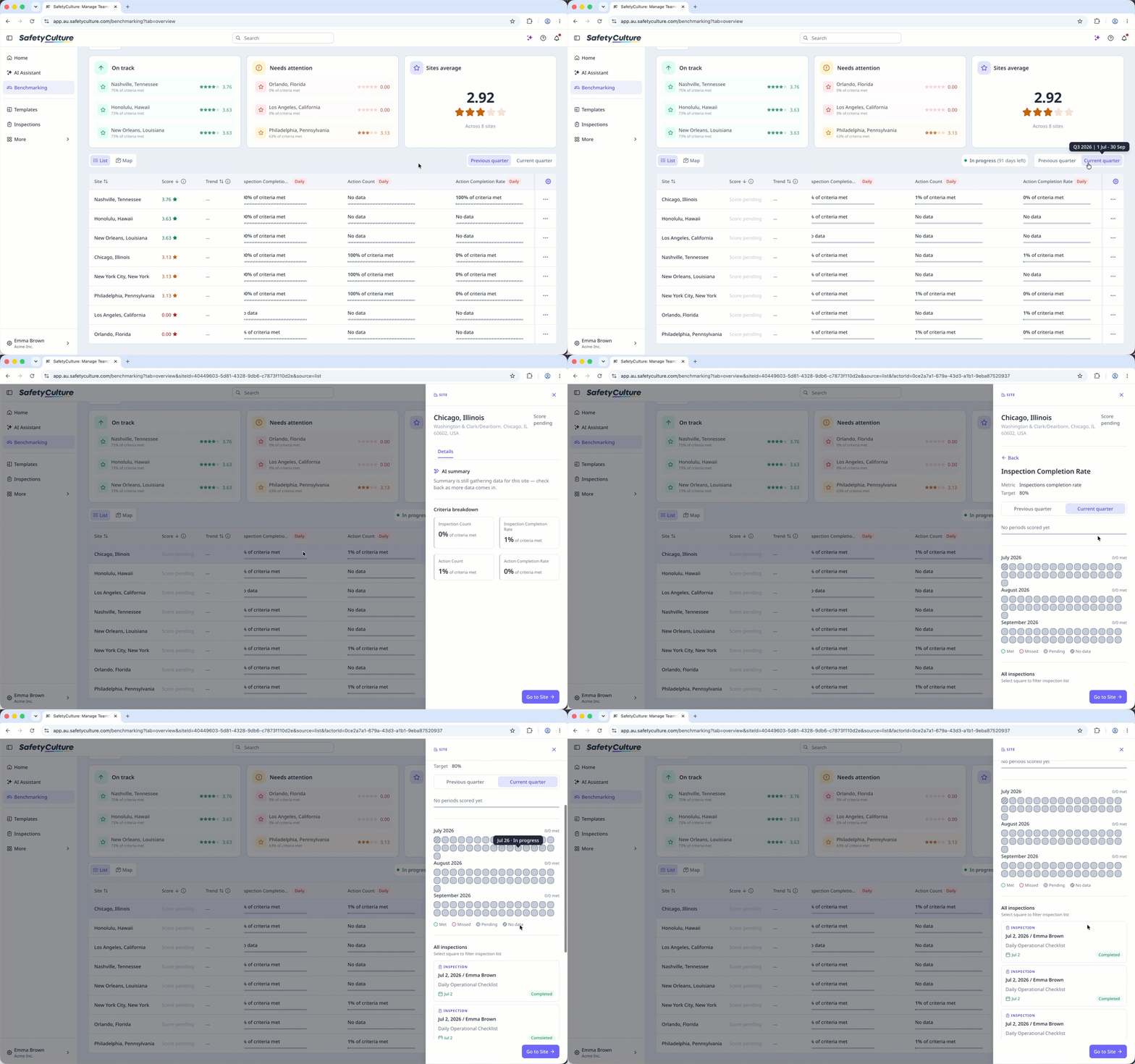
View site leaderboard
Use the site list view to compare site performance across your organization from a single view. Sites are ranked based on their benchmarking ratings, making it easy to identify top-performing sites and those that may need attention. You can also explore the data to review summary insights and a breakdown by criteria.
View AI Recommendations
AI-generated insights help you spot patterns across your sites, recognize strong performers, and know where to focus your efforts before problems escalate.