What are my AI credit options?
Every organization gets included and gifted AI credits to use for free. After those credits run out, you choose how to pay for any AI usage beyond them. A credit subscription gives you prepaid, discounted credits billed on a regular monthly or annual cycle. This works best if you expect steady or higher AI use and want predictable costs. You buy credits in packs at the organization level. An overage limit is pay-as-you-go, where you're only charged for AI usage that goes beyond your credits, which suits occasional or unpredictable use.
What you'll need
Set up an overage limit
Click your organization name on the lower-left corner of the page and select Billing.
Click Usage at the top of the page.
Click Set overage limit at the bottom of the page.
In the pop-up window, enter the overage limit you want per month.
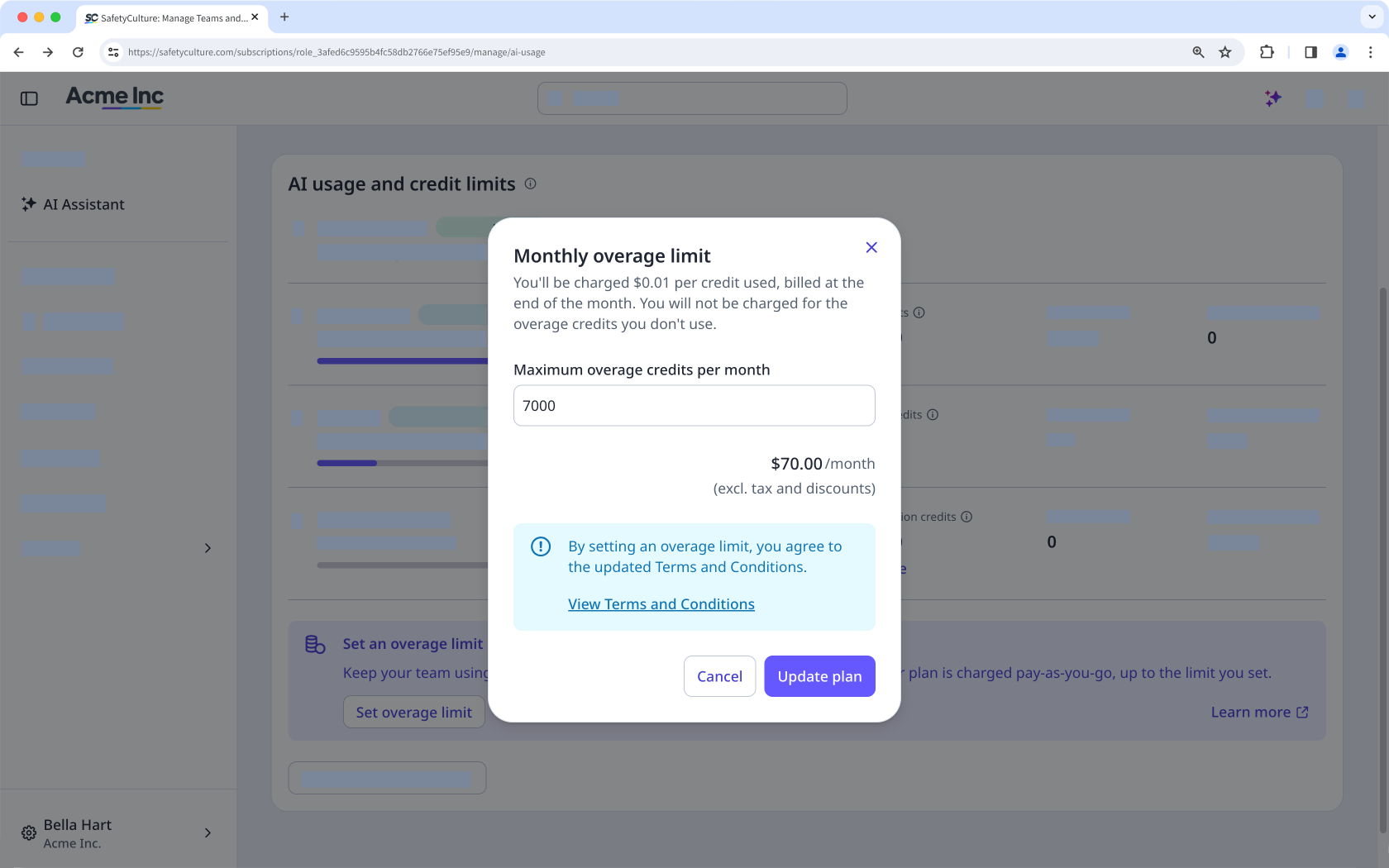
Click Update plan.
Edit overage limits
Click your organization name on the lower-left corner of the page and select Billing.
Click Usage at the top of the page.
In "Overage credits", click Edit.
In the pop-up window, select modify the total number of credits you want.
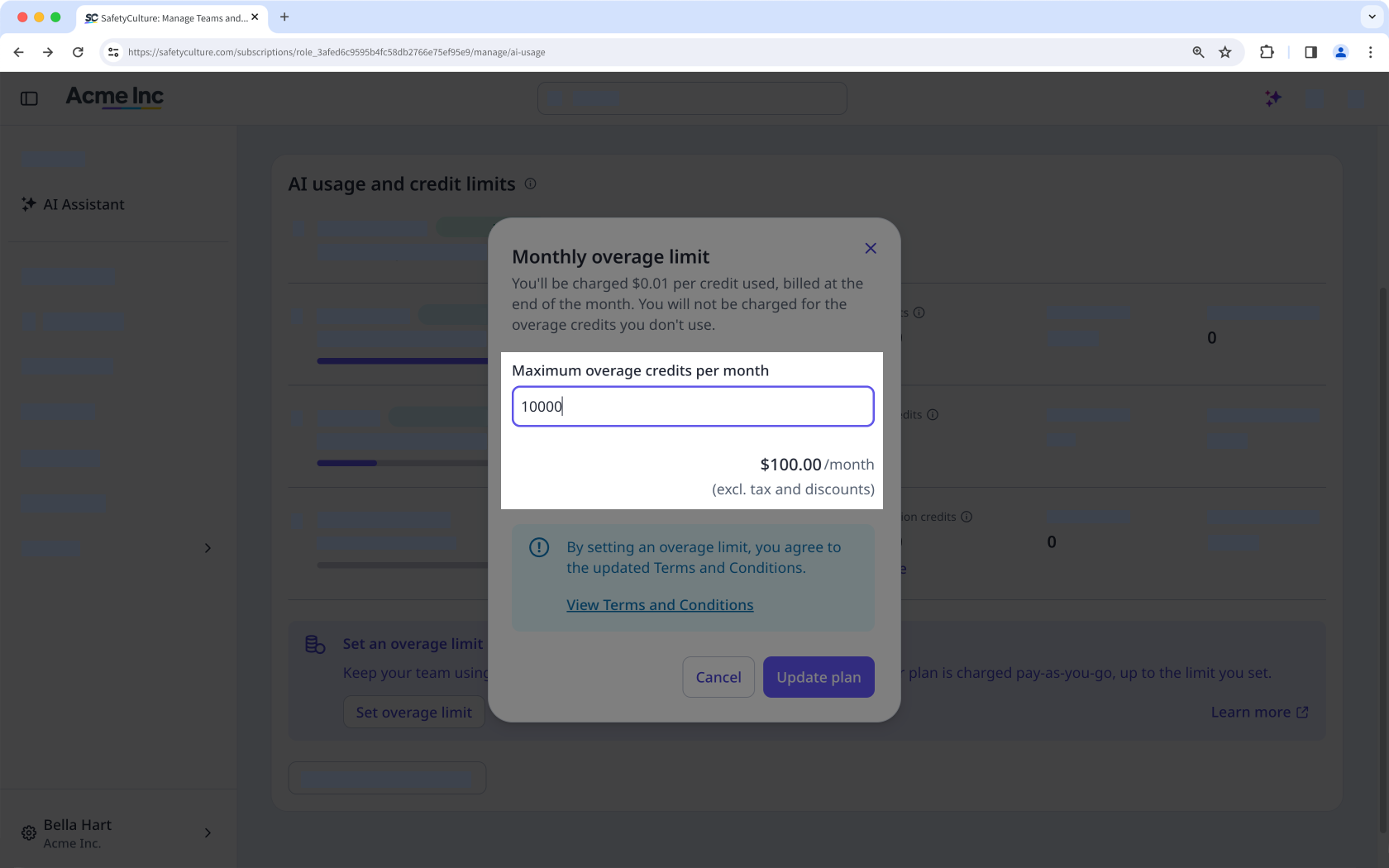
Click Update plan.