What are the differences between Briefcase and Documents?
In EdApp, Briefcase allows you to attach reference files and videos to a specific course so users can access them alongside their training. Documents is a central workspace for storing and managing files across your organization in SafetyCulture, independent of any single course.
Functionality | Briefcase | Documents |
|---|---|---|
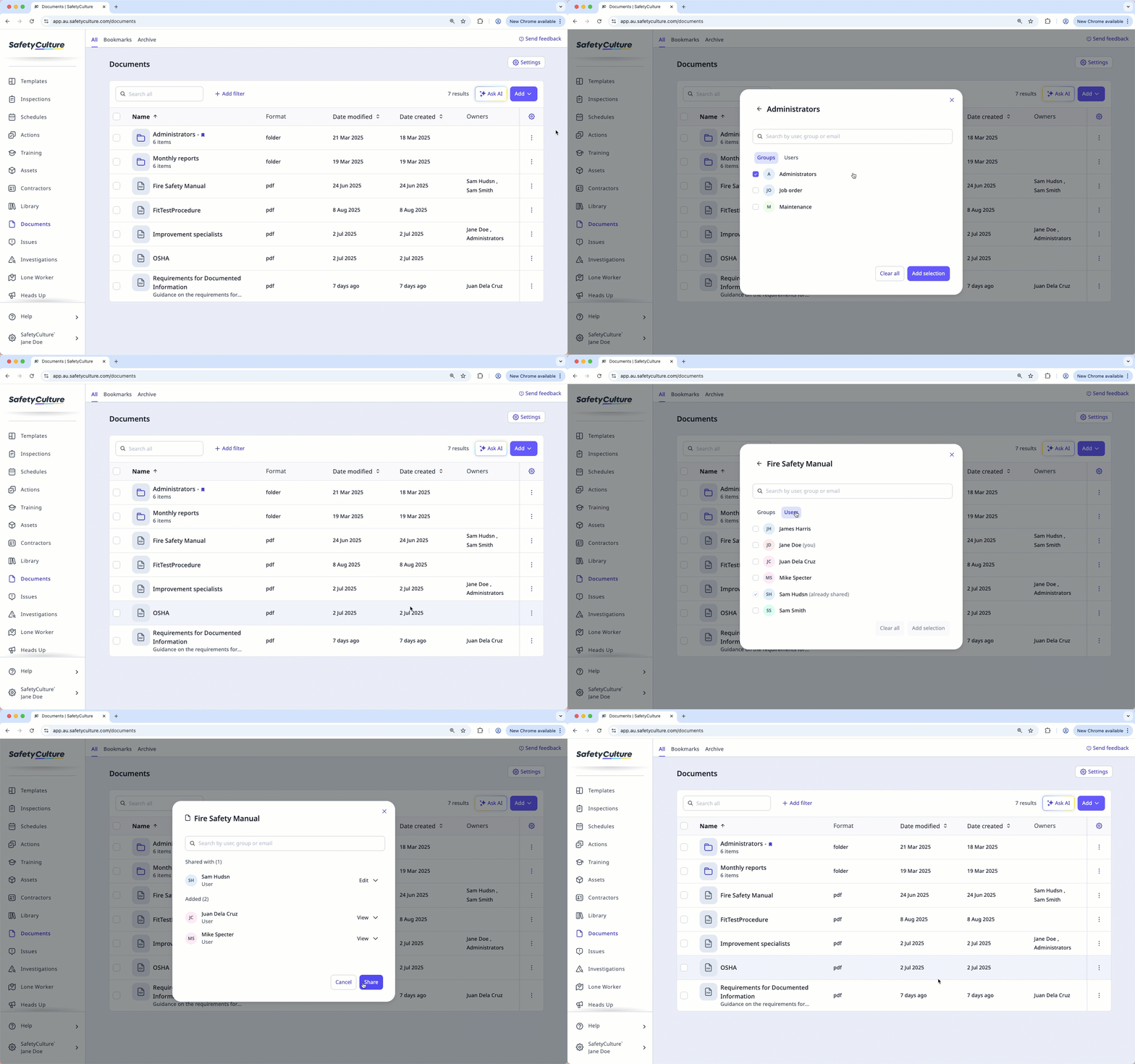
Admin setup | Added by admins or authors from the Briefcase tab in a course Set Up page | Users with Permiso de "Documentos: Administrador" can create and manage files and folders |
Access control | Controlled by publish status and optional lesson prerequisites | Admins can assign view or edit permissions to users |
Platform availability | Admin portal (web) and learner's app (mobile) | Available on the web app and mobile app |
Bulk file upload | Unavailable | Files can be uploaded individually or in bulk |
Expiration dates | Unavailable | Admins can set expiration dates on files to keep content up-to-date |
File management | Dedicated Briefcase tab within a course | Folders and subfolders, with options to archive or move files |
File owners | Unavailable | Files have assigned owners to keep content up-to-date |
Supported file types and sizes | PDF, JPG, PNG, GIF, videos, PowerPoint, Keynote, and Pages documents up to 60 MB | DOCX, DOC, GIF, JPEG, JPG, PNG, WEBP, PDF, XLS, and XLSX up to 50 MB |
Integration with other features | Copied automatically when a course is copied | |
Offline access | Unavailable | Files can be made available offline |
QR codes | Unavailable | QR codes can be generated for files and folders |
Version control | Updated by uploading a new file, with no version history | Maintains version history, but previous versions can't be restored |
La función Maletín de EdApp no está disponible en SafetyCulture. Para almacenar y gestionar sus archivos, use Documentos en su lugar. Si anteriormente usó Maletín para compartir archivos dentro de un curso, puede añadir archivos directamente a una diapositiva para vincularlos a un curso.
Lo que necesitarás
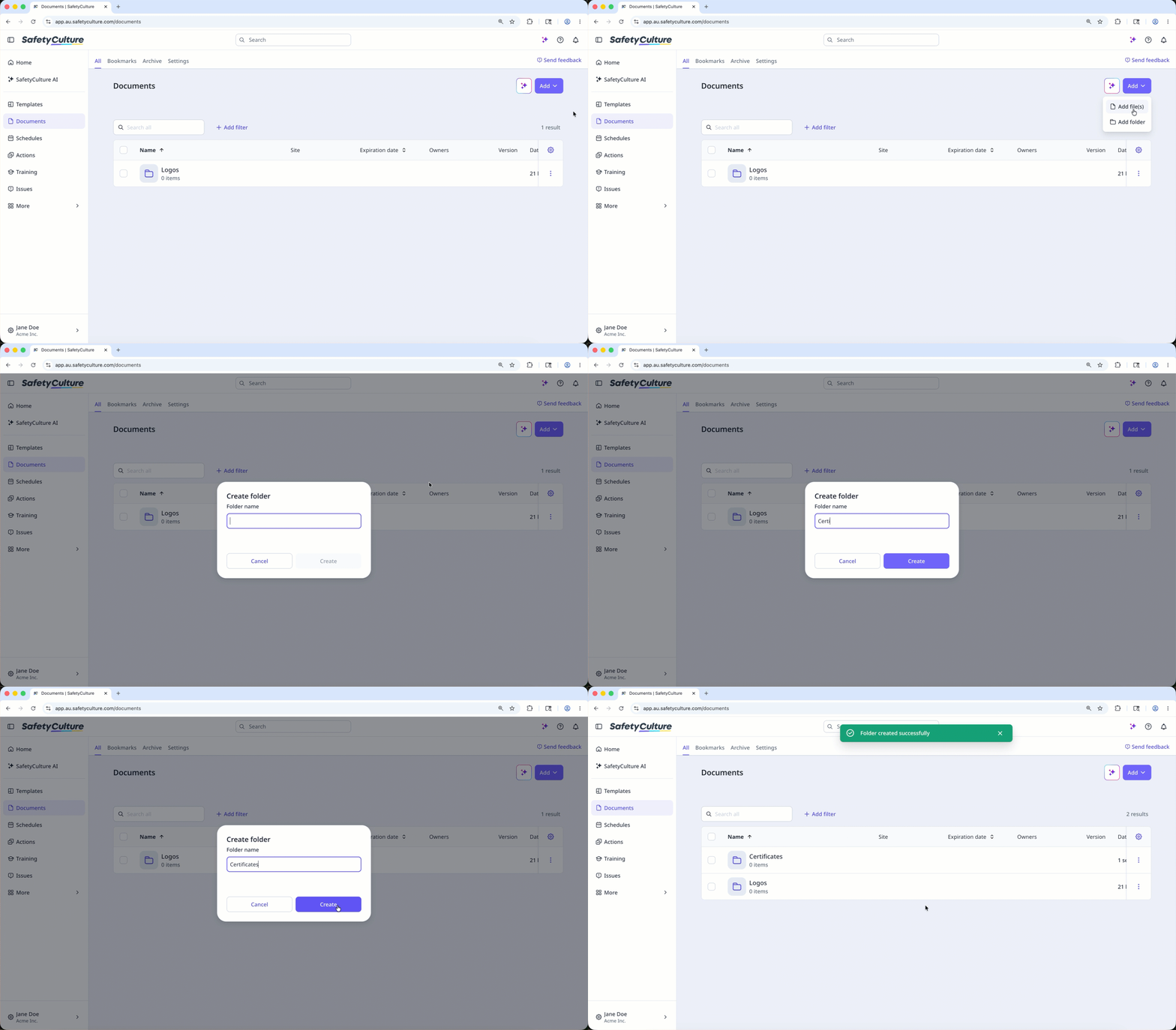
Añadir una carpeta
Select Documentos in the sidebar or select it in Más.
Select a folder if you want to create subfolders in it.
Click Añadir on the upper-right of the page.
Select Añadir carpeta.
In the pop-up window, enter the folder name and click Crear.
Añadir un archivo
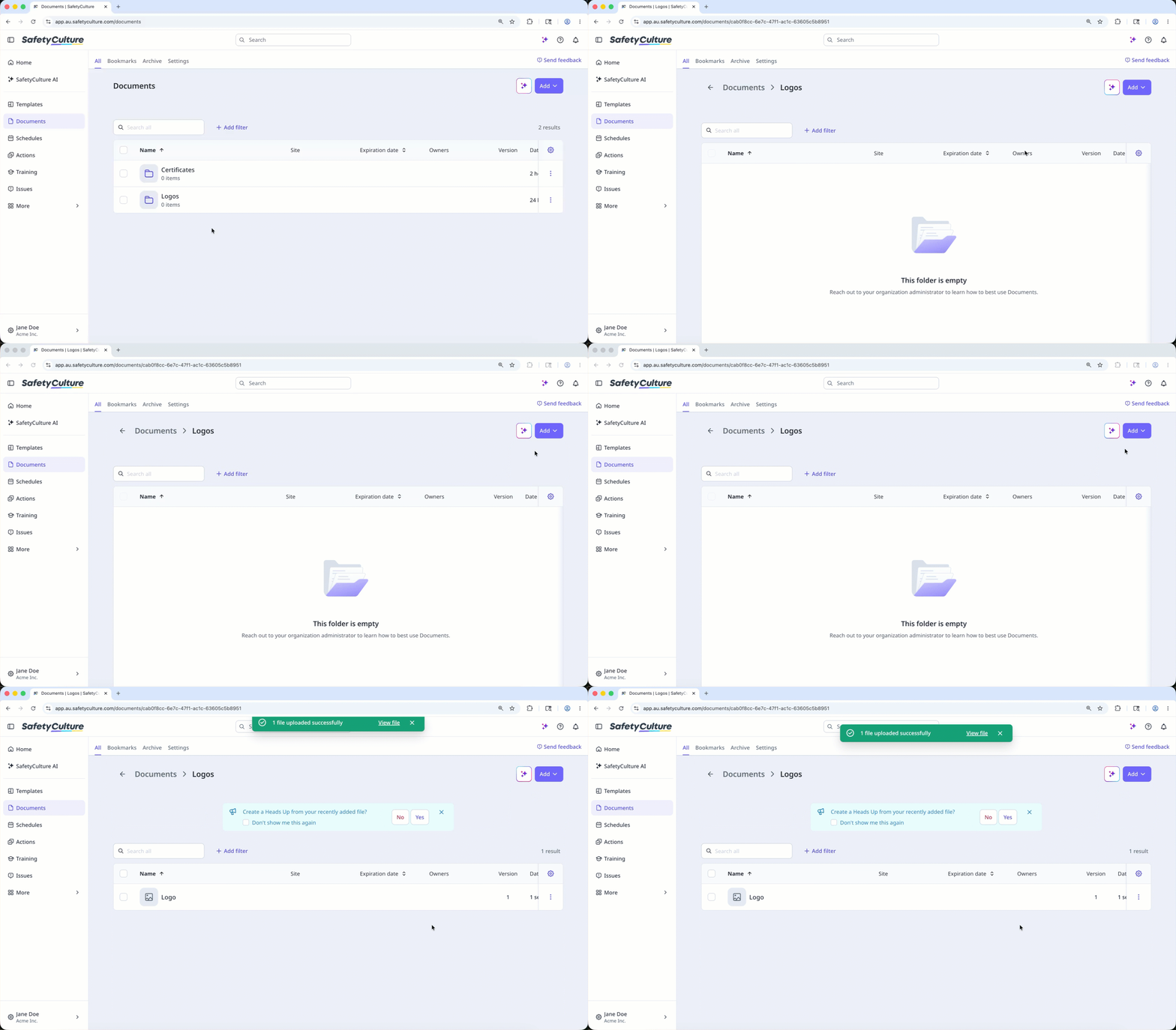
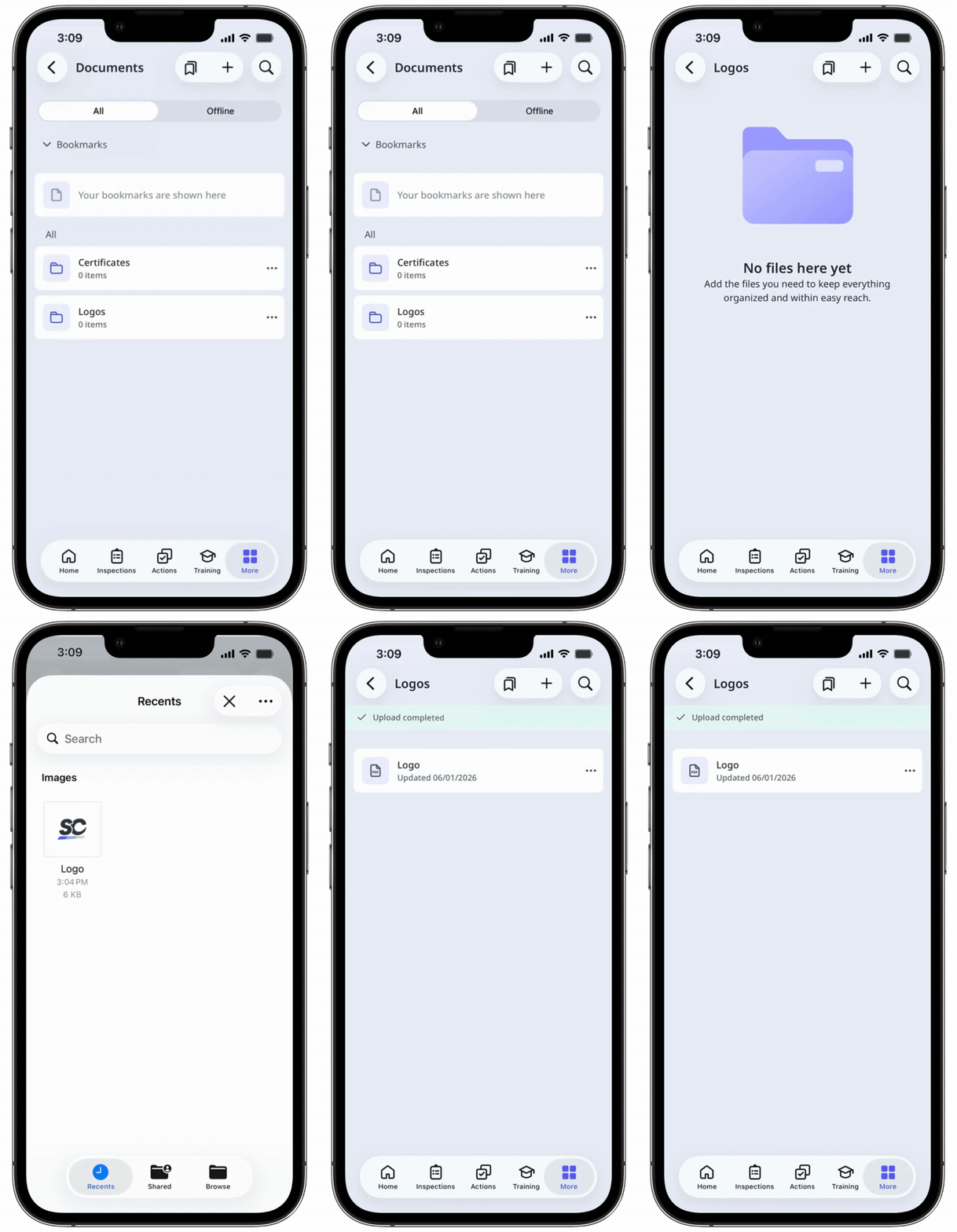
Select Documentos in the sidebar or select it in Más.
Select a folder if you want to add files in it.
Click Añadir on the upper-right of the page.
Select Añadir archivo(s).
Upload your file accordingly. Alternatively, you can drag and drop up to 100 files in one go.
Add or link files to a course
Select Formación in the sidebar or select it in Más.
If you're on the "Learn" page, click Contenido at the top of the page and select Cursos.
Create a new course or click Ver or Editar on an existing one.
If you're editing an existing course and it's published, click Editar on the upper-right of the page.
Click on the upper-left and select Estándar.
Click Nueva diapositiva on the left-hand side of the page.
In the pop-up window, click Archivo and select Añadir archivo.
Click Examinar in the "File" section on the right-hand side panel to select files.
In the pop-up window, choose whether to link an existing file from Documents or upload a new one:
To link a file: Click Vincular, then select the file you want to link from Documents.
To upload a file: Click Subir, then drag your file or click examinar to select it from your device. Select a folder from the dropdown, or create a new one, to save your file in Documents. Then, click Guardar aquí.
Once you're ready, click Añadir archivo.
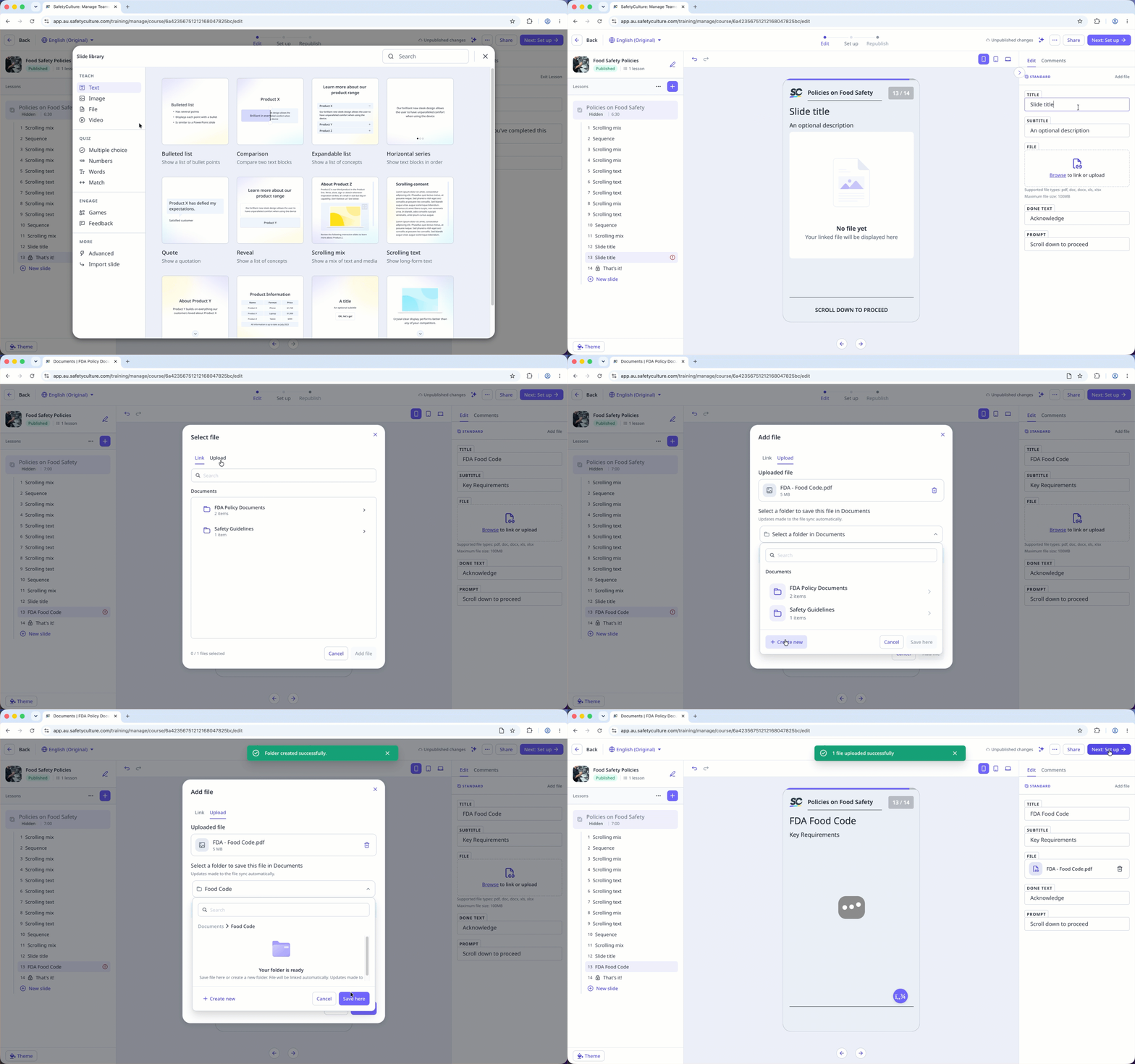
Puede subir archivos de hasta 100 MB en formatos PDF, DOCX, DOC, XLS y XLSX.
Gestionar acceso a un archivo o carpeta
Seleccione Documentos en la barra lateral o selecciónelo en Más.
Seleccione una carpeta si desea gestionar el acceso a un archivo o carpeta de la misma.
Haga clic en en el lado derecho del archivo o carpeta y seleccione Gestionar acceso.
En la ventana emergente, busque y seleccione el usuario o grupo.
Haga clic en Añadir selección.
De forma predeterminada, cada usuario y grupo tiene acceso para "Ver" el archivo o carpeta. Puede hacer clic en el menú desplegable junto a cada usuario o grupo para actualizar su acceso.
Haga clic en Compartir.