What uses your AI credits?
Credits measure the AI work behind each request you make to AI Assistant. The more complex the request, the more credits it uses, because AI Assistant does more to complete it, not because of how long it takes or what's happening behind the scenes.
For example, asking a quick question uses fewer credits than asking AI Assistant to analyze several inspections and draft a summary. This gives you one consistent way to gauge how much a request will use before you make it.
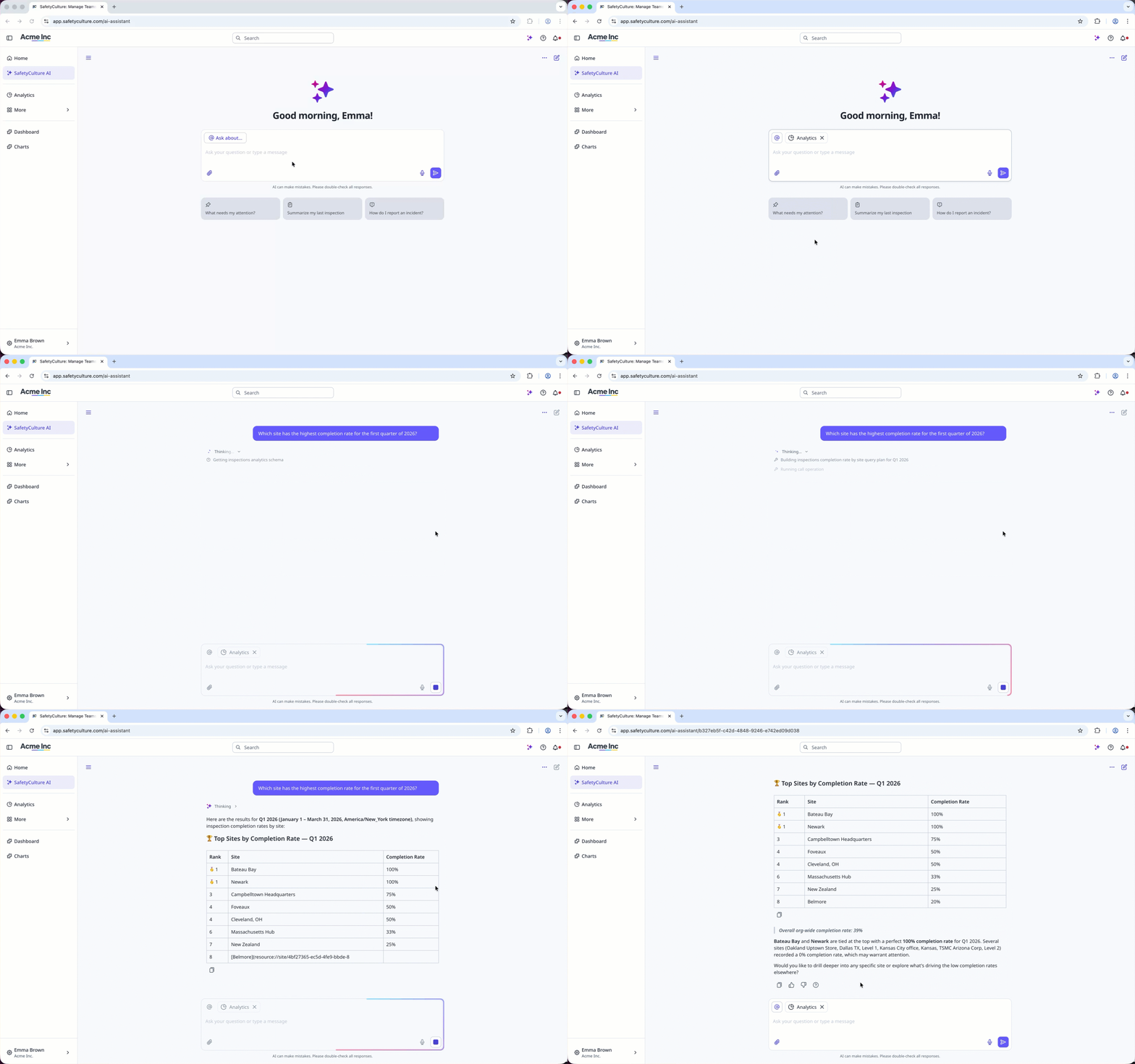
In diesem Artikel wird erläutert, wofür Ihre KI-Credits verwendet werden. Dies ist jedoch nur ein Teil von all dem, was der KI-Assistent in SafetyCulture leisten kann.
Which tasks cost credits?
Credits are used only when you ask AI Assistant to do something in the chat. What you ask for determines how many credits it costs.
Find information: Search your account, summarize results, or answer questions about your organization.
Analyze your data: Spot patterns, compare results, or surface risks.
Take action across the product: Create or update actions, issues, assets, and inspections from the chat.
Create a template or course from the chat: Build a template or training course by asking the AI Assistant.
Generate reports and files: Produce a downloadable report or document from your organization's data or files you've uploaded.
Search the web: Bring in current information from the web as part of a response.
AI tools that don't cost credits
SafetyCulture also includes other AI-powered tools you can use alongside the AI Assistant. None of these use credits, so they're still available once your credits run out.
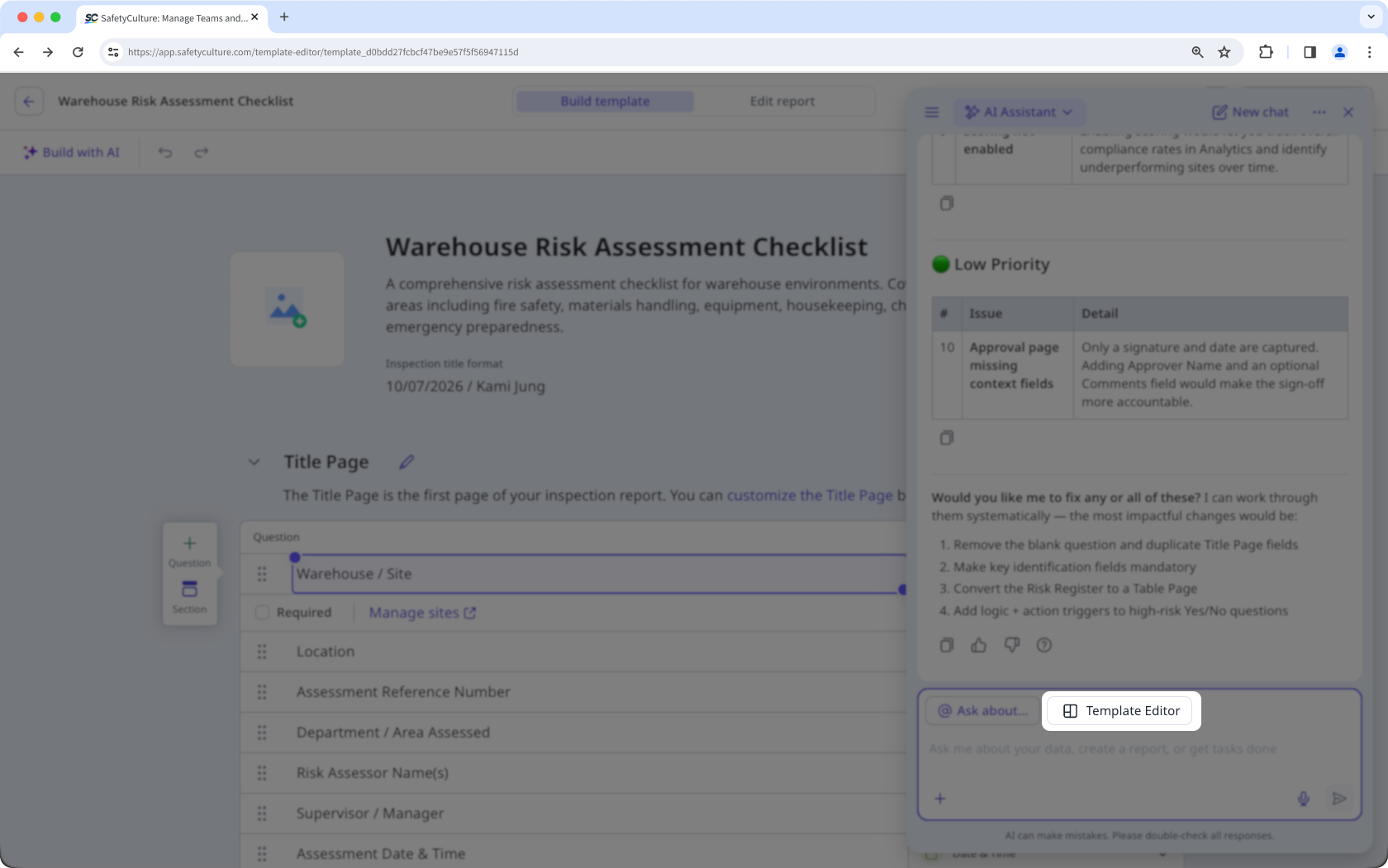
Edit with AI in the template editor: Refine your template using the AI Assistant in the template editor.
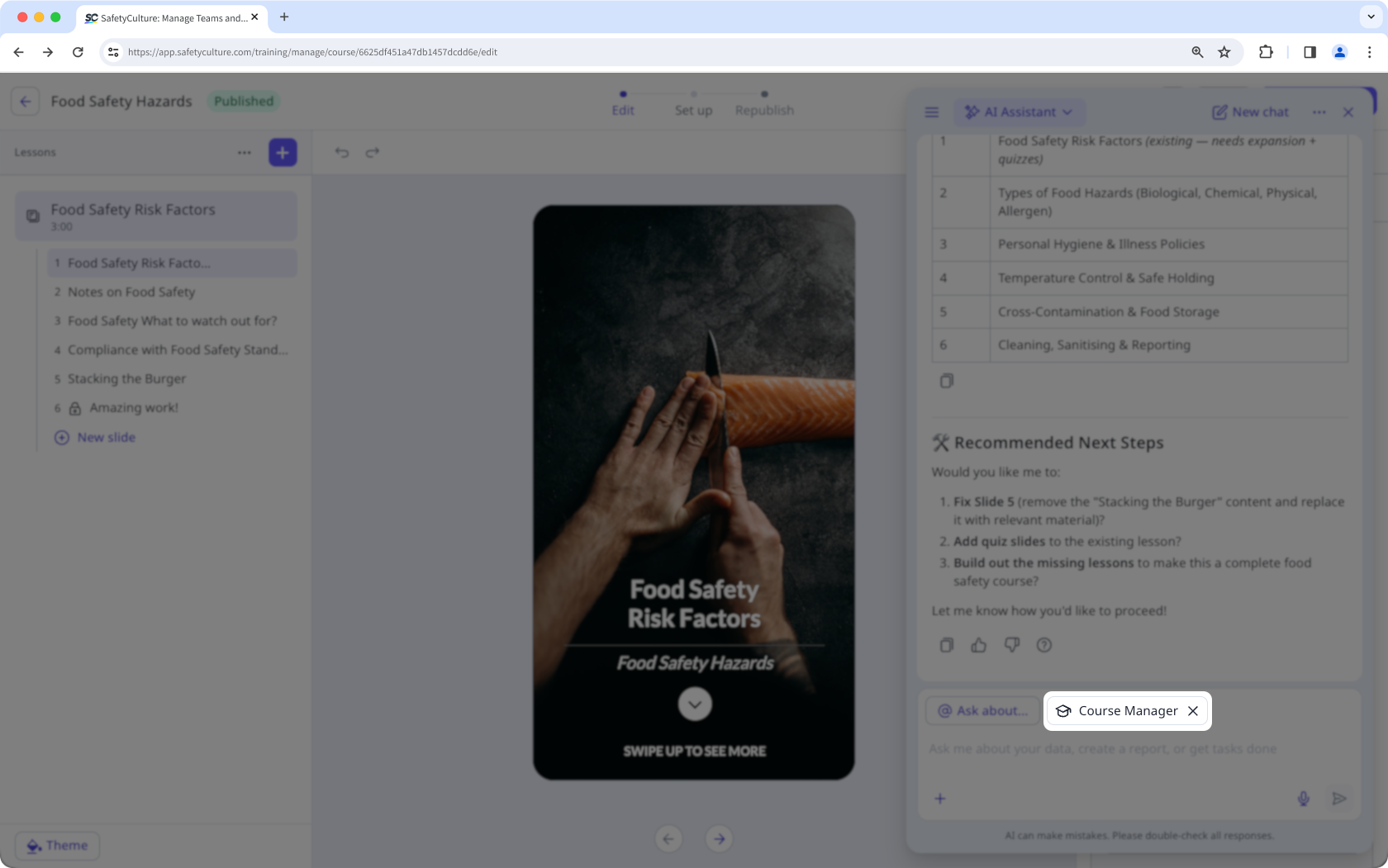
Build with AI in Training: Create and edit a course using the AI Assistant in the course editor.
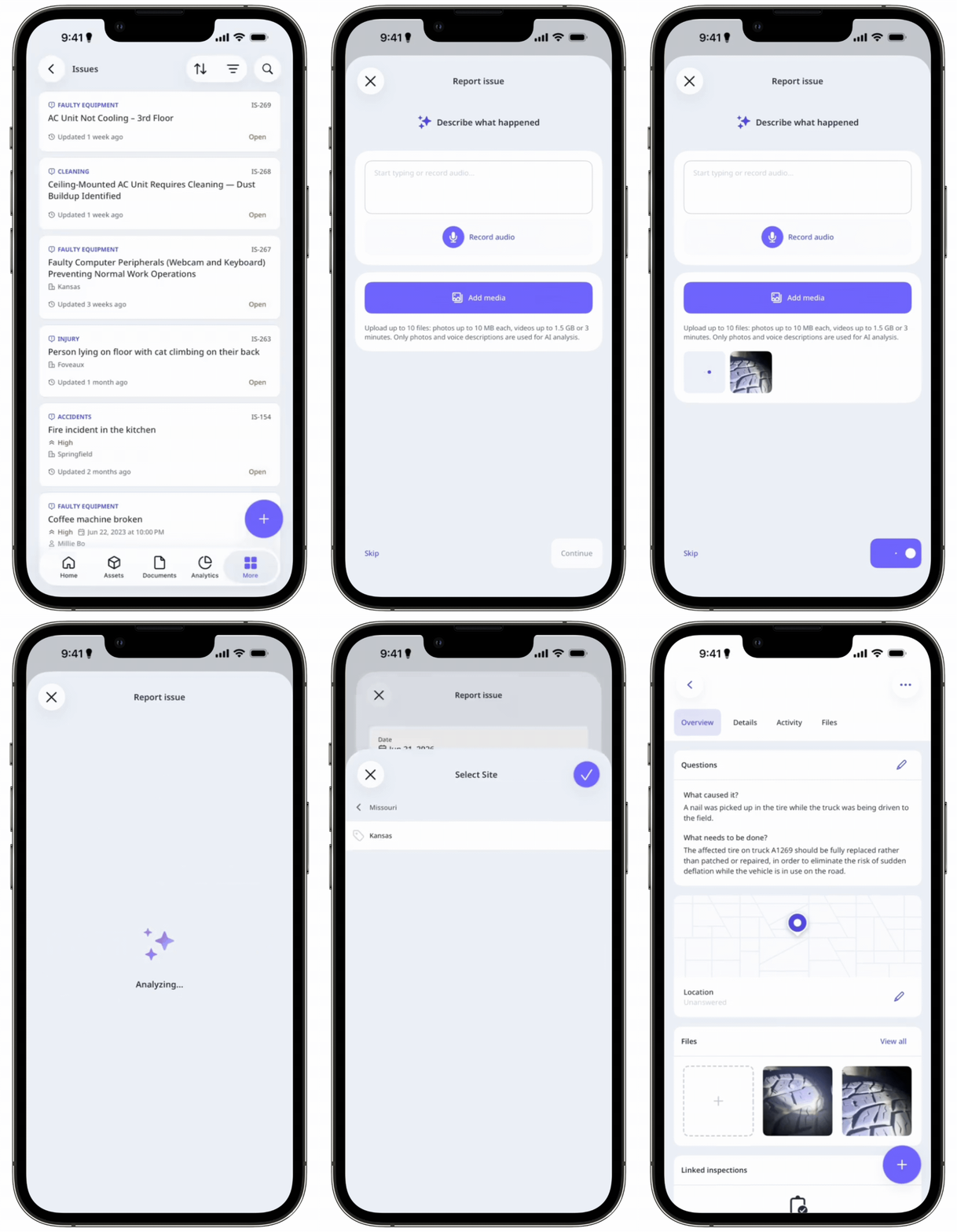
AI issue creation: Enter a description and attach photos to let AI generate details for the issue.
Agents: Automate repetitive tasks and workflows on your behalf.
Site benchmarking: Compare performance and standards across your sites.
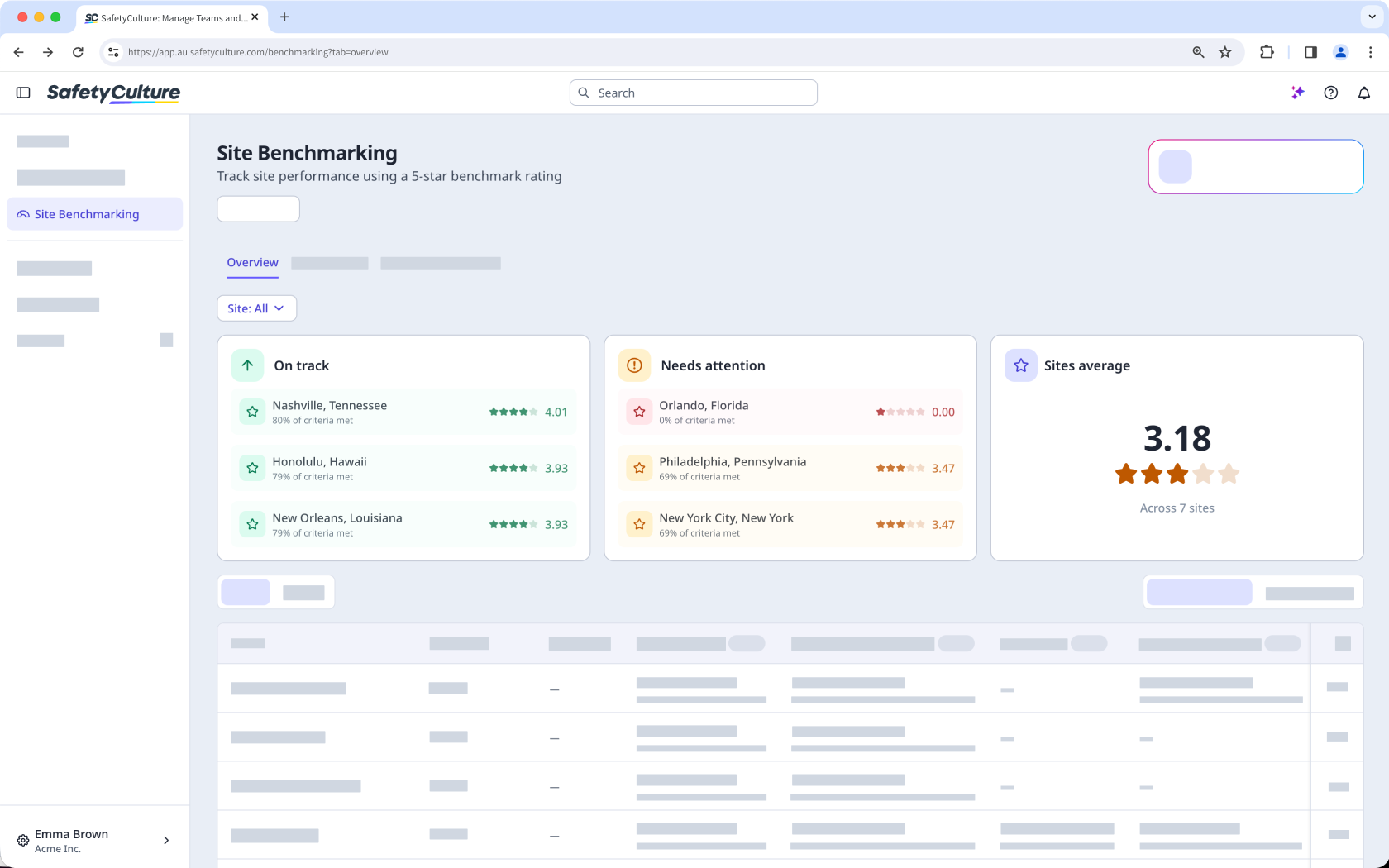
Agenten kosten keine Credits. Die Preise für Agenten können sich ändern.
Was verbraucht mehr oder weniger Credits?
Der Verbrauch von Credits hängt davon ab, wie viel Arbeit der KI-Assistent aufwenden muss, um Ihre Frage zu beantworten. Als allgemeine Richtlinie gilt:
Kurze, konkrete Anfragen: Wenn Sie nur eine einzige Frage stellen oder eine kurze Antwort erhalten, werden weniger Credits verbraucht.
Alltägliche Aktionen innerhalb des Produkts: Das Anlegen oder Aktualisieren einer einzelnen Aktion, eines Problems, eines Assets oder einer Inspektion kostet eine moderate Anzahl an Credits.
Umfangreiche oder datenintensive Anfragen: Wenn Sie den KI-Assistenten bitten, Daten aus vielen Datensätzen zu analysieren oder ein Dokument zu erstellen, werden mehr Credits verbraucht, da er mehr Daten verarbeiten muss.
Das ist keine feste Regel, da der genaue Betrag davon abhängt, wie viel Aufwand Ihre konkrete Anfrage erfordert. Betrachten Sie diese Angabe als groben Anhaltspunkt dafür, was Sie erwarten können, und überprüfen Sie Ihre Nutzung, um die tatsächlichen Zahlen zu ermitteln.
A good prompt can help the AI Assistant do less work, so it uses fewer credits. Write better prompts for the AI Assistant to get the most out of your credits.
How many credits do I get with my plan?
Users on a full seat get a monthly credit allocation based on your plan. Users on lite seats don't get any credit allocation, so any AI Assistant usage on those seats counts as overage from the first request.
Plan | Seat type | Monthly credits |
|---|---|---|
Free | Full seat | 300 |
Premium | Full seat | 500 |
Enterprise | Full seat | 800 |
Premium and Enterprise | Lite seat | 0 |
Monthly credits don't roll over. Your balance resets to your plan's monthly allocation at the start of each month.
All organizations on Premium-Tarif oder Enterprise-Tarif also receive a one-time welcome credit allocation of 10,000 credits. Unlike the monthly allocation, which is per seat, welcome credits are shared across everyone in your organization. They expire three months after they're granted, whether or not you've used them.
If your organization needs more credits than its included allocation, users with Berechtigung "Plattformverwaltung: Abrechnungen" can purchase a credit subscription for additional monthly credits or set an overage limit to control how much extra usage is allowed.
Wie kann ich meinen Verbrauch nachverfolgen?
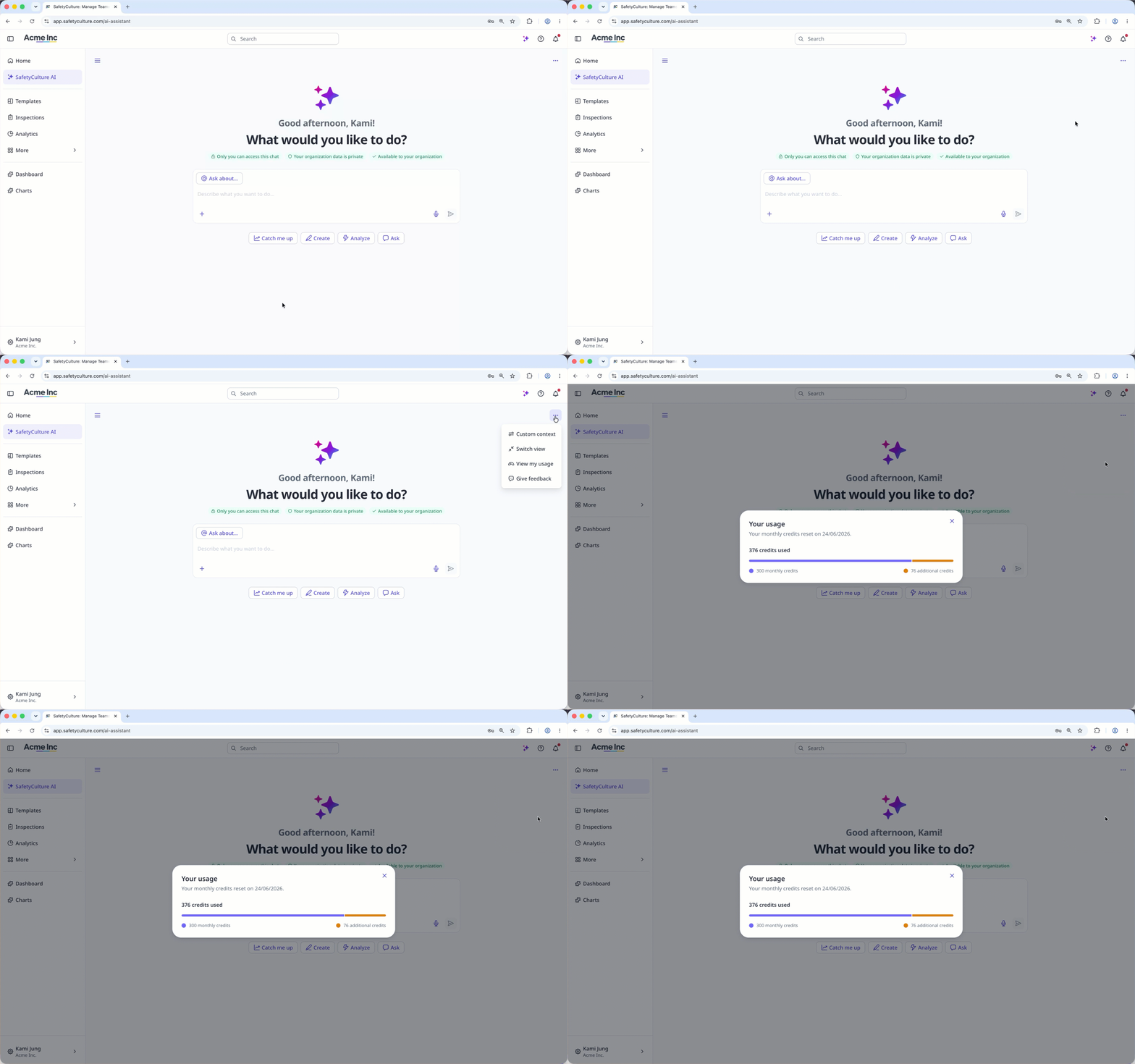
Sie können Ihren Verbrauch direkt über den AI-Assistenten nachverfolgen. Klicken Sie oben rechts auf der Seite auf und wählen Sie anschließend Meine Nutzung anzeigen aus. Dort sehen Sie, wie viele Credits Sie bereits verbraucht haben und wann Ihre Credits zurückgesetzt werden.
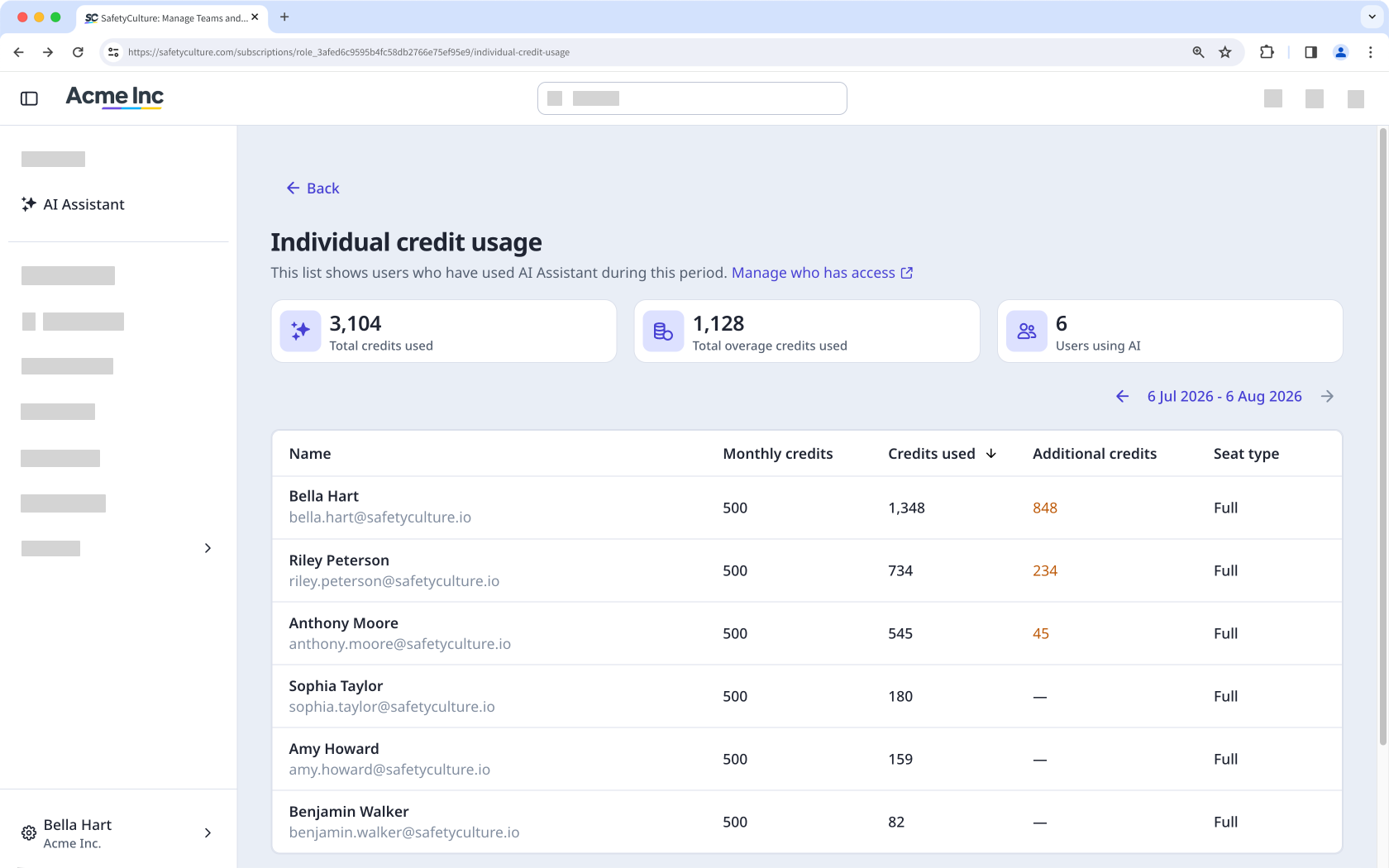
Nutzer mit Berechtigung "Plattformverwaltung: Abrechnungen" können unter die Nutzung ihrer Organisation nachverfolgen, einschließlich einer Aufschlüsselung nach Nutzern, auf der Seite „Abrechnung“.
Sie erhalten im KI-Assistenten eine Benachrichtigung, wenn Ihre Credits fast aufgebraucht sind. Administratoren mit Berechtigung "Plattformverwaltung: Abrechnungen" werden ebenfalls benachrichtigt, wenn die Credits der Organisation fast aufgebraucht sind, sodass sie ein Credit-Abonnement hinzufügen oder ein Überschreitungslimit festlegen können, bevor jemand den Zugriff verliert.
What happens when I use all my credits?
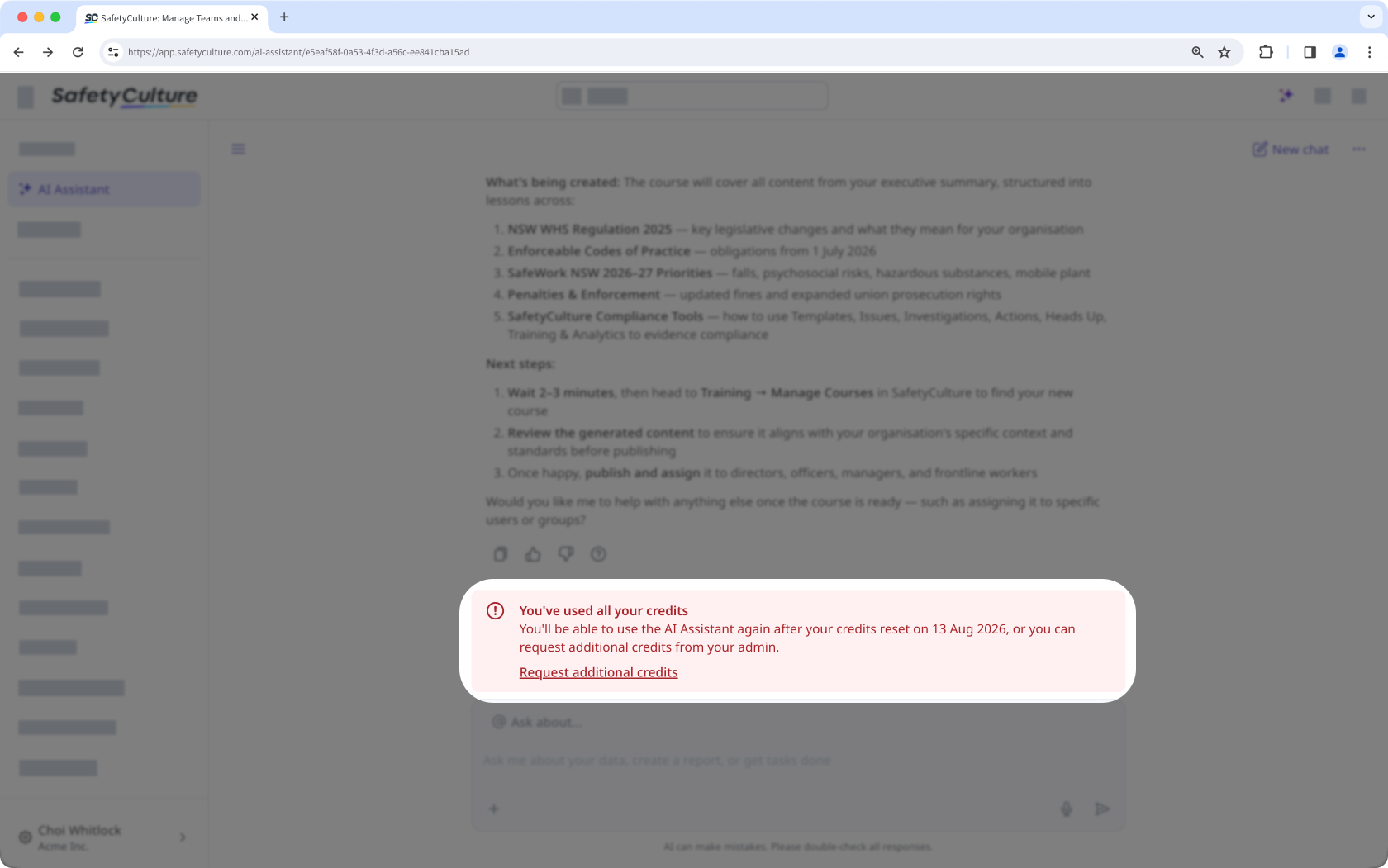
On Premium-Tarif oder Enterprise-Tarif, once your organization has used all its credits, you'll see an alert in the AI Assistant letting you know you're out of credits. You can request more credits from an admin directly from that alert.
Admins with Berechtigung "Plattformverwaltung: Abrechnungen" get notified when the organization is out of credits, along with any requests from the team, and can resolve it by adding a credit subscription or setting an overage limit. If neither happens, no one can use the AI Assistant until credits reset the following month. This applies to the entire organization, so you can't add credits for a single user.
On the Kostenloser Tarif, once monthly credits run out, users can't use the AI Assistant until they reset the following month. Organizations can upgrade to the Premium Plan for a larger monthly allocation and access to credit subscriptions and overage limits.
Some tools stay free to use no matter how many credits you have left. See the list above for what's included.