Bitte beachten Sie, dass sich diese Funktion derzeit im frühen Zugriffs-Modus befindet. Wenn Sie daran interessiert sind, wenden Sie sich bitte an Ihren Kundenbetreuer, und fragen Sie, ob Ihre Organisation daran teilnehmen kann.
Wie funktioniert die Anmeldung mit dem Benutzernamen?
Viele Mitarbeiter im operativen Bereich verfügen nicht über eine Unternehmens-E-Mail-Adresse, benötigen aber dennoch Zugriff, um Schulungen zu absolvieren, , Aufgaben zu erledigen, sich über Neuigkeiten aus dem Unternehmen auf dem Laufenden zu halten, und vieles mehr. Die Anmeldung per Benutzernamen ermöglicht es Ihnen, Konten für Ihre Mitarbeiter anzulegen, damit diese sich unter mit einem Benutzernamen und einem Passwort anstelle einer E-Mail-Adresse anmelden können. Mitarbeiter melden sich mit einem Benutzernamen, beispielsweise ihrer Mitarbeiter-ID, über einen für Ihre Organisation spezifischen Anmeldelink oder einen QR-Code an.
Erste Schritte als Administrator
Benutzernamen-Anmeldung aktivieren
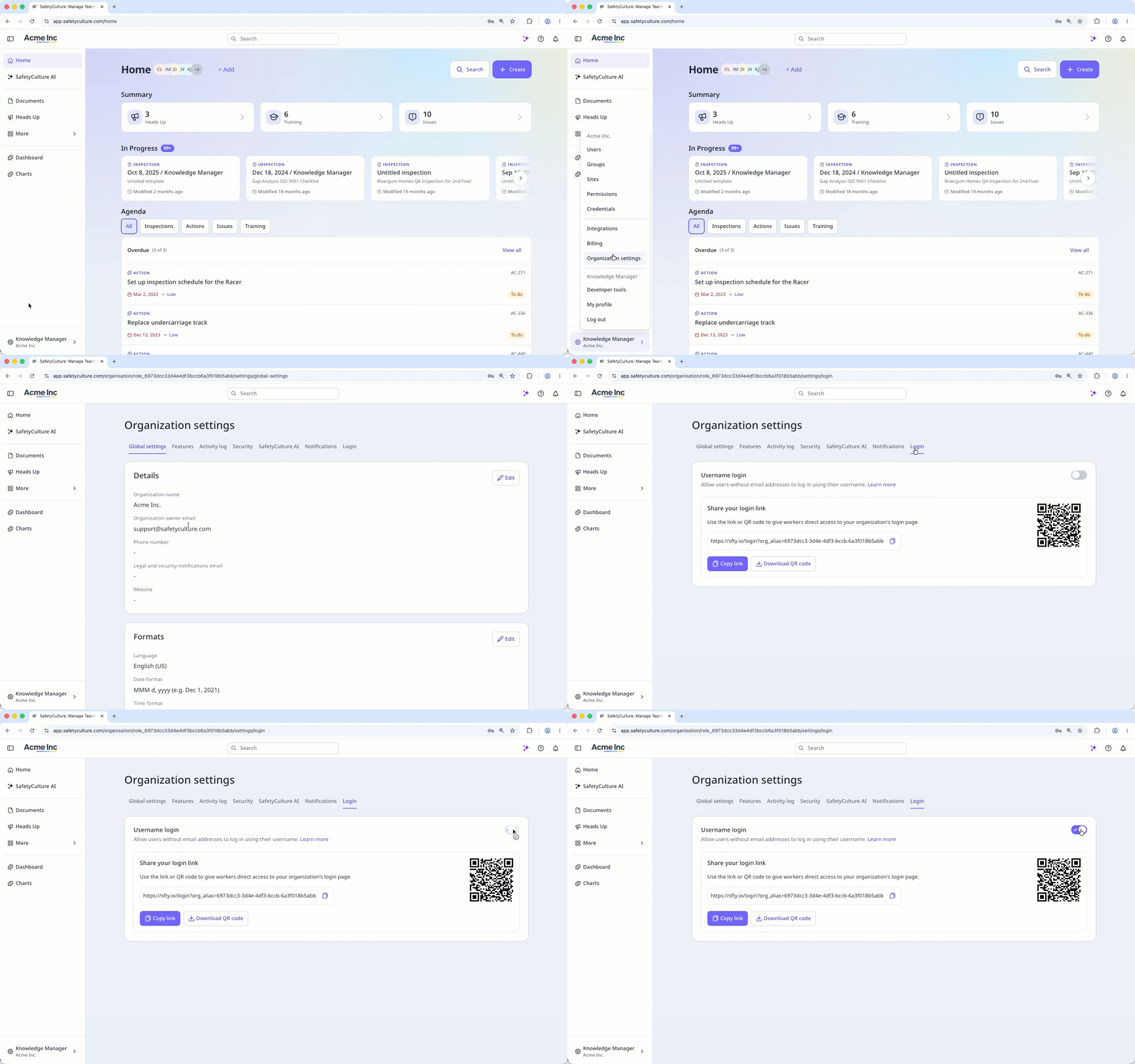
Klicken Sie unten links auf der Seite auf den Namen Ihrer Organisation und wählen Sie Organisationseinstellungen aus.
Wählen Sie oben auf der Seite die Registerkarte Anmeldung aus.
Aktivieren Sie die Einstellung „Anmeldung mit Benutzernamen“.
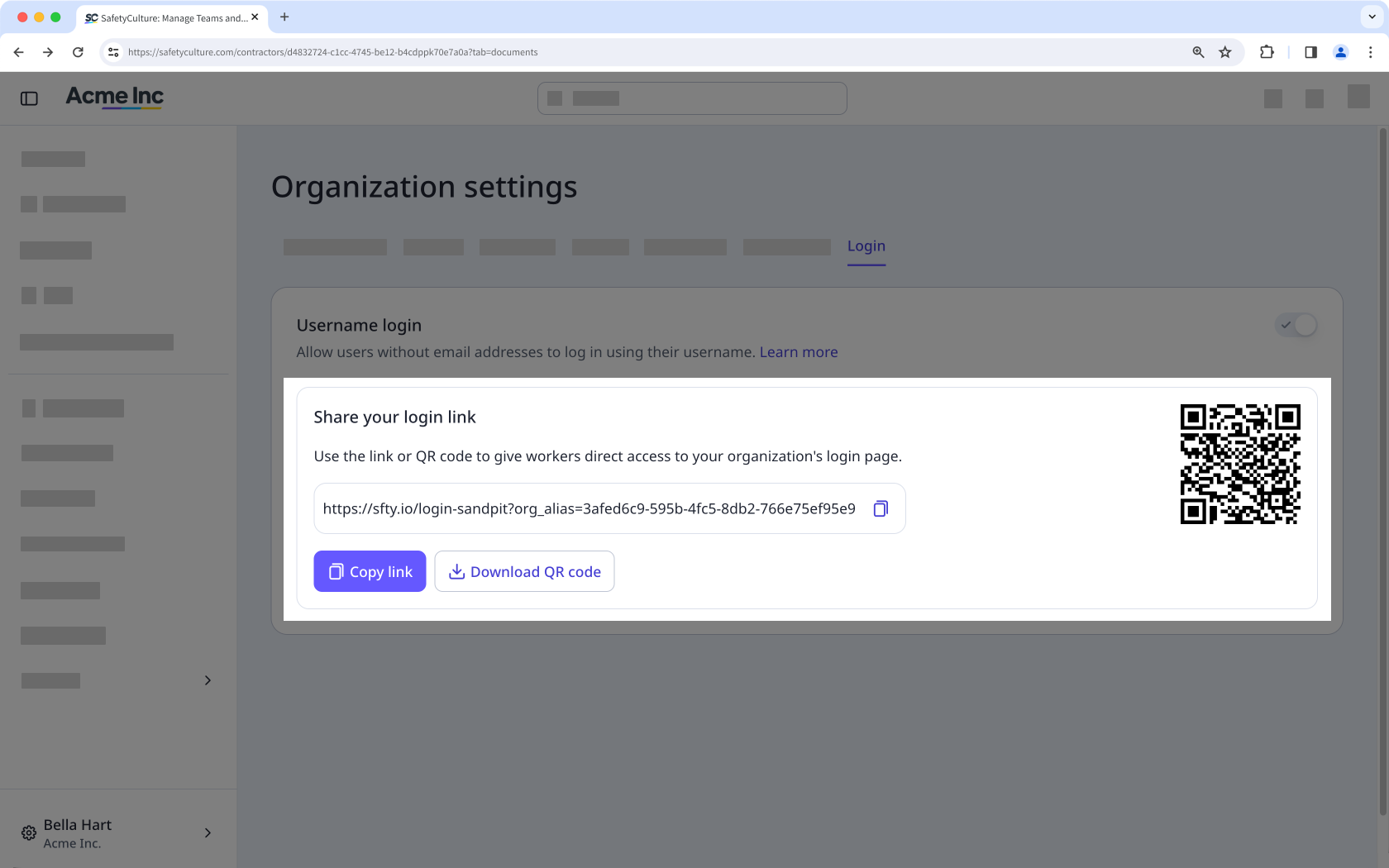
Kopieren Sie den Anmeldelink oder laden Sie den QR-Code herunter, um ihn an Ihre Nutzer weiterzugeben.
Wenn Sie die Anmeldung per Benutzername später deaktivieren möchten, fügen Sie unter jedem Mitarbeiter, der noch keine E-Mail-Adresse hat, eine E-Mail-Adresse hinzu, oder deaktivieren Sie diese zunächst.
Wenn der Standardberechtigungssatz „ “ für Vollzugänge in Ihrer Organisation die Berechtigungen „Plattformverwaltung“oder „Berechtigungen überschreiben“ enthält, müssen Sie diese entfernen, da Benutzer ohne E-Mail-Adresse diese Berechtigungen nicht besitzen können.
Benutzer ohne E-Mail-Adresse können sich nur über den organisationsspezifischen Anmeldelink oder den QR-Code anmelden. Sie können nicht über die Standard-Anmeldeseite auf die Plattform zugreifen.
Share your login link
Once you turn the setting on, share your organization's login link or QR code with your users so they can sign in. This link is specific to your organization and different from an invite link, which is for users with an email address.
Einen Nutzer mit Benutzernamen-Login hinzufügen
Für neue Teammitglieder, die im Laufe der Zeit hinzukommen, können Sie Nutzer ohne E-Mail-Adresse einzeln hinzufügen.
Klicken Sie unten links auf der Seite auf den Namen Ihrer Organisation und wählen Sie Nutzer aus.
Klicken Sie in der oberen rechten Ecke der Seite auf Nutzer hinzufügen.
Geben Sie die Benutzerdaten entsprechend ein. Sie können den Lizenztyp auswählen, wenn Ihre Organisation auf Premium-Tarif oder Enterprise-Tarif registriert ist.
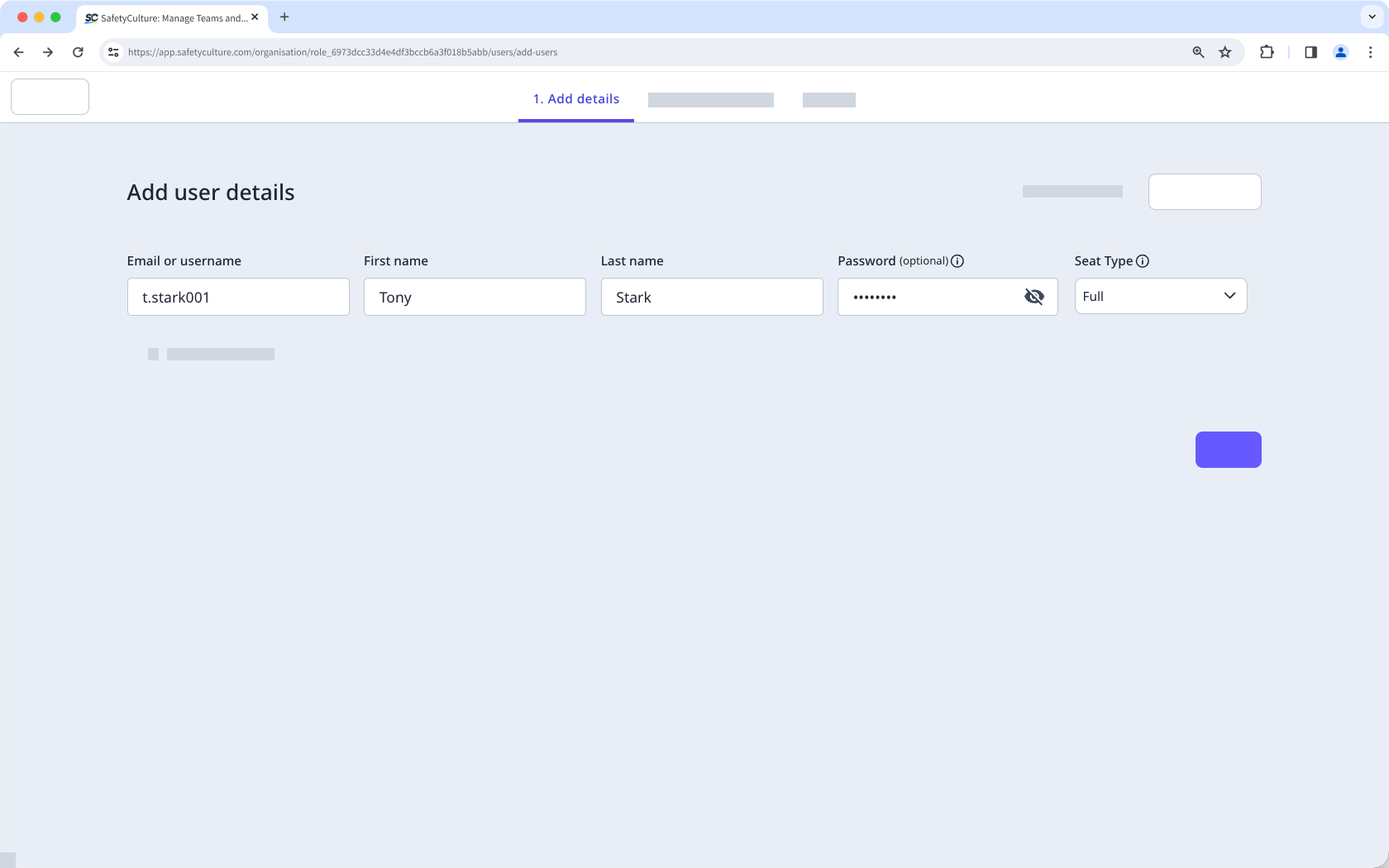
Benutzern ohne E-Mail-Adresse kann weder der Berechtigungssatz „Administrator“ () noch irgendein anderer Berechtigungssatz zugewiesen werden, der die Berechtigungen „Plattformverwaltung“ oder „Berechtigungen überschreiben“ enthält.
Benutzernamen eines angemeldeten Benutzers aktualisieren
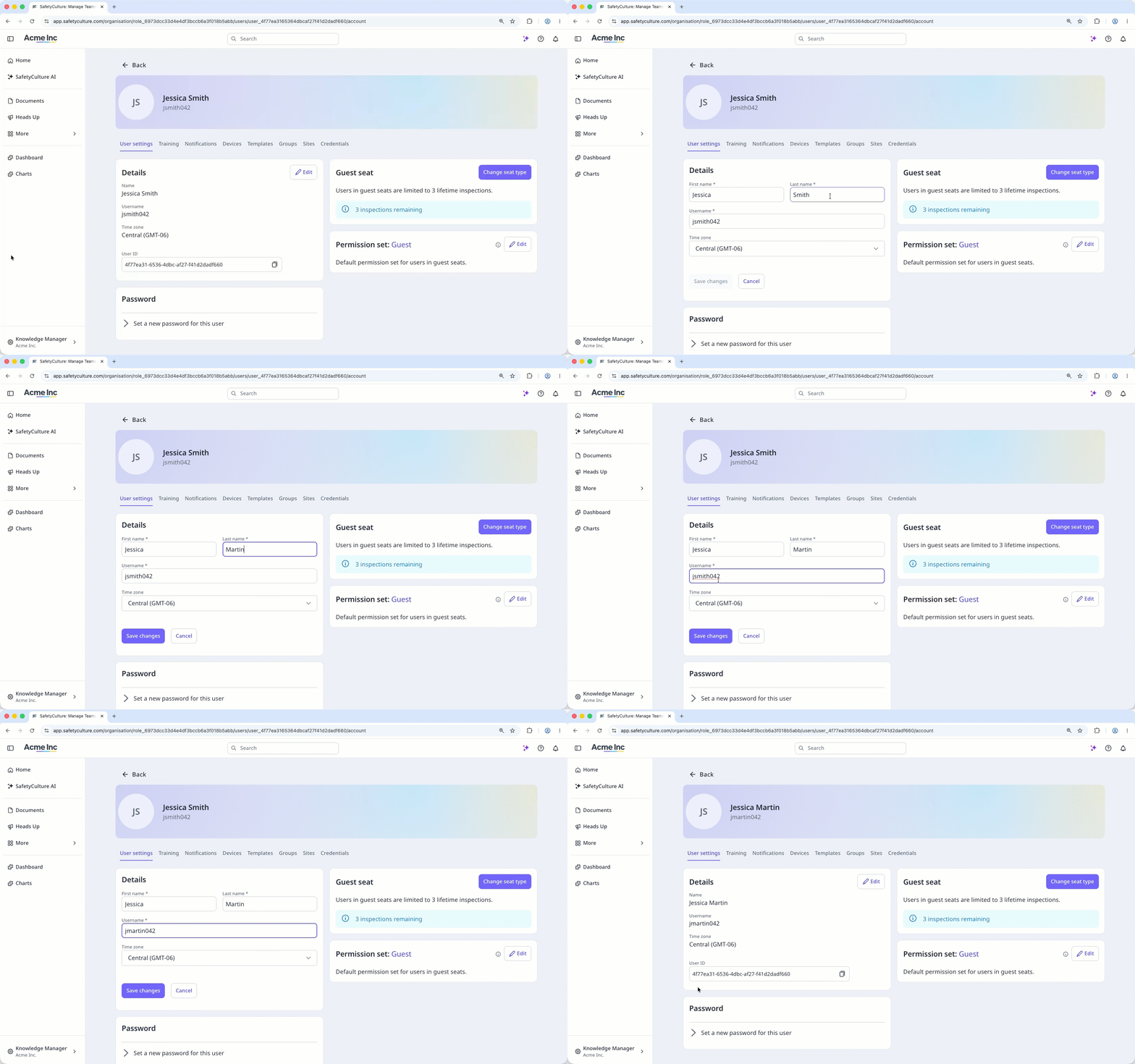
Administratoren können die Daten eines Benutzers über dessen Profil aktualisieren, darunter den Benutzernamen ändern, ein Passwort festlegen und eine E-Mail-Adresse hinzufügen. Benutzer ohne E-Mail-Adresse können ihren Benutzernamen nicht selbst ändern.
Klicken Sie unten links auf der Seite auf den Namen Ihrer Organisation und wählen Sie Nutzer aus.
Auf den Nutzernamen klicken.
Klicken Sie in oben rechts auf der Seite auf Einstellungen.
Klicken Sie im Abschnitt „Benutzereinstellungen“ auf Bearbeiten und aktualisieren Sie die Benutzerdaten. Klicken Sie anschließend auf Änderungen speichern.
Erste Schritte als Benutzer
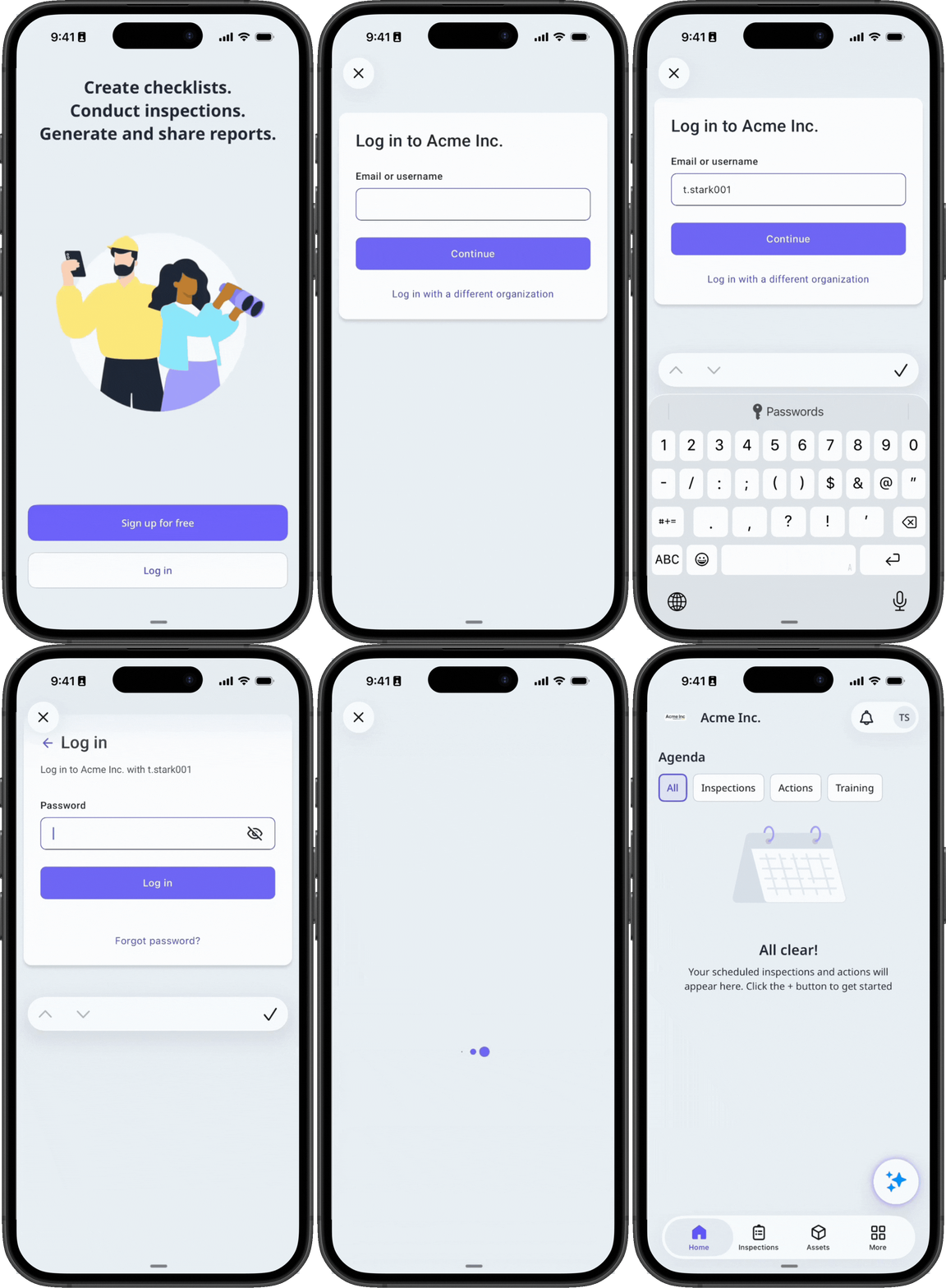
Mit Benutzernamen anmelden
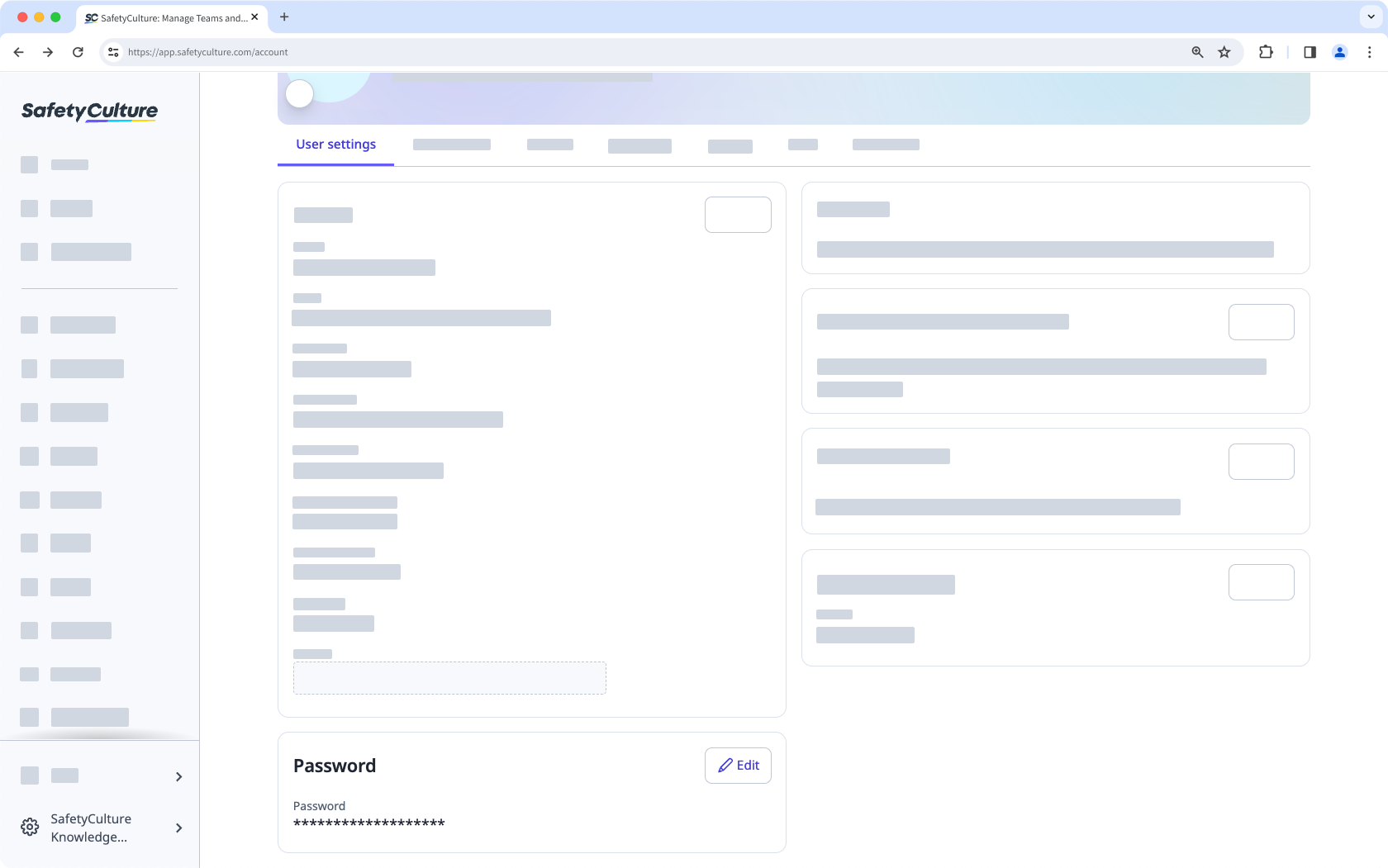
Ein neues Passwort festlegen
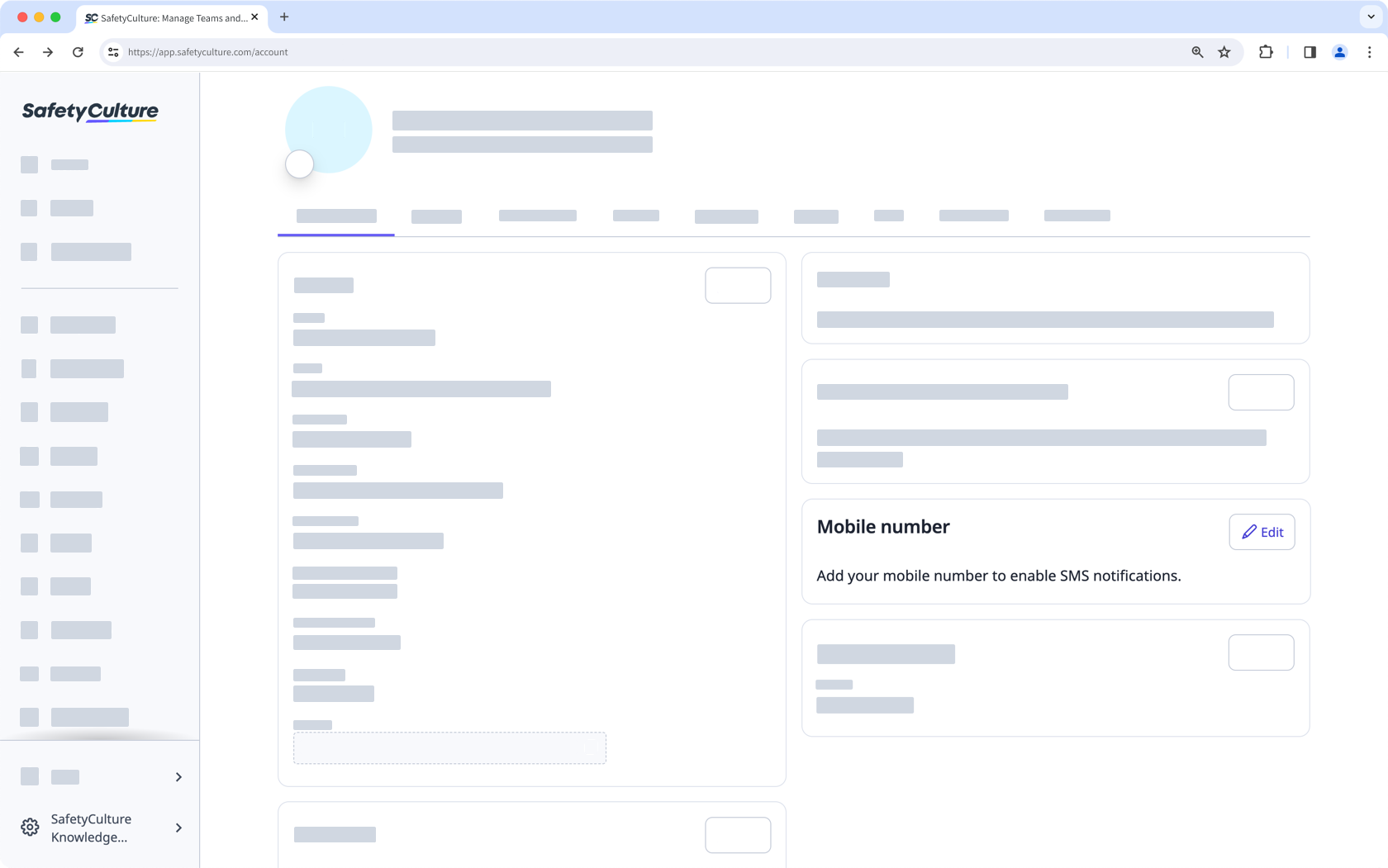
Eine Handynummer für Benachrichtigungen hinzufügen
Log in with a username
Log in with a username using the link or QR code your admin shares, then enter your username and password. You get full access to SafetyCulture right away, without needing an email address of your own.
Set a new password on first login
If your admin requires a password reset, you'll need to create a new password the first time you log in. Otherwise, you can keep using your current password, or change it whenever you like from your account settings.
Add a mobile number for notifications
You get push notifications by default on the mobile app. Add a mobile number to also receive SMS notifications.
Die mobile App speichert Ihre Organisation nach Ihrer ersten Anmeldung. Sie benötigen den Link oder den QR-Code nicht mehr, es sei denn, Sie verwenden ein anderes Gerät.
Limitations
Username login doesn't support Single sign-on (SSO) or email-based password recovery.
Username login users don't receive email notifications, though they still get push notifications on the mobile app and can add a mobile number for SMS.
They can't be assigned "Platform management" or "Override permissions" permissions, or belong to multiple organizations.
They also can't change their own username. An admin needs to update it for them.