What are the differences between Briefcase and Documents?
In EdApp, Briefcase allows you to attach reference files and videos to a specific course so users can access them alongside their training. Documents is a central workspace for storing and managing files across your organization in SafetyCulture, independent of any single course.
Functionality | Briefcase | Documents |
|---|---|---|
Admin setup | Added by admins or authors from the Briefcase tab in a course Set Up page | Users with "Documents: Administrator" permission can create and manage files and folders |
Access control | Controlled by publish status and optional lesson prerequisites | Admins can assign view or edit permissions to users |
Platform availability | Admin portal (web) and learner's app (mobile) | Available on the web app and mobile app |
Bulk file upload | Unavailable | Files can be uploaded individually or in bulk |
Expiration dates | Unavailable | Admins can set expiration dates on files to keep content up-to-date |
File management | Dedicated Briefcase tab within a course | Folders and subfolders, with options to archive or move files |
File owners | Unavailable | Files have assigned owners to keep content up-to-date |
Supported file types and sizes | PDF, JPG, PNG, GIF, videos, PowerPoint, Keynote, and Pages documents up to 60 MB | DOCX, DOC, GIF, JPEG, JPG, PNG, WEBP, PDF, XLS, and XLSX up to 50 MB |
Integration with other features | Copied automatically when a course is copied | |
Offline access | Unavailable | Files can be made available offline |
QR codes | Unavailable | QR codes can be generated for files and folders |
Version control | Updated by uploading a new file, with no version history | Maintains version history, but previous versions can't be restored |
The Briefcase feature from EdApp is not available in SafetyCulture. To store and manage your files, use Documents instead. If you previously used Briefcase to share files within a course, you can add files directly to a slide to link them to a course.
What you'll need
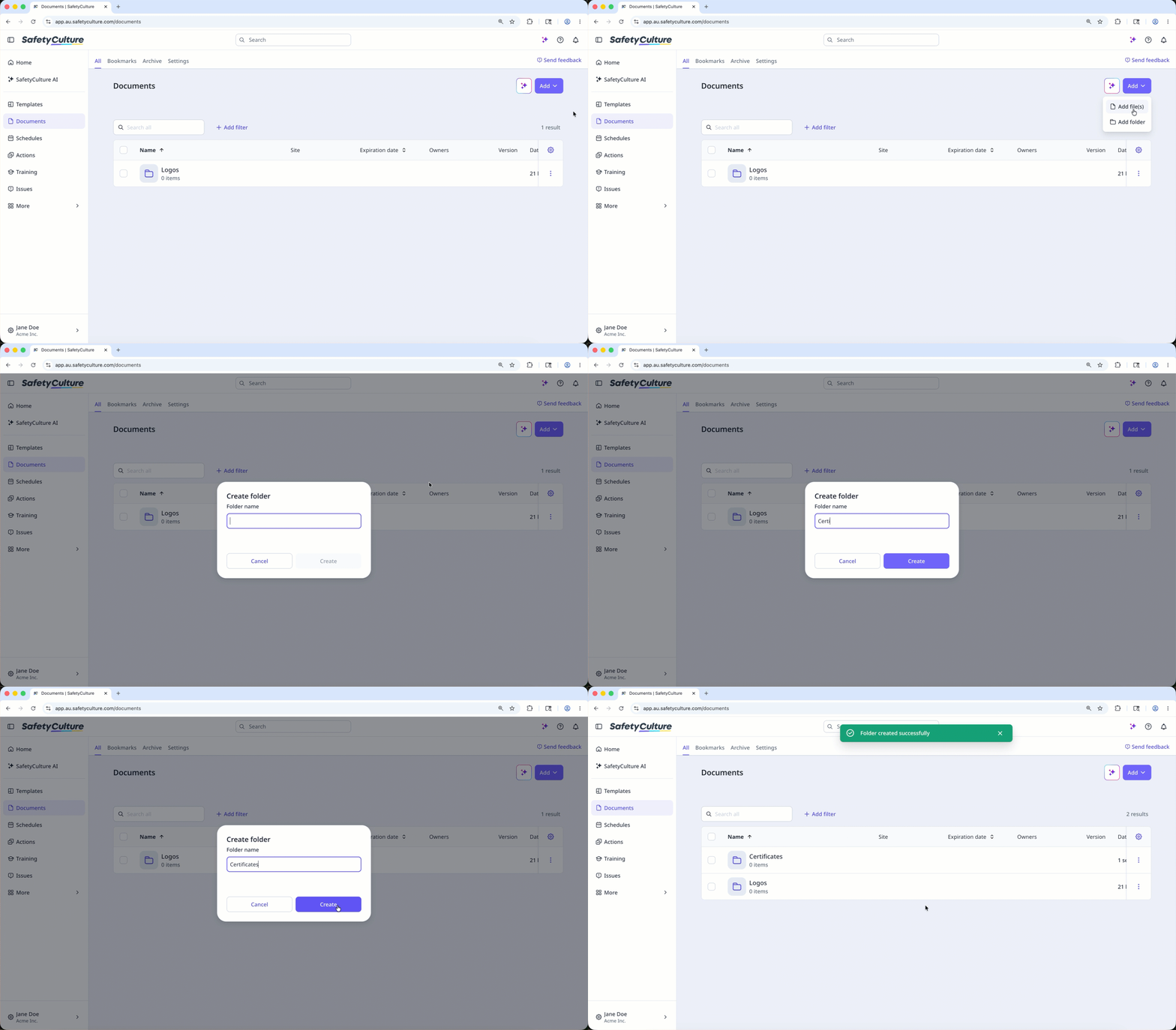
Add a folder
Select Documents in the sidebar or select it in More.
Select a folder if you want to create subfolders in it.
Click Add on the upper-right of the page.
Select Add folder.
In the pop-up window, enter the folder name and click Create.
Add a file
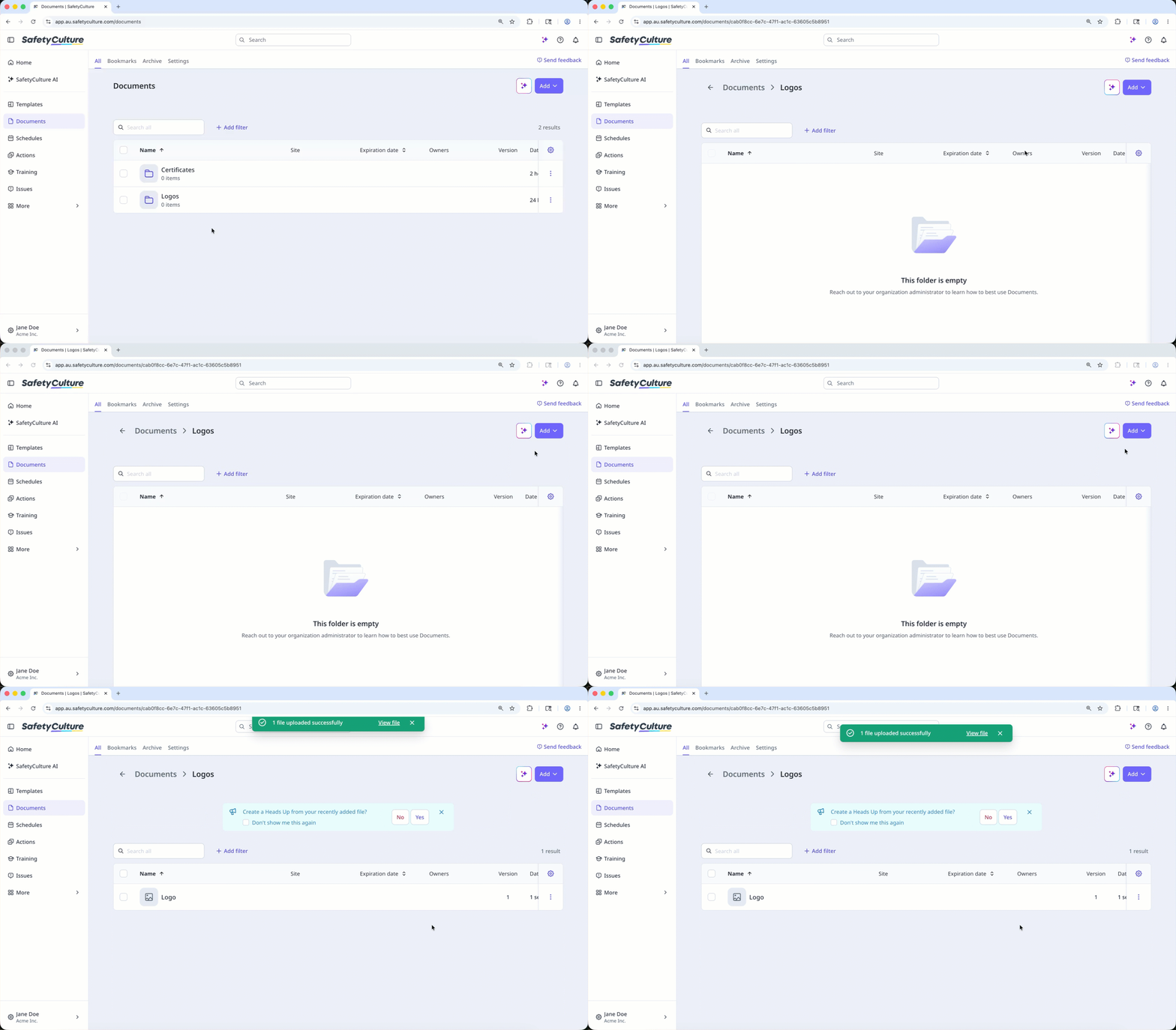
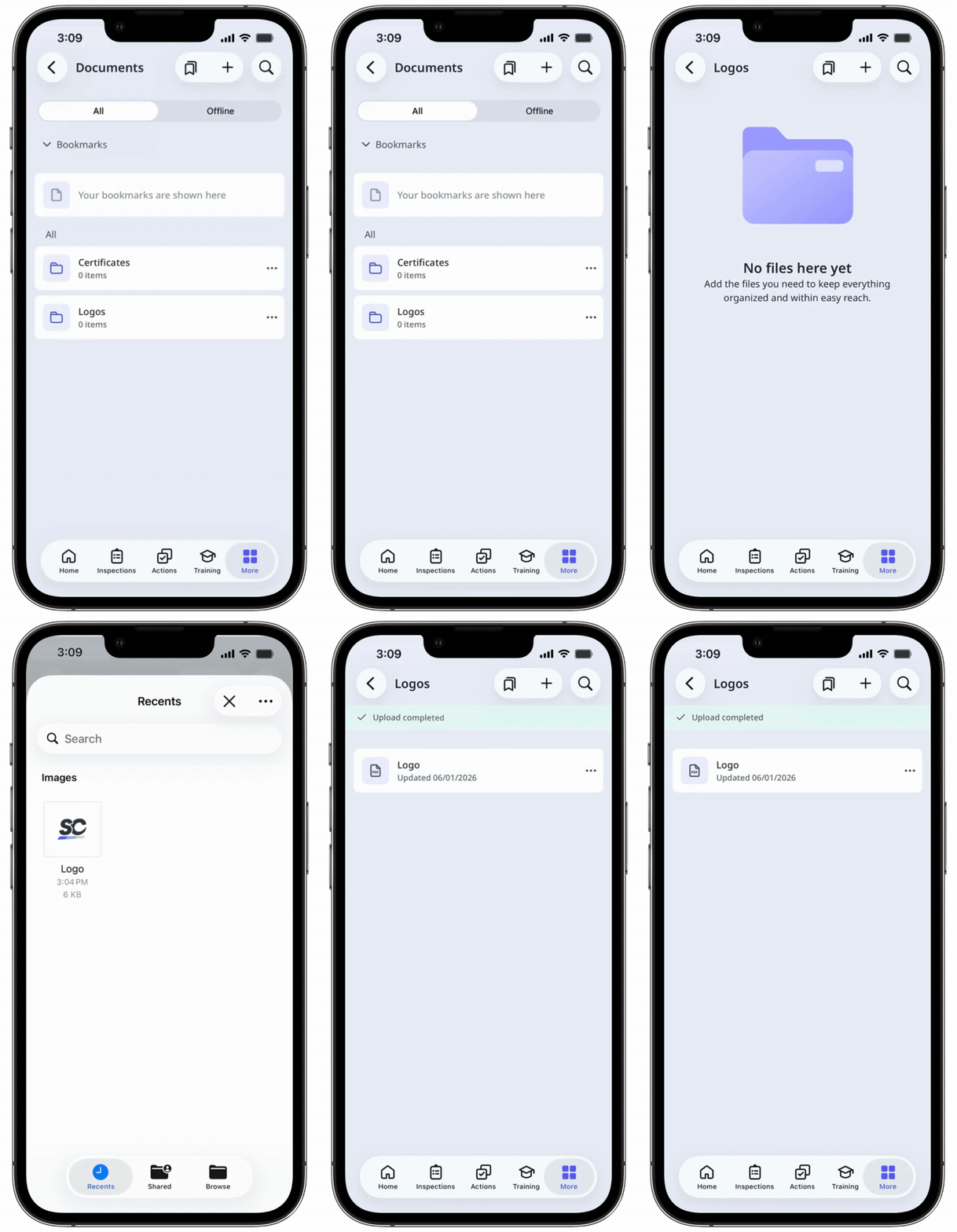
Select Documents in the sidebar or select it in More.
Select a folder if you want to add files in it.
Click Add on the upper-right of the page.
Select Add file(s).
Upload your file accordingly. Alternatively, you can drag and drop up to 100 files in one go.
Add or link files to a course
Select Training in the sidebar or select it in More.
If you're on the "Learn" page, click Content at the top of the page and select Courses.
Create a new course or click View or Edit on an existing one.
If you're editing an existing course and it's published, click Edit on the upper-right of the page.
Click on the upper-left and select Standard.
Click New slide on the left-hand side of the page.
In the pop-up window, click File and select Add file.
Click Browse in the "File" section on the right-hand side panel to select files.
In the pop-up window, choose whether to link an existing file from Documents or upload a new one:
To link a file: Click Link, then select the file you want to link from Documents.
To upload a file: Click Upload, then drag your file or click browse to select it from your device. Select a folder from the dropdown, or create a new one, to save your file in Documents. Then, click Save here.
Once you're ready, click Add file.
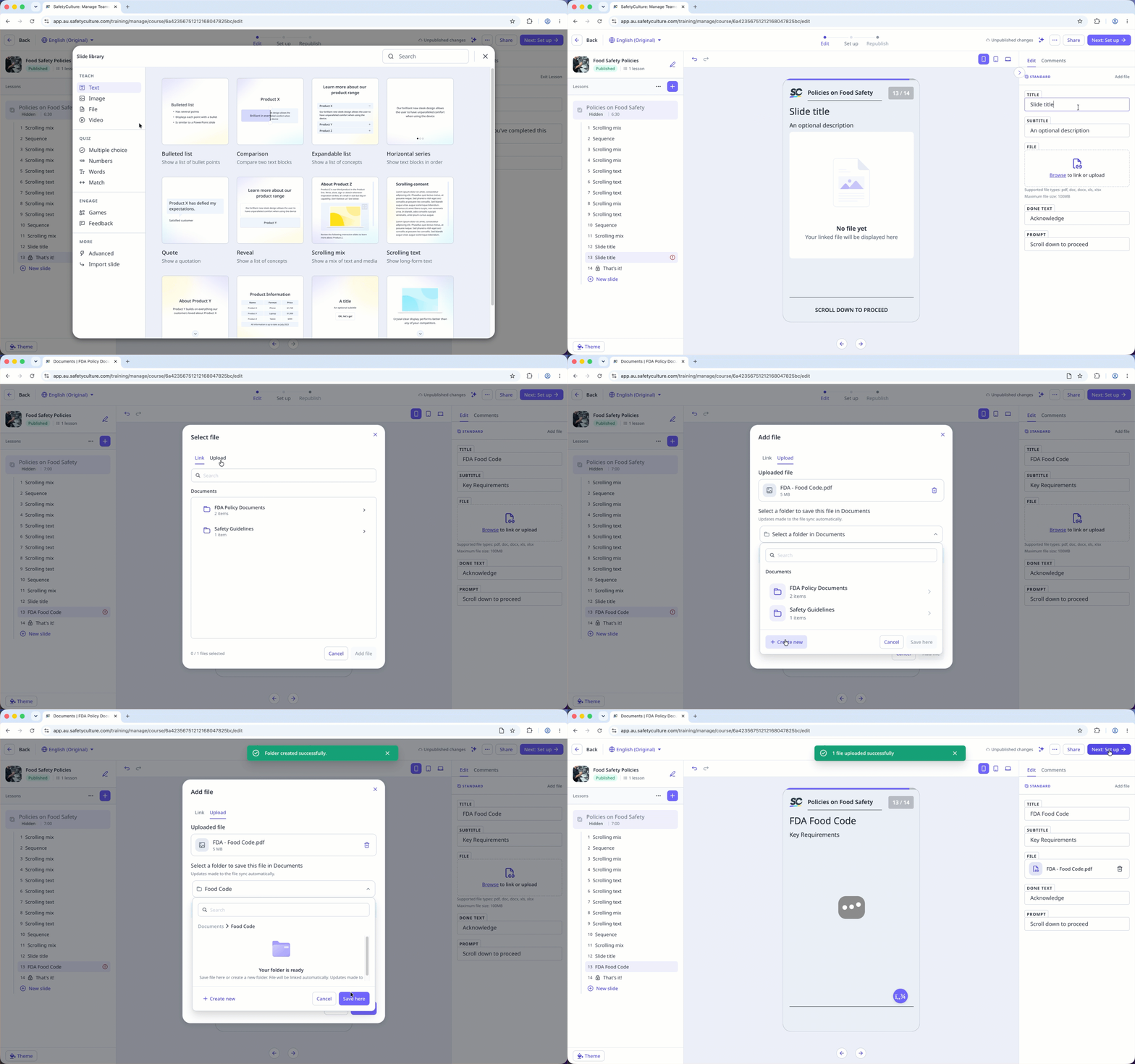
You can upload files up to 100MB in PDF, DOCX, DOC, XLS, and XLSX formats.
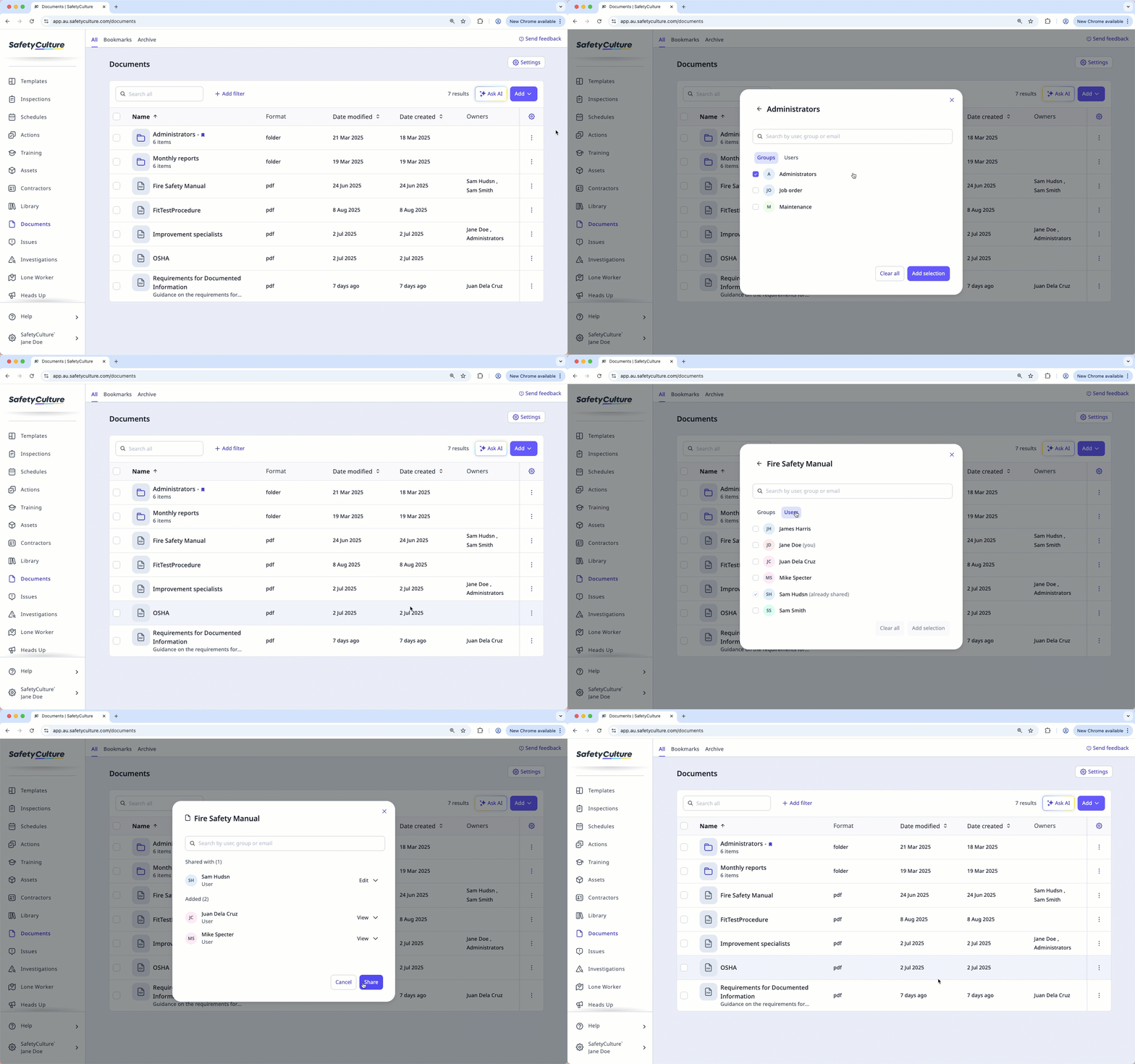
Manage access to a file or folder
Select Documents in the sidebar or select it in More.
Select a folder if you want to manage access to a file or folder in it.
Click on the file or folder's right-hand side and select Manage access.
In the pop-up window, search and select the user or group.
Click Add selection.
By default, each user and group is given the "View" access to the file or folder. You can click the dropdown next to each user or group to update its access.
Click Share.