Veuillez noter que cette fonctionnalité est actuellement en Accès anticipé. Si vous êtes intéressé, veuillez contacter votre responsable clientèle pour vérifier si votre organisation est éligible.
Comment fonctionne la connexion par nom d'utilisateur ?
De nombreux travailleurs de terrain n'ont pas d'adresse e-mail professionnelle, mais ils ont tout de même besoin d'accéder à des cours de formations, de terminer des actions, de rester informés des mises à jour de l'organisation et bien plus encore. La connexion par nom d'utilisateur vous permet de créer des comptes en utilisant uniquement un nom d'utilisateur et un mot de passe. Les travailleurs se connectent à l'aide d'un nom d'utilisateur tel que leur id d'employé via un lien de connexion ou un Code QR spécifique à votre organisation.
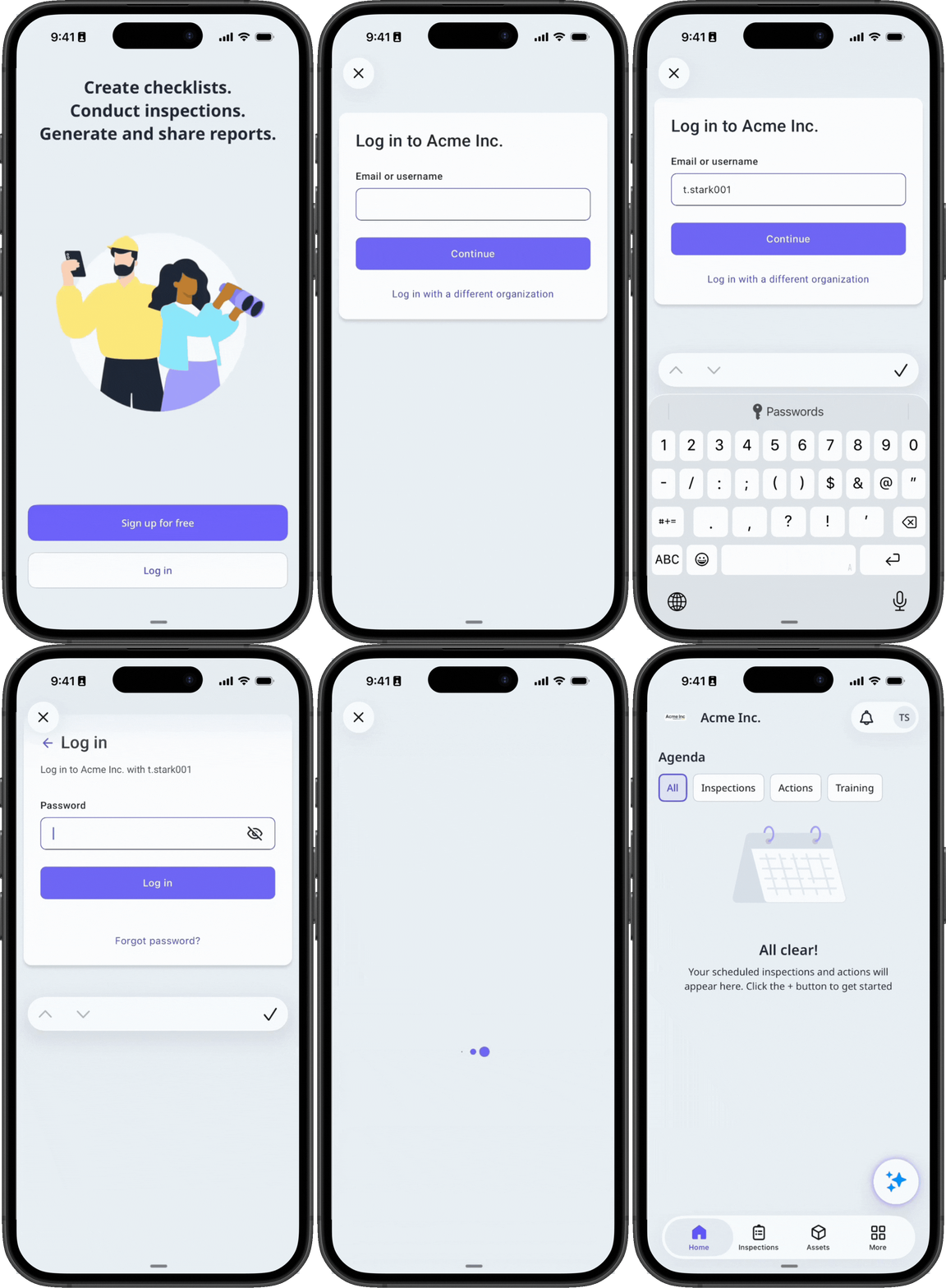
Commencer en tant qu'administrateur
Activer la connexion par nom d'utilisateur
Cliquez sur le nom de votre organisation en bas à gauche de la page et sélectionnez Paramètres de l'organisation.
Sélectionnez l'onglet Connexion en haut de la page.
Activez le paramètre « Connexion par nom d'utilisateur ».
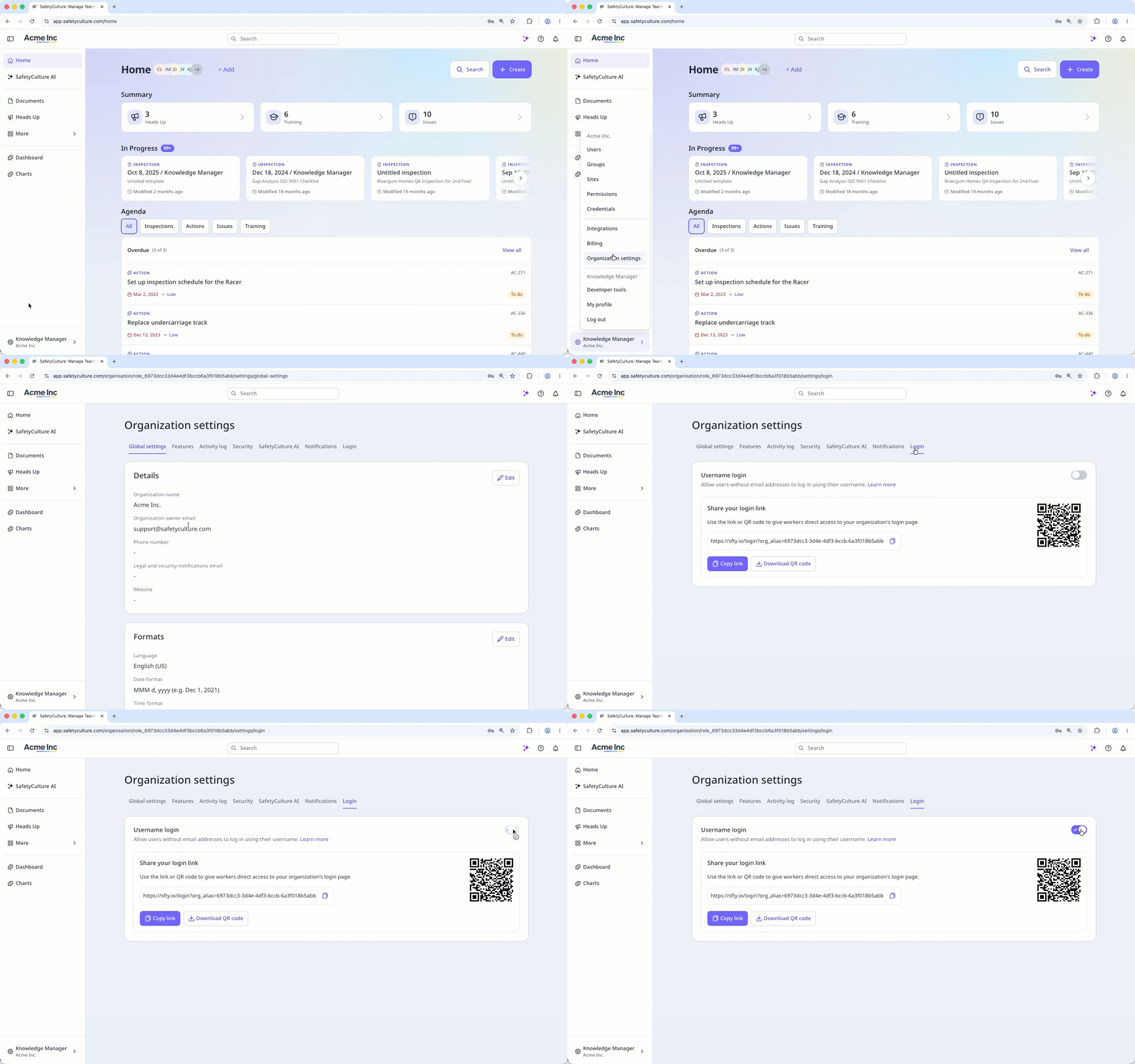
Copiez le lien de connexion ou téléchargez le code QR pour le partager avec vos utilisateurs.
Si vous souhaitez désactiver ultérieurement la connexion par nom d'utilisateur, ajoutez une adresse e-mail à chaque employé qui n'en possède pas, ou désactivez-les au préalable.
Si l'ensemble d'autorisations par défaut de votre organisation pour les Licences Complètes inclut les autorisations « Gestion de la plateforme » ou « Outrepasser les autorisations », vous devrez les supprimer, car les utilisateurs sans adresse e-mail ne peuvent pas avoir ces autorisations.
Les utilisateurs sans adresse e-mail peuvent uniquement se connecter via le lien de connexion spécifique à l'organisation ou le Code QR. Ils ne peuvent pas accéder à la plateforme depuis la page de connexion par défaut.
Share your login link
Once you turn the setting on, share your organization's login link or QR code with your users so they can sign in. This link is specific to your organization and different from an invite link, which is for users with an email address.
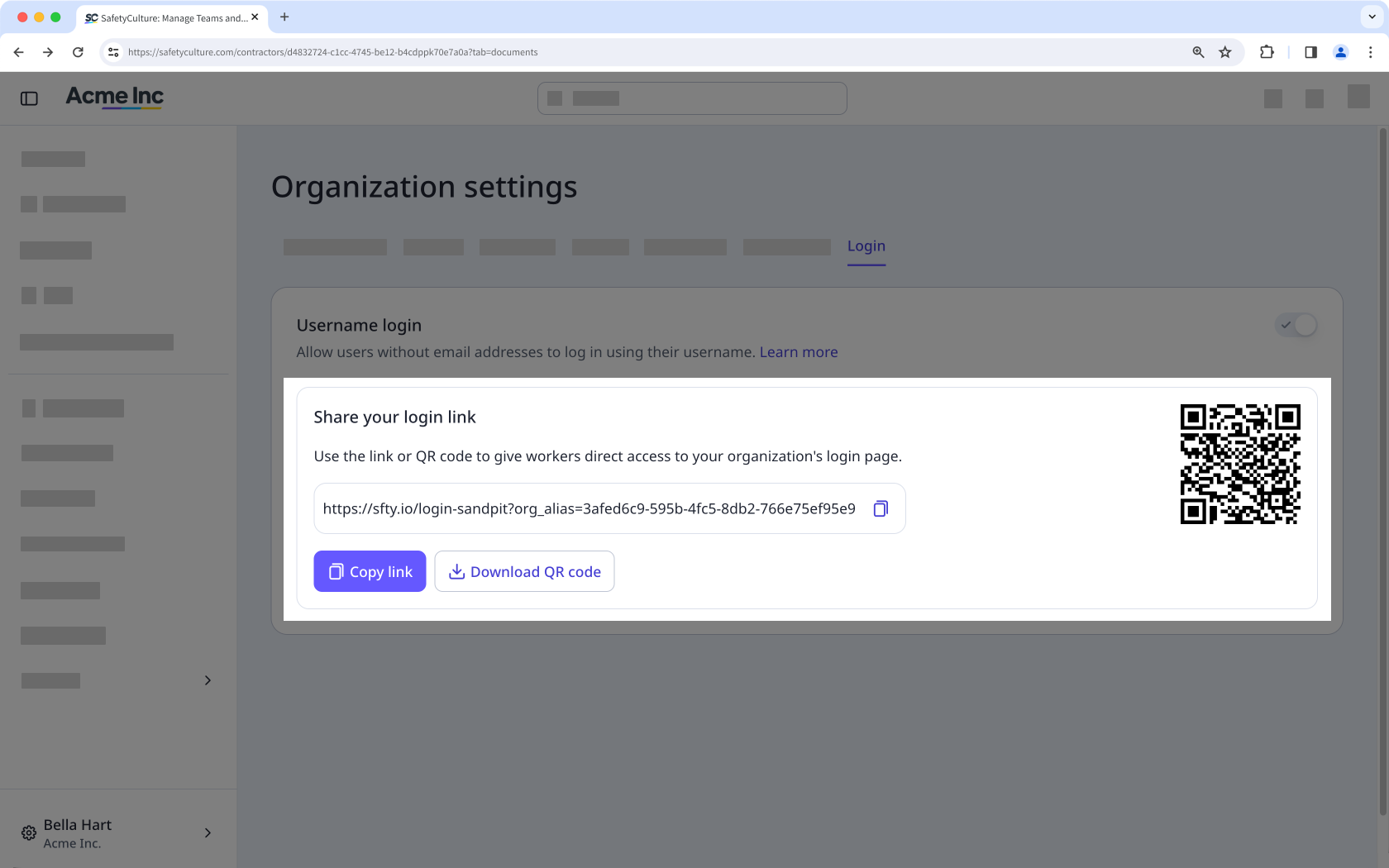
Ajouter un utilisateur avec connexion par nom d'utilisateur
Pour les nouveaux membres de l'équipe qui rejoignent au fil du temps, vous pouvez ajouter des utilisateurs sans adresse e-mail un par un.
Cliquez sur le nom de votre organisation en bas à gauche de la page et sélectionnez Utilisateurs.
Cliquez sur Ajouter des utilisateurs en haut à droite de la page.
Remplissez les informations relatives à l'utilisateur en conséquence. Vous pouvez sélectionner le type de licence de l'utilisateur ainsi que le type de licence si votre organisation utilise Offre Premium ou Offre Enterprise.
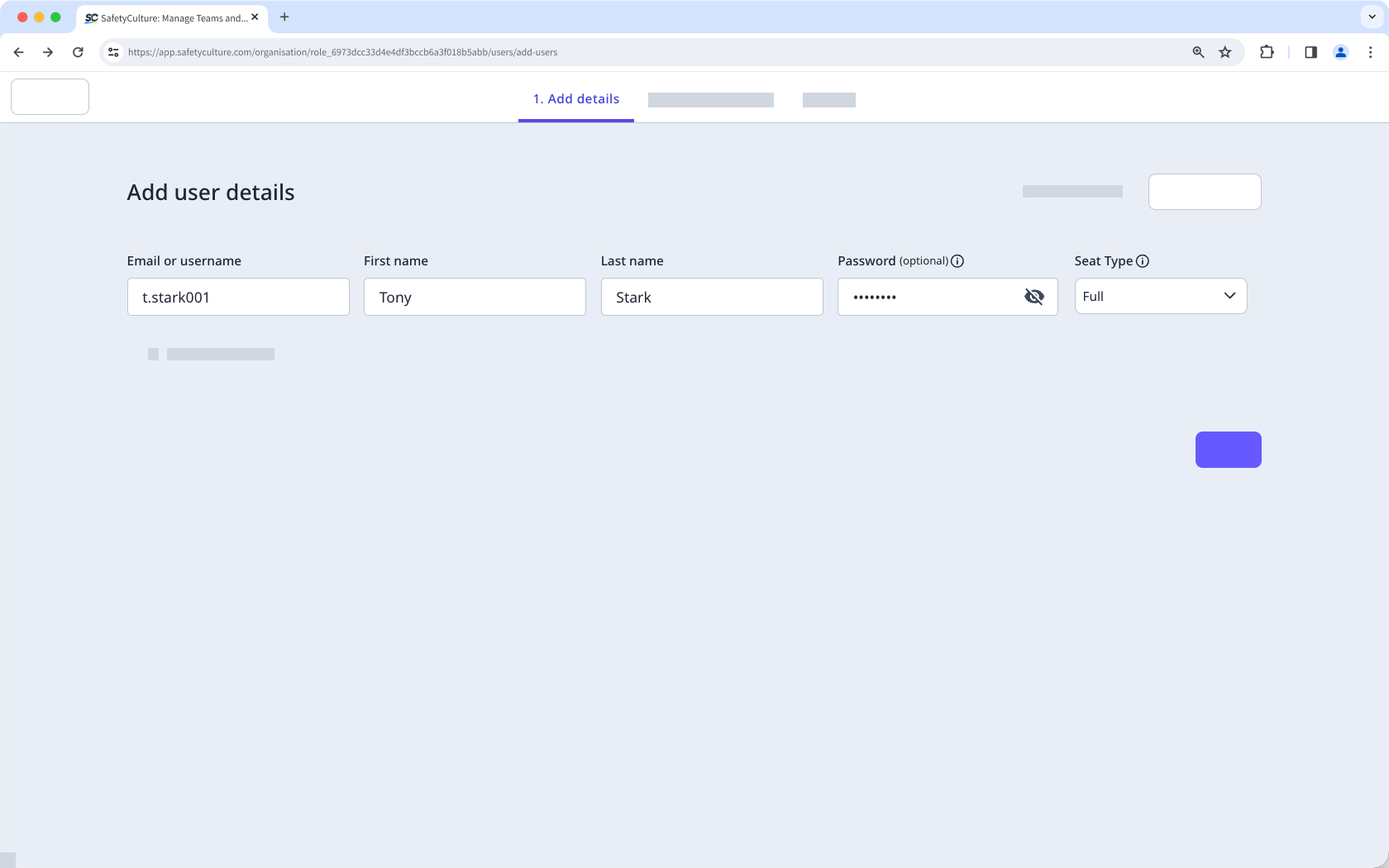
Les utilisateurs sans adresse e-mail ne peuvent pas se voir attribuer l'ensemble d'autorisations « Administrateur » ni aucun ensemble d'autorisations incluant les autorisations « Gestion de la plateforme » ou « Outrepasser les autorisations ».
Mettre à jour un utilisateur avec connexion par nom d'utilisateur
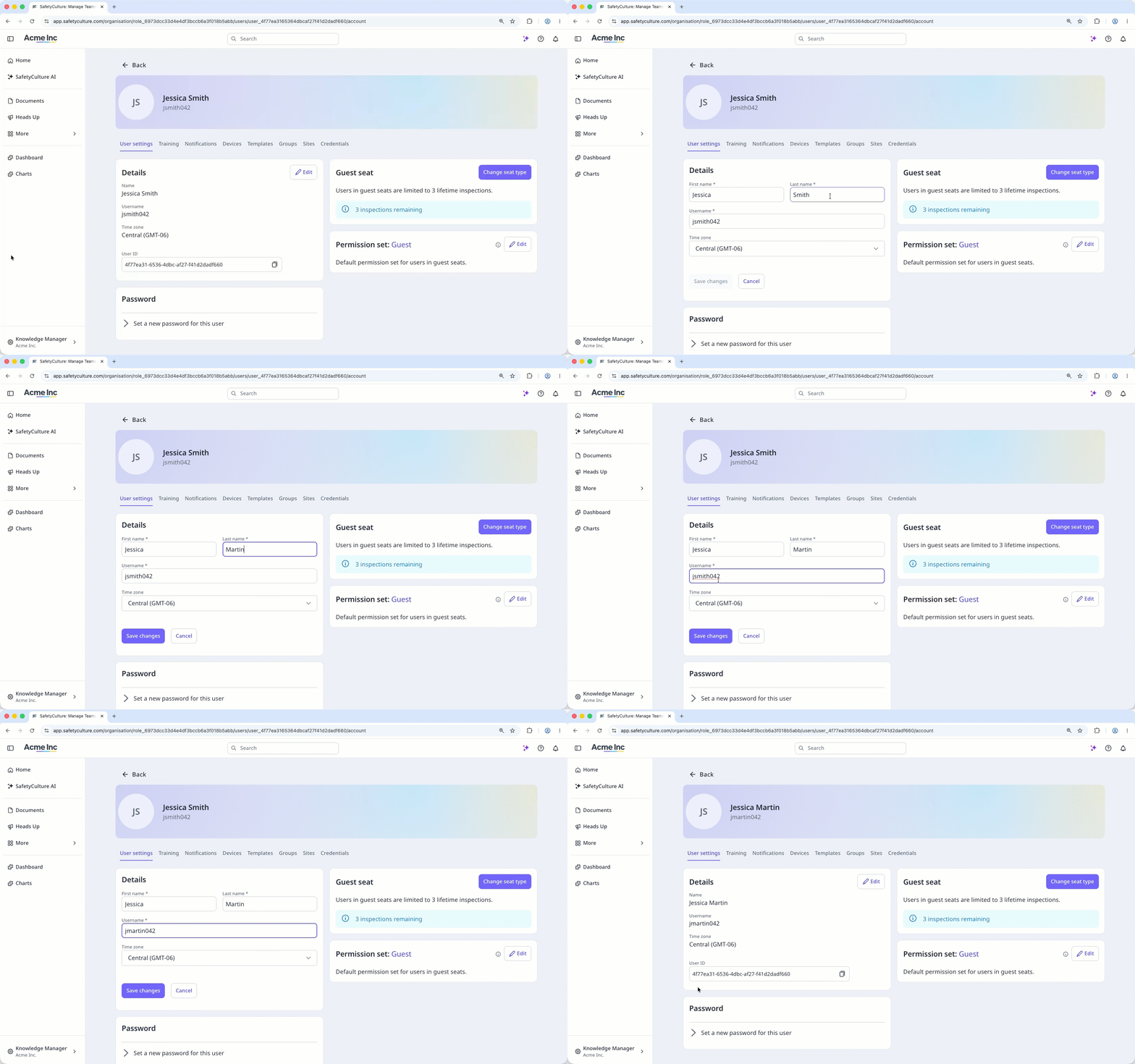
Les administrateurs peuvent mettre à jour les détails d'un utilisateur, notamment modifier son nom d'utilisateur et ajouter une adresse e-mail, depuis le profil de l'utilisateur. Les utilisateurs sans adresse e-mail ne peuvent pas modifier leur nom d'utilisateur.
Cliquez sur le nom de votre organisation en bas à gauche de la page et sélectionnez Utilisateurs.
Cliquez sur le nom d'utilisateur.
Cliquez sur Paramètres en haut à droite de la page.
Dans la section « Paramètres de l'utilisateur », cliquez sur Modifier et mettez à jour les informations de l'utilisateur en conséquence. Ensuite, cliquez sur Enregistrer les modifications.
Commencer en tant qu'utilisateur
Connexion avec un nom d'utilisateur
Définir un nouveau mot de passe
Ajouter un numéro de téléphone portable pour recevoir des notifications
Log in with a username
Log in with a username using the link or QR code your admin shares, then enter your username and password. You get full access to SafetyCulture right away, without needing an email address of your own.
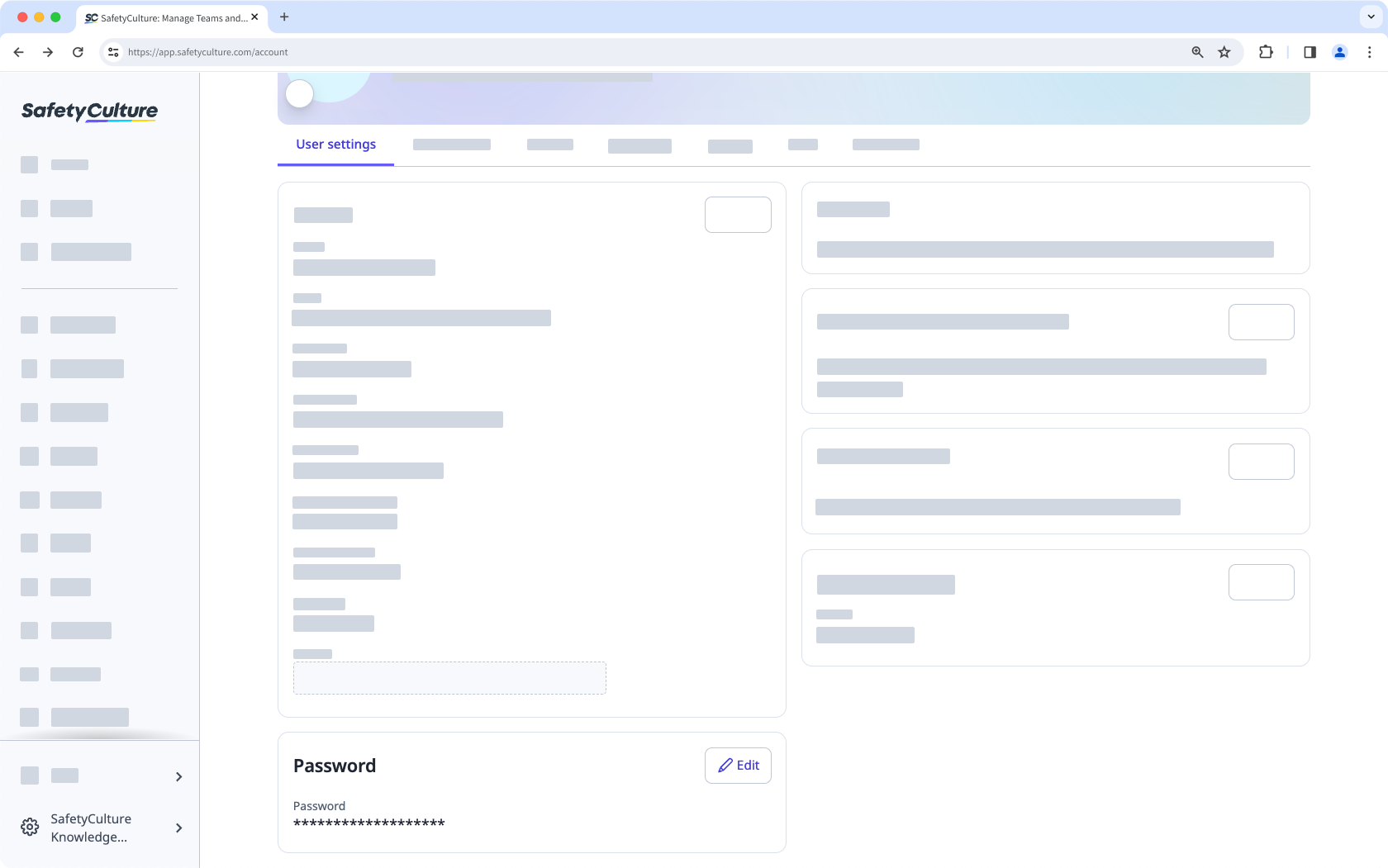
Set a new password on first login
If your admin requires a password reset, you'll need to create a new password the first time you log in. Otherwise, you can keep using your current password, or change it whenever you like from your account settings.
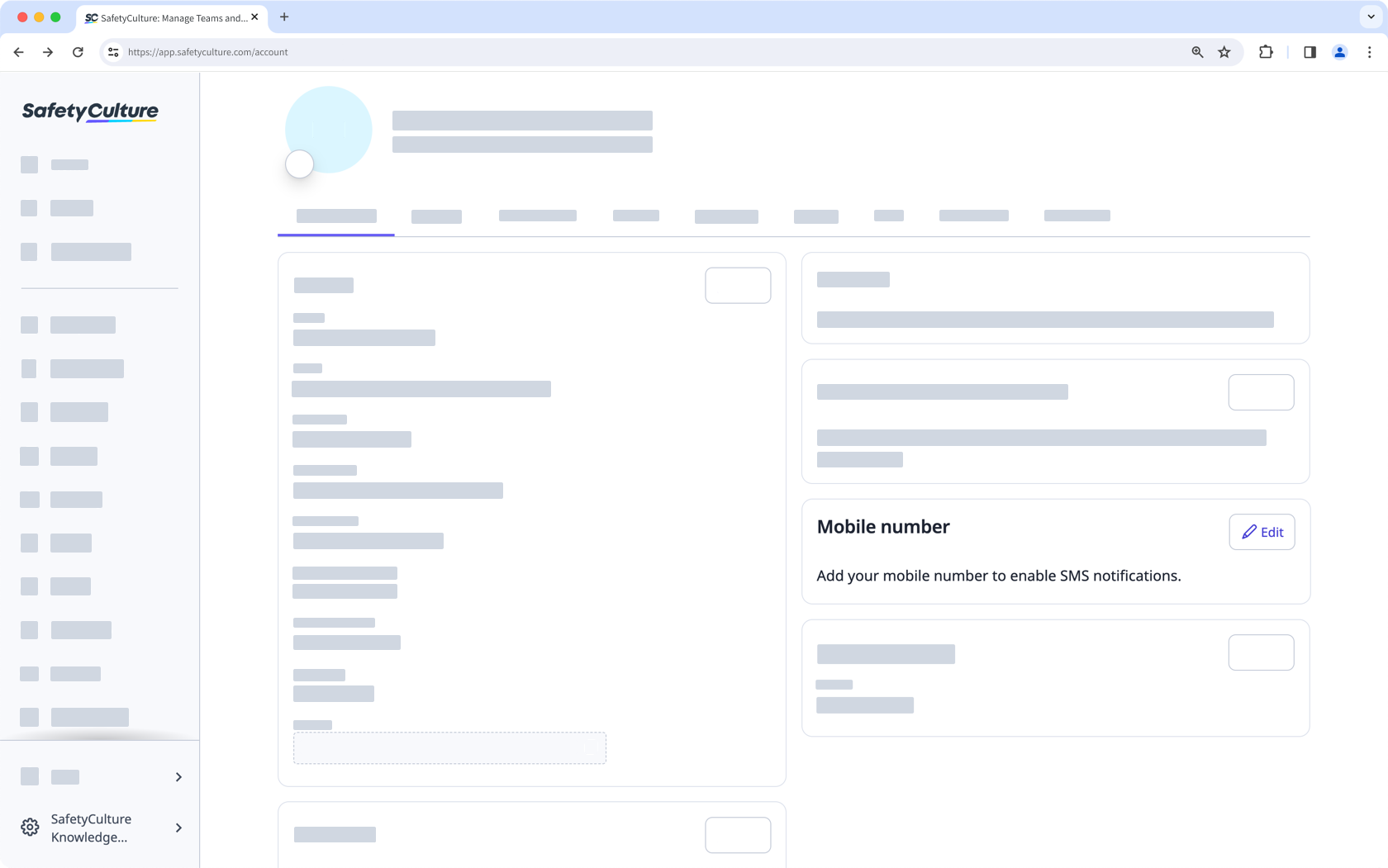
Add a mobile number for notifications
You get push notifications by default on the mobile app. Add a mobile number to also receive SMS notifications.
L'application portable mémorise votre organisation dès votre première connexion. Vous n'aurez plus besoin du lien ni du code QR, sauf si vous utilisez un autre appareil.
Limitations
Username login doesn't support Single sign-on (SSO) or email-based password recovery.
Username login users don't receive email notifications, though they still get push notifications on the mobile app and can add a mobile number for SMS.
They can't be assigned "Platform management" or "Override permissions" permissions, or belong to multiple organizations.
They also can't change their own username. An admin needs to update it for them.