Comment fonctionnent les tableaux dans les inspections ?
Les tableaux des inspections sont conçus pour aider les équipes à collecter, afficher et gérer efficacement de grands volumes de données répétitives sous forme de tableau. Que vous enregistriez des ensembles d'informations cohérents sur plusieurs éléments ou que vous deviez respecter des exigences strictes en matière de rapports imposées par des clients tiers, les tableaux offrent un moyen structuré de saisir les informations importantes. Leur format clair et structuré facilite la consultation des réponses précédemment saisies, la détection des tendances et des modèles, et garantit que vos données sont complètes et faciles à interpréter.
Ce dont vous aurez besoin
Types de réponses pris en charge
Les types de réponse suivants sont pris en charge dans les tableaux :
Texte
Nombre (avec unités)
Choix multiples : Jeux de réponses personnalisées et Réponses globales (GRS), y compris sélection multiple.
Date et heure
Ajouter un tableau
Select Modèles in the sidebar or select it in Plus.
Click a template and select Modifier le modèle in the side panel.
Click Ajouter nouveau at the bottom of a page and select Tableau. Each table will be added as a separate page in the template.
Click on the existing table name and rename it accordingly. Then, press the enter or return key on your keyboard or click anywhere in the Template Editor.
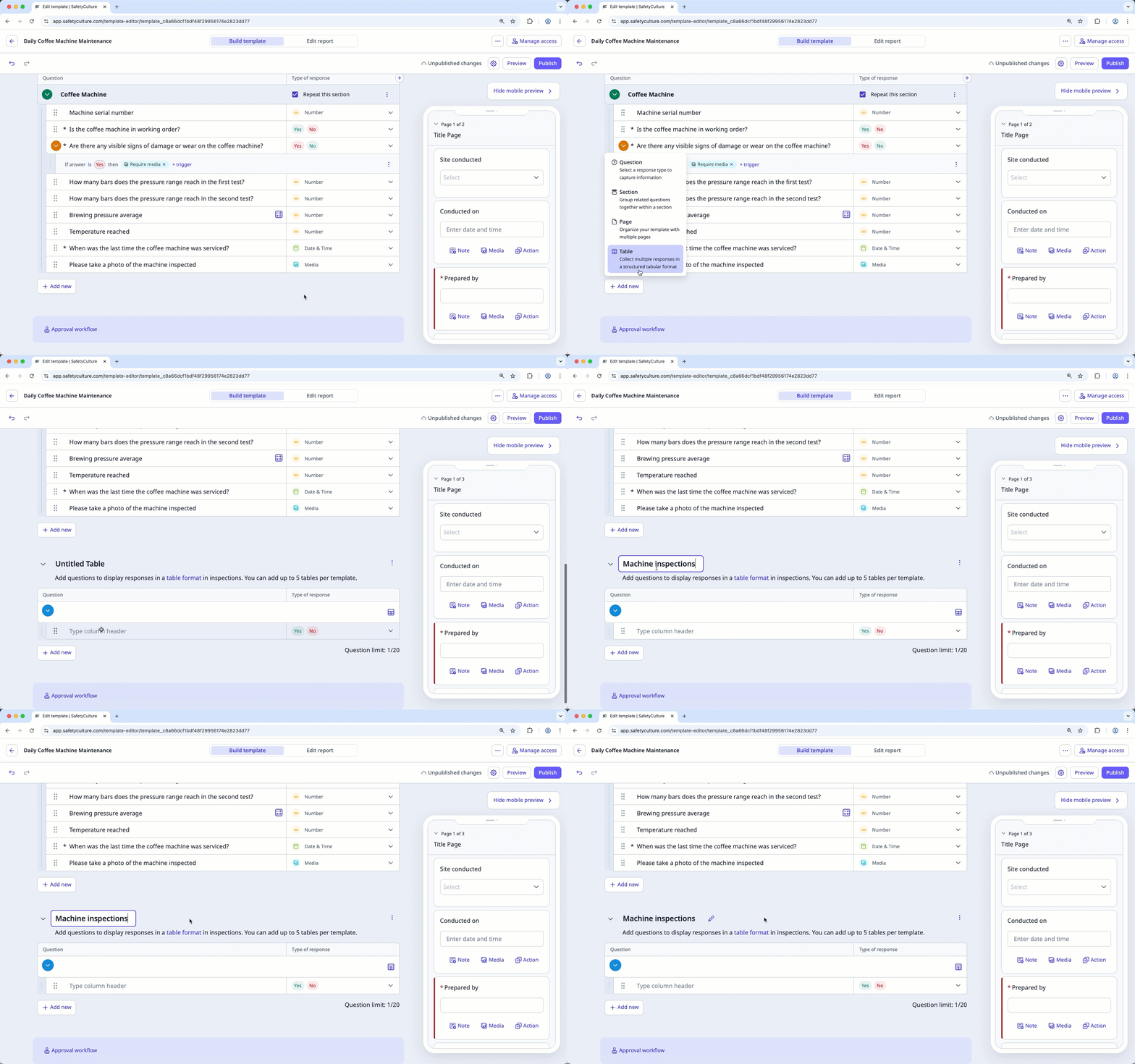
If the table page isn't in the correct order, you can rearrange pages at any time.
Start typing to label the question and click on the right-hand side to select its type of response. Each question in the table is a column header.
Click Question on the left-hand side to add more columns to the table.
Click Publier on the upper-right of the page to publish the template. If you're not ready to publish the template, you can go back to the templates list and come back when you're ready.

La suppression d'une page de tableau supprimera également les questions qu'elle contient.
Supprimer un tableau
Sélectionnez Modèles dans le menu de gauche.
Cliquez sur le modèle et sélectionnez Modifier le modèle dans le panneau latéral.
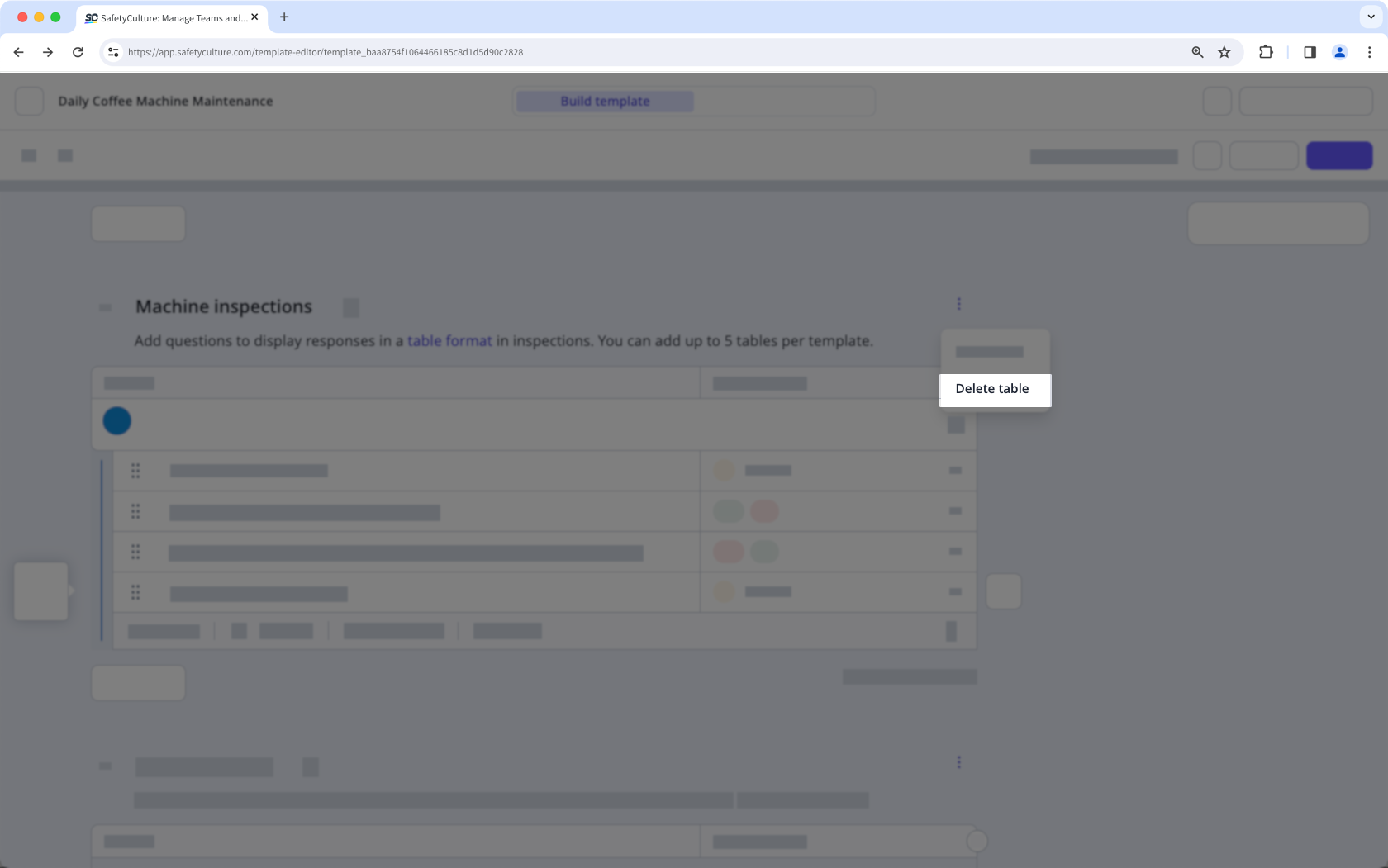
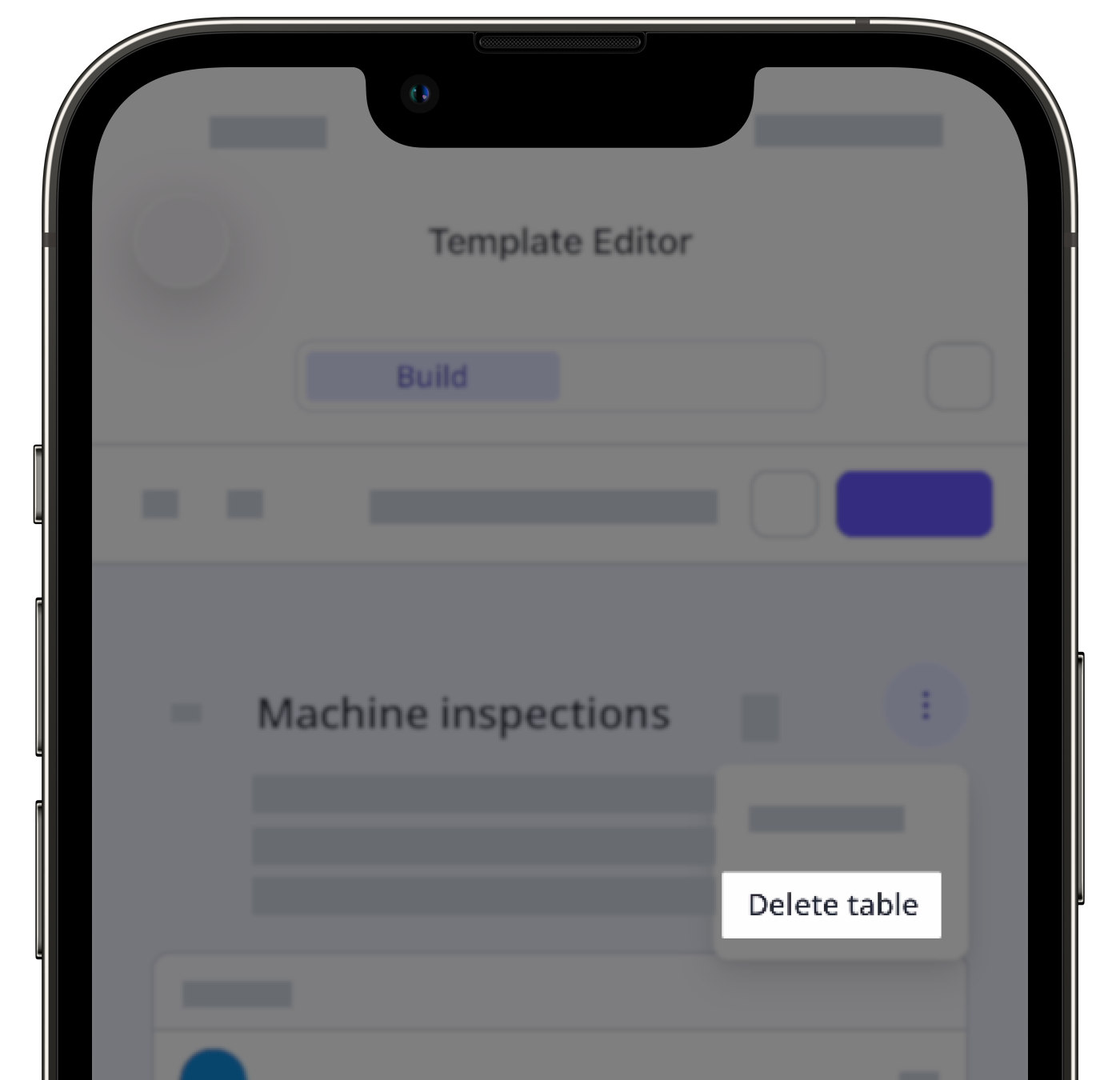
Cliquez sur en haut à droite de la page d'inspection, au-dessus de la colonne « Type de réponse ».
Sélectionnez Supprimer un tableau.
Cliquez sur Publier en haut à droite de la page pour publier le modèle. Si vous n'êtes pas prêt à publier le modèle, vous pouvez retourner à la liste des modèles et revenir lorsque vous serez prêt.
Vous pouvez exporter les rapports d'inspection avec des tableaux avec des fichiers PDF et Word, ce qui vous offre plus de flexibilité dans leur utilisation et leur partage.
Quels sont les autres possibilités avec les tableaux ?
Les tableaux peuvent faire plus qu'organiser des informations. Vous pouvez rendre certaines réponses obligatoires, ajouter un score aux réponses à choix multiples, calculer automatiquement des valeurs dans les lignes du tableau, signaler des réponses pour les repérer plus facilement dans les rapports et les Données analytiques, et déclencher des notifications lorsque certaines réponses sont sélectionnées.
Limitations
Un modèle peut contenir jusqu'à 5 tableaux.
Chaque tableau peut contenir jusqu'à 20 colonnes de questions, et les utilisateurs peuvent ajouter jusqu'à 100 lignes de réponses.
Vous ne pouvez ajouter des champs logiques que pour notifier les membres.
Vous ne pouvez pas lier des réponses vers ou depuis des tableaux.
Copier et coller des questions dans des tableaux n'est actuellement pas pris en charge.