Last updated:

Bulk copy and paste questions

Learn how to copy and paste multiple questions at once in the Template Editor via the web app and the mobile app.

Published changes made to templates only apply to new inspections moving forward.

Copy and paste questions in bulk

  1. Log in to the web app.

  2. Select Templates iconTemplates in the sidebar or select it in Assets gallery view iconMore.

  3. Click the template and select Edit template in the side panel.

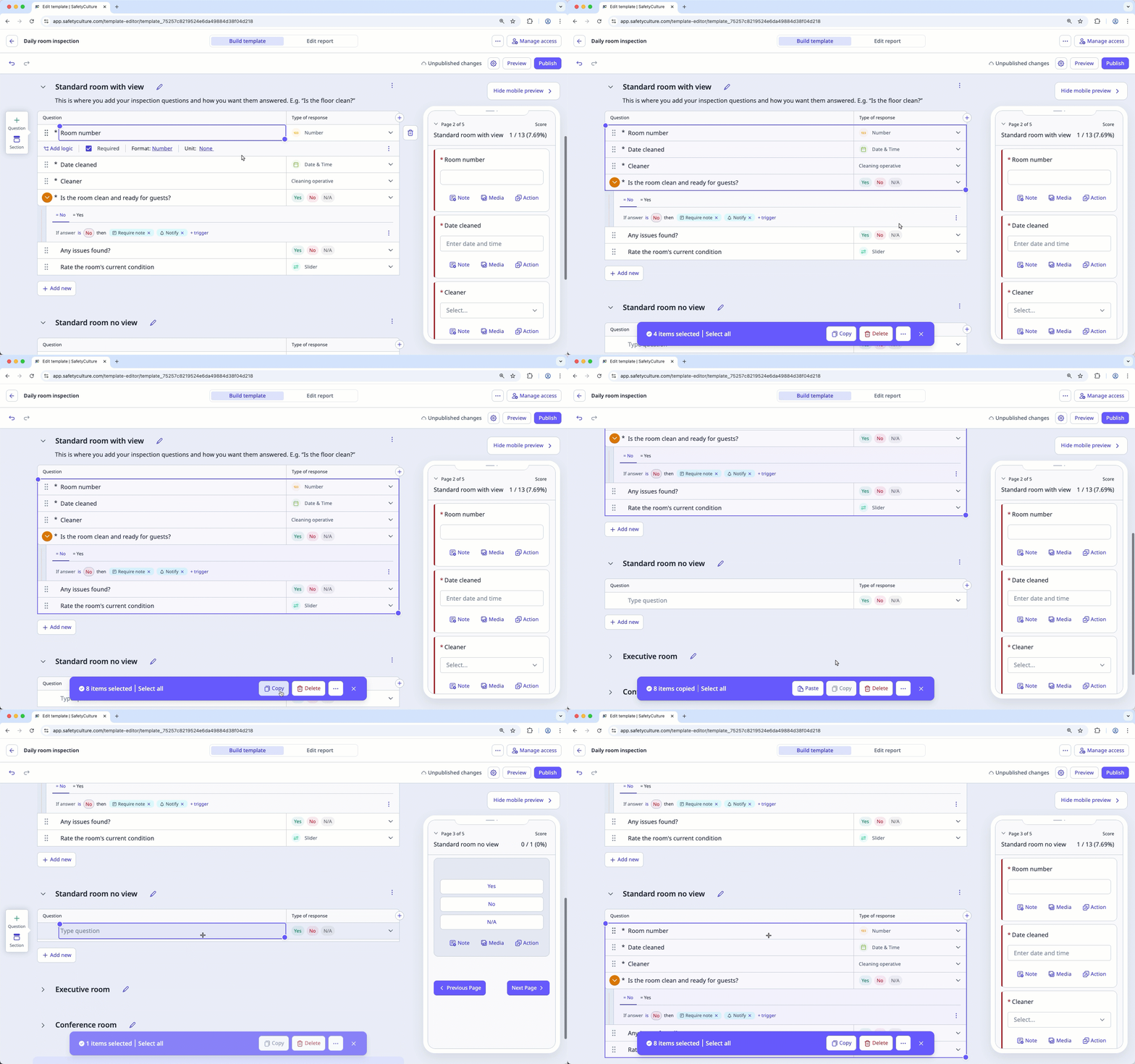
  4. Click one of the questions you want to copy, then drag the blue dot at the top-left or bottom-right corner to select additional questions.

    • If you want to select all the questions in your template, click Select all at the bottom of the page.

  5. Click Copy content iconCopy at the bottom of the page or use the keyboard shortcut Ctrl + C (Windows) or Cmd + C (macOS) to copy the questions.

  6. Click the question line where you want to paste the questions.

  7. Paste the questions using the shortcut Ctrl + V (Windows) or Cmd + V (macOS).

  8. Click Publish on the upper-right of the page to publish the template. If you're not ready to publish the template, you can go back to the templates list and come back when you're ready.
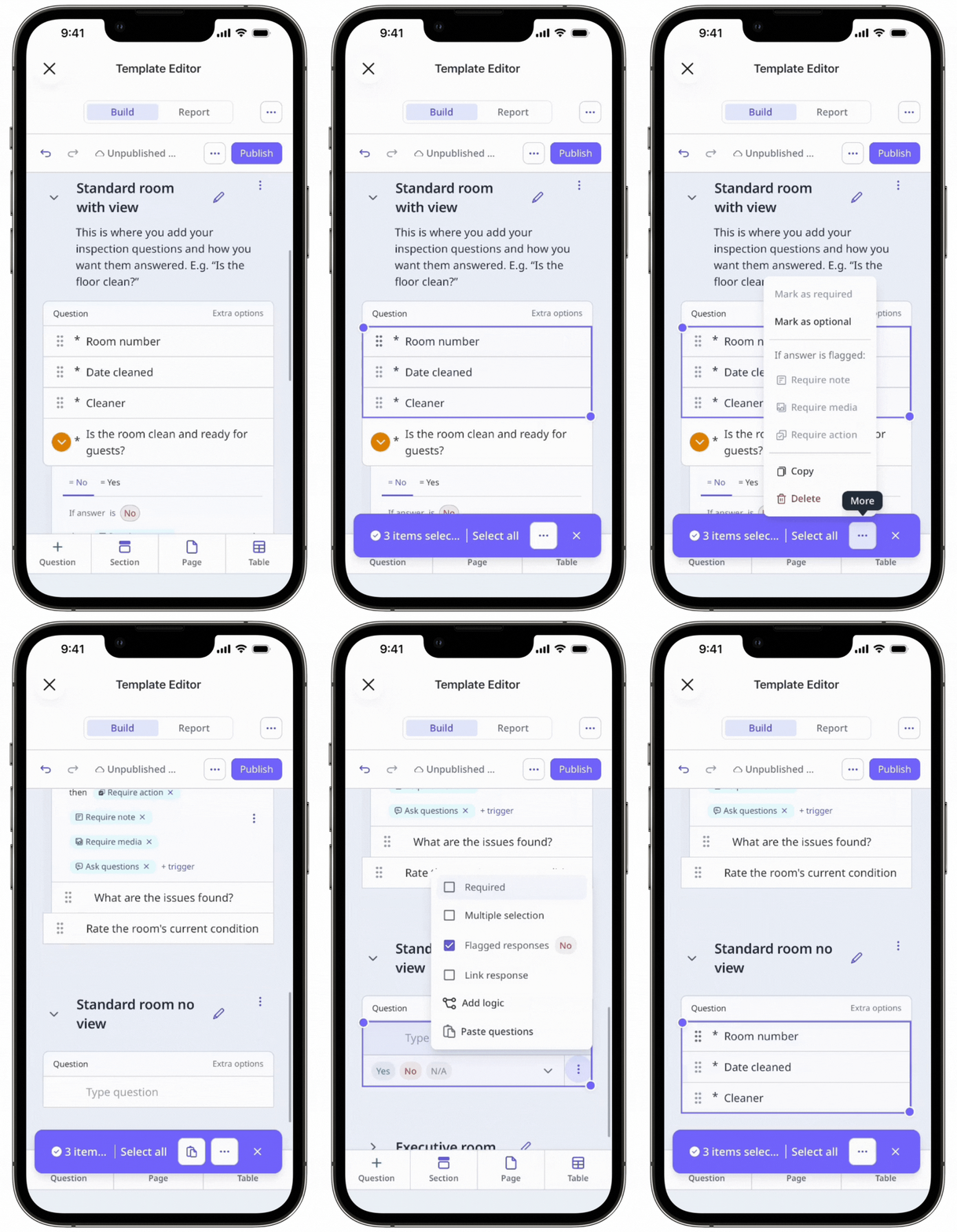
  1. Open the mobile app.

  2. Tap Inspections icon mobileInspections in the navigation bar or select it from Assets gallery view iconMore.

  3. Select Templates tab at the top of your screen.

  4. Tap the template and select Pencil iconEdit template from the pop-up options.

  5. Tap one of the questions you want to copy, then drag the blue dot at the top-left or bottom-right corner to select additional questions.

    • If you want to select all the questions in your template, tap Select all at the bottom of the page.

  6. Tap More horizontal icon at the lower-right of your screen, then select Copy content iconCopy.

  7. Tap the question line where you want to paste the questions.

  8. Tap More vertical icon at the lower-right of the question.

  9. Select Icon: Clipboard pastePaste questions.

  10. Tap Publish on the upper-right of your screen to publish the template. If you're not ready to publish the template, you can go back to the templates list and come back when you're ready.

You can build your templates using other response types, such as text answer, number, and media.

Frequently asked questions

If you want to copy questions that contain logic fields, you should select and copy both the main question and the questions within the logic fields.

No, you don't. The copied questions will remain on your clipboard, ready to be pasted again, unless another set of questions are copied to override it.

Yes, you can! Copy the set of questions first, then exit and enter the other template's editor to paste the questions.

No. Copy and paste isn't currently supported in tables. However, you can copy questions one by one by selecting the question text in the table and using standard keyboard shortcuts (Ctrl + C/Ctrl + V on Windows or Cmd + C/Cmd + V on macOS) to paste them outside the table. Please note that copying this way will copy only the question text, not the response type.

Need more help?
In this article