
What are Global Response Sets (GRS)?
Global Response Sets (GRS) are centralized lists of items you can reuse as multiple-choice responses across multiple templates. They simplify template management by allowing you to update responses from a single point, ensuring consistency and reducing manual work.
GRS is especially useful for frequently updated lists, such as a roster of team members in your organization. When you update a GRS, like adding or removing team members, the changes automatically apply to all linked templates.
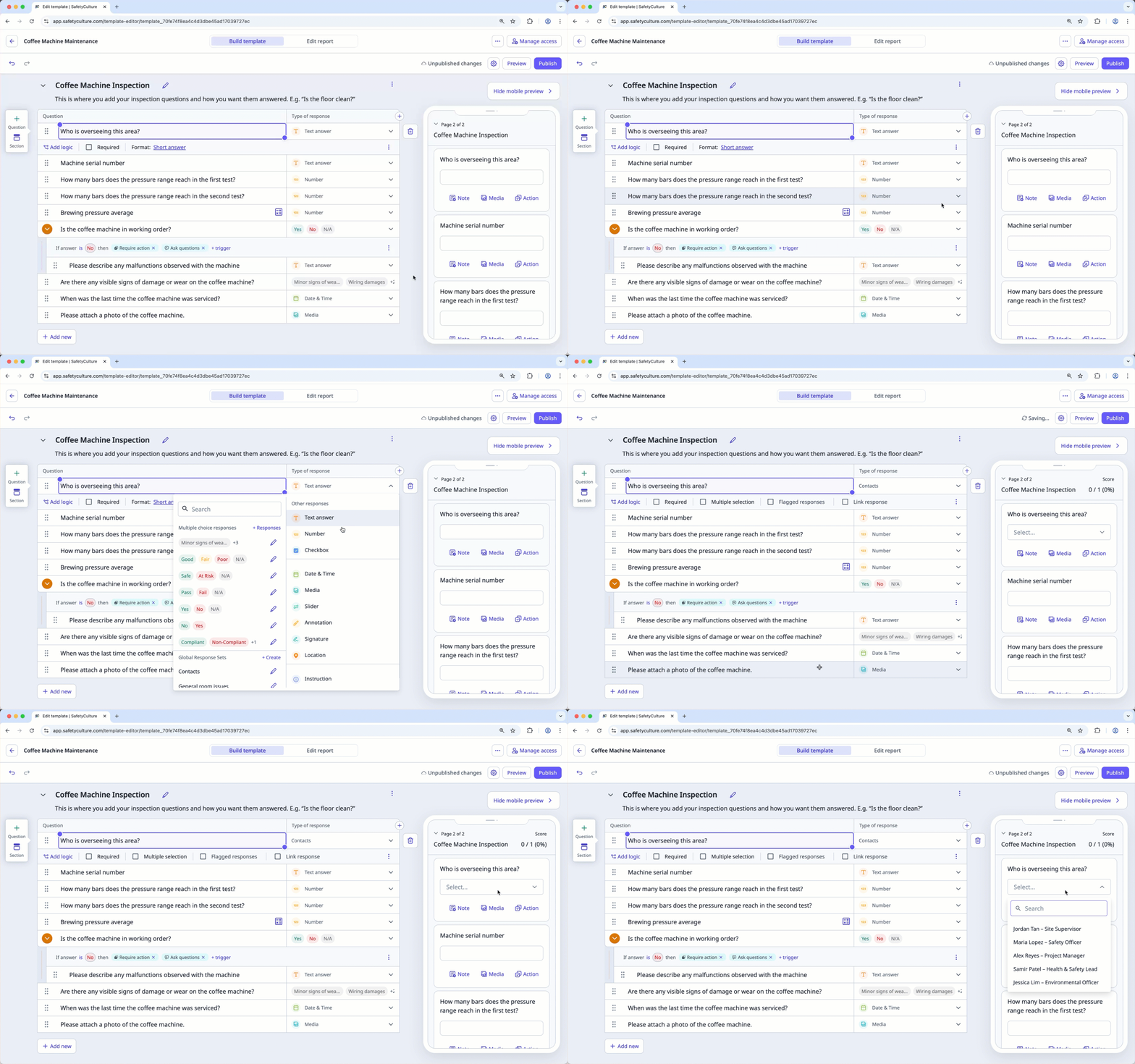
You can use Global Response Sets when linking responses in templates to automatically populate answers across related questions.
You can only create up to 2,000 Global Response Sets and have up to 15,000 responses in each one.
Selecting or editing a GRS in a template requires "Conduct, edit" template access level at a minimum.
Create a Global Response Set (GRS)
Select Templates in the sidebar or select it in More.
Select the Responses tab at the top of the page.
Click Create Global Response Set on the upper-right of the page.
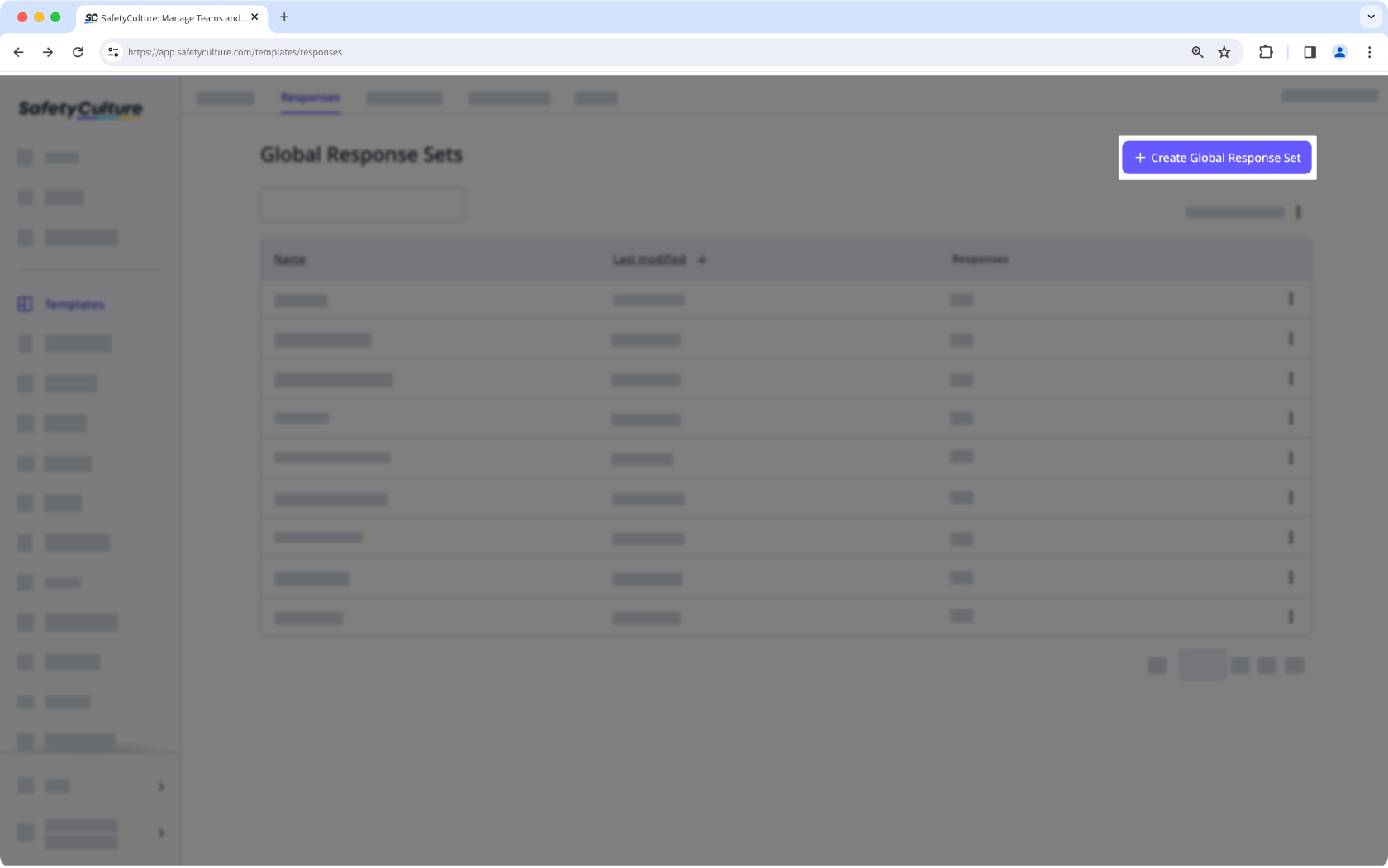
In the side panel, add responses accordingly.
Click Save and apply.
Once you create your Global Response Set, add it to your templates as multiple-choice questions.
Published changes made to templates only apply to new inspections moving forward.
Manage responses in a Global Response Set
Select Templates in the sidebar or select it in More.
Select the Responses tab at the top of the page.
Click the set from the list.
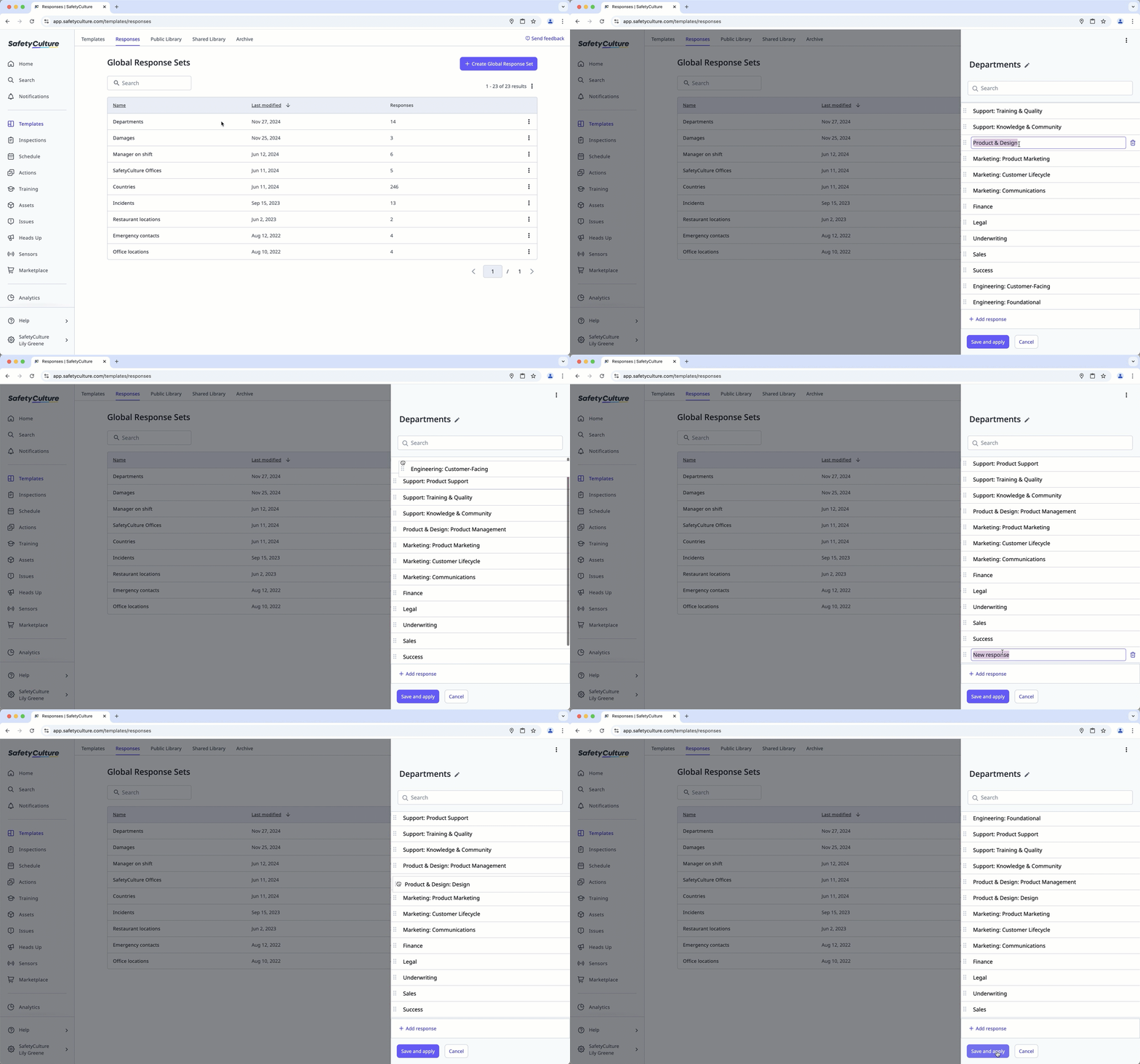
In the side panel, add and update responses accordingly.
Response label: Click a response to edit the label.
Rearrange a response: Click and hold next to a response to drop it into the desired position. Please note that rearranging your responses via drag and drop is not supported for GRSs containing more than 500 responses.
Add a response: Click Add response to add responses individually.
Delete a response: Click a response and click on the right-hand side to delete the response.
CSV Upload: You can add GRS responses in bulk via CSV upload.
Click Save and apply.
Manage responses in a Global Response Set in bulk via CSV
Select Templates in the sidebar or select it in More.
Select the Responses tab at the top of the page.
Click the Global Response Set you want to add a response to.
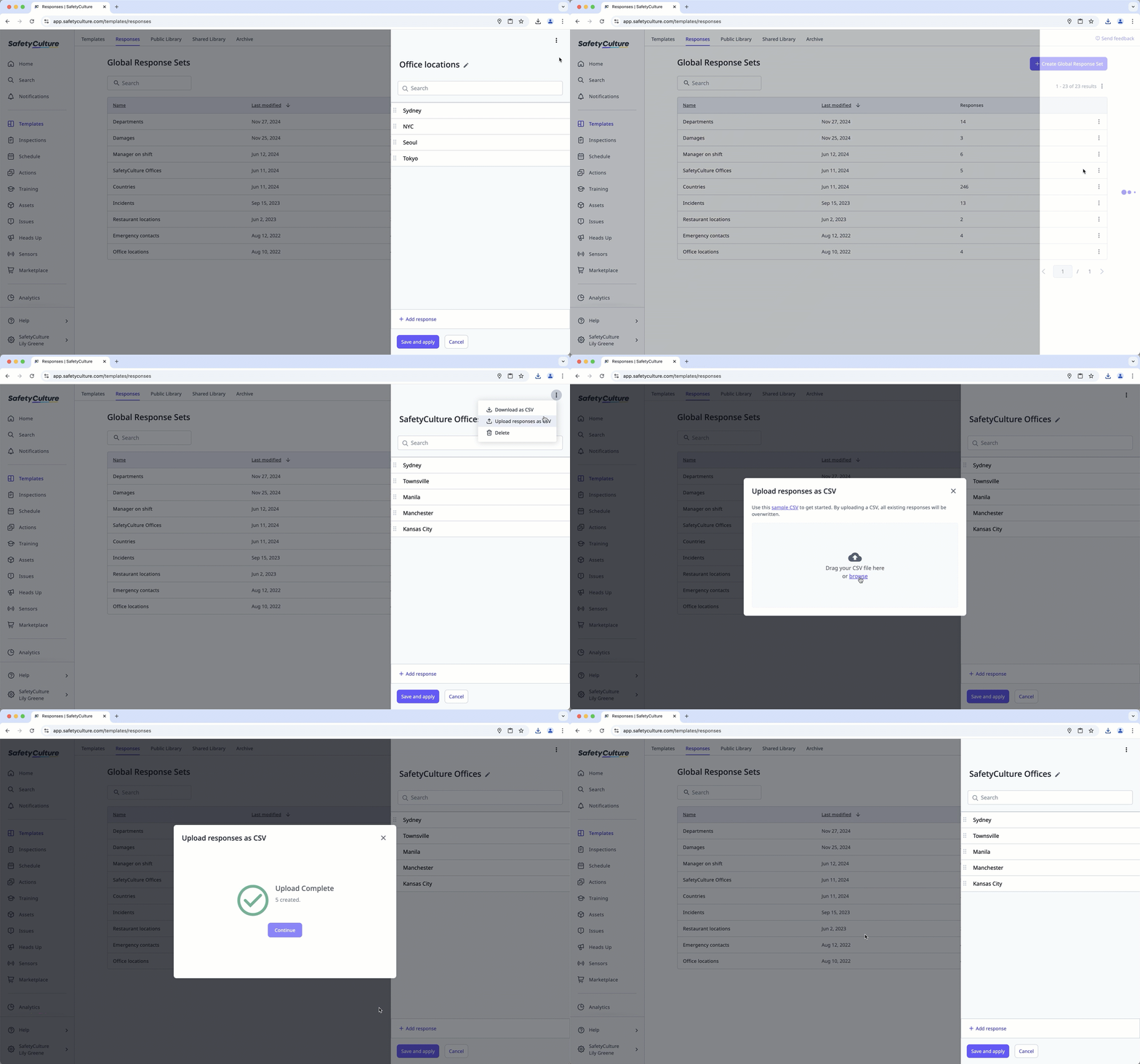
In the side panel, click in the upper-right and select Download as CSV.
Add each new response to your CSV as a new row under the "label" column and save your changes.
Select Upload responses as CSV.
Drag and drop your CSV file into the "Drag your CSV file here" box or click browse to select the file from your computer directory.
Click Save and apply.
Renaming or deleting responses will affect Analytics results when viewing data by inspection questions and responses. This may cause placeholders to appear instead of response labels, or lead to inaccurate counts.
Delete a Global Response Set
Select Templates in the sidebar or select it in More.
Select the Responses tab at the top of the page.
Click on the GRS's right-hand side and select Delete.
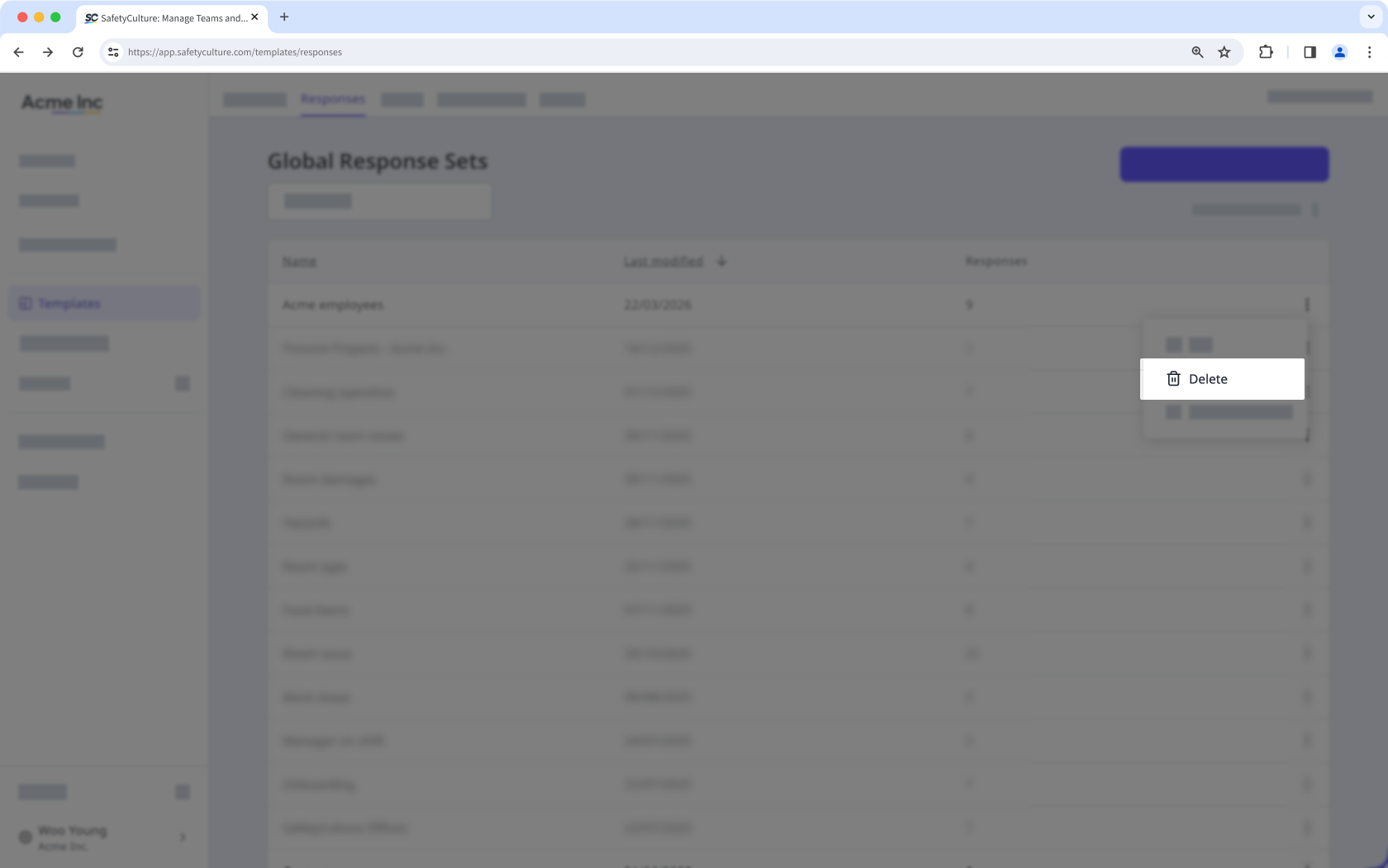
In the pop-up window, click Delete response set. If the GRS is still in use, click Edit template to remove the GRS from each template, then repeat from step 4.
Limitations
You can have up to 15,000 responses in each GRS.
GRS titles can have up to 50 characters.
Each GRS response has a fixed score value of 1. To use a different value, change the scoring at the question level.
GRS responses in inspections and reports use a fixed light gray color (#F7F8FC).


