Why mark questions as required or optional?
Marking questions as required or optional helps control the quality and completeness of your inspections. You can mark individual questions, groups of questions, or all questions in a template as required, while leaving non-critical questions optional. This ensures that critical information is always captured, and allows teams to skip information that is helpful but not essential.
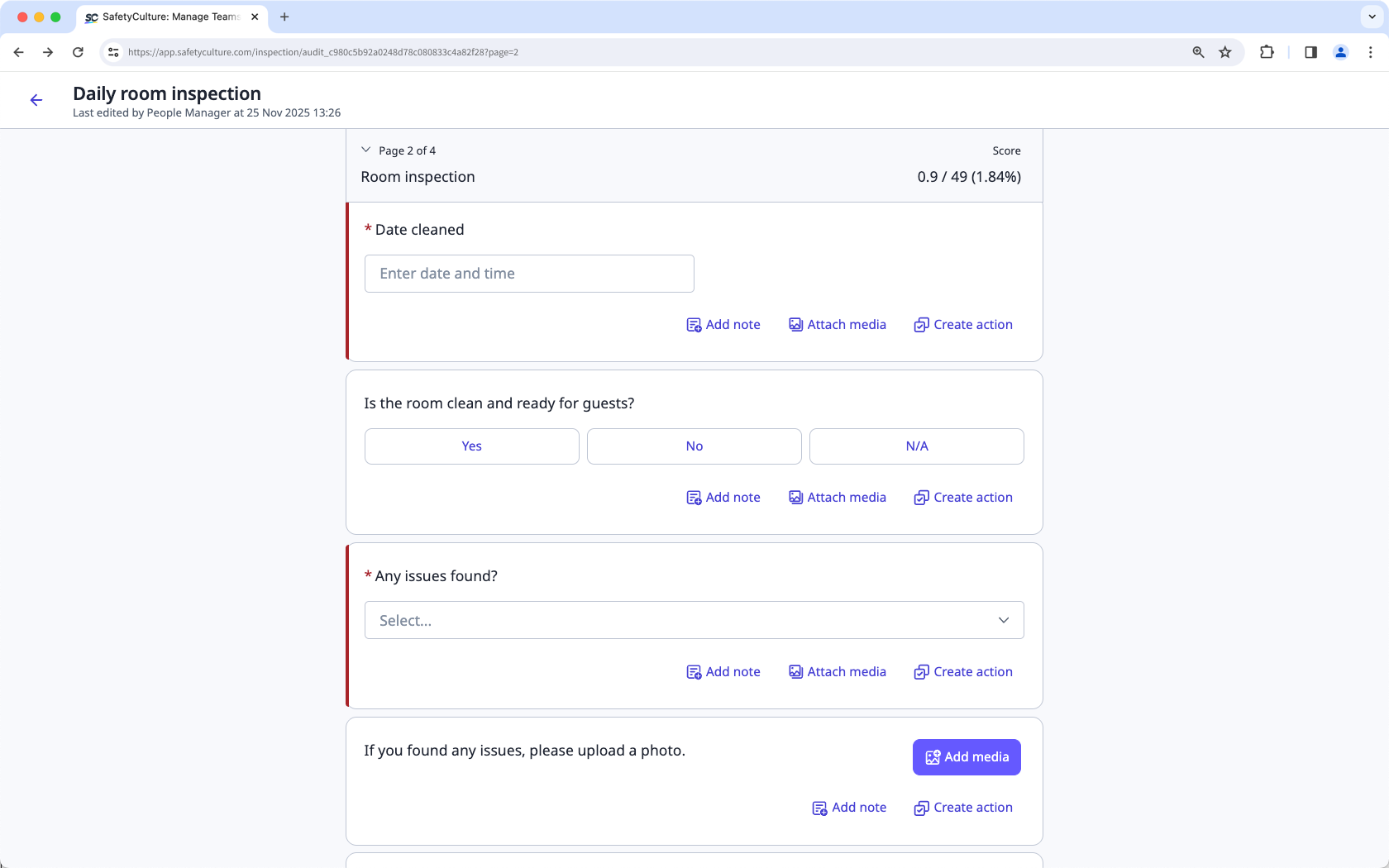
For example, in a room inspection, you can mark a question that asks to attach proof that the room is clean and ready to be occupied as required. This ensures that every inspection includes verified evidence before the room is approved, helping maintain consistency, accuracy, and accountability across your reports.
Document number, calculation, and target questions in a linked response can't be marked as required because they're auto-populated and rely on a referenced question. Instruction response type also can't be marked as required since they don't need a response.
What you'll need
Published changes made to templates only apply to new inspections moving forward.
Mark a question as required or optional
Select Templates in the sidebar or select it in More.
Click the template and select Edit template in the side panel.
Add a new question or select an existing one.
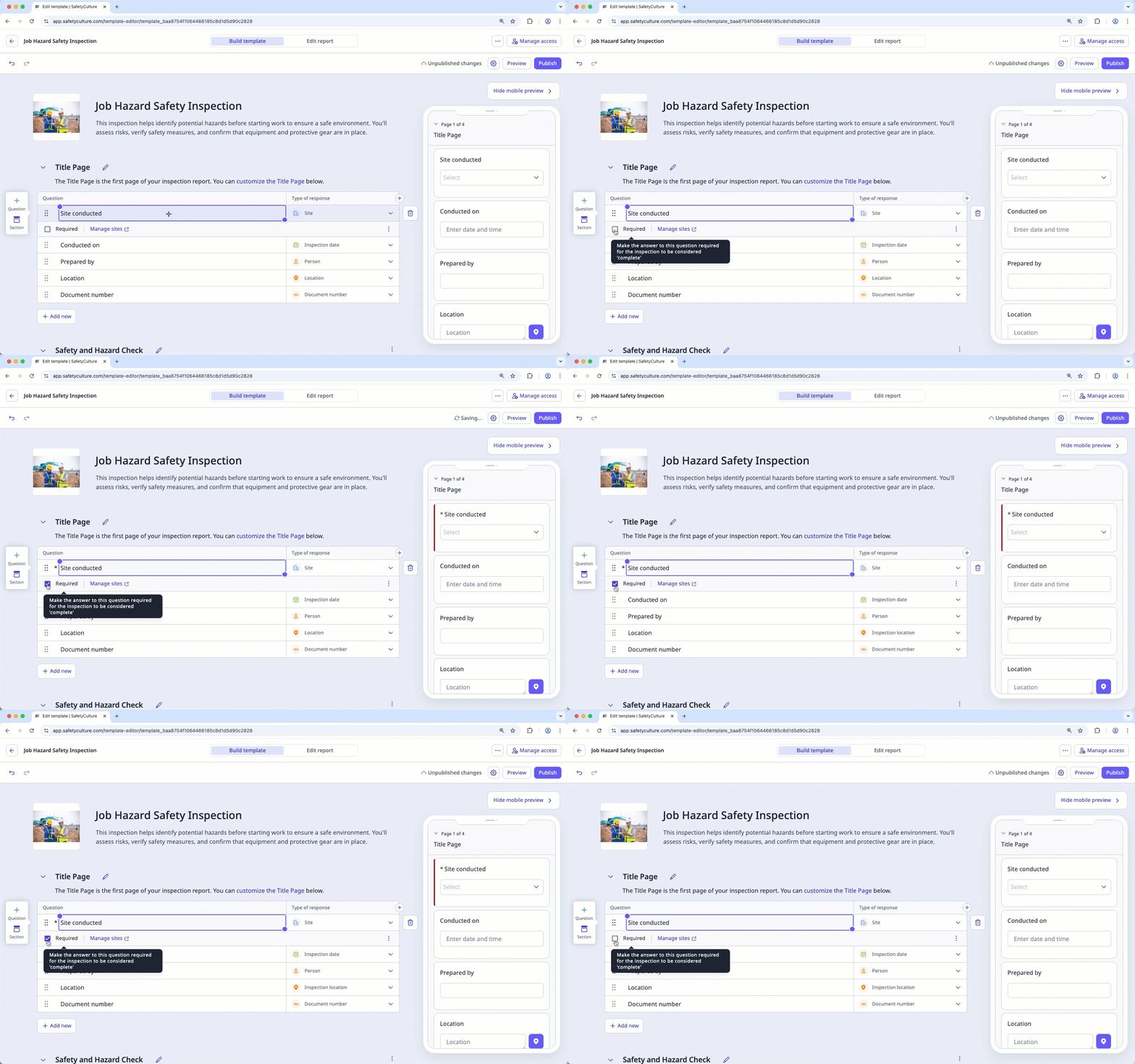
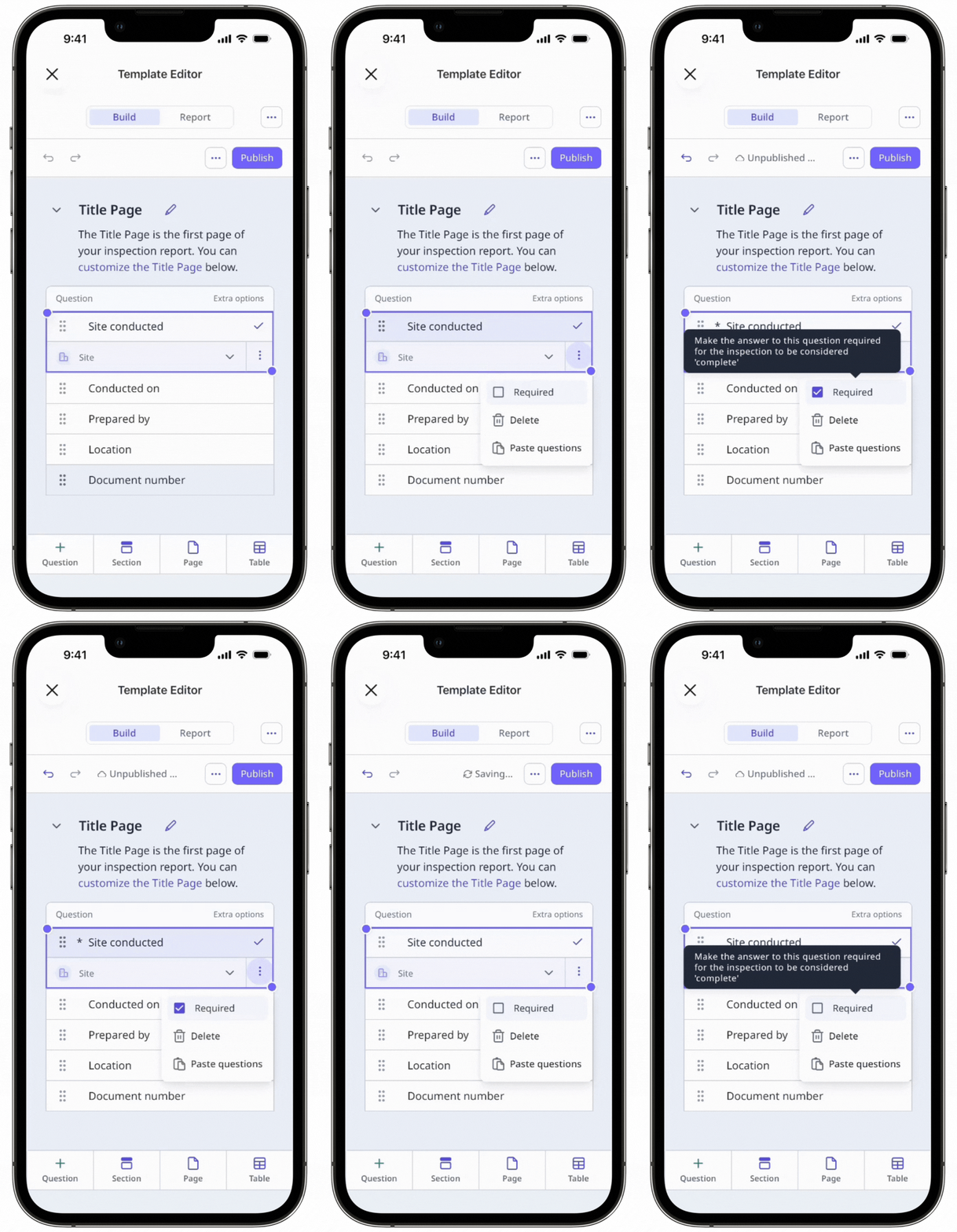
Check Required below the question to mark it as required or uncheck to mark as optional.
Click Publish on the upper-right of the page to publish the template. If you're not ready to publish the template, you can go back to the templates list and come back when you're ready.
Mark multiple questions as required or optional
Select Templates in the sidebar or select it in More.
Click the template and select Edit template in the side panel.
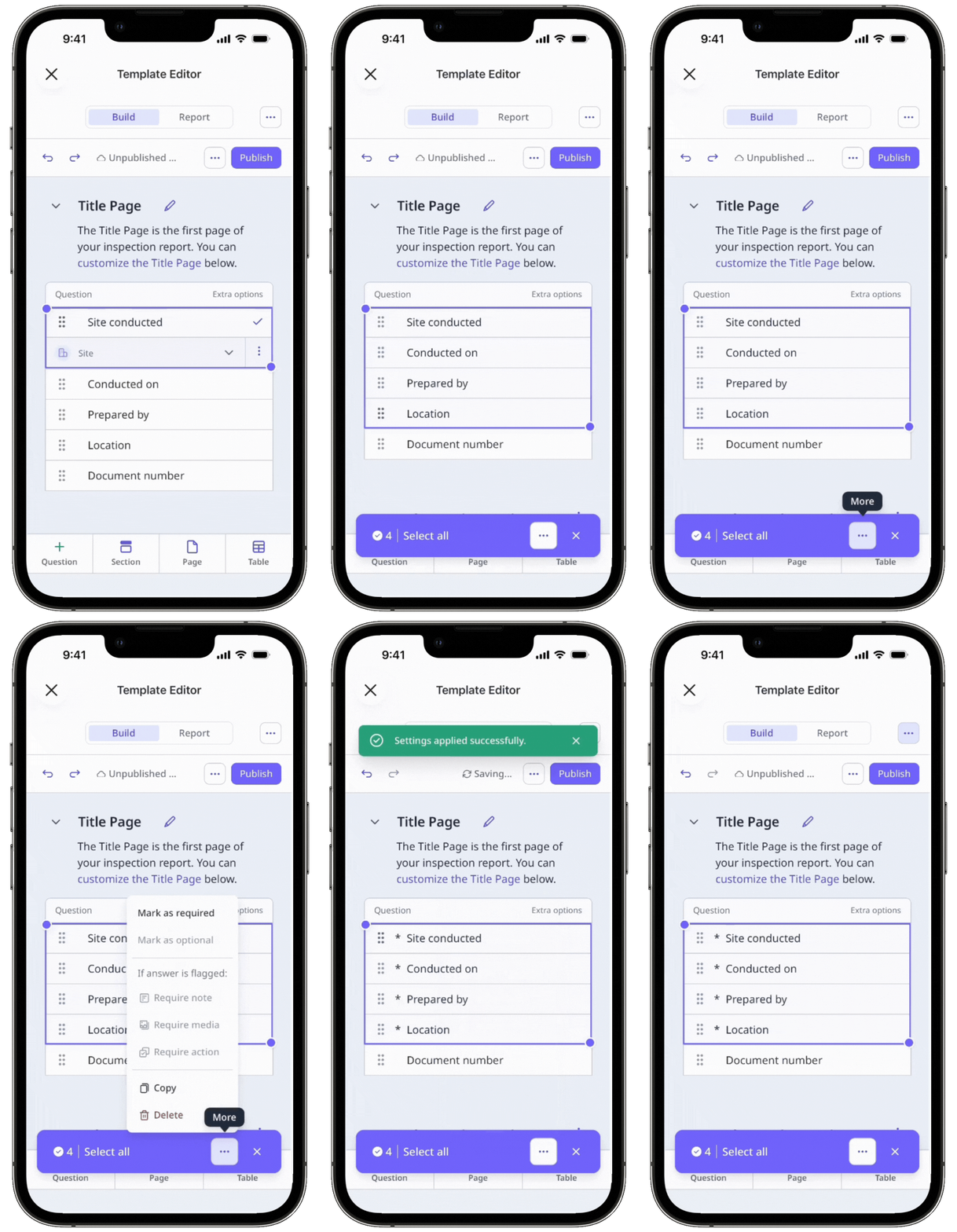
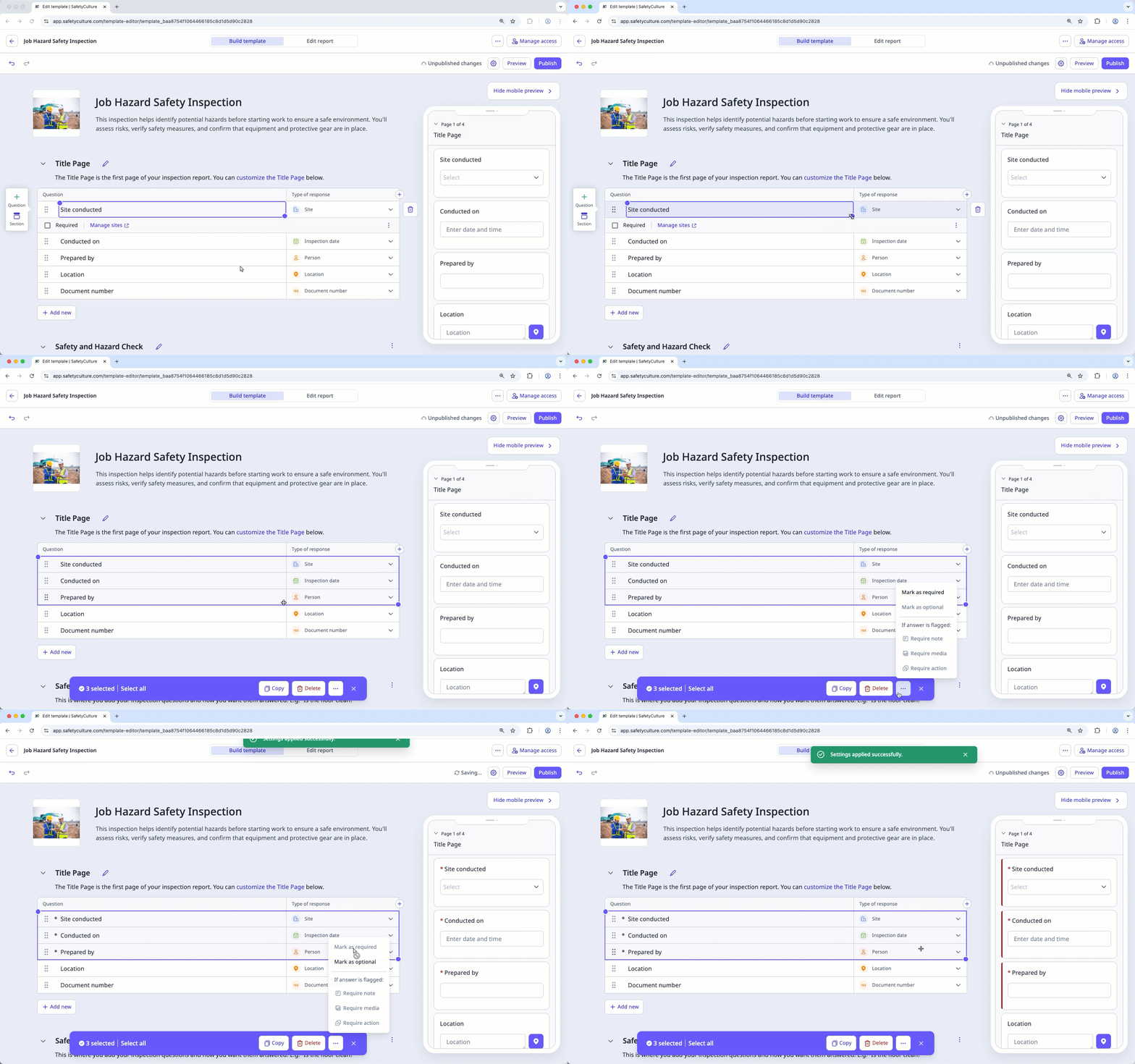
Mark selected questions or sections as required or optional.
Click a question or section, then click and drag your cursor on any other questions or sections you want to update.
Click at the bottom of the page.
Select Mark as required if the questions or sections are currently optional, or Mark as optional if they’re currently required.
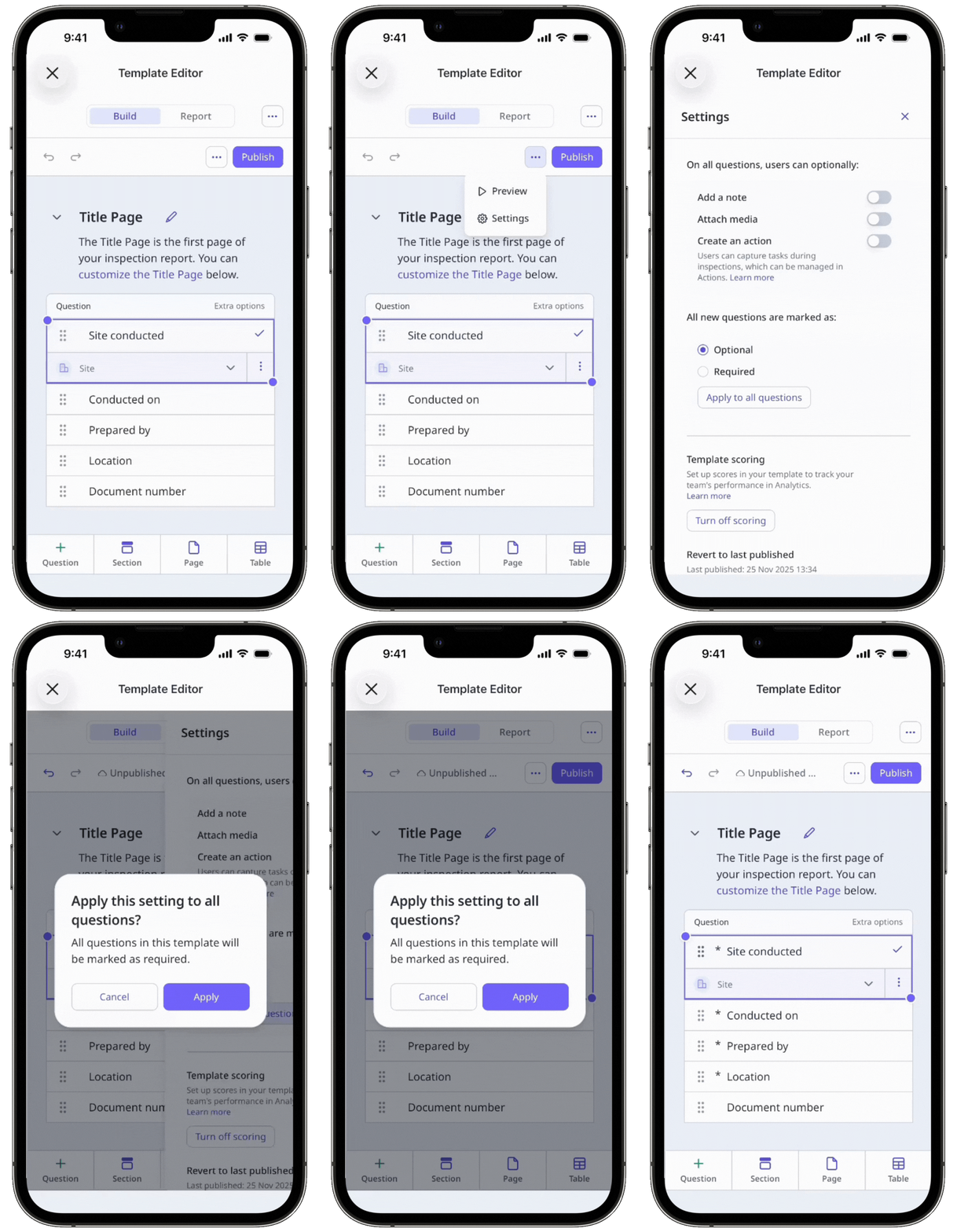
Alternatively, mark all questions in the template as required or optional.
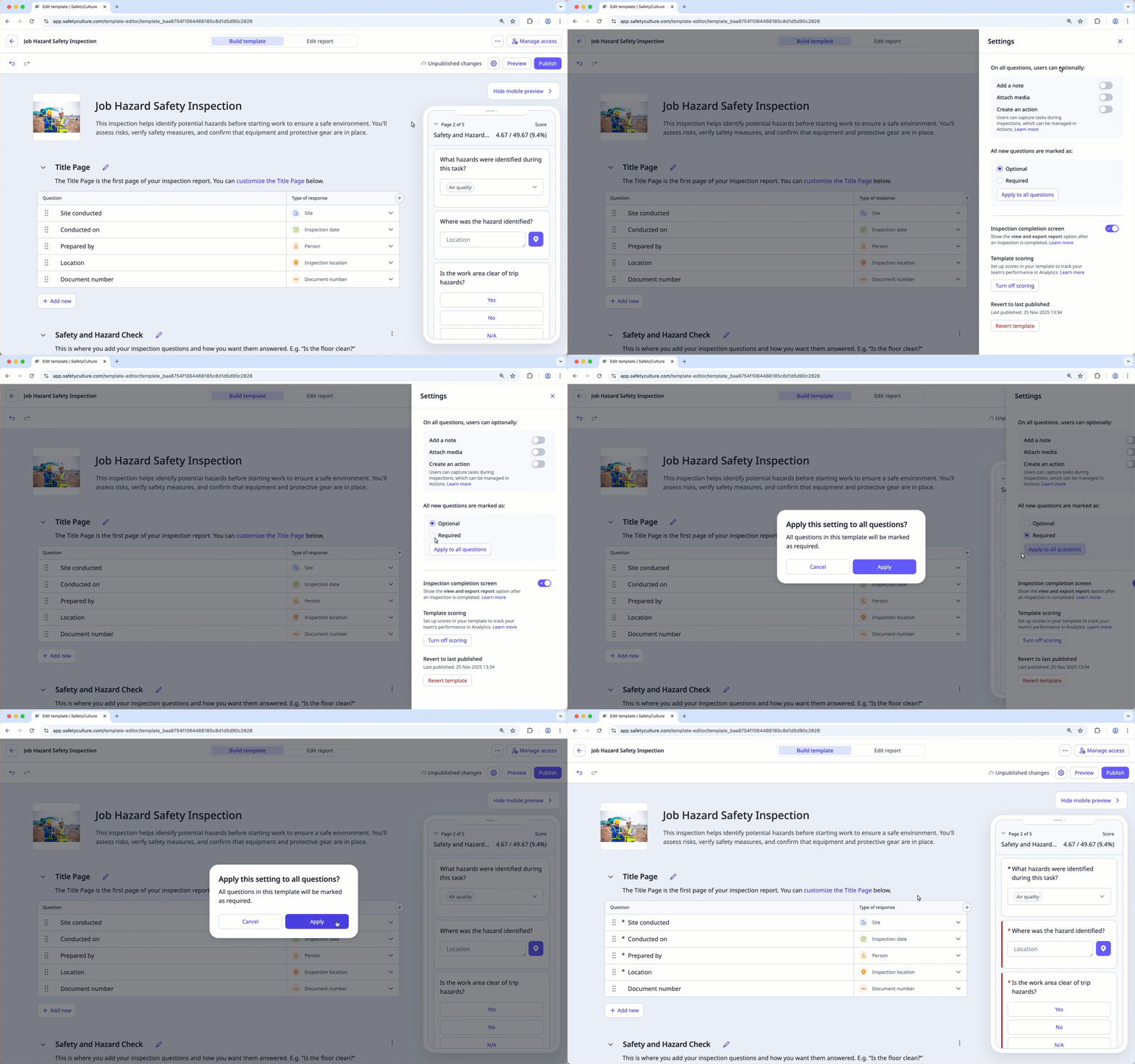
Click on the upper-right of the page.
In the side panel, select "Required" or "Optional".
Click Apply to all questions.
In the pop-up window, click Apply.
Click Publish on the upper-right of the page to publish the template. If you're not ready to publish the template, you can go back to the templates list and come back when you're ready.