Esta función se encuentra actualmente en Acceso temprano. Si le interesa, contacte con su gerente de éxito del cliente para verificar si su organización es elegible.
¿Cómo funciona el inicio de sesión con nombre de usuario?
Muchos trabajadores de primera línea no tienen una dirección de correo electrónico corporativa, pero necesitan acceso para realizar cursos de formación, completar acciones, mantenerse informados sobre las novedades de la organización y más. El inicio de sesión con nombre de usuario le permite crear cuentas para sus trabajadores de manera que puedan iniciar sesión con un nombre de usuario y una contraseña en lugar de una dirección de correo electrónico. Los trabajadores inician sesión con un nombre de usuario, como su identificación de empleado, a través de un enlace de inicio de sesión o un código QR específico de su organización.
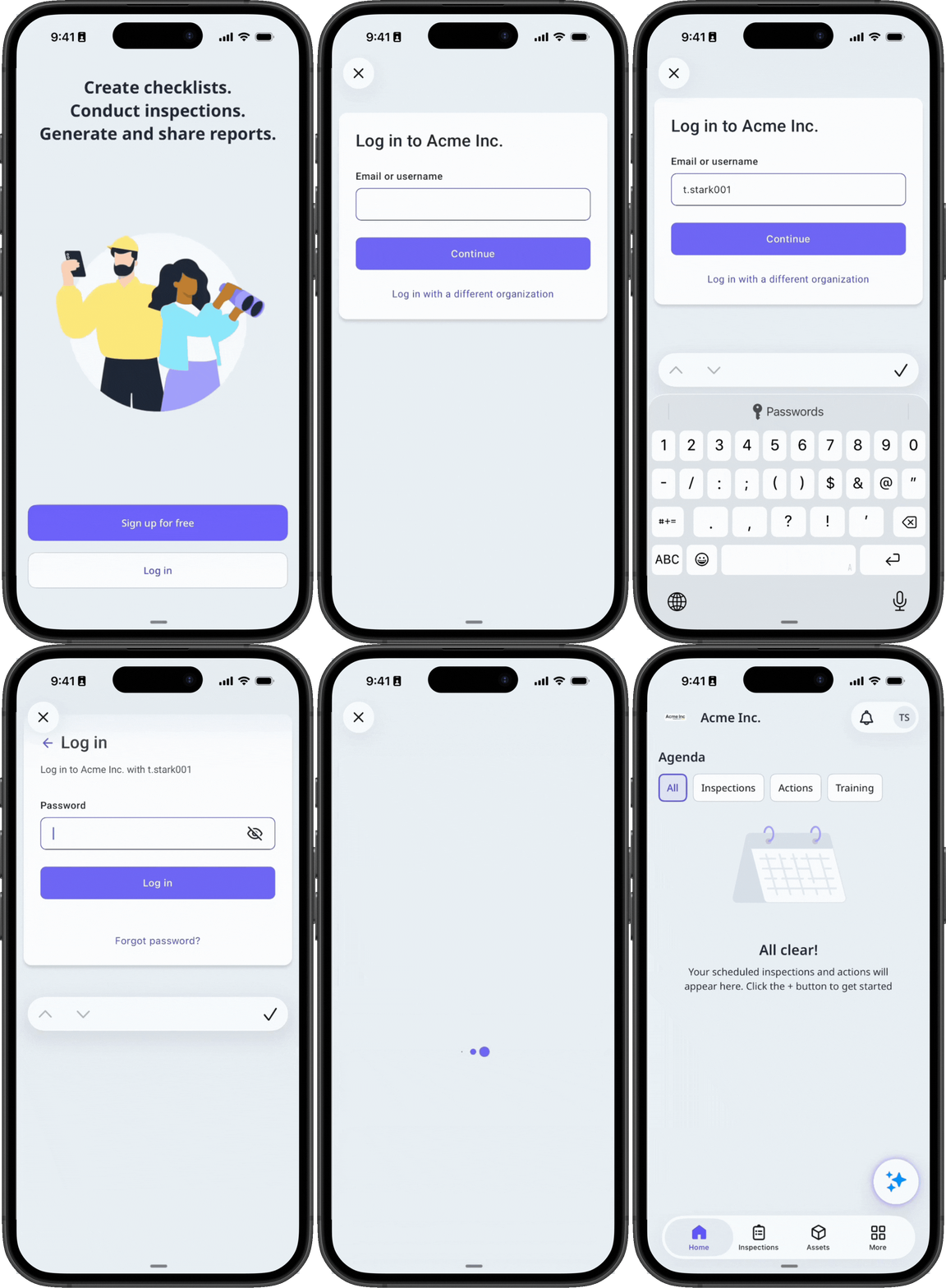
Empezar como administrador
Activar el inicio de sesión con nombre de usuario
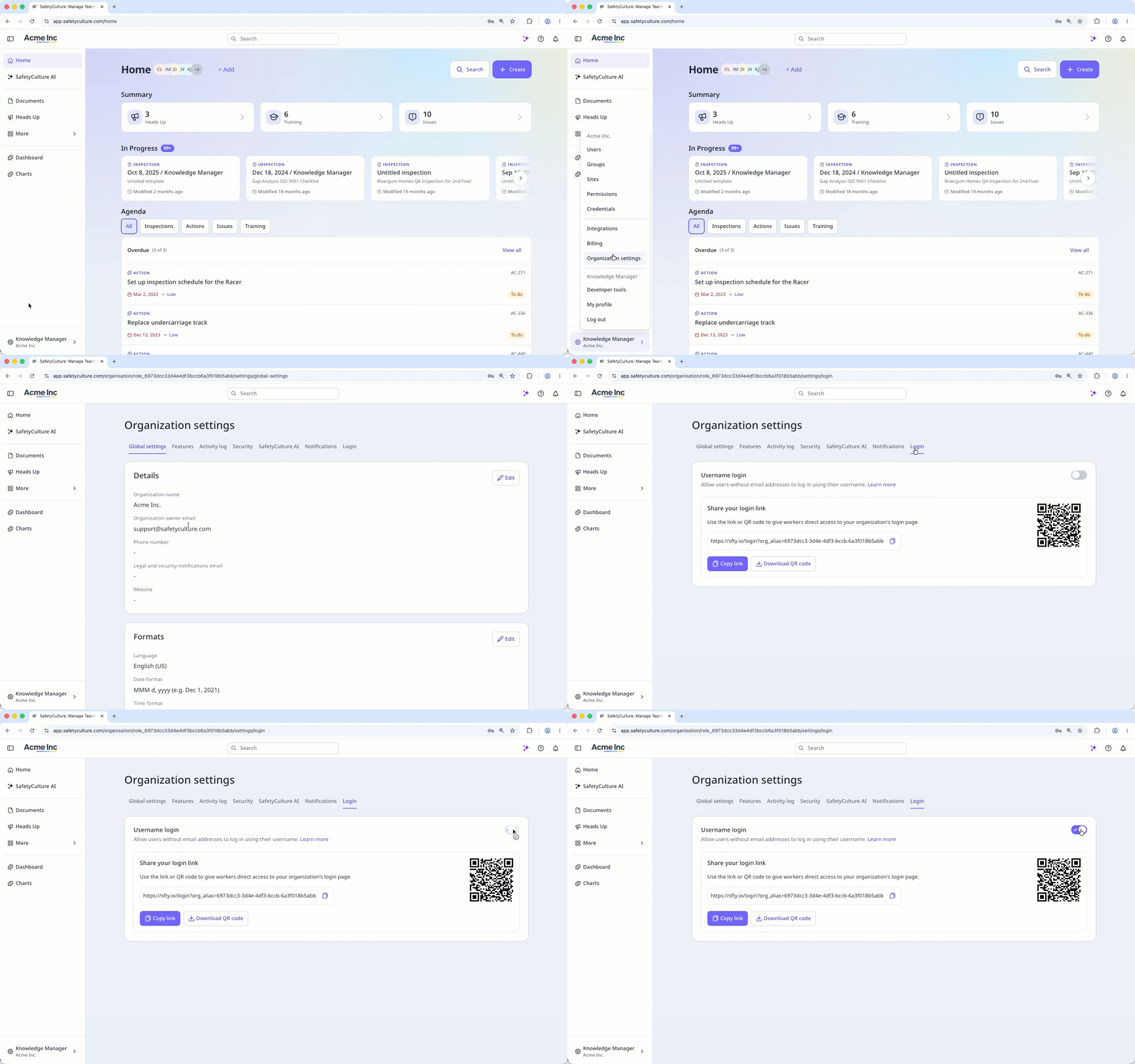
Haga clic en el nombre de su organización en la esquina inferior izquierda de la página y seleccione Ajustes de la organización.
Seleccione la pestaña Iniciar sesión en la parte superior de la página.
Active el ajuste «Inicio de sesión con nombre de usuario».
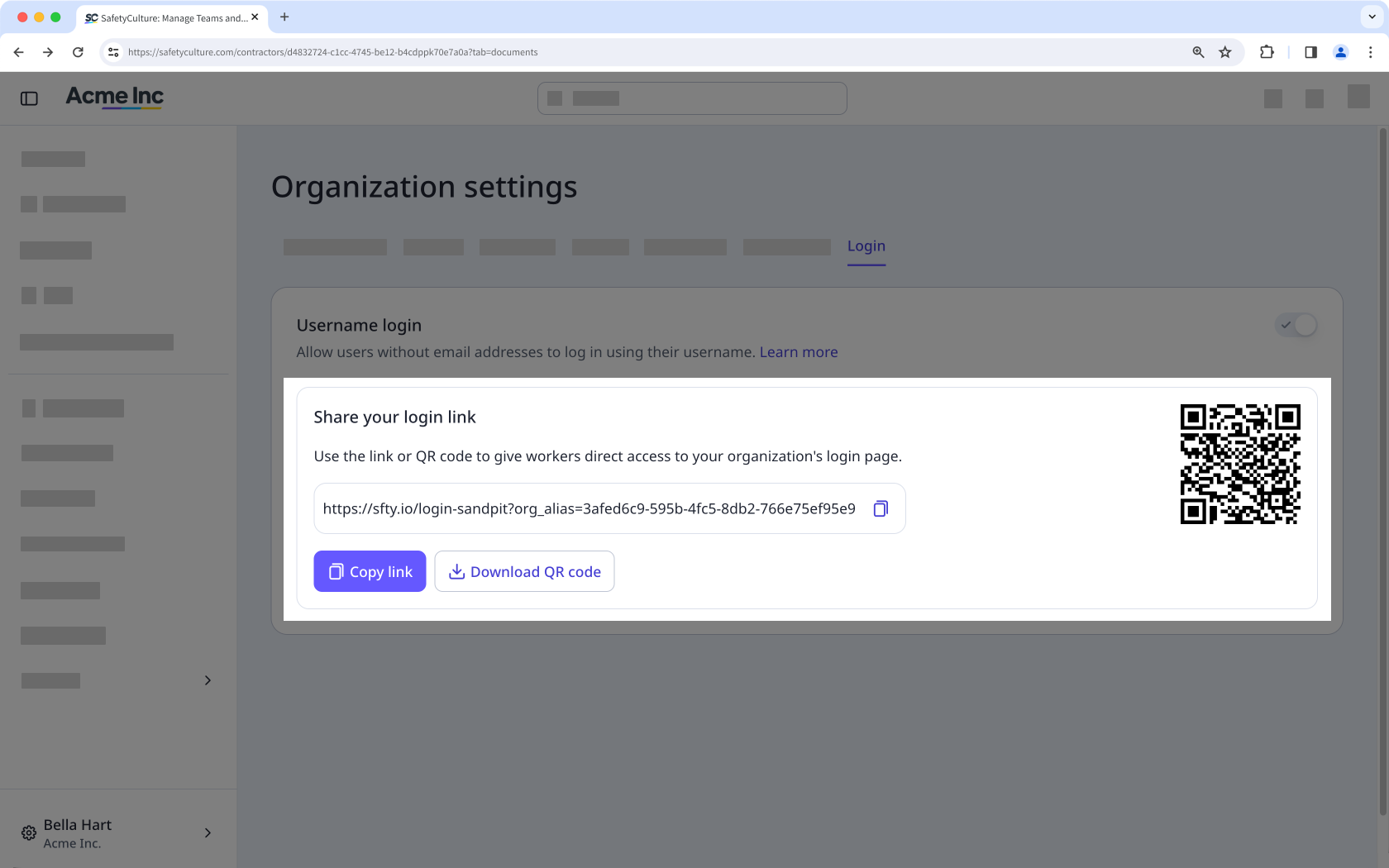
Copie el enlace de inicio de sesión o descargue el código QR para compartirlo con sus usuarios.
Si más adelante desea desactivar el inicio de sesión con nombre de usuario, añada una dirección de correo electrónico a cada trabajador que no la tenga, o desactívelos primero.
Si el conjunto de permisos predeterminado de su organización para las Licencias Completas incluye los permisos "Gestión de plataforma" o "Anular permisos", deberá eliminarlos, ya que los usuarios sin dirección de correo electrónico no pueden tener estos permisos.
Los usuarios sin dirección de correo electrónico solo pueden iniciar sesión mediante el enlace de inicio de sesión específico de la organización o el código QR. No pueden acceder a la plataforma desde la página de inicio de sesión predeterminada.
Share your login link
Once you turn the setting on, share your organization's login link or QR code with your users so they can sign in. This link is specific to your organization and different from an invite link, which is for users with an email address.
Añadir un usuario con inicio de sesión con nombre de usuario
Para los nuevos miembros del equipo que se vayan uniendo con el tiempo, puede añadir usuarios sin dirección de correo electrónico de uno en uno.
Haga clic en el nombre de su organización en la esquina inferior izquierda de la página y seleccione Usuarios.
Haga clic en Añadir usuarios en la esquina superior derecha de la página.
Rellene los datos del usuario según corresponda. Puede seleccionar el tipo de licencia del usuario si su organización está en Plan Premium o Plan Enterprise.
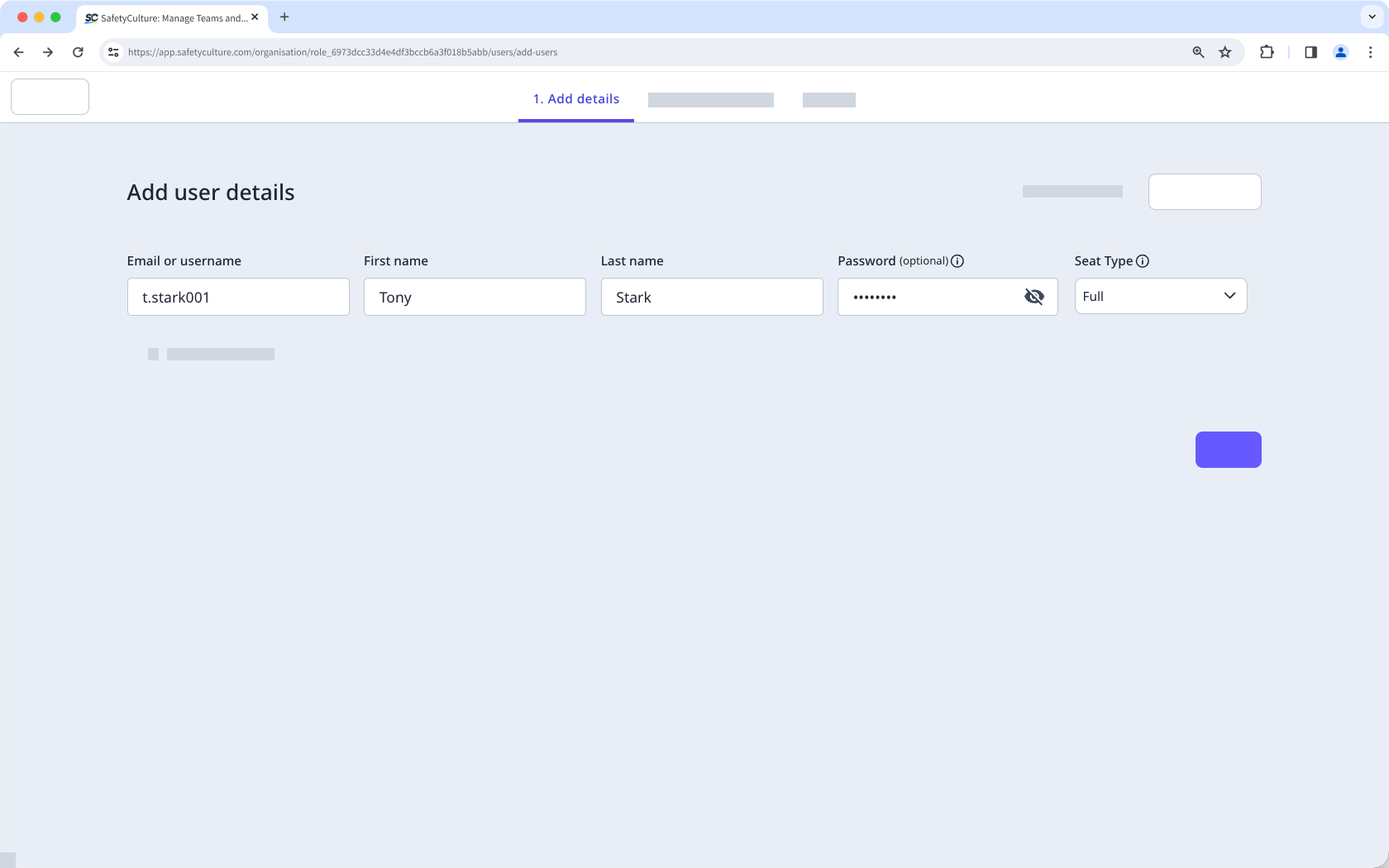
A los usuarios sin dirección de correo electrónico no se les puede asignar el conjunto de permisos «Administrador» ni ningún conjunto de permisos que incluya los permisos «Gestión de plataforma» o «Anular permisos».
Actualizar un usuario con inicio de sesión con nombre de usuario
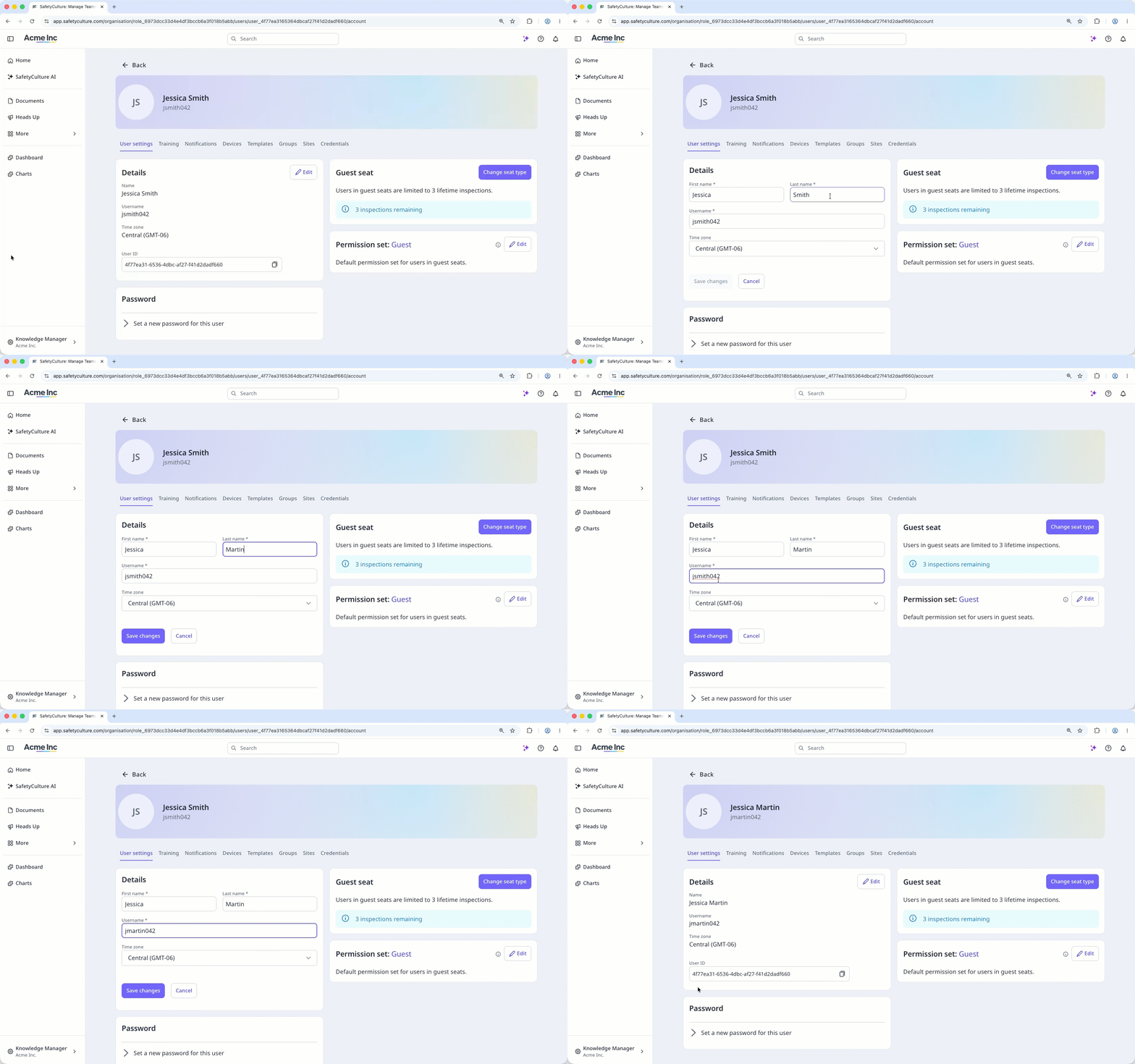
Los administradores pueden actualizar los datos de un usuario, como cambiar el nombre de usuario o configurar la contraseña, desde el perfil del usuario. Los usuarios sin dirección de correo electrónico no pueden cambiar su propio nombre de usuario.
Haga clic en el nombre de su organización en la esquina inferior izquierda de la página y seleccione Usuarios.
Haga clic en el nombre del usuario.
Haga clic en Ajustes en la parte superior derecha de la página.
En la sección de "Ajustes de usuario", haga clic en Editar y actualice los datos del usuario. Luego, haga clic en Guardar cambios.
Empezar como usuario
Iniciar sesión con un nombre de usuario
Establecer una nueva contraseña
Añada un número de móvil para notificaciones
Log in with a username
Log in with a username using the link or QR code your admin shares, then enter your username and password. You get full access to SafetyCulture right away, without needing an email address of your own.
Set a new password on first login
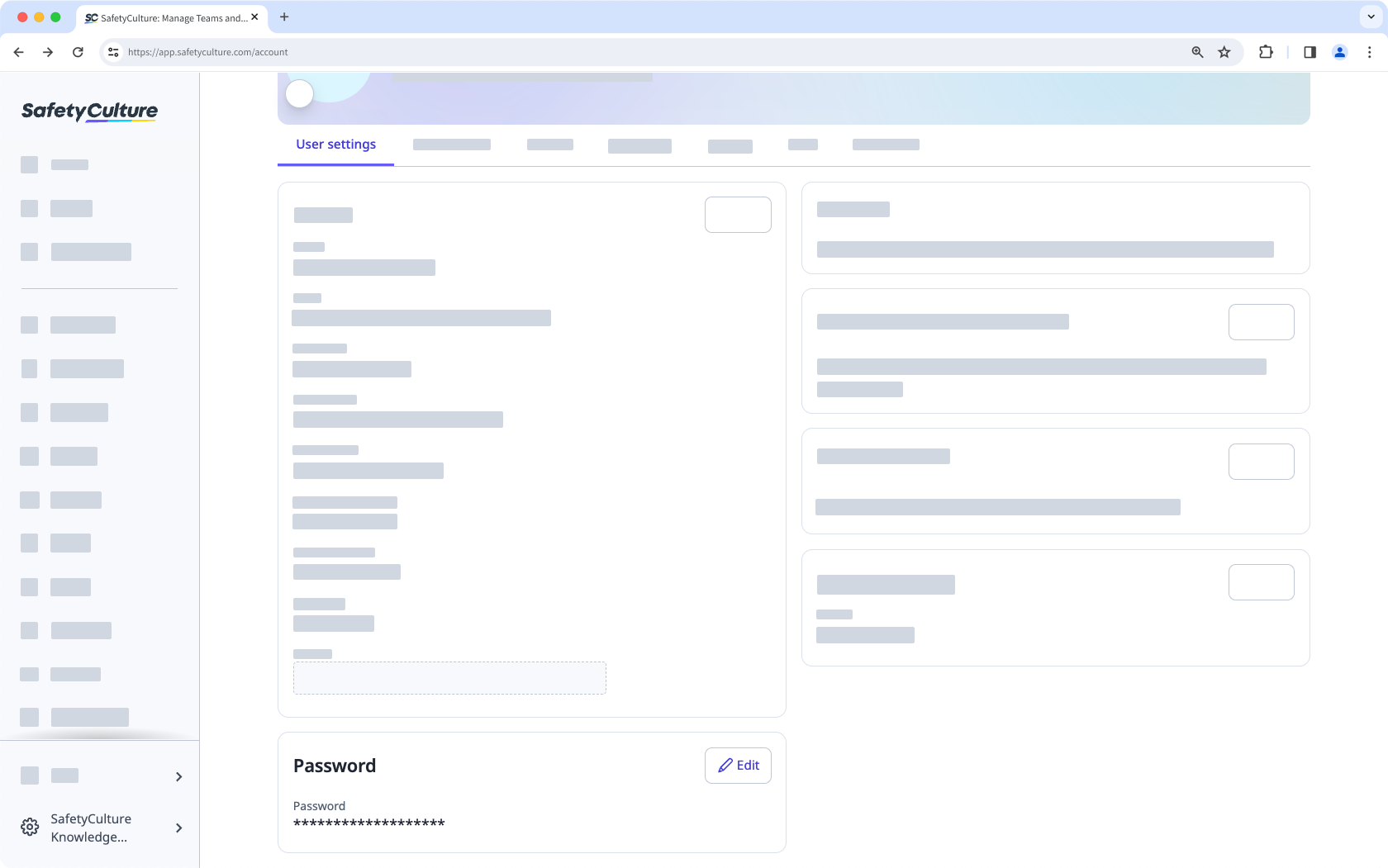
If your admin requires a password reset, you'll need to create a new password the first time you log in. Otherwise, you can keep using your current password, or change it whenever you like from your account settings.
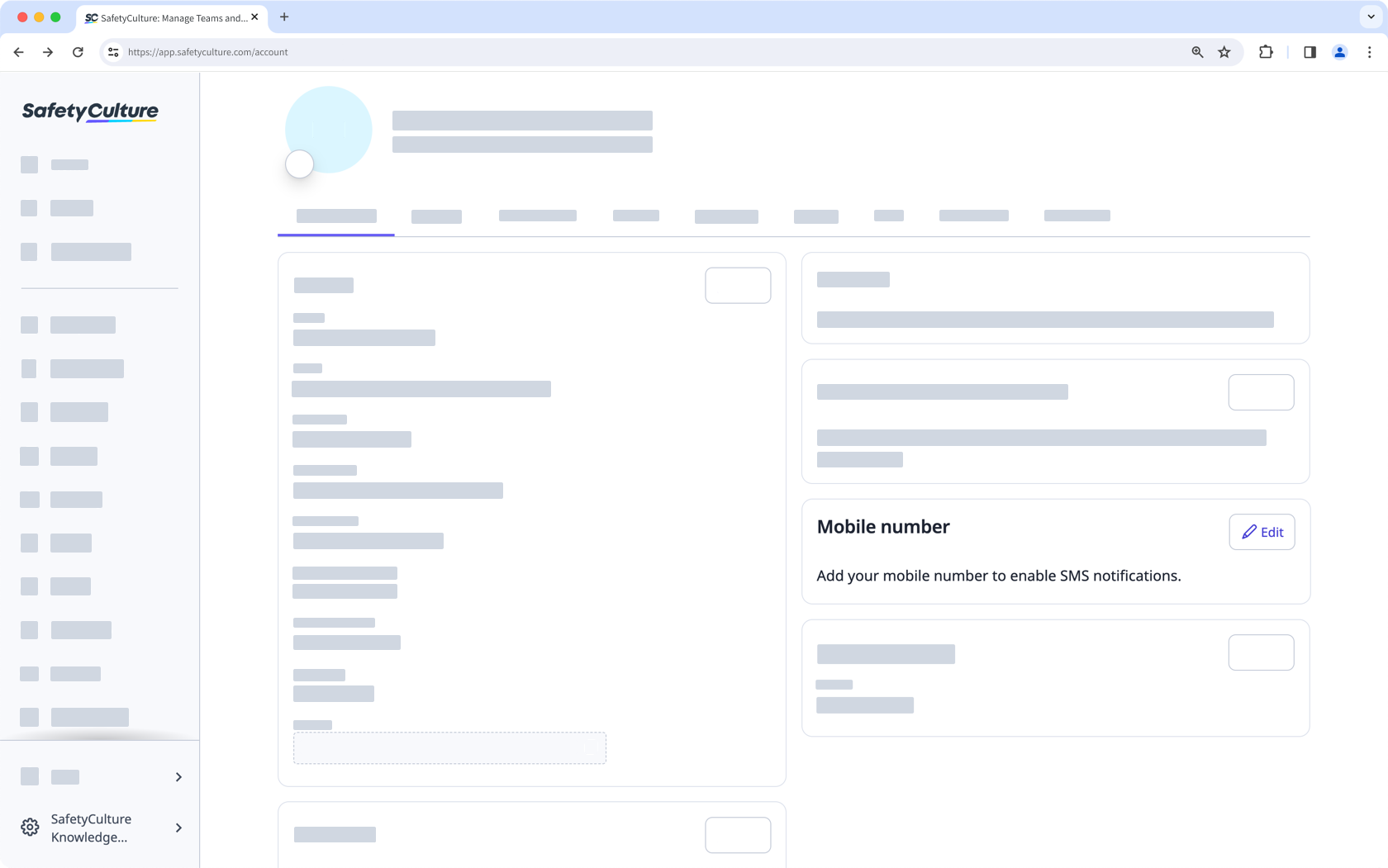
Add a mobile number for notifications
You get push notifications by default on the mobile app. Add a mobile number to also receive SMS notifications.
La aplicación móvil recuerda su organización tras tu primer inicio de sesión. No volverá a necesitar el enlace ni el código QR, a menos que utilice otro dispositivo.
Limitations
Username login doesn't support Single sign-on (SSO) or email-based password recovery.
Username login users don't receive email notifications, though they still get push notifications on the mobile app and can add a mobile number for SMS.
They can't be assigned "Platform management" or "Override permissions" permissions, or belong to multiple organizations.
They also can't change their own username. An admin needs to update it for them.