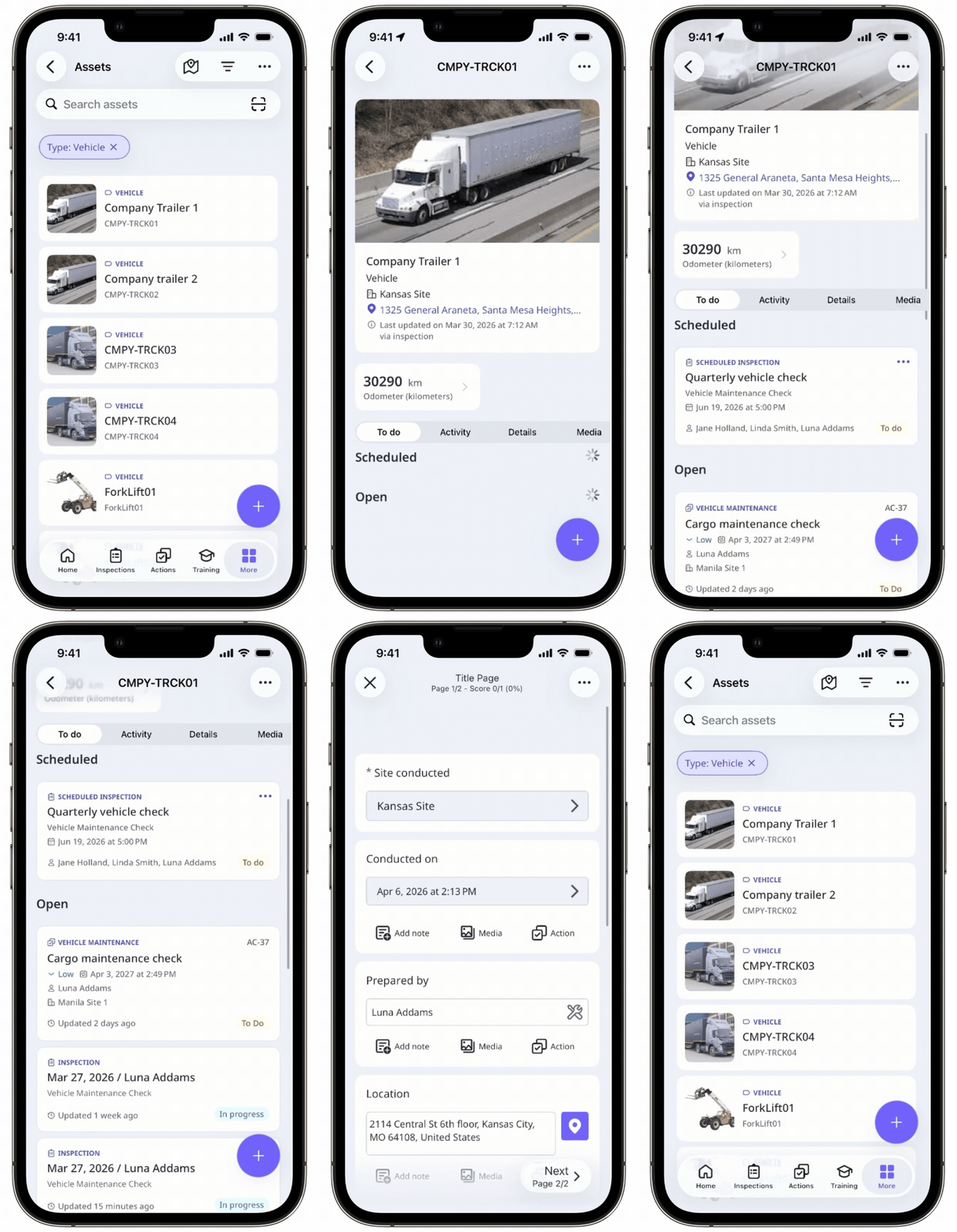
Why start inspections from assets?
Starting an inspection directly from an asset allows you to capture all data and readings attributed to the right asset every time. Adding asset questions to your templates ensures that each inspection consistently collects data about the same asset. This gives your team a reliable way to track each asset's performance and condition, whether you're managing one or multiple assets across sites.
For example, a site supervisor performing routine checks on heavy equipment can always log readings against the correct machine without manual input. This makes it easier to spot recurring issues and prioritize maintenance for specific assets to keep them running reliably.
What are the differences between an inspection and a scheduled inspection?
Inspections and scheduled inspections are both used to capture data and populate reports, but they differ in how they're created and managed.
Inspection | Scheduled inspection | |
|---|---|---|
How it's created | A user can create an inspection linked to an asset manually at any time. | Schedule inspections are generated from a recurring schedule linked to an asset. |
Due date | There's no set due date. Users can start it when they need to. | Due dates are set based on the schedule. |
Linked details | No details are pre-filled and users need to input them manually. | Pre-filled with an asset, assignee, and due date. |
Best for | One-off checks, check-ins, or as part of a spot check. | Recurring checks your team needs to stay on top of. |
What you'll need
Start an inspection from an asset
Select Assets in the sidebar or select it in More.
You can choose how you want to view your assets by selecting Table, Gallery, or Map on the upper-right of the page. You can also filter by type or site.
Search and select the asset.
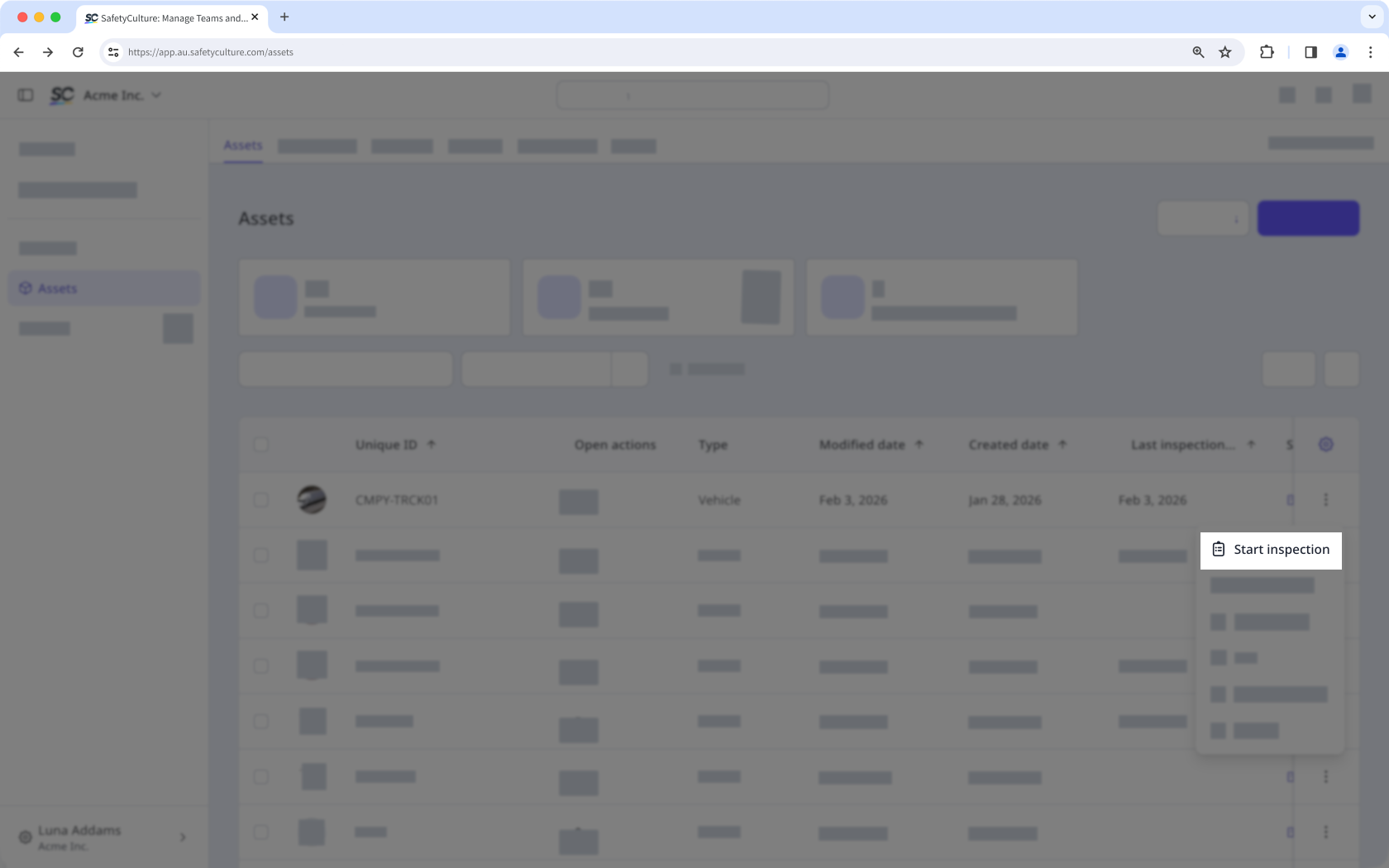
Click on the asset's right-hand side and select Start inspection.
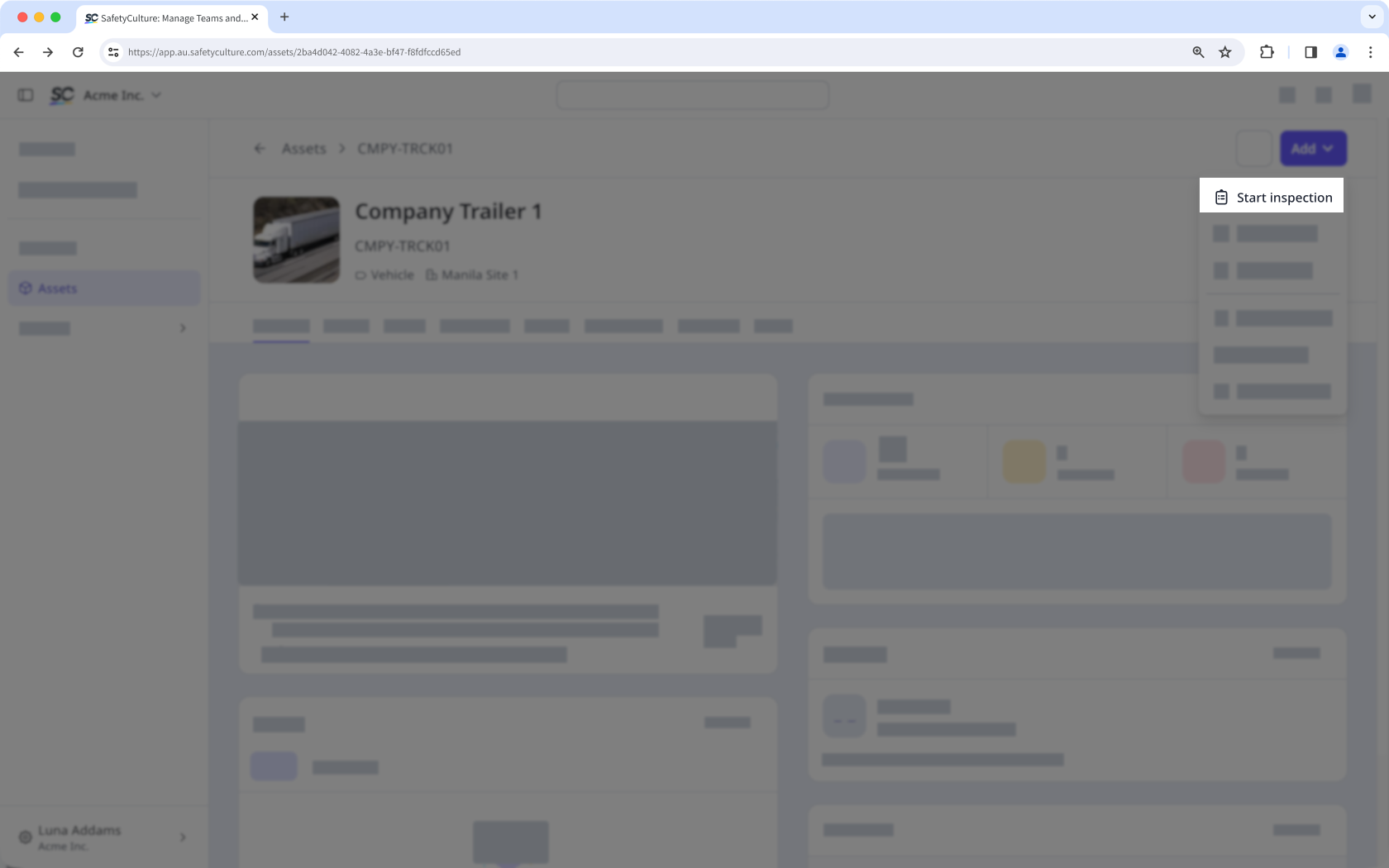
Alternatively, click Add on the upper-right corner of the page and select Start inspection.
In the pop-up window, click the dropdown menu and select a linked template or search for one that you want to use.
Click Start inspection.
Progress through the inspection accordingly.
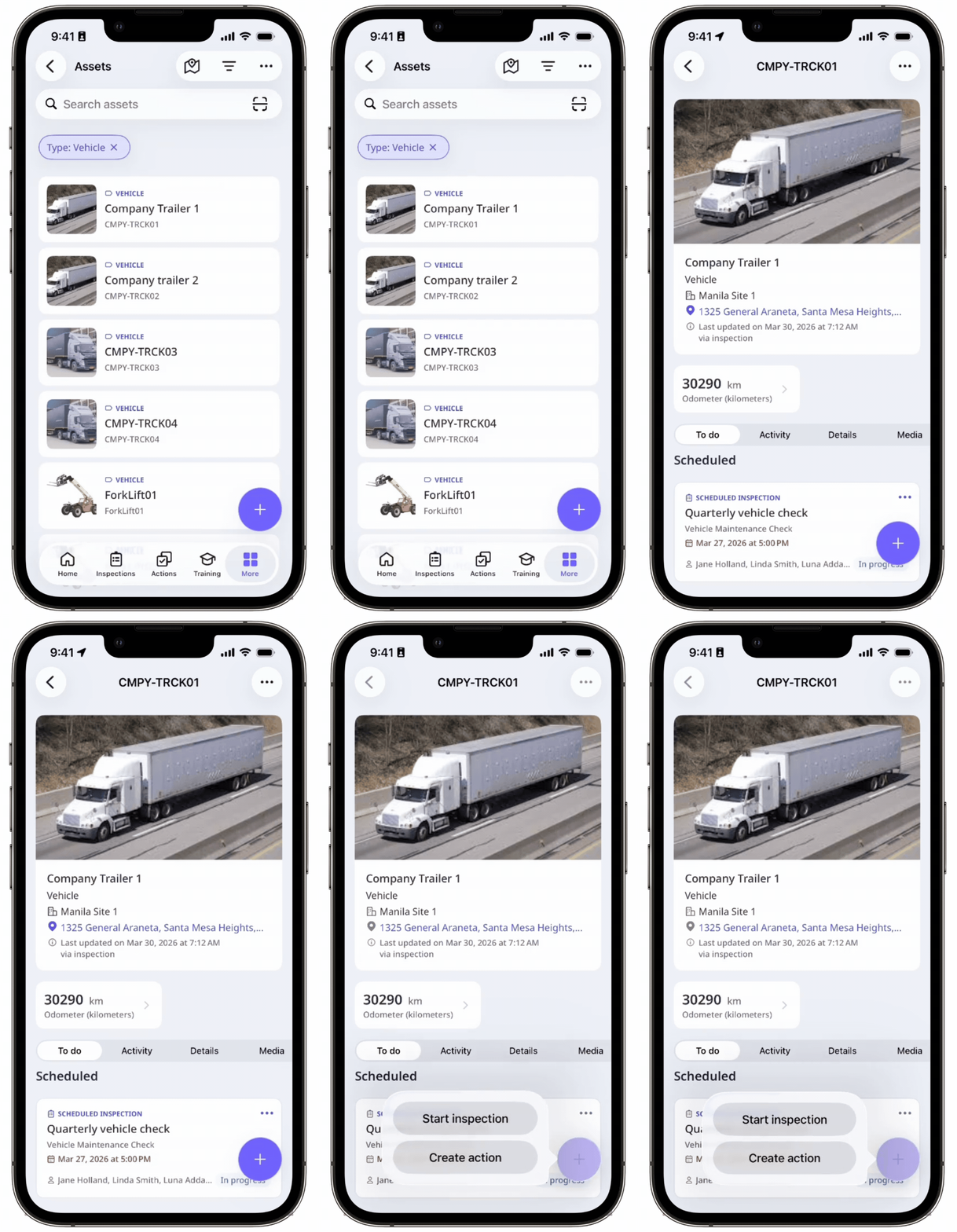
You can start a scheduled inspection from an asset only if you are assigned to the schedule.
Start a scheduled inspection from an asset
Select Assets in the sidebar or select it in More.
You can choose how you want to view your assets by selecting Table, Gallery, or Map on the upper-right of the page. You can also filter by type or site.
Search and select the asset.
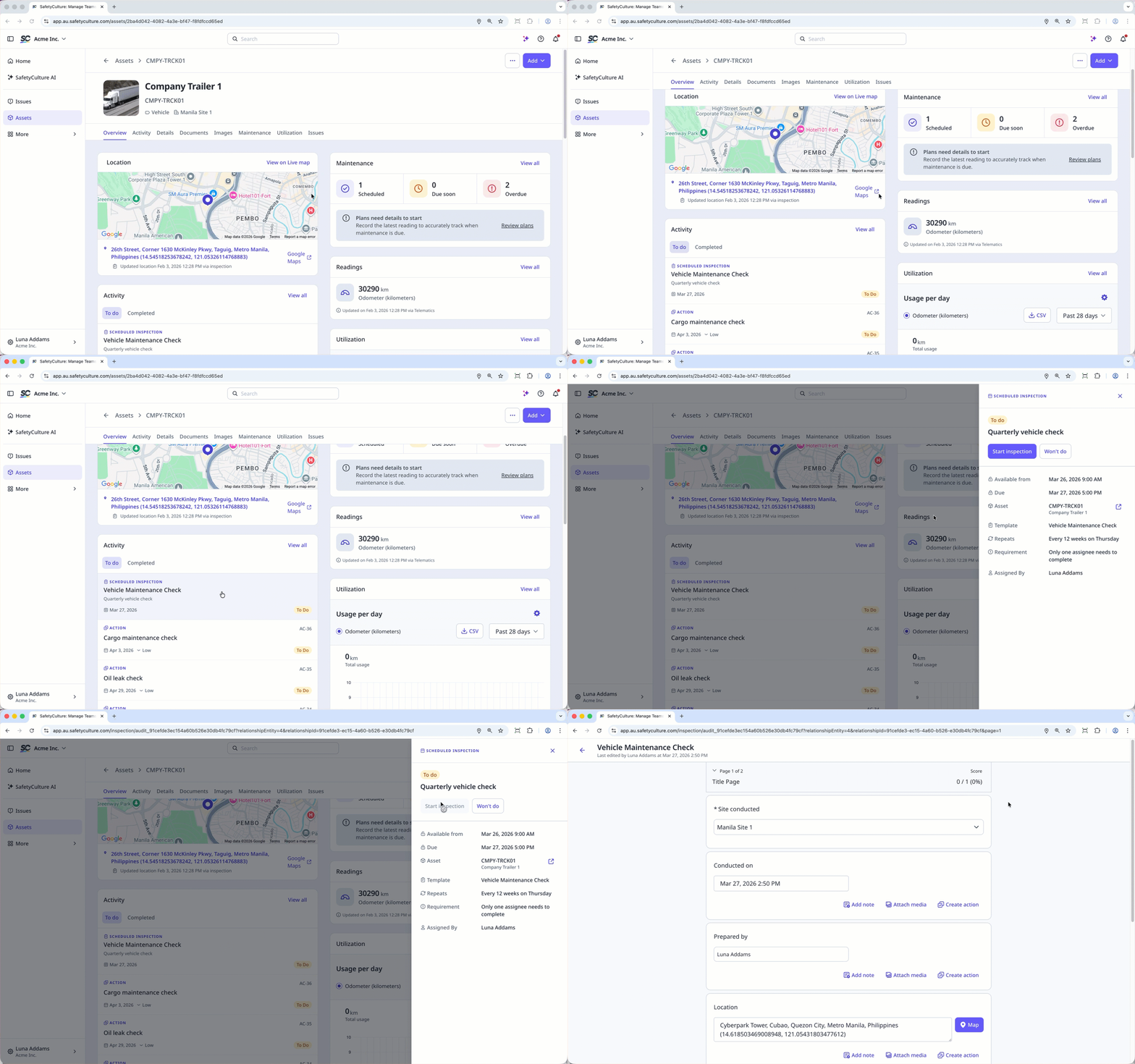
In the Overview tab, go to the "Activity" section and select the scheduled inspection.
Alternatively, click the Activity tab at the top of the page and select the scheduled inspection.
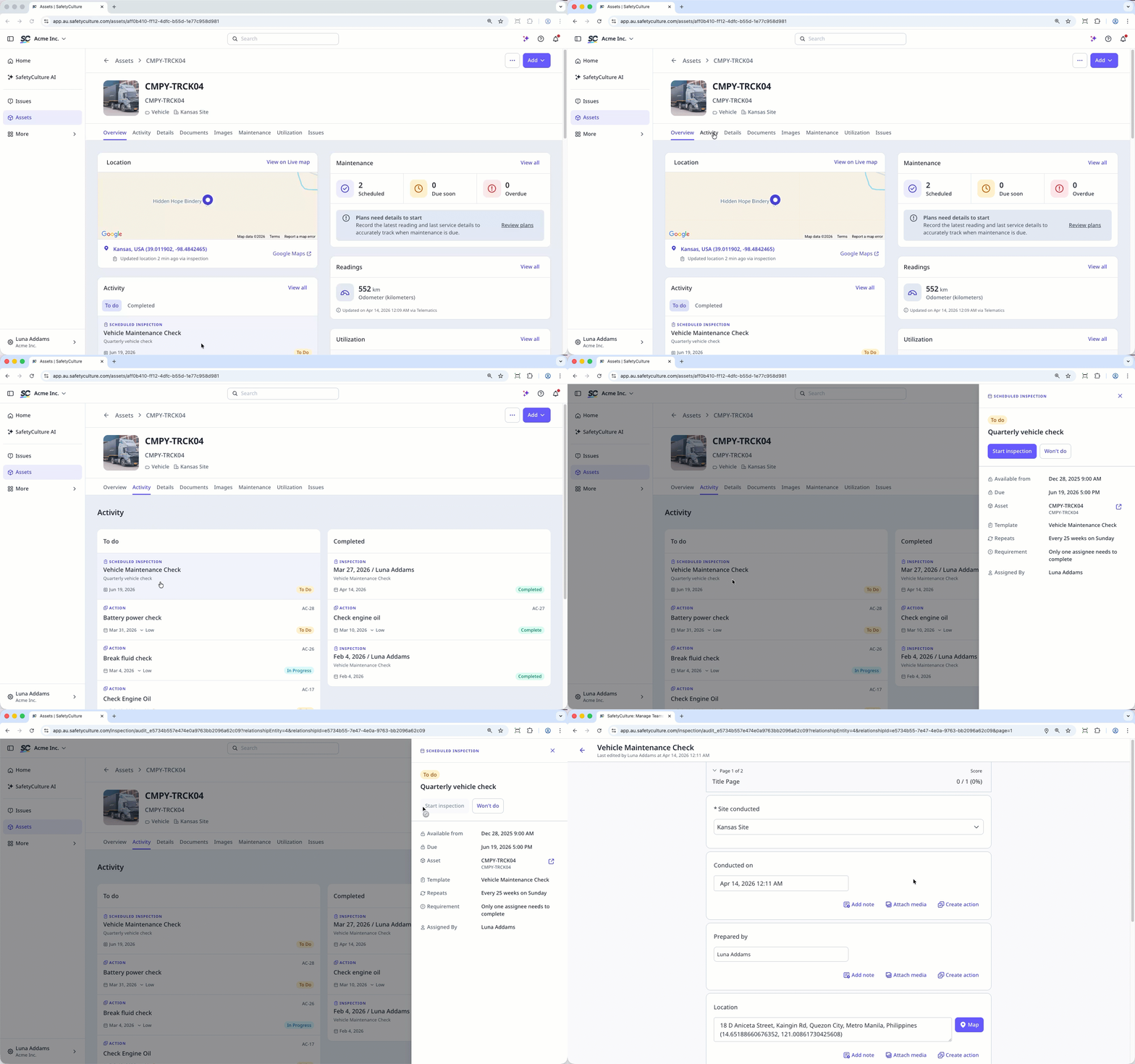
In the side panel, click Start inspection.
Progress through the inspection accordingly.