
Why use asset questions?
Asset questions in SafetyCulture provide a powerful way to link your inspections directly to specific assets, ensuring that your data gets collected and attributed to the same assets every time. By adding asset questions to your templates, you can track the condition and performance of all assets in your organization when you capture readings in inspections. Subsequently, it allows you to prioritize maintenance for specific assets that begin to show signs of wear and tear.
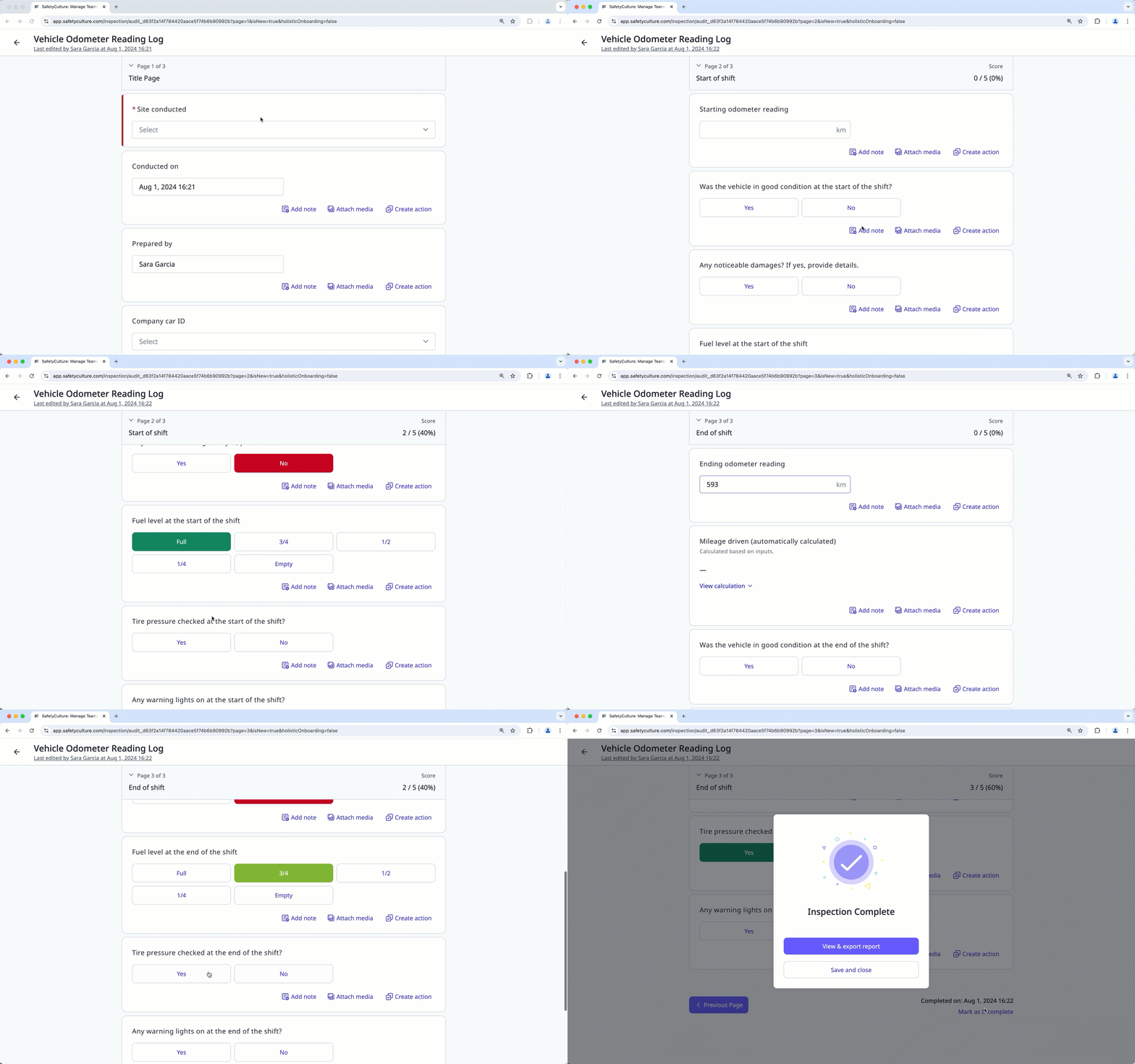
Overseeing multiple asset templates? Quickly manage all templates with asset questions, including asset types and readings from the Assets settings page.
What you'll need
"Asset" as a type of response in templates is only available on the title page. Published changes made to templates, such as adding an asset question, only apply to new inspections moving forward.
Manage the asset question in a template
Select Templates in the sidebar or select it in More.
Click the template and select Edit template in the side panel.
Click Title Page to expand the page.
Add a new question or select an existing one.
Click under the "Type of response" column on the right-hand side and select Asset.
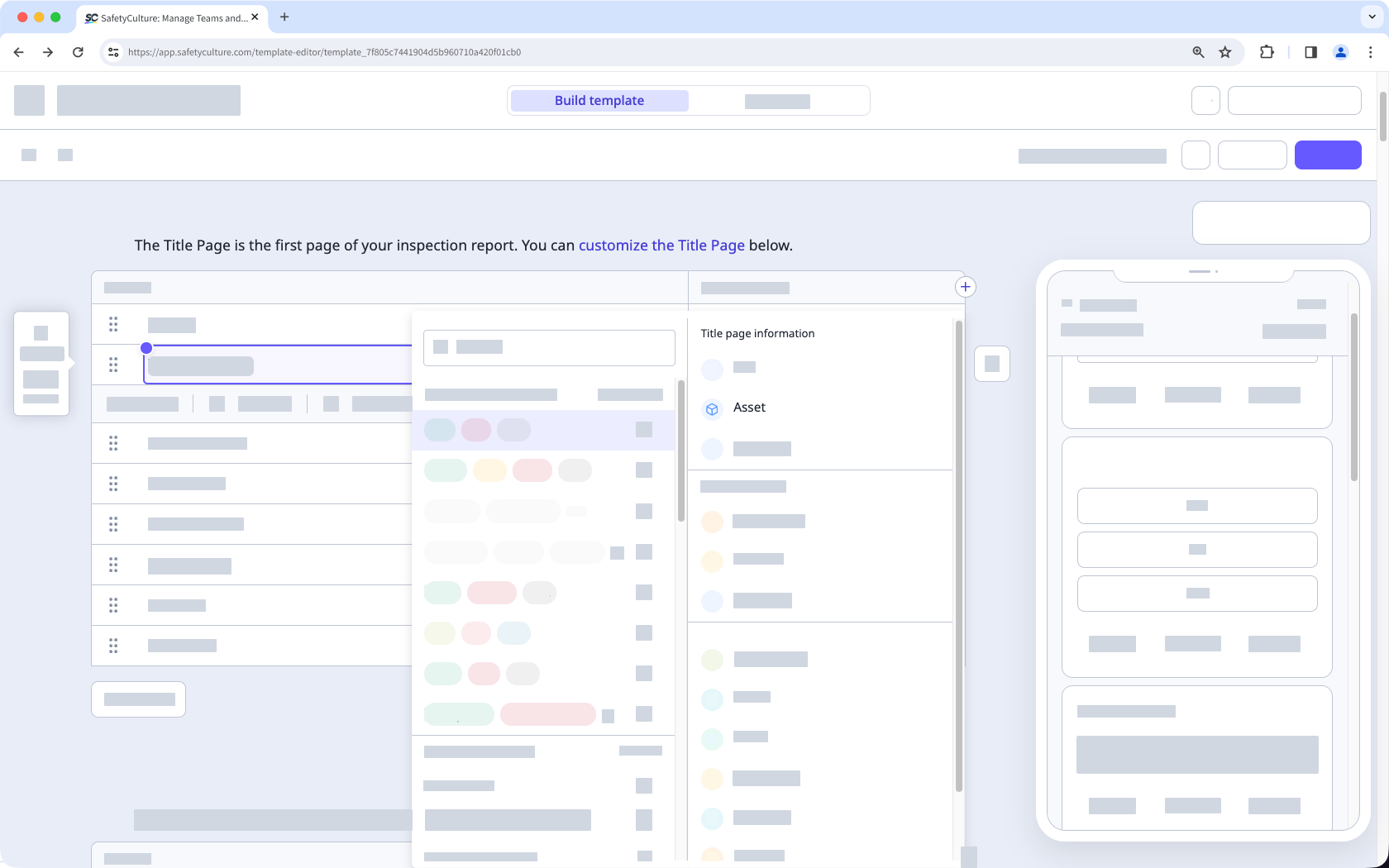
From here, you can:
Use the "Show assets from" option to select if you want to show all assets in your organization or just assets from selected asset types in each inspection.
Use the "Capture readings" option to include asset odometer or runtime readings when conducting inspections.
Move the asset question in the title page by dragging on its left-hand side.
Remove the asset question by clicking the asset question and then on its right-hand side.
Rename the question by double-clicking it and adjusting accordingly.
Mark or un-mark the question as required by checking or unchecking the "Required" box at its lower-left corner.
Click Publish on the upper-right of the page to publish the template. If you're not ready to publish the template, you can go back to the templates list and come back when you're ready.


