
We currently have a legacy and a new experience with the Schedules feature.
This article covers the new Schedules experience. Please ensure you're in the new experience by using the toggle on the upper-left of the Schedules page.
What are schedules?
Schedules in SafetyCulture automate recurring work so you don’t have to manually track inspections or tasks. You can create a schedule once, and inspections are automatically created at the frequency you set, giving you a single place to monitor progress and ensure critical checks are completed on time.
You can create schedules to set up daily safety inspections for every site, assign a monthly asset audit to groups, or schedule seasonal maintenance so equipment is serviced ahead of time.
With schedules, you can:
Remove manual tracking of recurring work.
Standardize work across teams or locations.
Make sure critical checks are completed on time.
Support compliance by keeping required checks consistent.
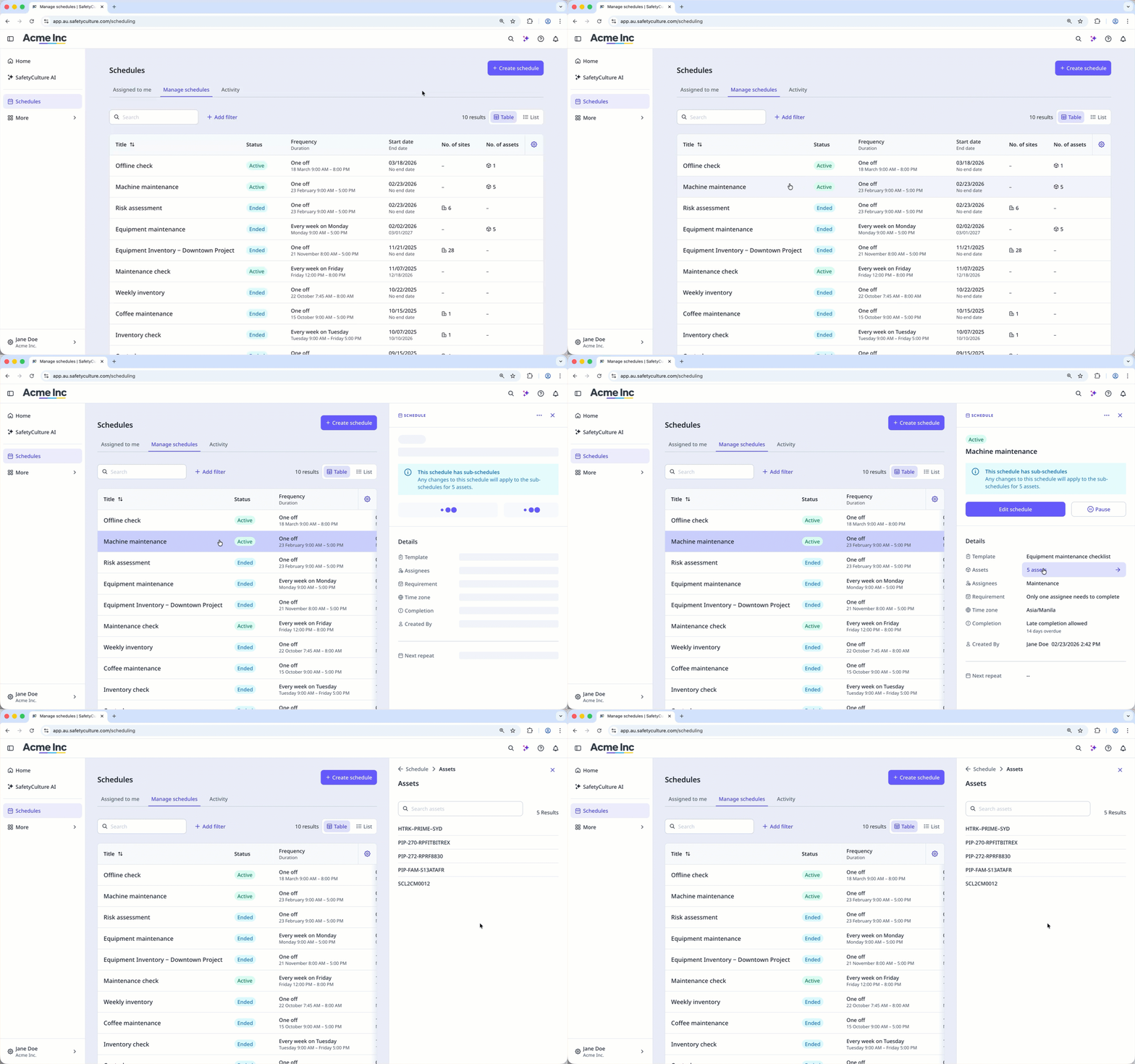
Schedule types
In the new Schedules experience, you can create inspection schedules for users, sites, and assets. Each type controls who the schedule is assigned to and how it’s managed.
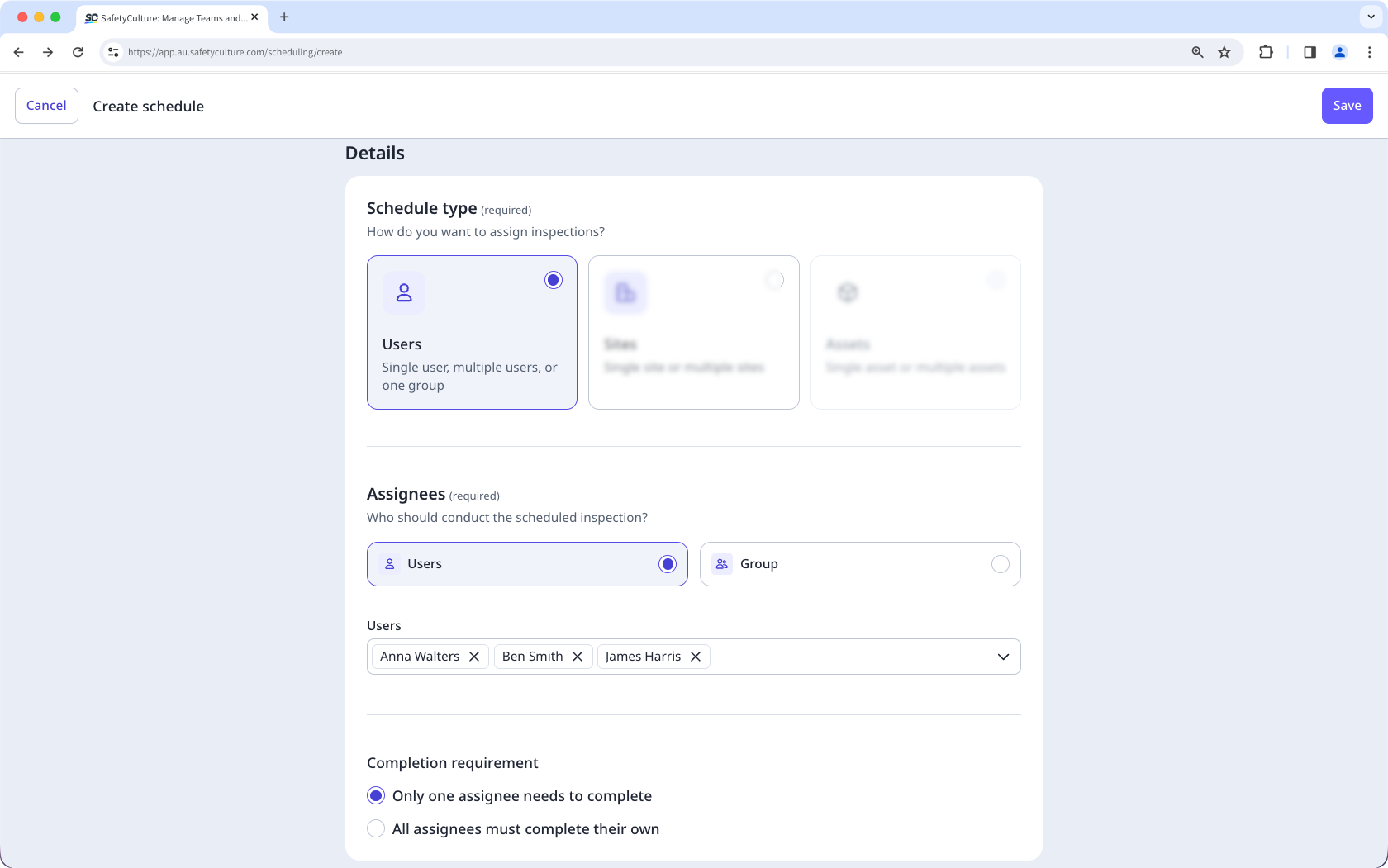
Users
This schedule type assigns schedules directly to specific groups or users. This type is ideal when certain users or groups are consistently responsible for completing inspections and is best used for schedules that apply to specific people, such as a monthly driver safety checklist for each driver or a weekly maintenance check for maintenance teams.
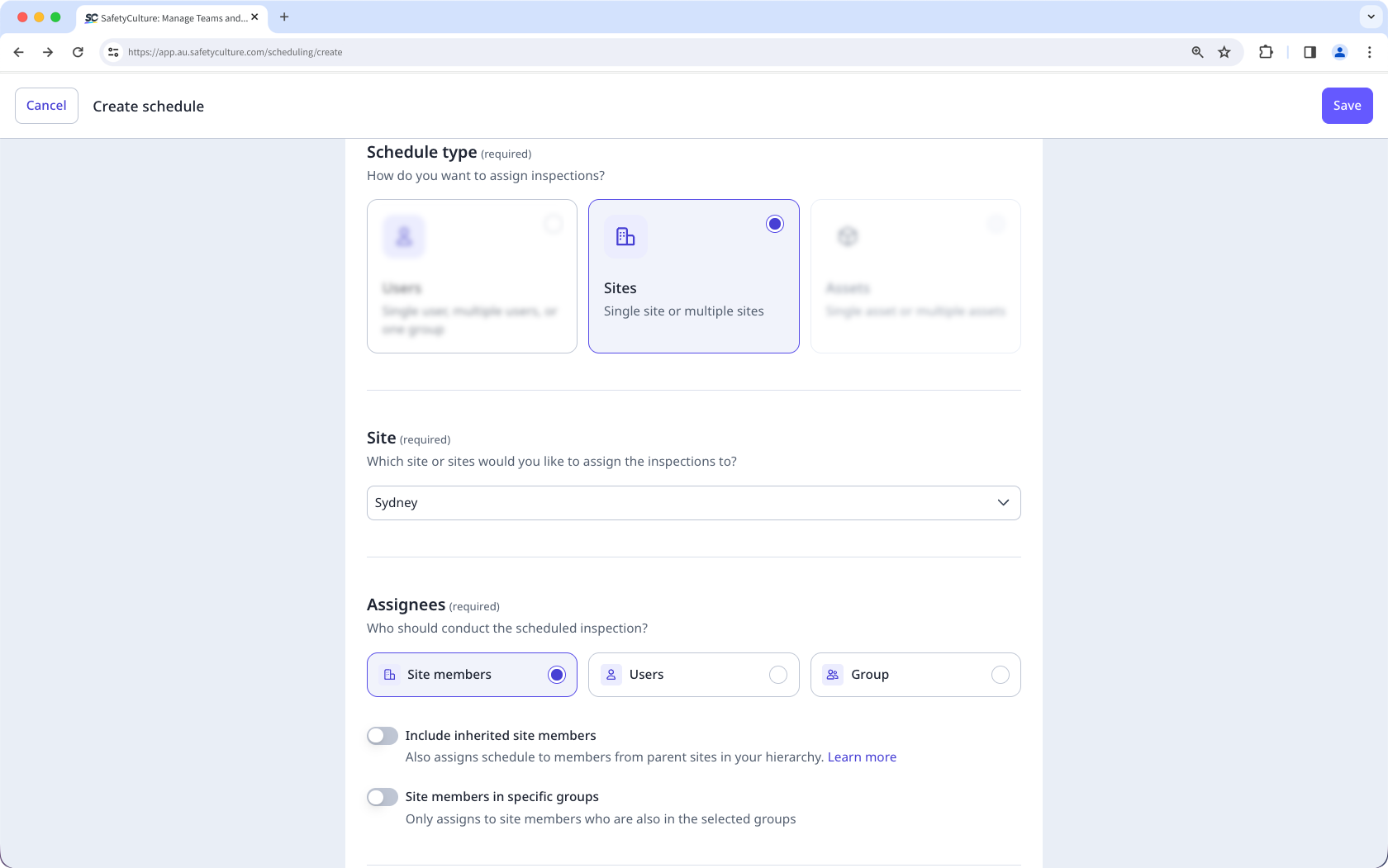
Sites
Site-based schedules allow you to assign an inspection to a single site, multiple sites, or a higher level in the site hierarchy. This type of schedule works best when inspections are tied to sites rather than individuals, especially in organizations with multiple sites.
When you create a schedule for multiple sites, it’s managed as one schedule with a sub-schedule for each selected site. For example, selecting 10,000 sites results in 10,000 sub-schedules under one schedule. Any updates to the main schedule automatically apply to all sub-schedules. As users or groups complete inspections, each sub-schedule remains associated with its site. You can also set each sub-schedule’s time zone to match its site’s time zone.
Assets
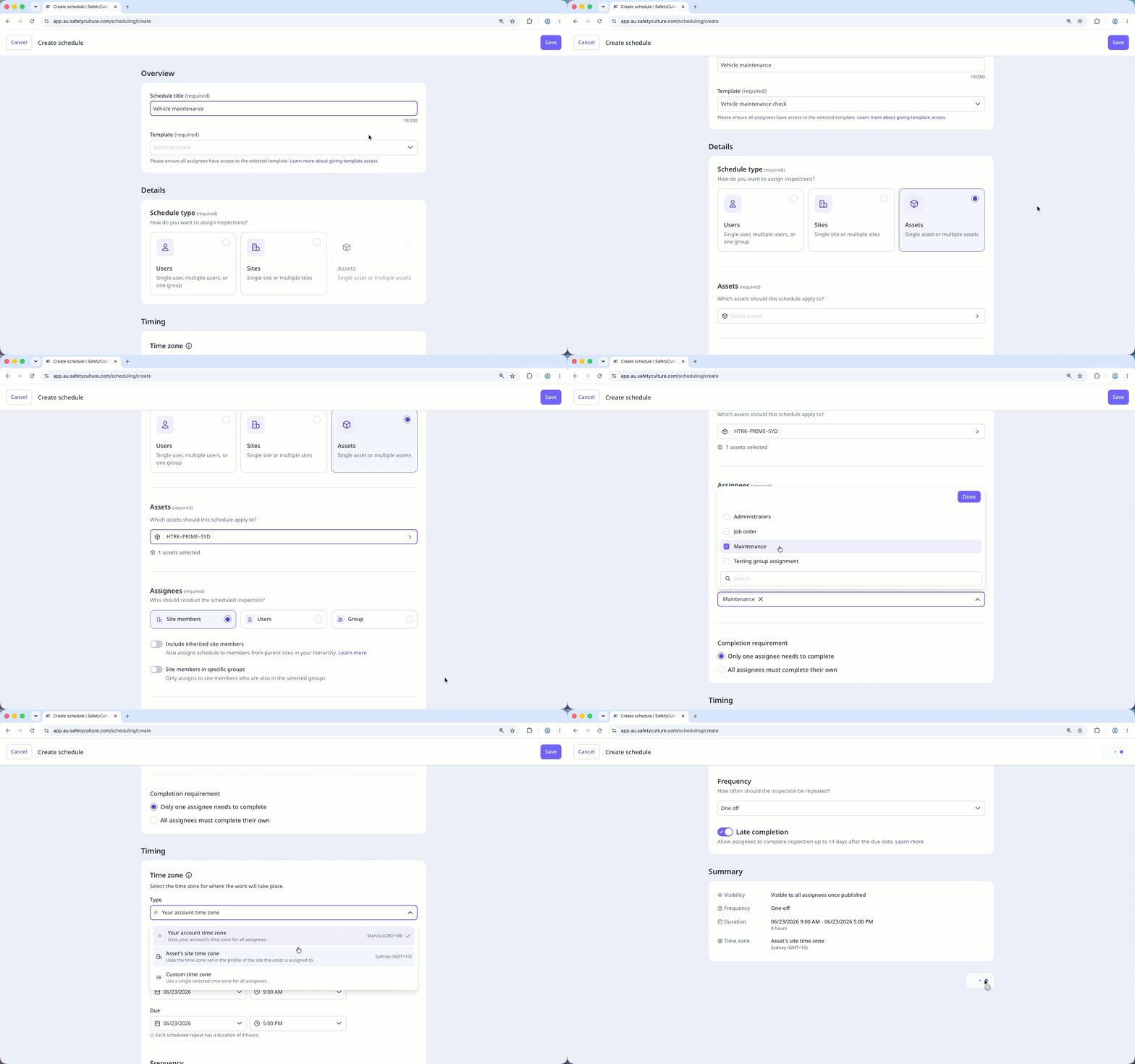
This schedule type allows you to assign schedules directly to assets so each scheduled inspection stays linked to what you're checking, not who is checking it. Use this type when inspections need to follow the asset’s lifecycle, especially for shared assets, assets that move between sites, or assets inspected by different users over time.
You can create a single schedule for up to 10,000 assets and manage them together under one schedule. When you update the schedule, the changes apply to all assigned assets. This makes it easier to scale asset inspections, keep them consistent, and maintain accurate records for large asset fleets.
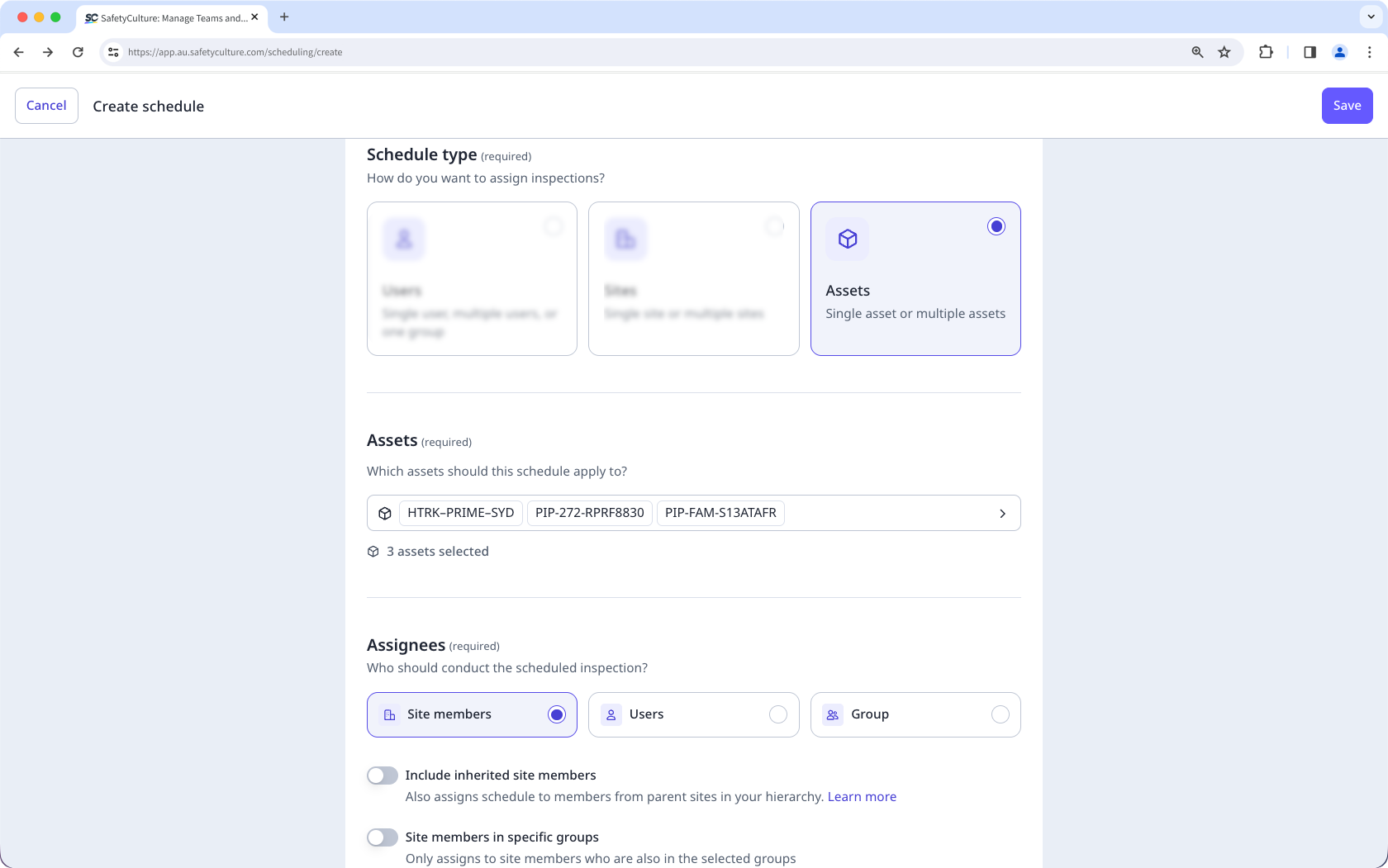
If assets in your organization are only accessible by site membership, you can only create schedules for assets you've added and assets in a site you're a member of.
Each schedule supports only one type, which can’t be changed after it’s created.
Create a schedule
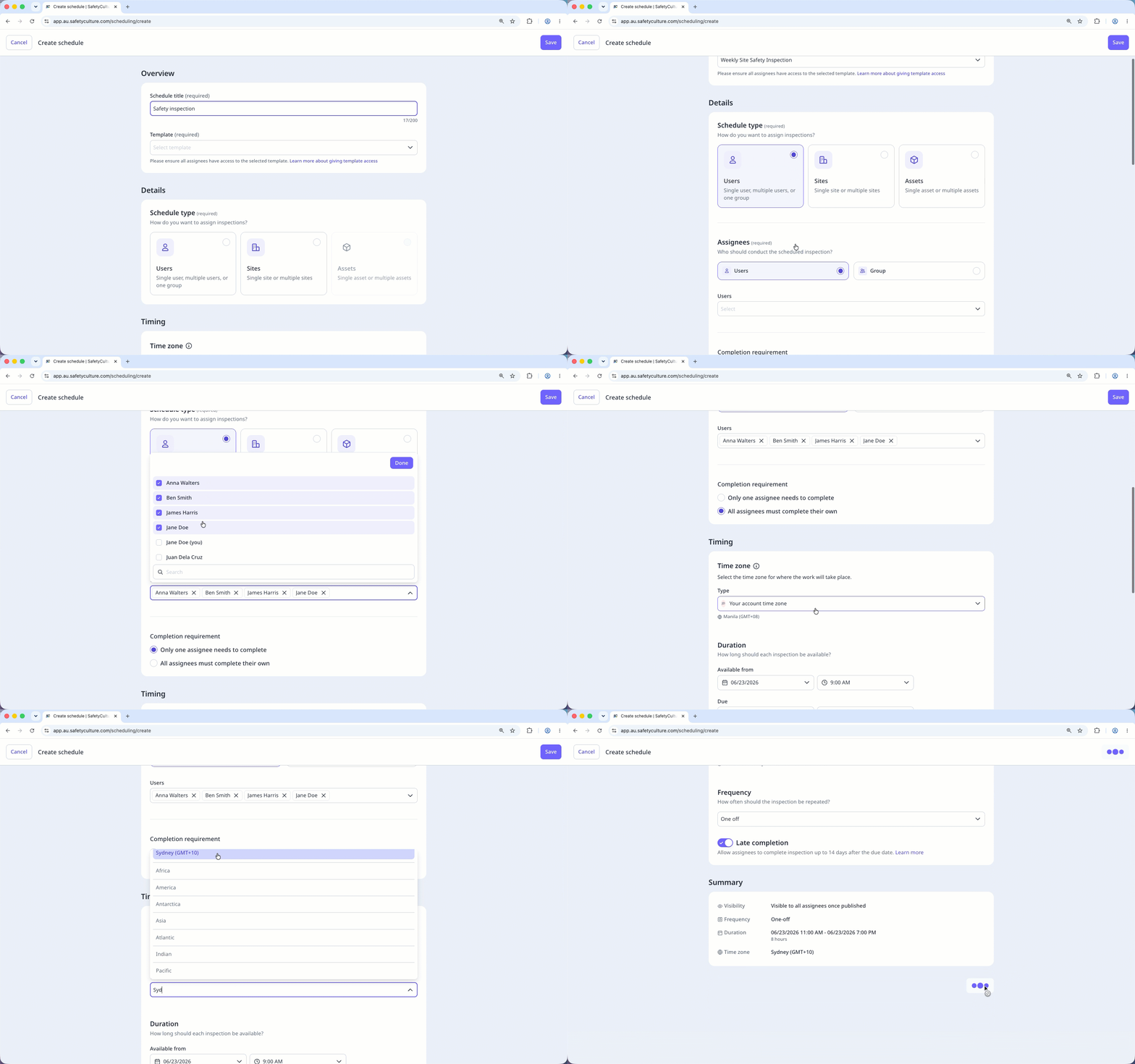
Select Schedules from the sidebar or in More.
Click Create schedule on the upper-right of the page.
Enter the schedule title and select a template from the dropdown menu.
In the "Details" section, select Users as the schedule type.
In the "Assignees" section, select Users or Group.
Select the schedule's assignees from the dropdown menu.
In the "Completion requirement" section, select one of the following completion requirements:
Only one assignee needs to complete: The schedule is marked as complete when any assignee completes the inspection.
All assignees must complete their own: The schedule is complete only after every assignee completes their inspection.
Configure the timing settings.
You can check your settings in the "Summary" section.
Click Save.
 Sites
Sites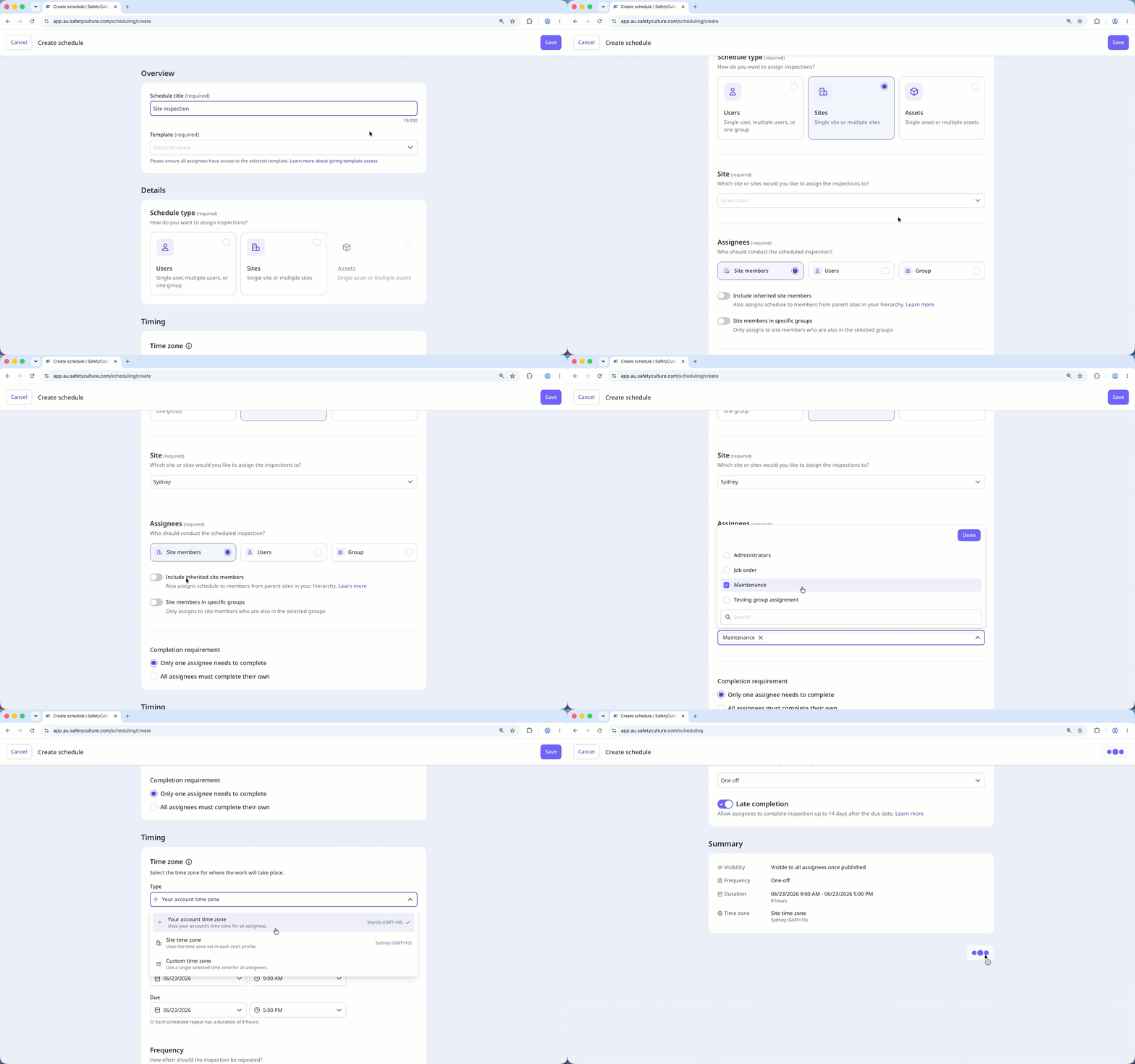
Schedule fields
Overview section
Field | Description |
|---|---|
Title | The title of a schedule. It's best to describe the work that needs to be done, as this is what assignees will see on their Home page, Home screen, or schedule list as a schedule to complete. |
Template | The selected template for a schedule. This is the template assignees will use for their scheduled inspections. Ensure all assignees have access to the template so they can complete their schedules without disruption. |
Details section
Field | Description |
|---|---|
Schedule type | The type of a schedule. This defines what the schedule is for and sets its details. You can create schedules for users, sites, or assets. |
Assignees | The assignees of a schedule. For any schedule type, you can assign a group or one or more users as assignees. For site-based schedules and asset-based schedules, you can turn the following settings on: • Include inherited site members: Also assigns schedules to members from parent sites in your hierarchy. • Site members in specific groups: Only assigns schedules to site members who are also in the selected groups. |
Site | The selected sites for a schedule. You can assign it to a site level, like a region or area, that includes multiple sites. However, any new sites added under that site level after the schedule is created won’t automatically be assigned the schedule. To include them, edit the schedule, reselect the same site level, and save the change. |
By default, when a schedule is assigned to multiple sites, only users who are direct members of those sites are included as assignees. To include members of the parent site, turn on Assign to inherited site members when you assign the schedule based on site and group membership.
Timing section
Field | Description |
|---|---|
Time zone type | The selected time zone of a schedule. It can be based on the site, the asset's site, the time zone set in the creator's user profile, or a custom one. Based on the duration and frequency settings, each repeat will become available in this time zone. |
Duration | The repeat duration of a schedule, which defines how long each repeat is available. For example, if a repeat runs from Monday 9:00 AM to Friday 5:00 PM, then each repeat will last 4 days and 8 hours. |
Frequency | The frequency at which each repeat is made available. Some frequency options may be unavailable depending on the selected duration. For example, if each repeat lasts longer than one day, you can’t set the frequency to everyday or every weekday. |
Late completion | The toggle for whether to allow a schedule to be completed late. If this setting is turned on: • For repeating schedules, assignees can complete a repeat after the due date, up until the next repeat begins. • For one-off schedules, assignees have 14 days after the due date and time to complete it. Depending on the schedule's duration and frequency setting, late completion may not be possible even if it's turned on. For example, if each repeat lasts until the start of the next repeat, then there's no time in between for late completion. |


