
What are sites in SafetyCulture?
Sites in SafetyCulture help you track and manage your team's data by associating it with specific locations, projects, or teams. They provide a shared structure that connects users, content, and activity across multiple features and makes it easier for you to manage access, assignments, and insights as your organization grows.
You can organize sites in a hierarchy that reflects your organization's structure and group them into higher levels, like areas or regions, for easier management of site membership and trend analysis across multiple sites.
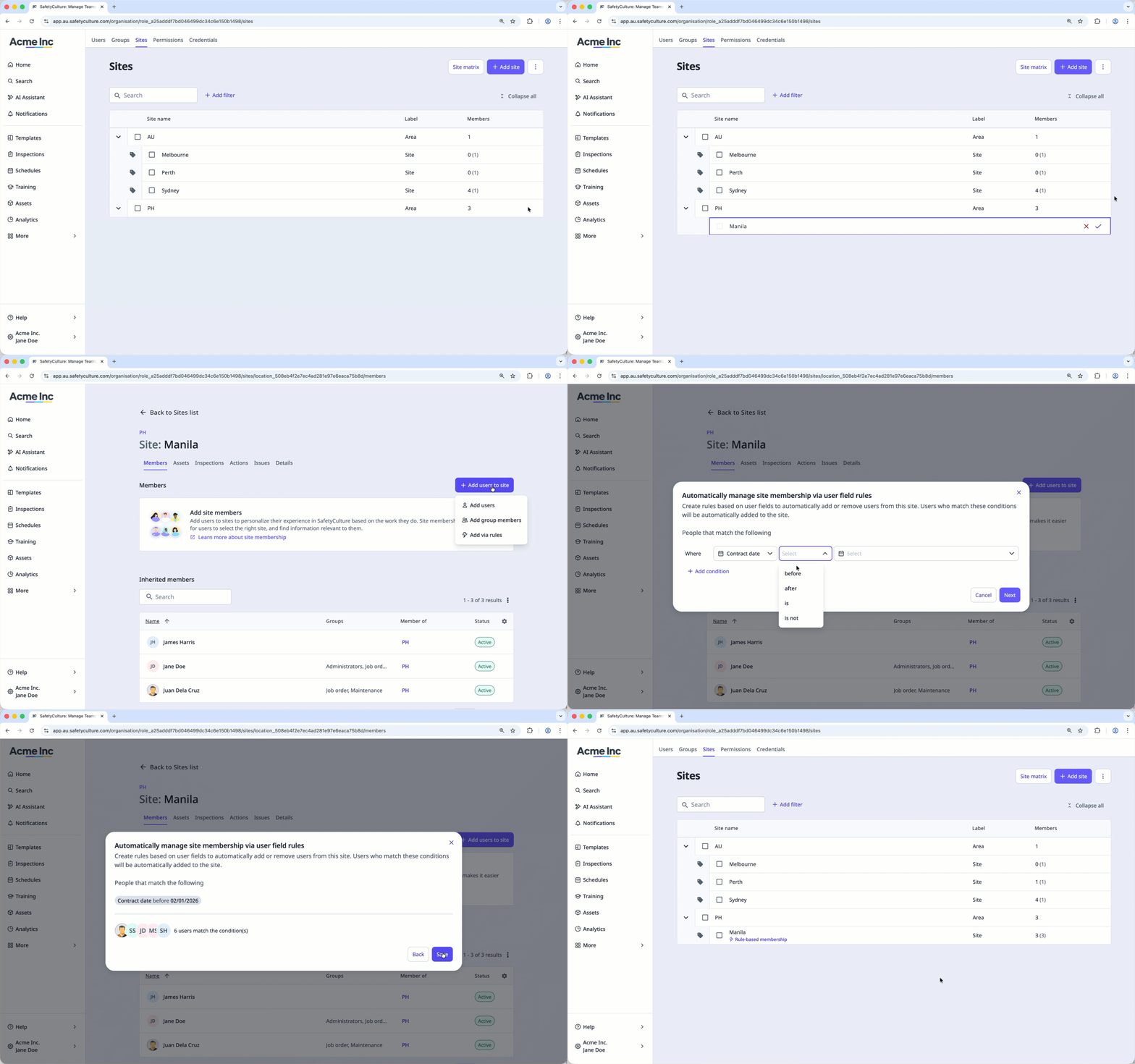
Depending on the feature, sites can be used to manage access and assignments, or to organize and filter data.
Feature | Manage access and assignments | Organization and filtering |
|---|---|---|
Templates | Yes | Yes |
Inspections | Yes | Yes |
Actions | Yes | Yes |
Training | Yes | No |
Issues | Yes | Yes |
Assets | Yes | Yes |
Heads Up | Yes | No |
Investigations | No | Yes |
Documents | No | Yes |
Analytics | No | Yes |
Contractors | No | Yes |
You can only have up to 50,000 sites in your organization. If you need to add more than 50,000 sites to your organization, please let us know by providing your feedback.
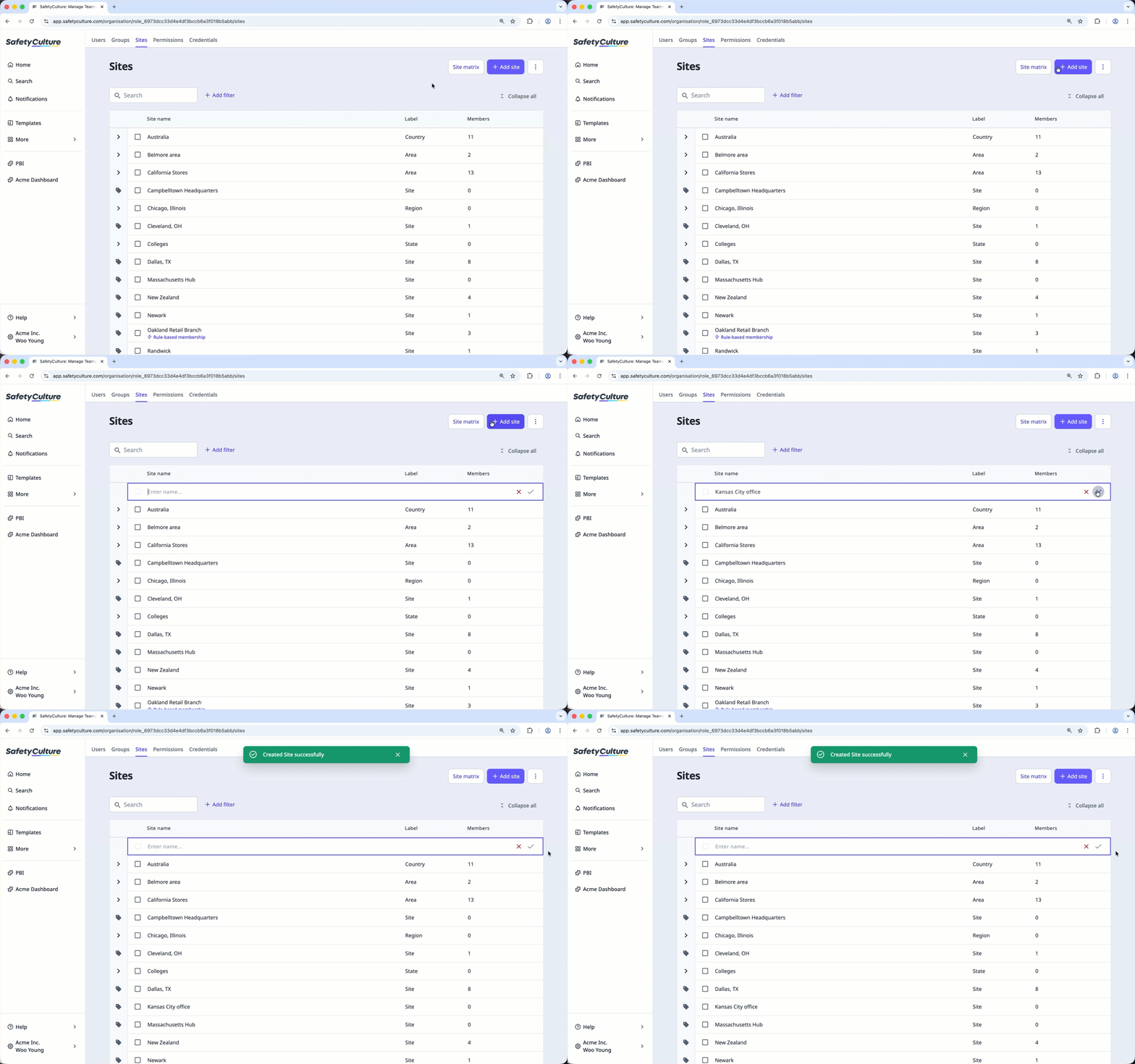
Add a site
Click your organization name on the lower-left corner of the page and select Sites.
Click Add site on the upper-right corner of the page.
In the site list, enter the site's name and click .
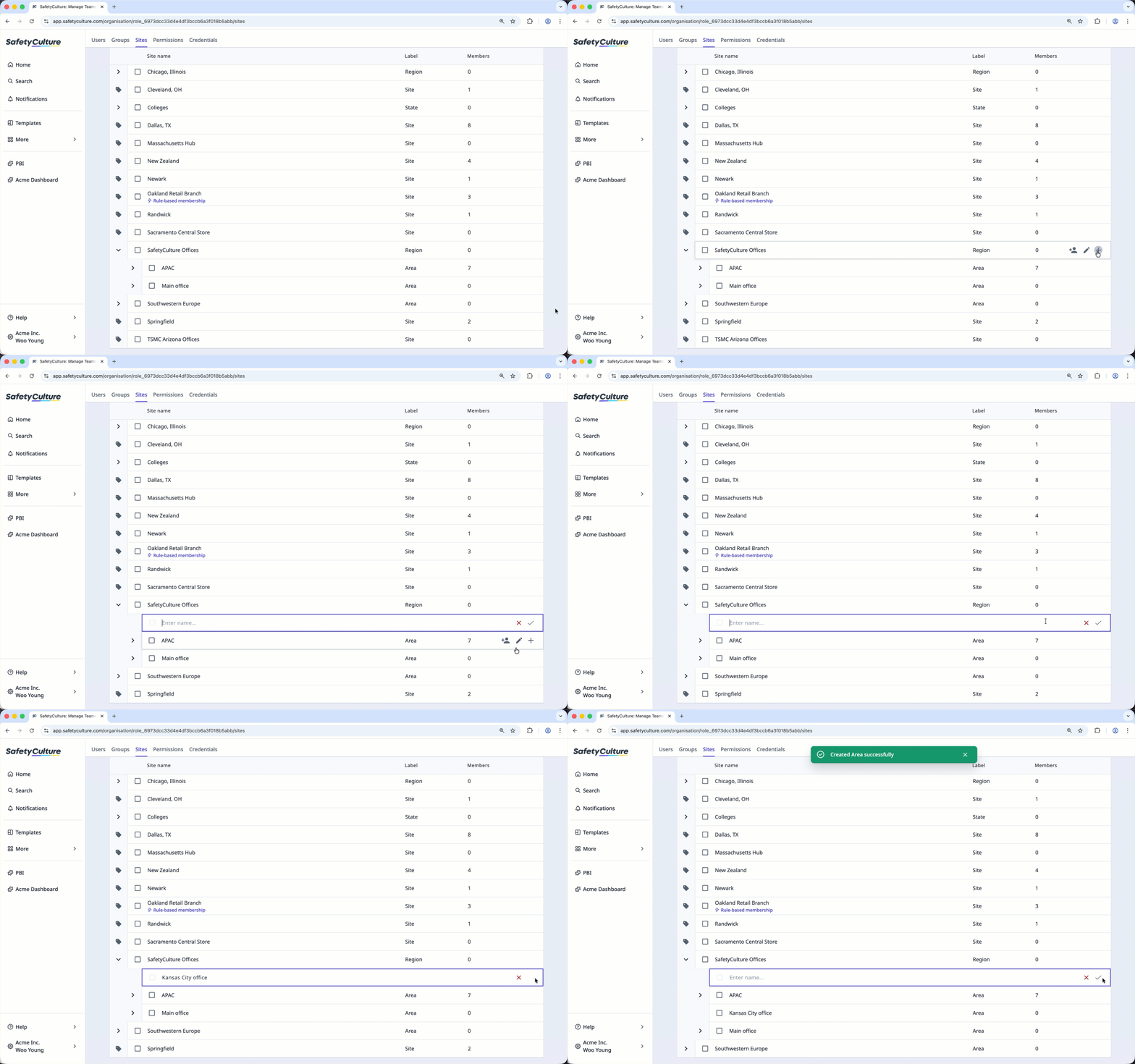
Add a site or level in-line
Click your organization name on the lower-left corner of the page and select Sites.
Hover over a site and click .
Click the level you want to add:
Add level above: Add an area, region, state, or country above the selected level.
Add same level: Add the same level as the selected.
Add level below: Add a site, area, region, or state below the selected level.
In the site list, enter the site's name and click .
When updating existing sites via CSV, leave the members column unchanged to avoid adding or removing current site members.
Bulk add sites via CSV upload
Click your organization name on the lower-left corner of the page and select Sites.
Click on the upper-right corner of the page and select Bulk upload sites (CSV).
Download the example CSV template by clicking Download sites template.
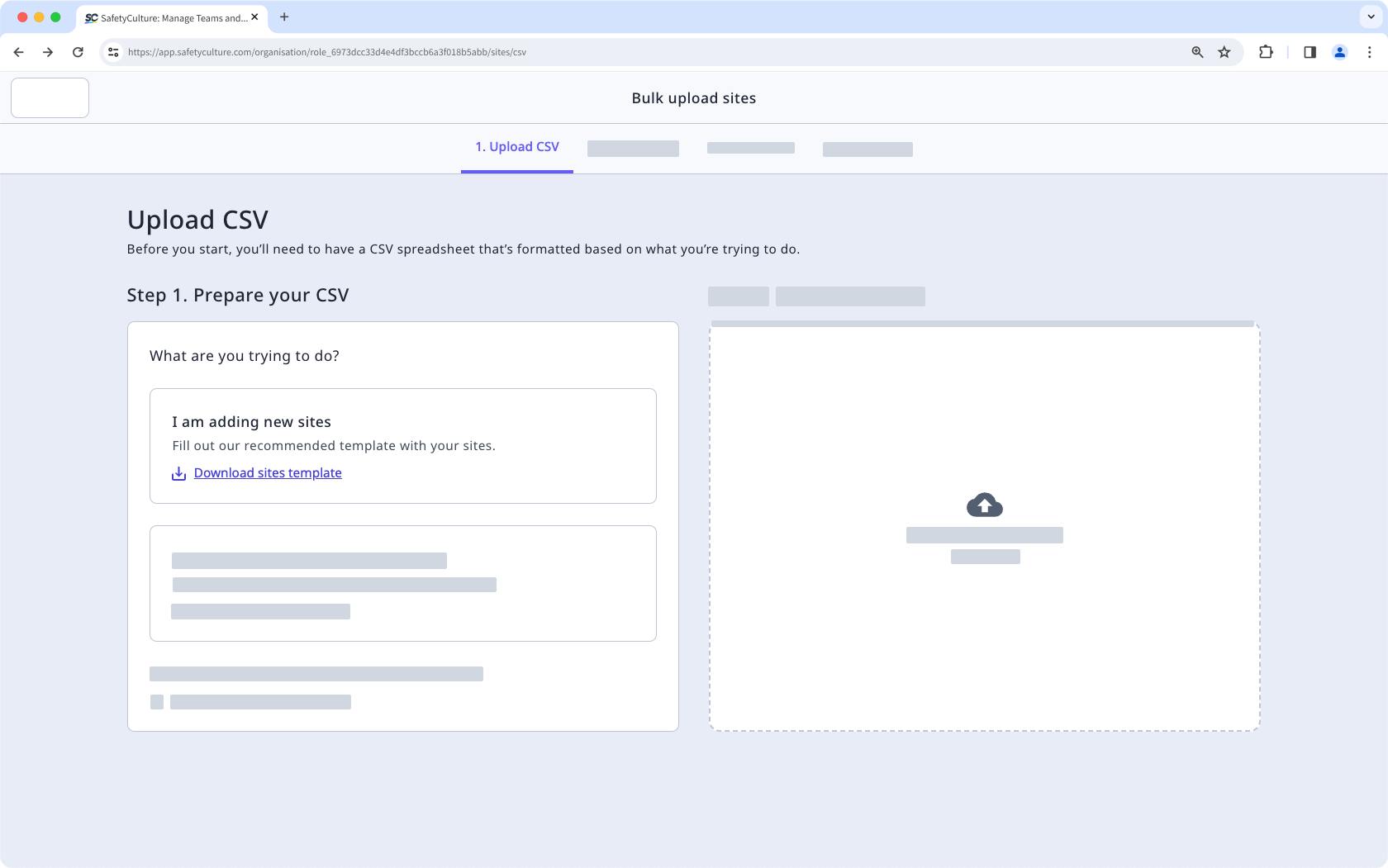
Add new sites at each level of the hierarchy by entering their names in the relevant columns. You can also add site members by entering their email addresses under the "members" column, separated using a semicolon.
Drag and drop your CSV file into the "Drag your CSV file here" box or click browse to select the file from your computer directory.
Match your CSV column headers with their corresponding fields, then click Review data.
Confirm that your CSV data has been uploaded correctly, then click Save and upload.
CSV files encoded in a different format will be automatically encoded as UTF-8 to prevent any errors, such as broken characters, after uploading.


