
What is the new Schedules experience?
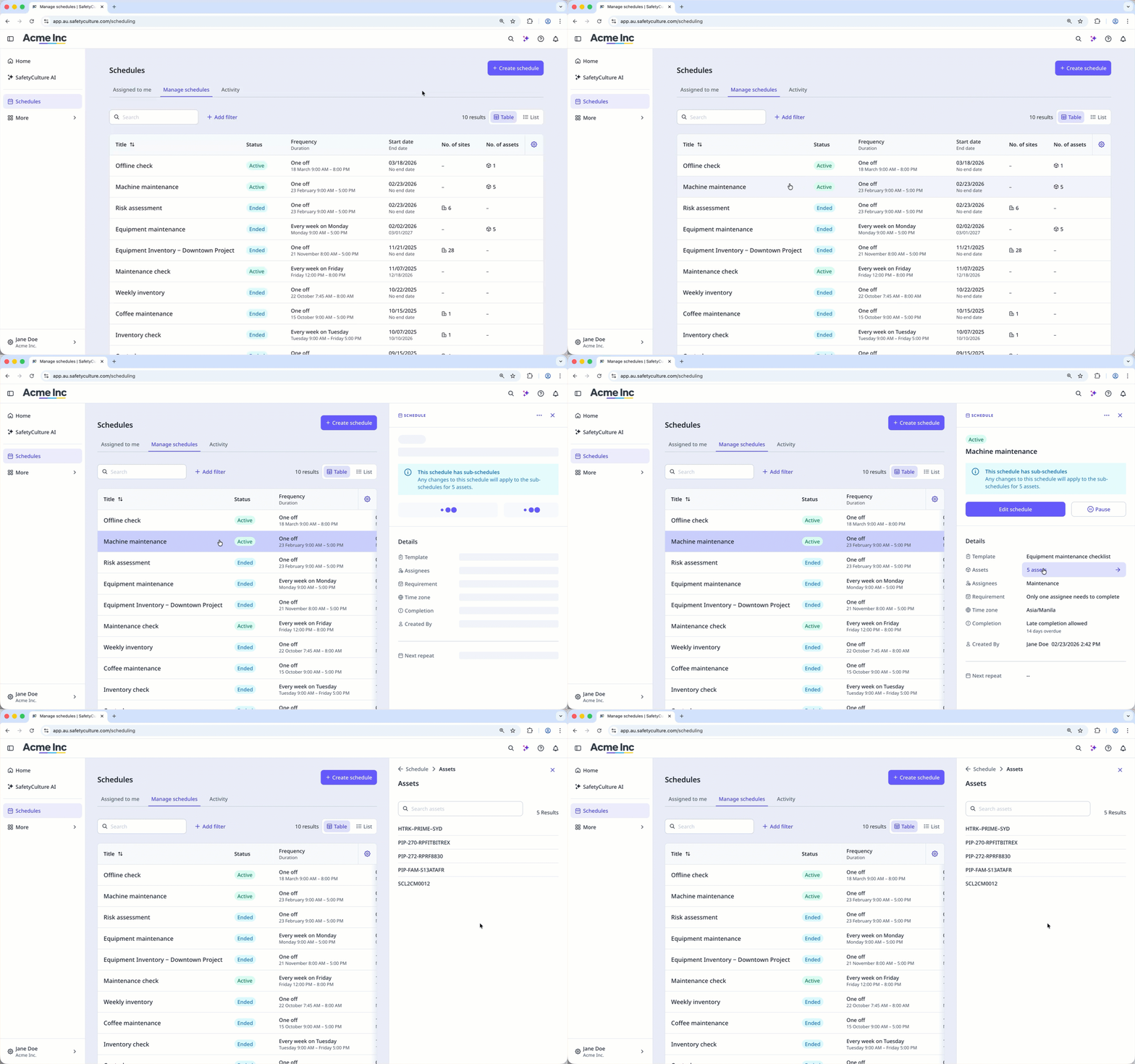
The new Schedules experience improves how you manage your organization's recurring work. Built for scalability and ease of use, it supports your growing teams and more complex scheduling needs. With the new experience, your team can create and edit schedules across multiple teams and sites without the limitations of the legacy experience. With more flexible options like granular scheduling controls and improved schedule overview, the new experience makes it easier to plan recurring work, track progress, and view the status of every schedule at a glance. This gives your organization greater visibility and flexibility, helping you create schedules that truly fit your needs.
What are the differences between the legacy and new experiences?
Feature | Legacy | New |
|---|---|---|
Bulk management for sites and assets | Creating a schedule for multiple sites results in separate schedules. You manage each one individually. You can also only add one asset per schedule. | Create one schedule for multiple sites or assets and manage it as a single item. Changes to the main schedule automatically apply to each site's and asset's sub-schedules. |
Explicit time zone selection | There's no option to select a time zone for a schedule. Thus, each repeat's availability is based on the assignee's account time zone setting, which can sometimes be inaccurate. | You can now define a specific time zone when creating a schedule, choosing from the site and the asset's site profile's time zone, your account's time zone, or a custom time zone. This ensures consistent timing for all assignees, regardless of their account settings. |
Schedule duration and frequency | Start times and durations use 1-hour increments (for example, 8:00, 9:00). Frequency options are basic. | Choose start times and durations in 5-minute increments (for example, 8:05, 8:10). There are more advanced frequency options like every 22nd Tuesday, every month on the last Friday, and more. |
End schedules | A schedule continues indefinitely until you pause it manually. | You can set a schedule to end on a specific date or after a certain number of repeats. |
Schedule setting summary | There's no review section to check all the settings before creating or saving changes. | Before creating or saving a schedule, you can review all settings in the "Review" section, which summarizes them in natural language. |
Schedule list and side panel | Schedule list information is limited, and there's no side panel to view settings in a read-only mode. | The schedule list and side panel show more relevant information for each schedule. |
Changes to template access | Assigning a schedule updates the template's access rules to match the assignment. | Assigning a schedule to users, sites, or groups does not change template’s access rules. |
Completion data | The legacy view focused only on missed and late inspections. | You can view the status of all schedule activity, including inspections that are available, in progress, and completed. |
Assignee experience | Assigned schedules appear under "My Schedules," which can be mistaken for schedules you created. Details are limited on the web and mobile apps, with little context. | Assigned schedules appear under "Assigned to me." Each schedule shows more detail on the web and mobile apps. On the web app, you can switch between list and calendar views to see and manage your schedules. |


