Why add files to sites?
As teams handle more documents over time, adding files to sites makes it easier to scale file management across multiple locations. Instead of creating folders or labels, you can link each file to one or more sites and then filter your list by site to quickly see which files apply to each location. Files you add to sites still follow your existing Documents access settings, so you control who can view or edit using owners and share options.
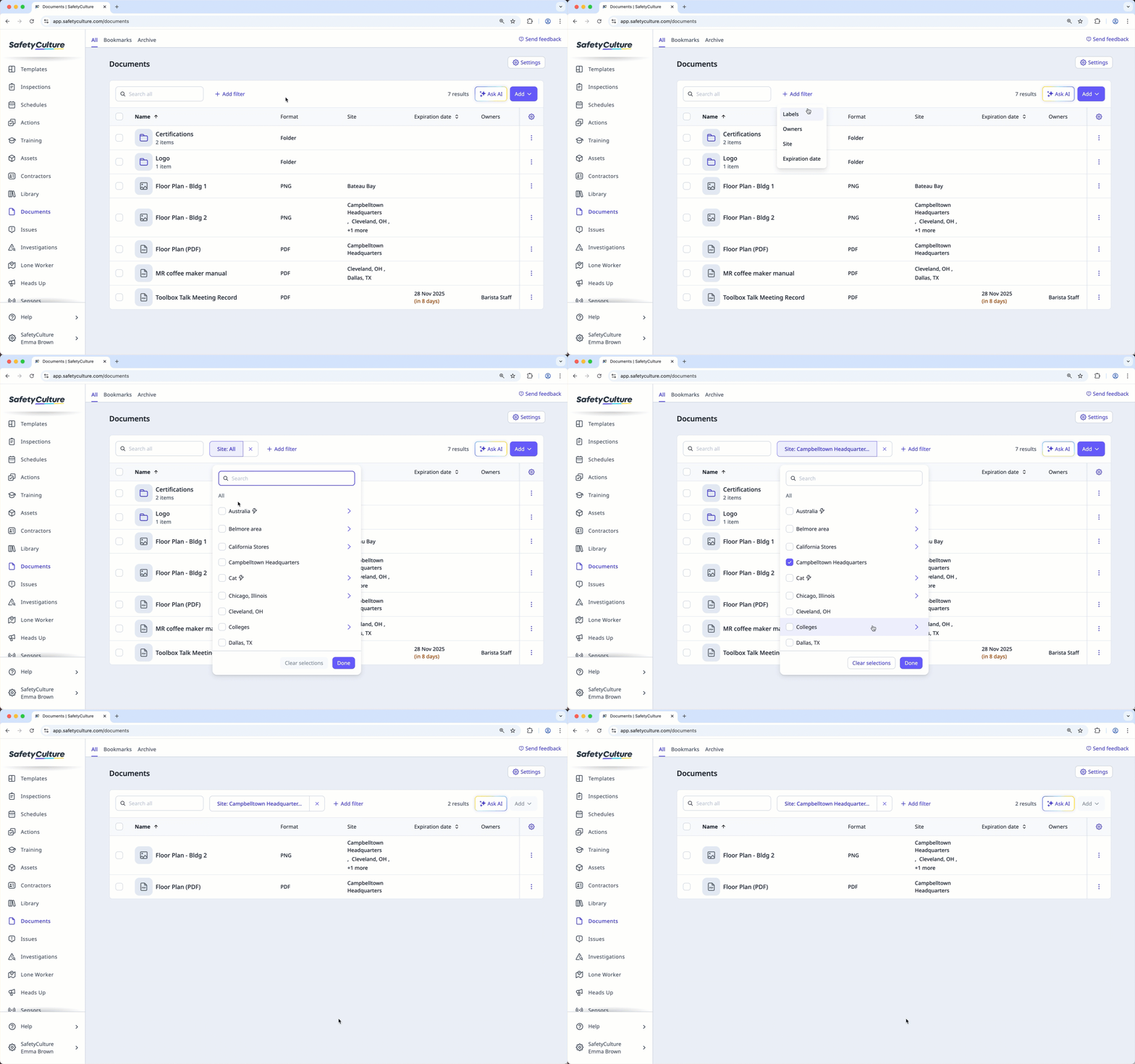
Use sites for “where this file is used” and labels for “what this file is about,” such as equipment type, department, or document status.
You can only select up to 100 sites per file. In addition, you can view sites where your files belong to via the mobile app from version 25.44 or above.
If you have "Documents: Administrator" permission, you can add or remove any files in your organization from a site.
Add a file to sites
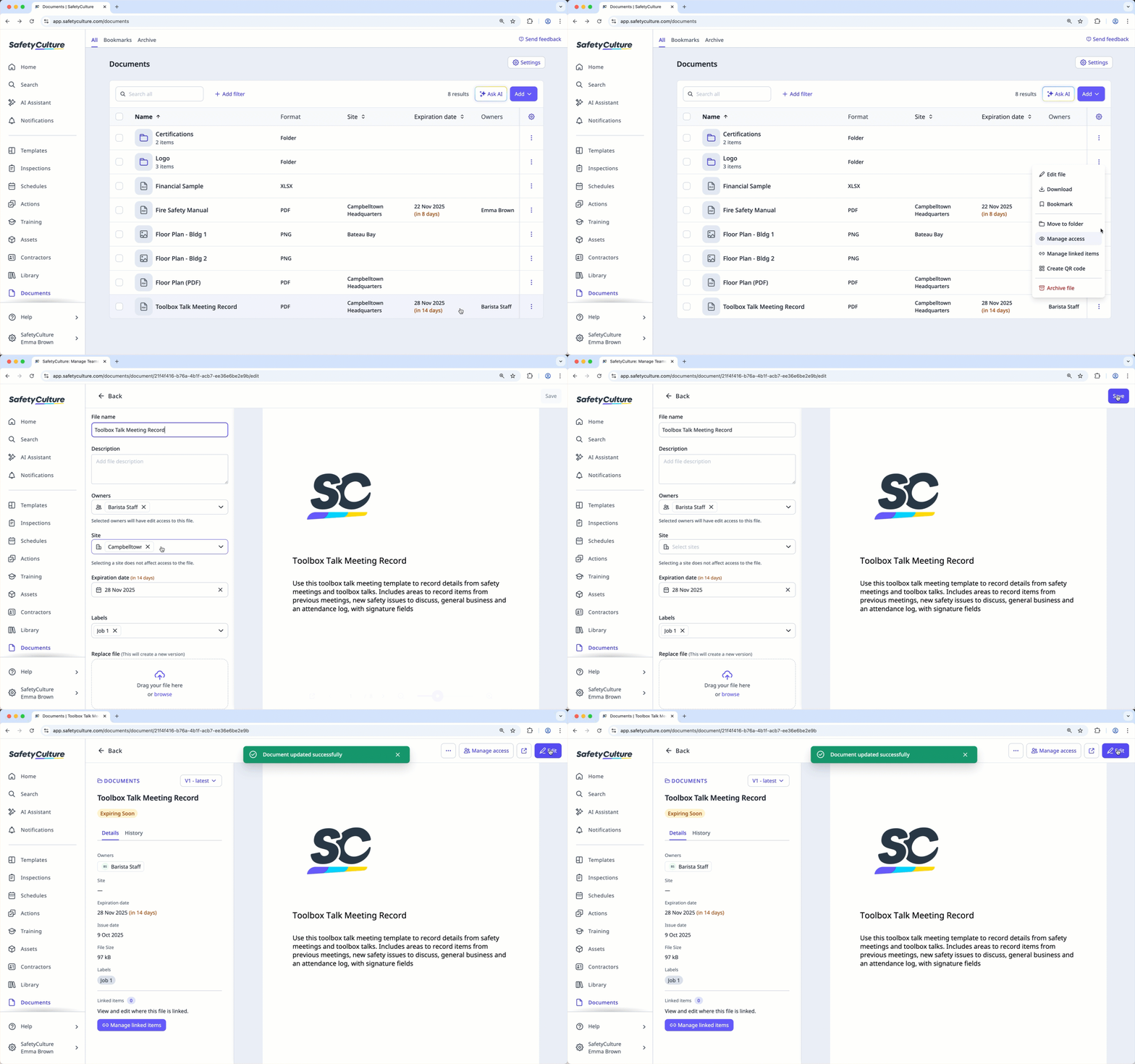
Select Documents in the sidebar or select it in More.
Select the file from the list or inside a folder.
Click Edit on the upper-right of the page.
Under “Site”, click the dropdown menu.
Check the box of each site you want to add the file to, then click Done.
Click Save on the upper-right of the page.
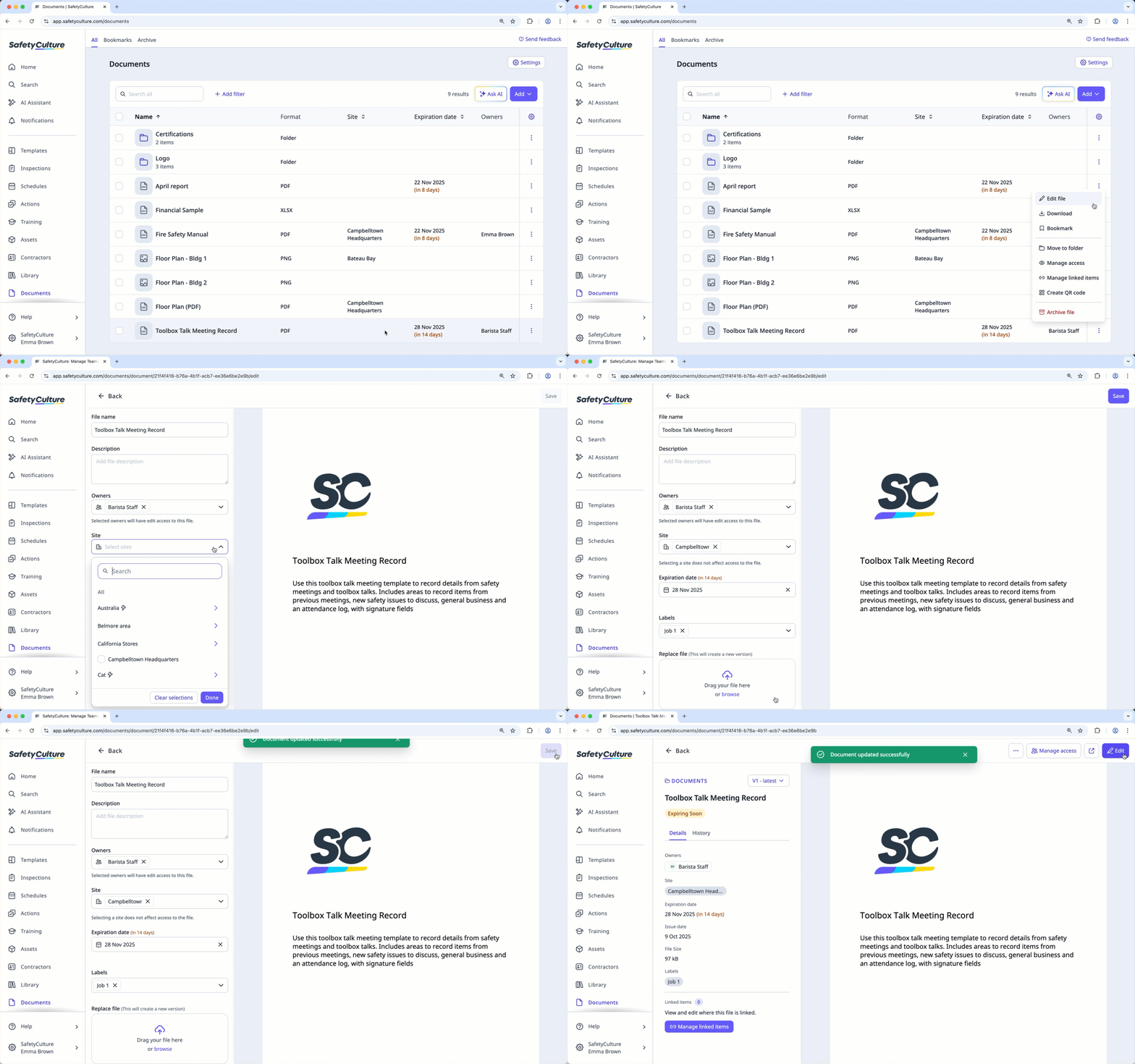
Depending on your organization's site selection settings, you'll be able to see all sites or levels in your organization or only ones you're a member of.
Remove a file from sites
Select Documents in the sidebar or select it in More.
Select the file from the list or inside a folder.
Click Edit on the upper-right of the page.
Under "Site", click on the right-hand side of the sites you want to remove.
Click Save on the upper-right of the page.