
What are labels in Documents?
Labels in Documents help your team stay organized by categorizing your files, making them easier to find. You can use labels to sort, filter, and group files by project, department, status, or other criteria that fit your team's workflow. This keeps document management simple and ensures you can quickly access the files you need.
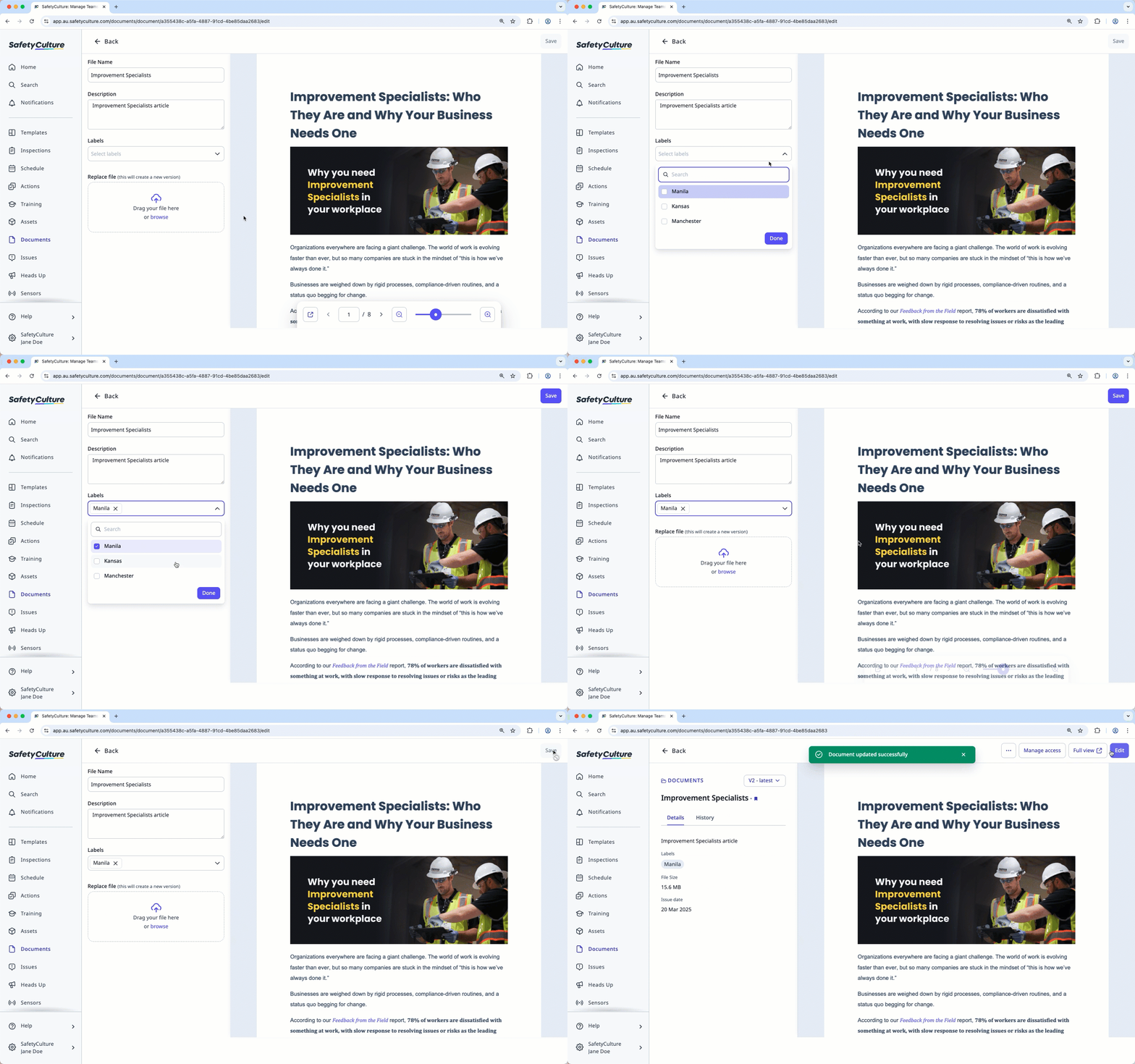
Use sites for “where this file is used” and labels for “what this file is about,” such as equipment type, department, or document status.
Create a file label
Select Documents in the sidebar or select it in More.
Click Settings on the upper-right of the page.
Click Add label.
In the pop-up window, enter the label name and click Create.
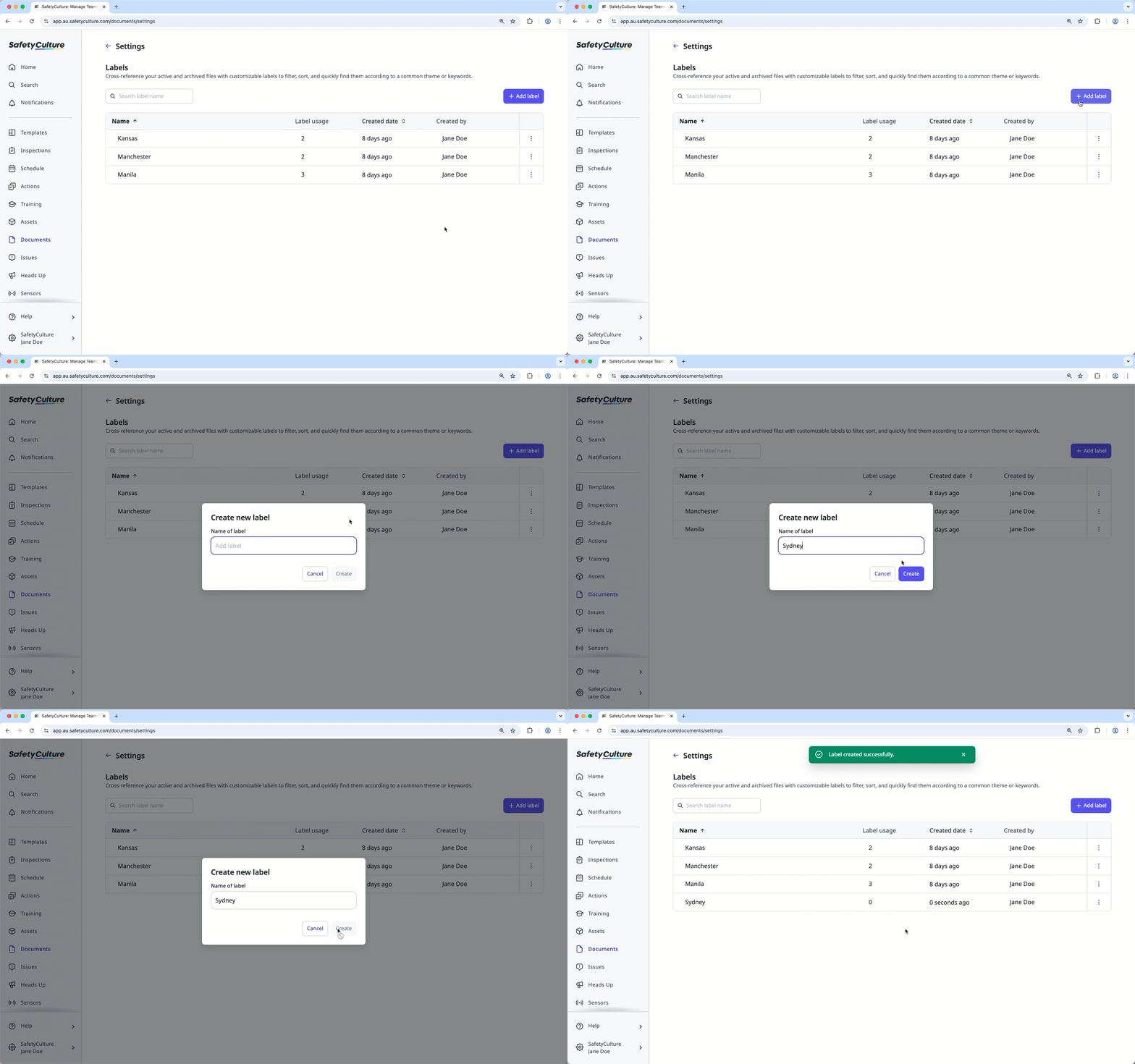
Each organization can only have up to 50 labels.
Rename a file label
Select Documents in the sidebar or select it in More.
Click Settings on the upper-right of the page.
Click on the label's right-hand side and select Rename label.
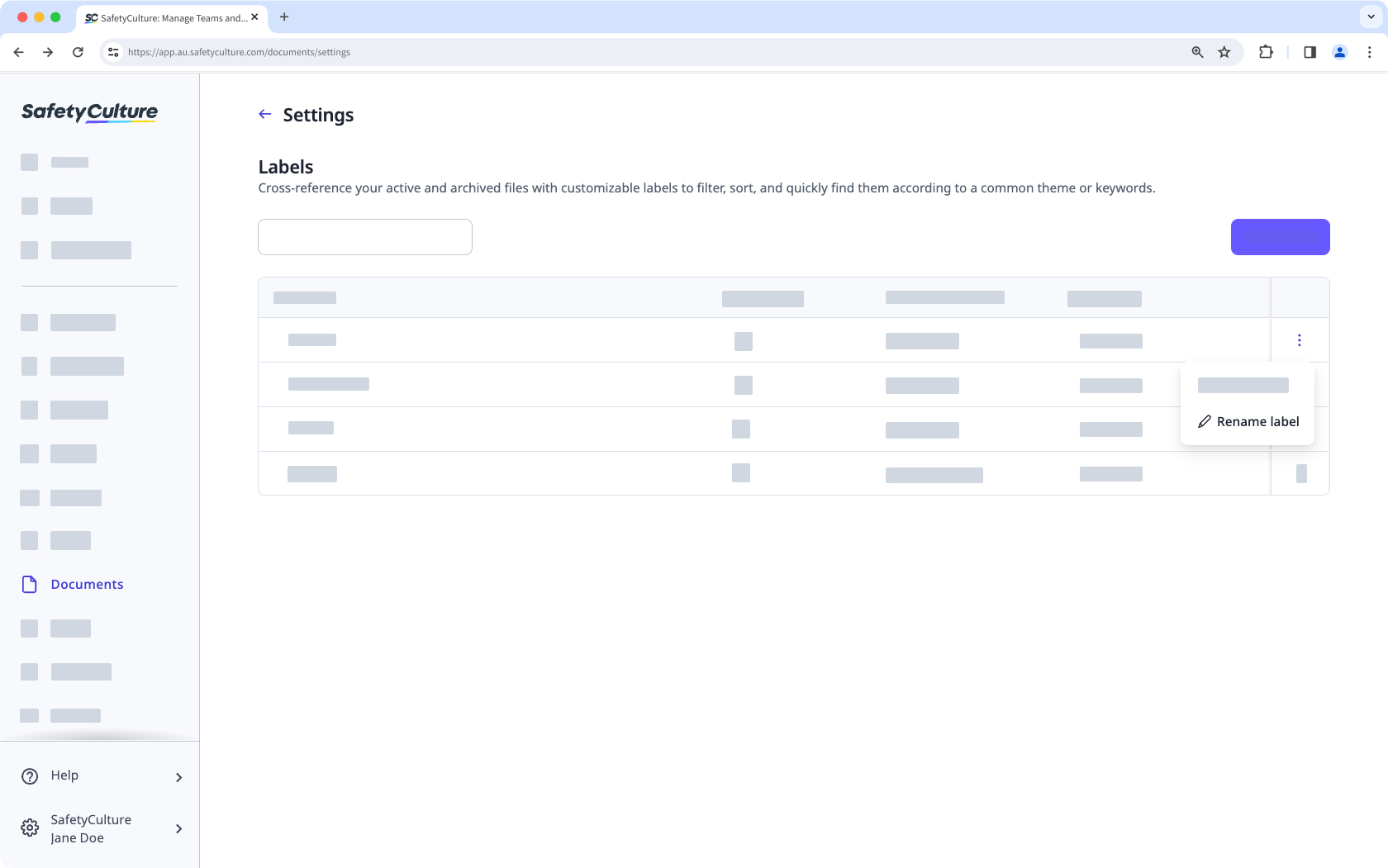
In the pop-up window, enter the label name and click Rename.
Delete a file label
Select Documents in the sidebar or select it in More.
Click Settings on the upper-right of the page.
Click at the right-hand side of the label and select Delete label.
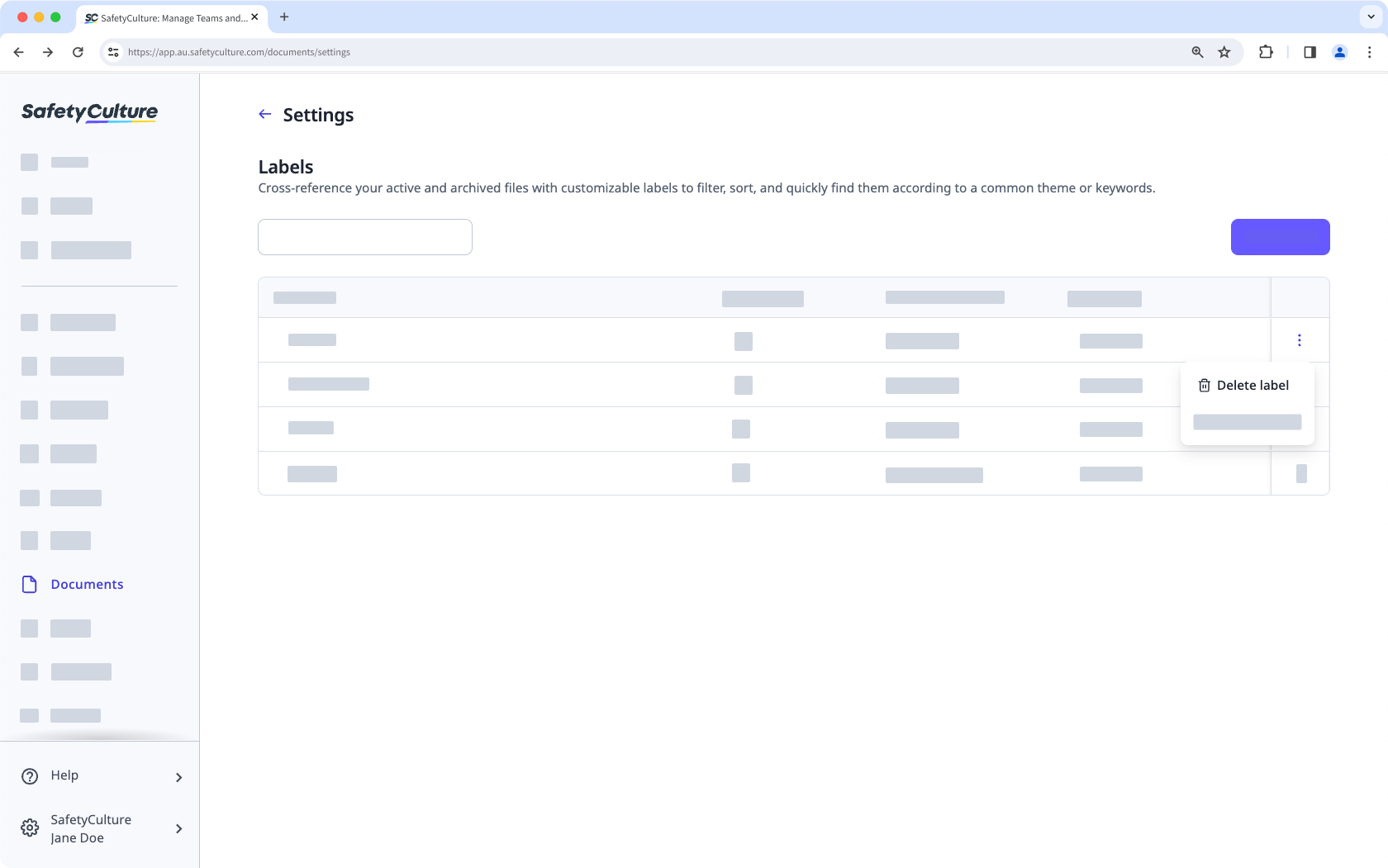
In the pop-up window, click Delete.
Deleting a file label will remove it from all the files it’s been added to.


