Why manage access for contractors?
Managing access for contractor workers from each company in your organization helps ensure secure collaboration and protects your organization’s data in SafetyCulture. When you add contractor companies to your organization, their workers are added as users in guest seats, which means they will have limited access across the platform. They can only view items directly assigned to them, such as onboarding workflows, helping prevent access to internal data like templates, inspections, actions, or issues that are not related to their role.
By managing contractor access, company managers can ensure that only authorized workers have visibility over specific data in the organization, maintaining data security and allowing contractors to safely and effectively perform their roles without compromising internal operations.
Best practices for working with contractors
Prepare your organization before working with contractors
Before inviting contractor workers to your organization, it’s important to set up your organization first by managing what they can access. This ensures contractors can view what they need without compromising visibility or control over your organization’s data.
Start by managing default template and inspection access in your organization, which helps you control who can access newly created templates without manually adjusting permissions each time. You can configure this depending on how much you want to limit visibility, whether to template creators only, or to automatically provide access to all users, including contractors you add to your organization.
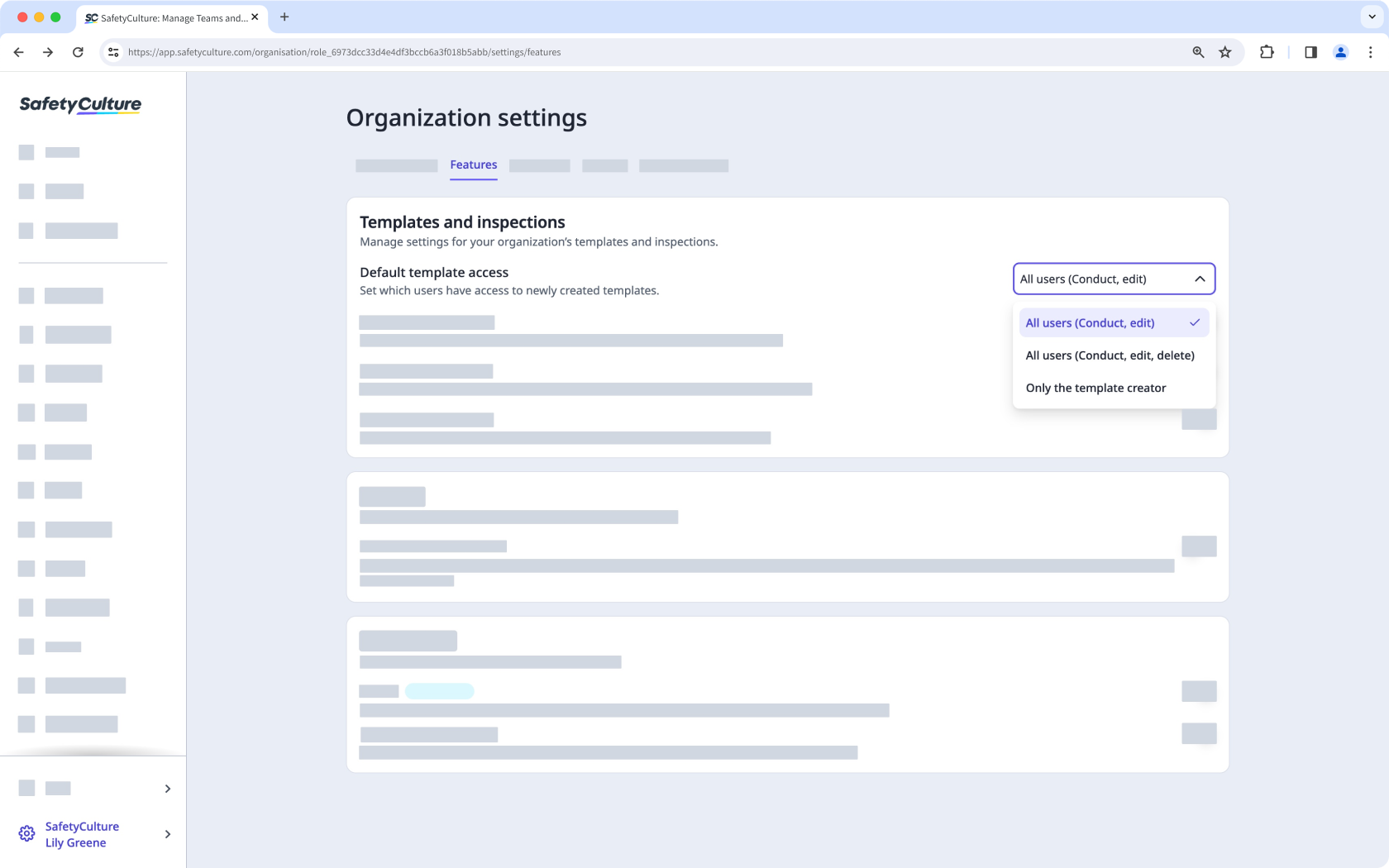
Configure access across the platform
After setting up your default template and inspection access, review how access is managed across the platform. Use the table below as a quick reference for where and how access is managed for each feature.
Feature | How access is managed | How to limit access |
|---|---|---|
Actions | Actions created in inspections and inspection reports follow the access rules of the associated inspection. Users assigned to the action are automatically given access. Standalone actions are accessible to all users in your organization by default. You can configure access for standalone actions from the action settings page. | Set the inspection’s access rules to share results only with specific users or groups. Set standalone actions to be visible to site members or collaborators only. |
Analytics | Dashboards can be shared with groups or anyone in the organization with "Analytics: Manage" permission. | Share dashboards only with relevant groups with "View" access level. |
Assets | Assets are accessible to everyone in the organization by default, but access can also be restricted based on a user's site membership. | Set asset access by site membership to limit visibility to relevant sites. |
Documents | Access can be managed at both the folder and file levels. Subfolders and files inherit access from their parent folder by default. | Grant access only to specific users or groups, and override inherited folder access when needed. |
Heads Up | Assign heads ups to specific users, groups, or sites. | Assign only to relevant users, groups, or sites. |
Inspections | Access to inspections is managed at the individual inspection level. Inspection access can be shared with users or groups and assigned different access levels. | Share inspections only with relevant users or groups and configure their access levels as needed. |
Investigations | Access to investigations is managed per investigation and can be shared with users who have View or Edit access. | Share investigations only with relevant users. |
Issues | Issue access is managed through Issue Category settings, where you can control who can report, view, or edit issues by user, group, or site. | Configure issue categories to give access only to relevant users, groups, or sites. |
Templates | Access is managed at the template level using access rules, where you can control which users and groups can conduct inspections. | Restrict template access to selected users, groups, or sites. |
Training | Courses can be assigned to specific users, groups, sites, or everyone in your organization. | Choose "Only selected" when assigning a course to target only relevant users, groups, or sites. |